Reversal of Fund Claim
Reversal of Fund Claim
Entry path:Sany CRM Sales - -> Order - -> PaymentManagement- -> In Transit Claim or Spare Parts Management --> Sales --> Payment Management --> In Transit Claim or After-Sales Service --> Field Service --> Payment Management --> In Transit Claim
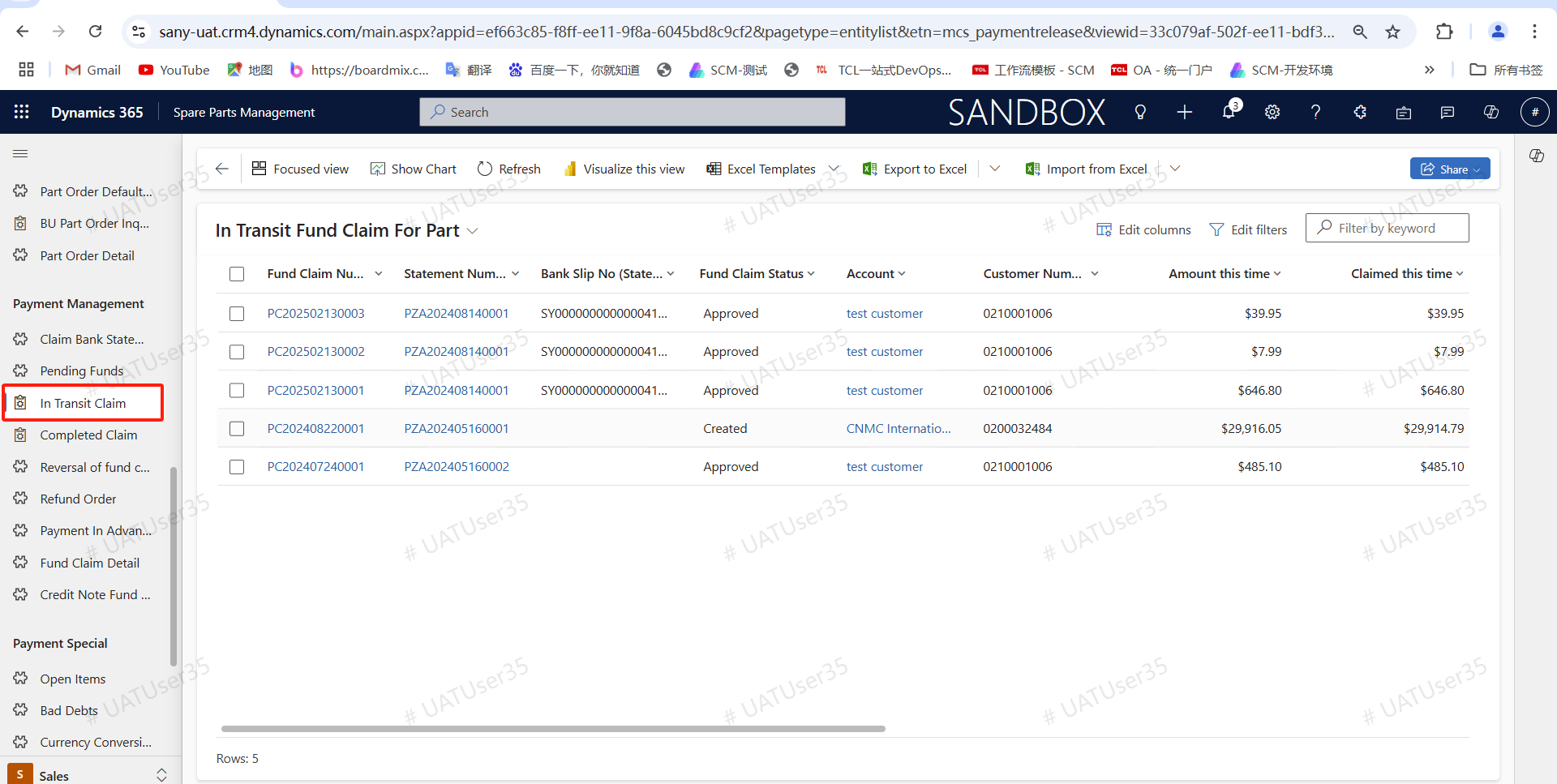
Click on the approved/finished accessory payment voucher (PS: Check the payment voucher details, if there are multiple accessory vouchers in the payment voucher, only check the accessory vouchers that need to be written off and then click on the write-off)
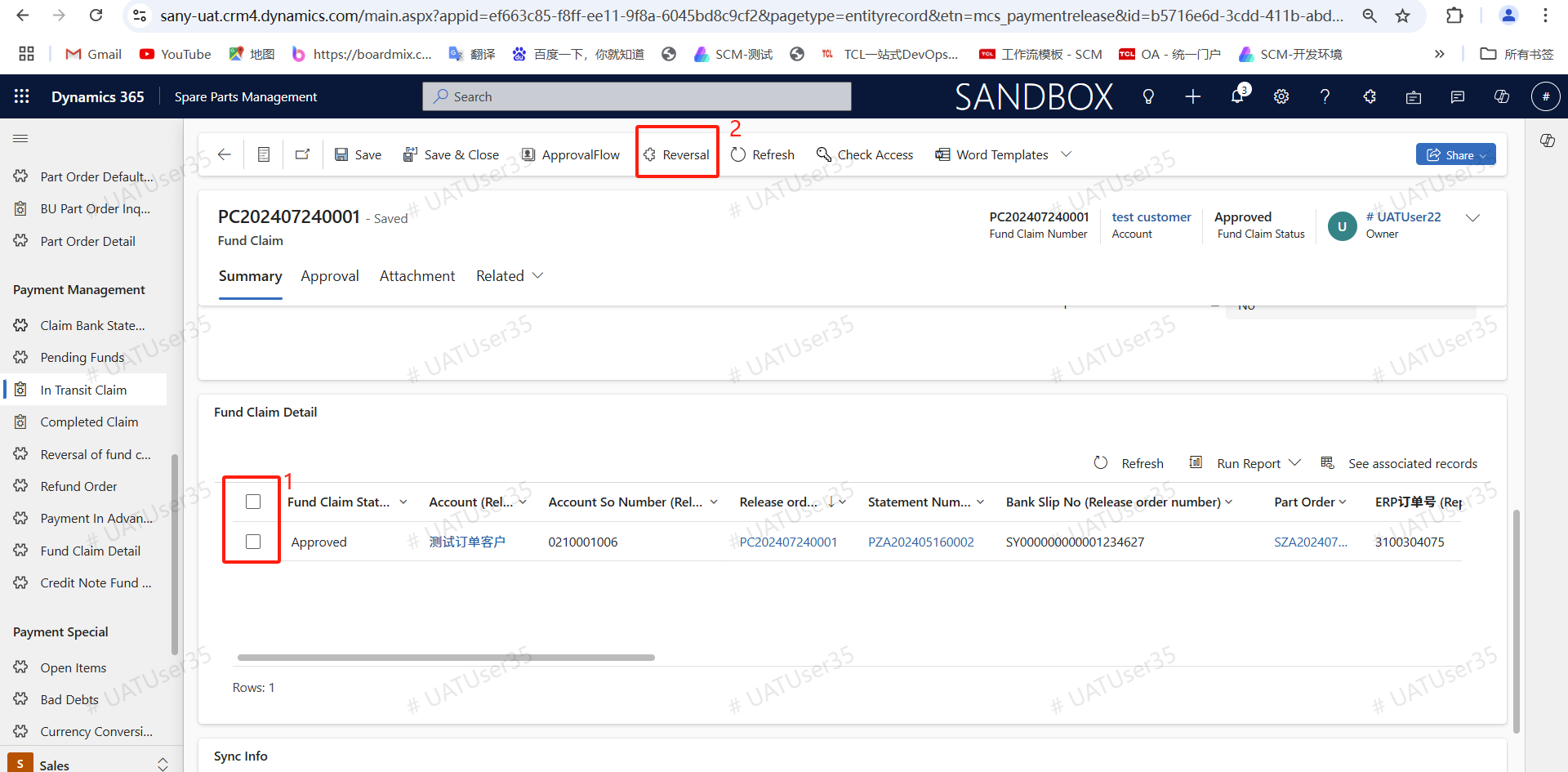
The system will pop up a successful offset window and generate a payment offset document.
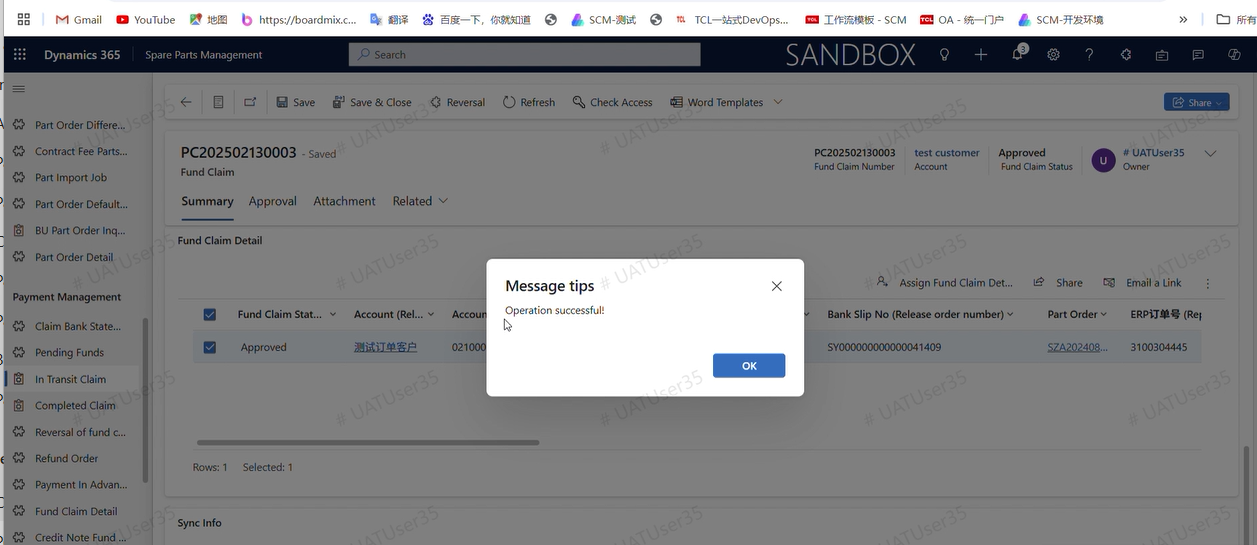
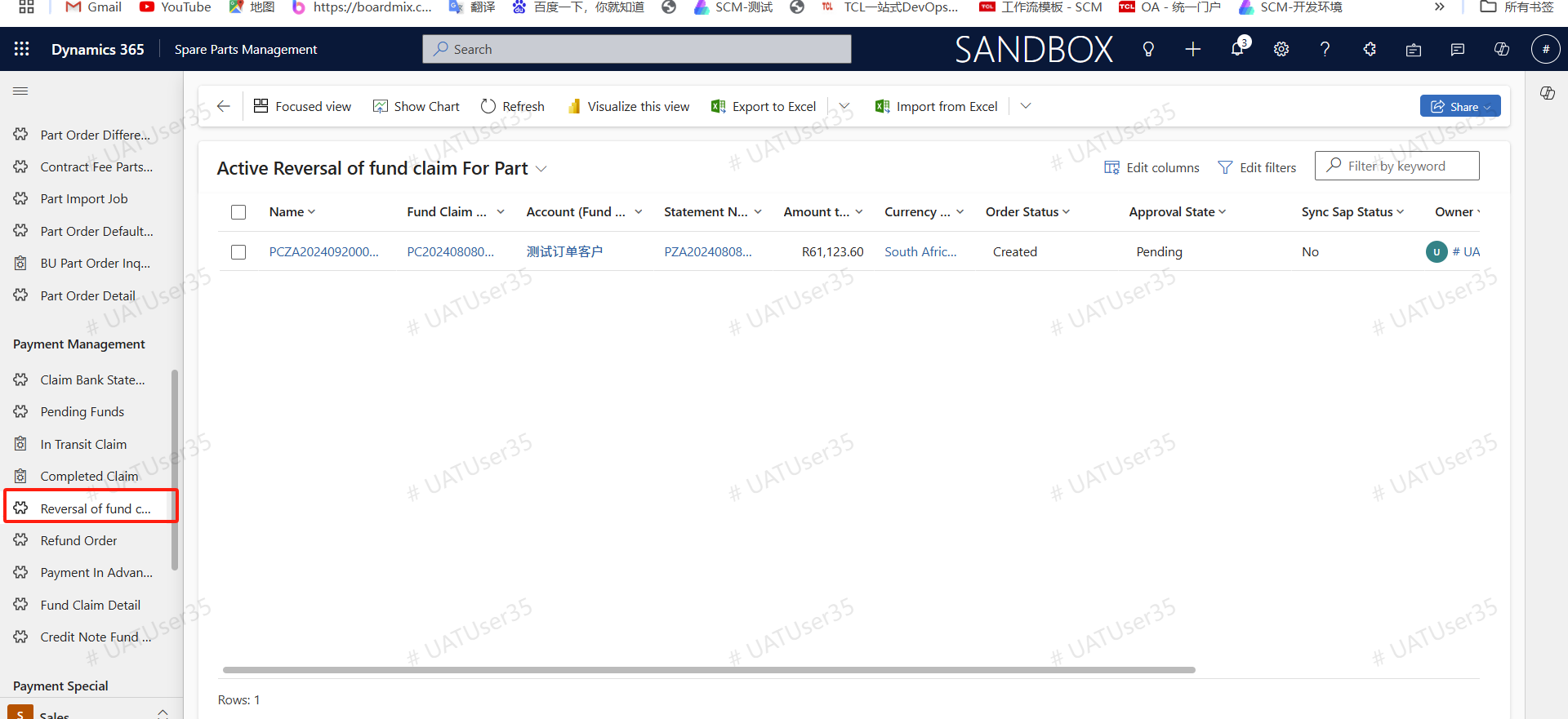
Reversal of Fund Claim Viewing Path: Sany CRM Sales - -> Order - -> PaymentManagement- -> Reversal of Fund Claim or Spare Parts Management --> Sales --> Payment Management --> Reversal of Fund Claim or After-Sales Service --> Field Service --> Payment Management --> Reversal of Fund Claim
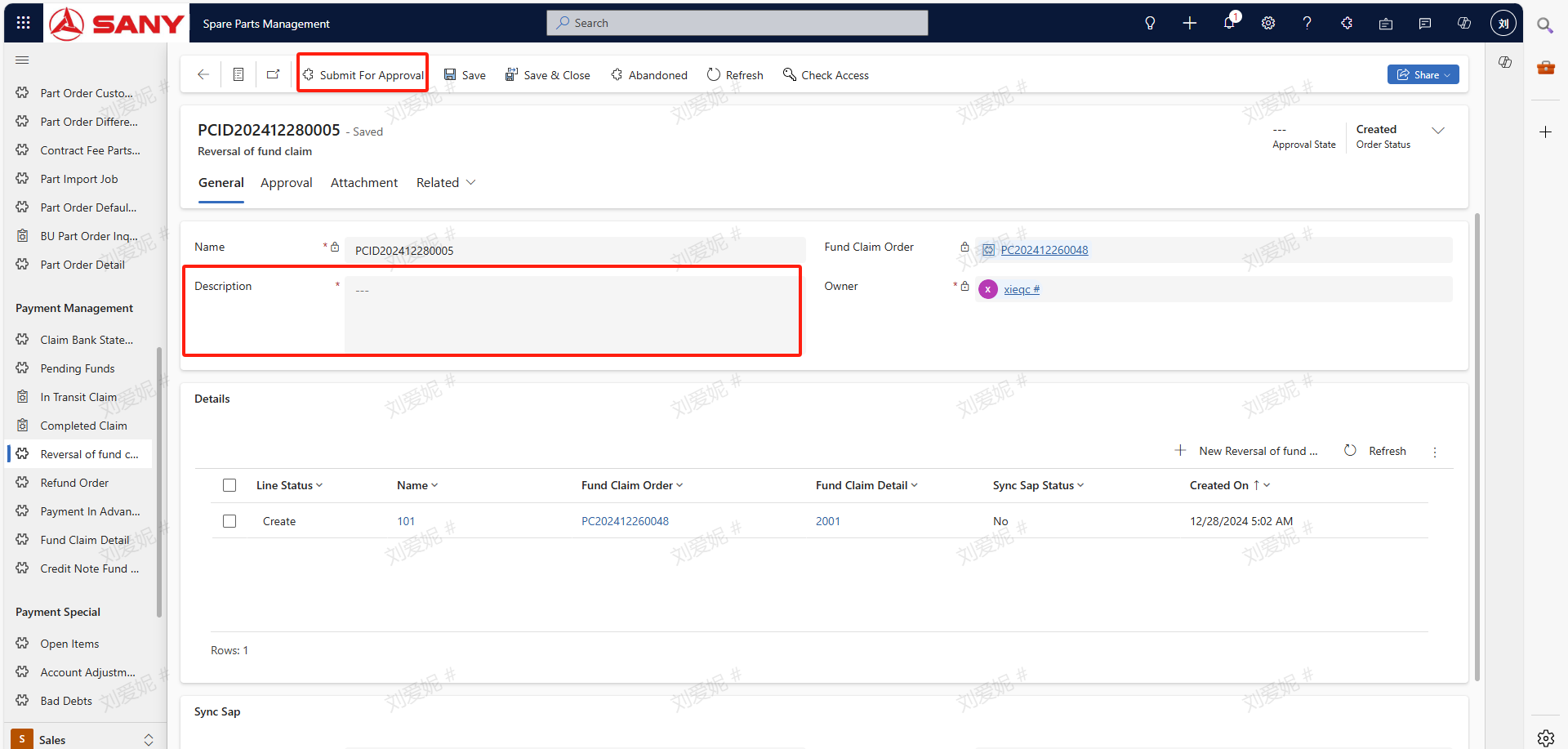
Click on the generated payment cancellation form, the entry personnel needs to fill in the cancellation reason. After confirming there are no errors, click the "Submit" button. (PS: After submitting for approval, the cancellation form is updated from the creation status to the approval pending status)
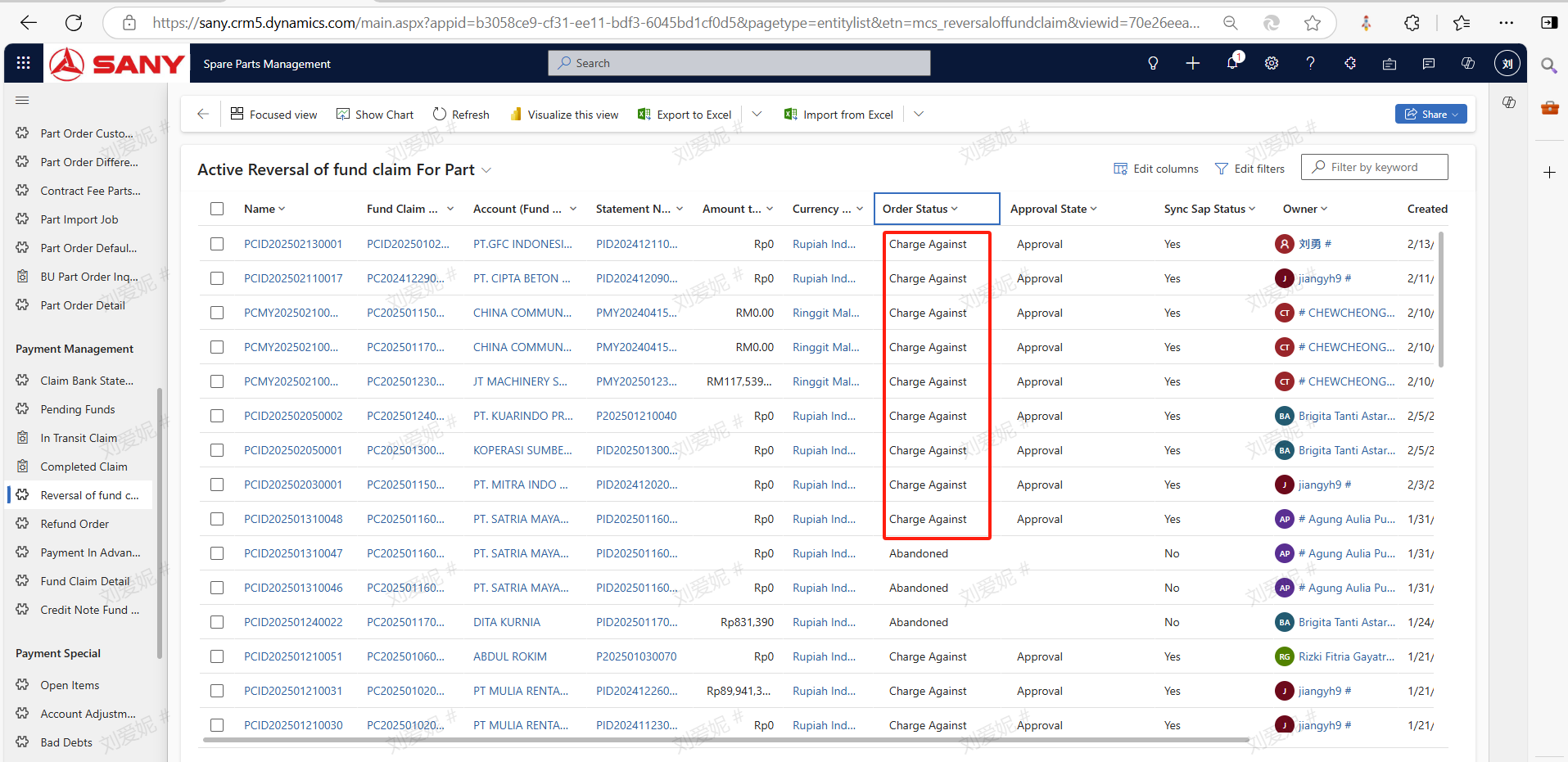
Upon completion of financial approval, the status of the CRM write-off order is updated from "under approval" to "approved".
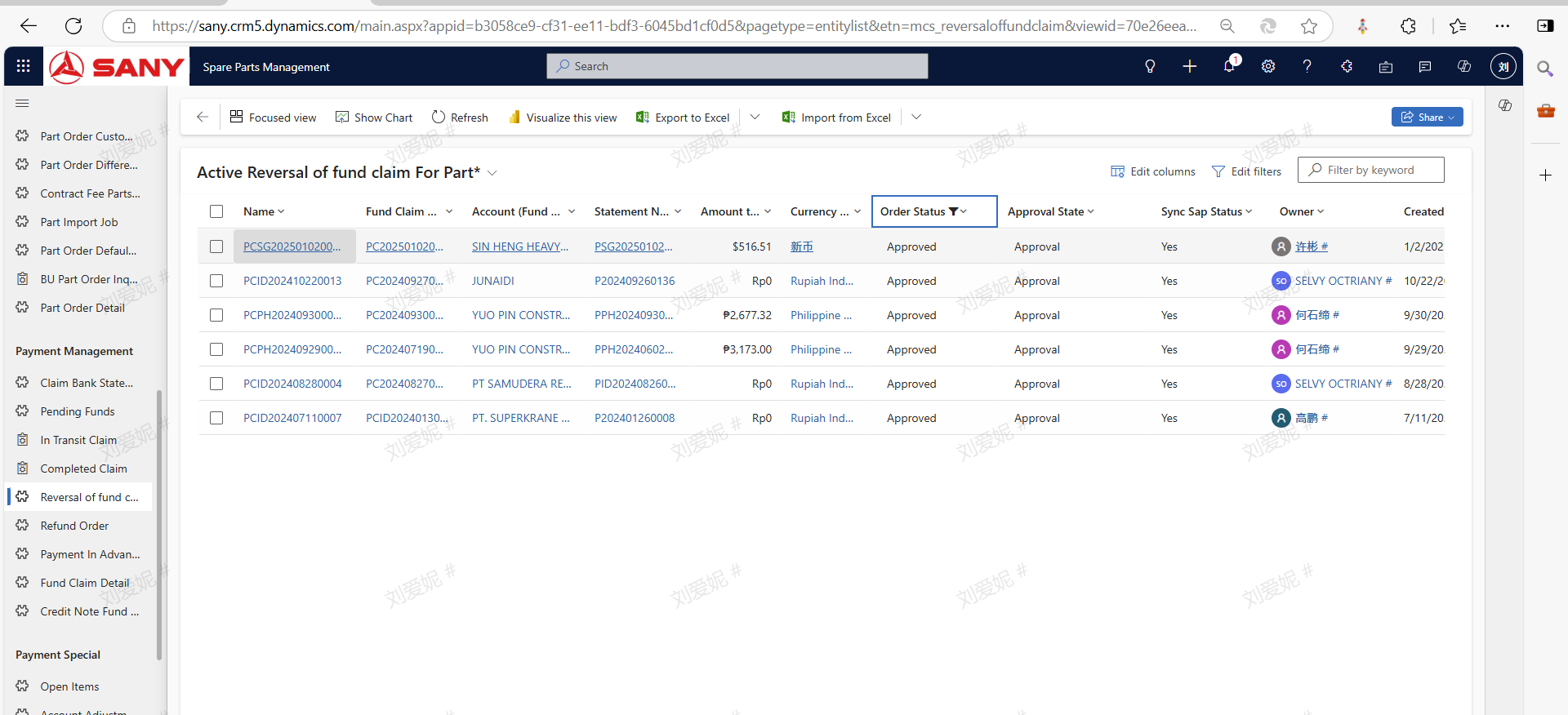
After the finance department performs the reversal operation in ERP, the status of the CRM reversal order is updated from approved to reversed (PS: At this point, the order amount will be released and the occupied transaction amount will return to the original bank transaction stream, allowing for a new disbursement).
Video Demo
Reversal of Payment In Advance Order
(PS: After the generation of advance payment, the offsetting of the payment document must be performed first)** Input personnel: Main unit: Sales Representative/Sales Management Accessories: Accessories Specialist/Acessories Manager Service: Service Engineer
Entry path: Sany CRM Sales - -> Order - -> PaymentManagement- -> Payment In Advance Order or Spare Parts Management --> Sales --> Payment Management --> Payment In Advance Order
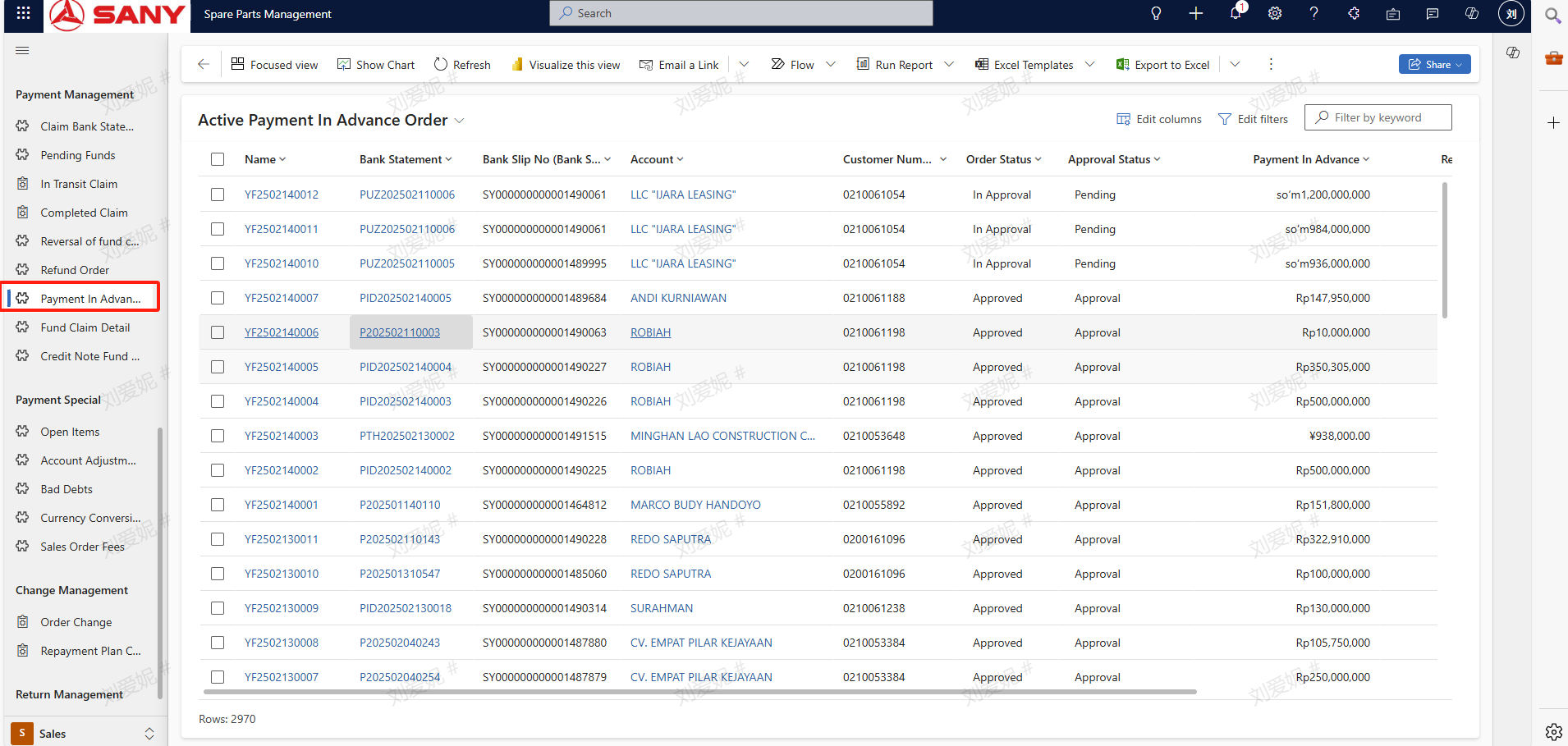
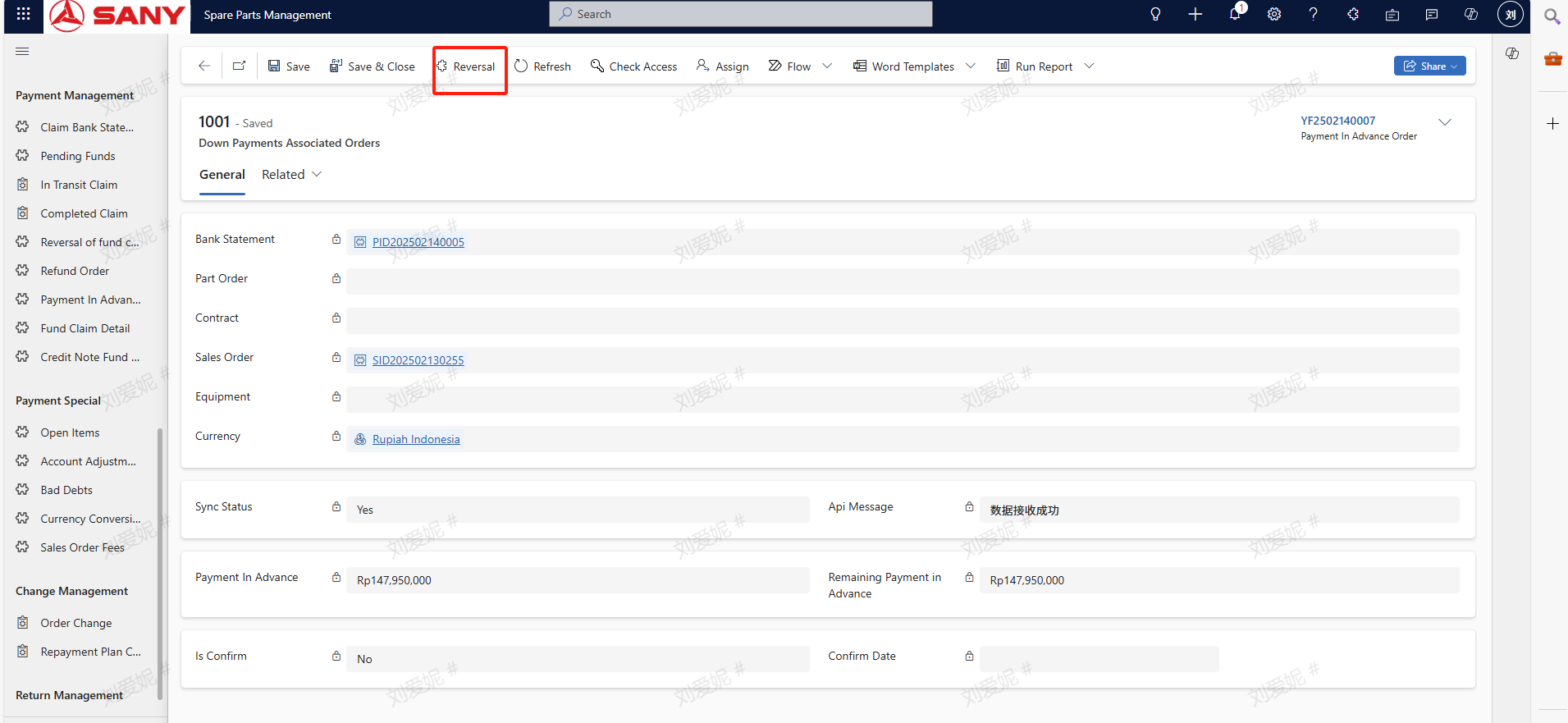
Click on the approved advance payment voucher to view information such as the status of the advance payment, the amount of advance payment, and the remaining advance balance (PS: If the advance payment amount does not equal the remaining advance balance, it indicates that the advance payment voucher has generated a payment voucher. It is necessary to first write off the payment voucher before writing off the advance payment voucher).
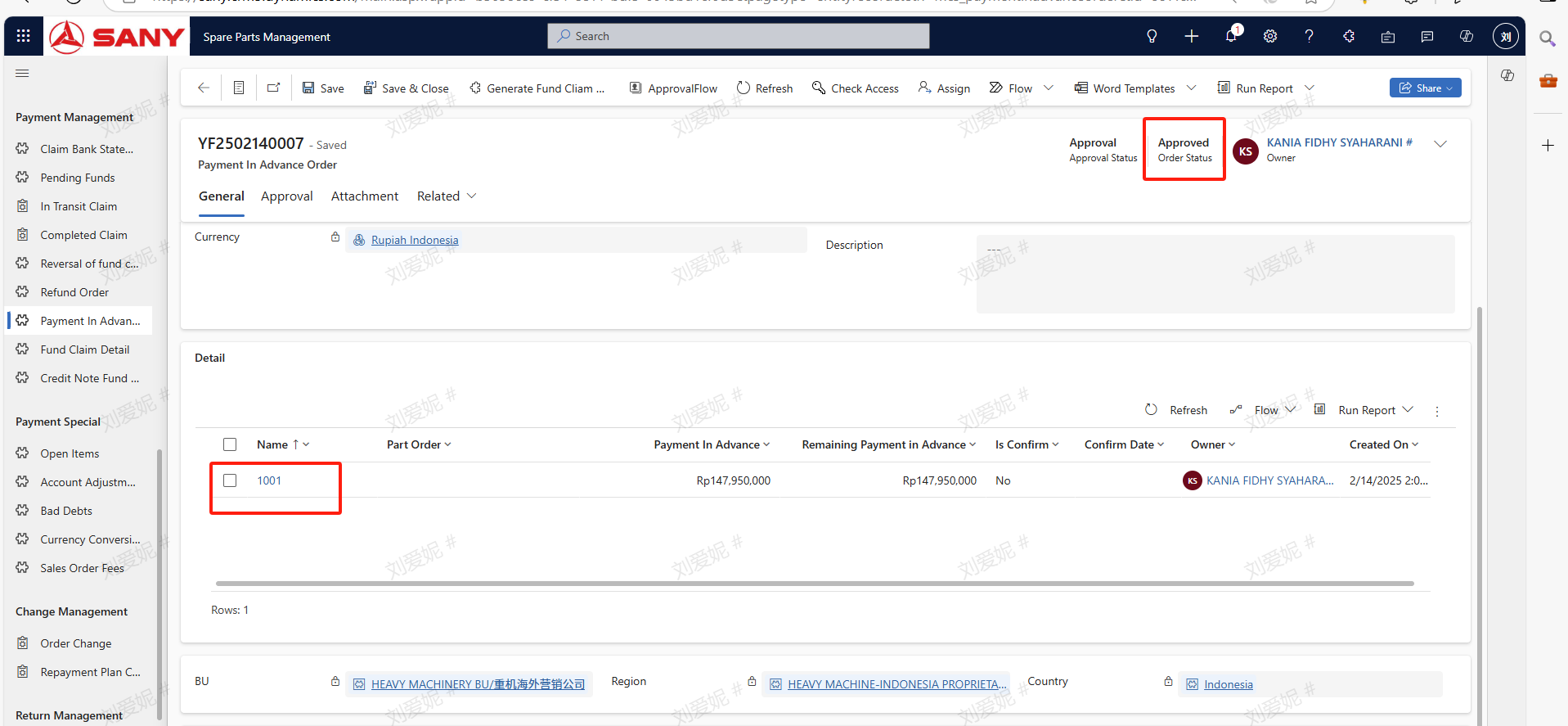
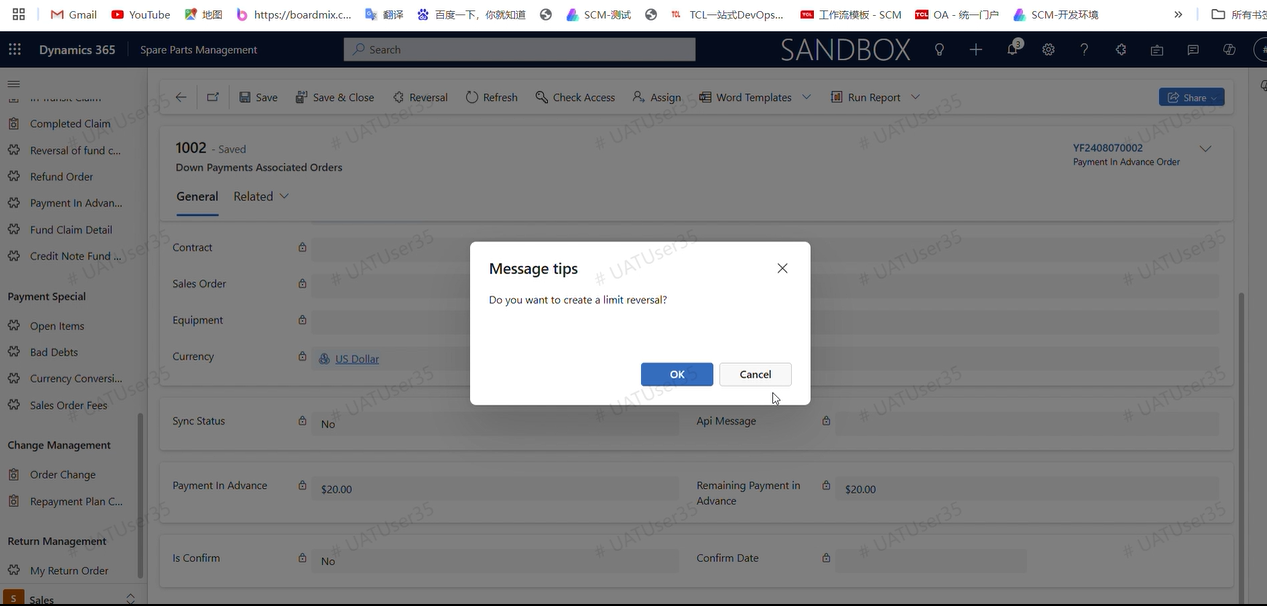
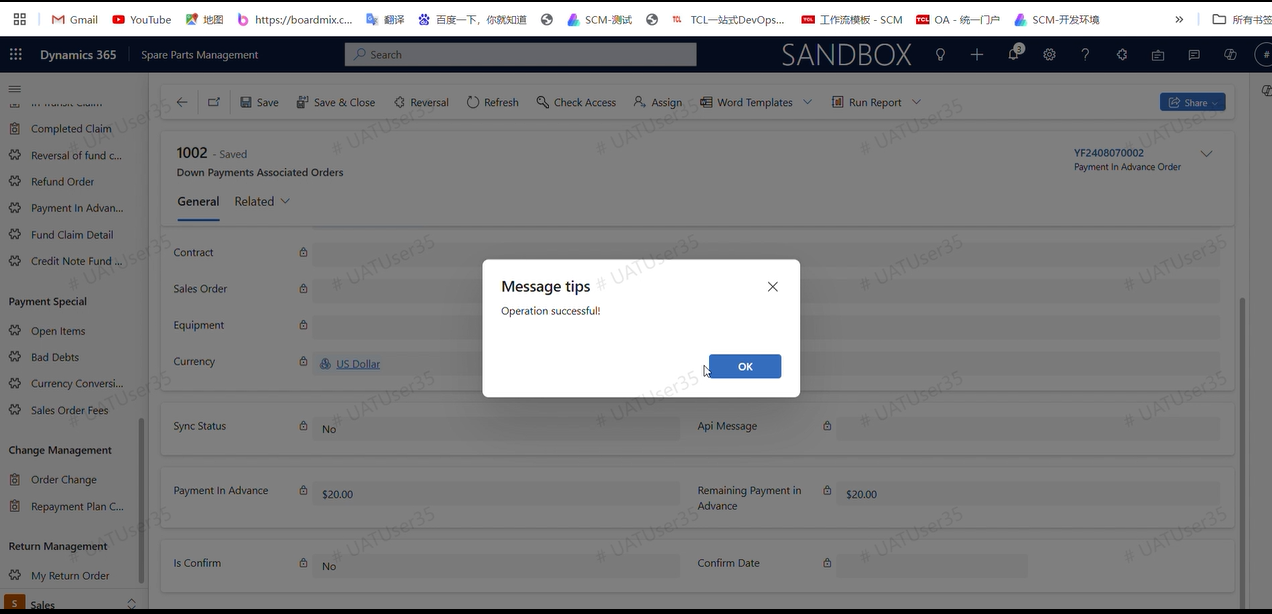
Click into the prepayment detail, click the reverse button, a pop-up asking if you want to create a backdated application/cancellation will appear; click confirm to cancel the prepayment.