Claim Bank Statement
Claim Bank Statement
Entry Path: Sany CRM Sales - -> Order - -> PaymentManagement- -> Claim Bank Statement or Spare Parts Management --> Sales --> Payment Management --> Claim Bank Statement or After-Sales Service --> Field Service --> Payment Management --> Claim Bank Statement
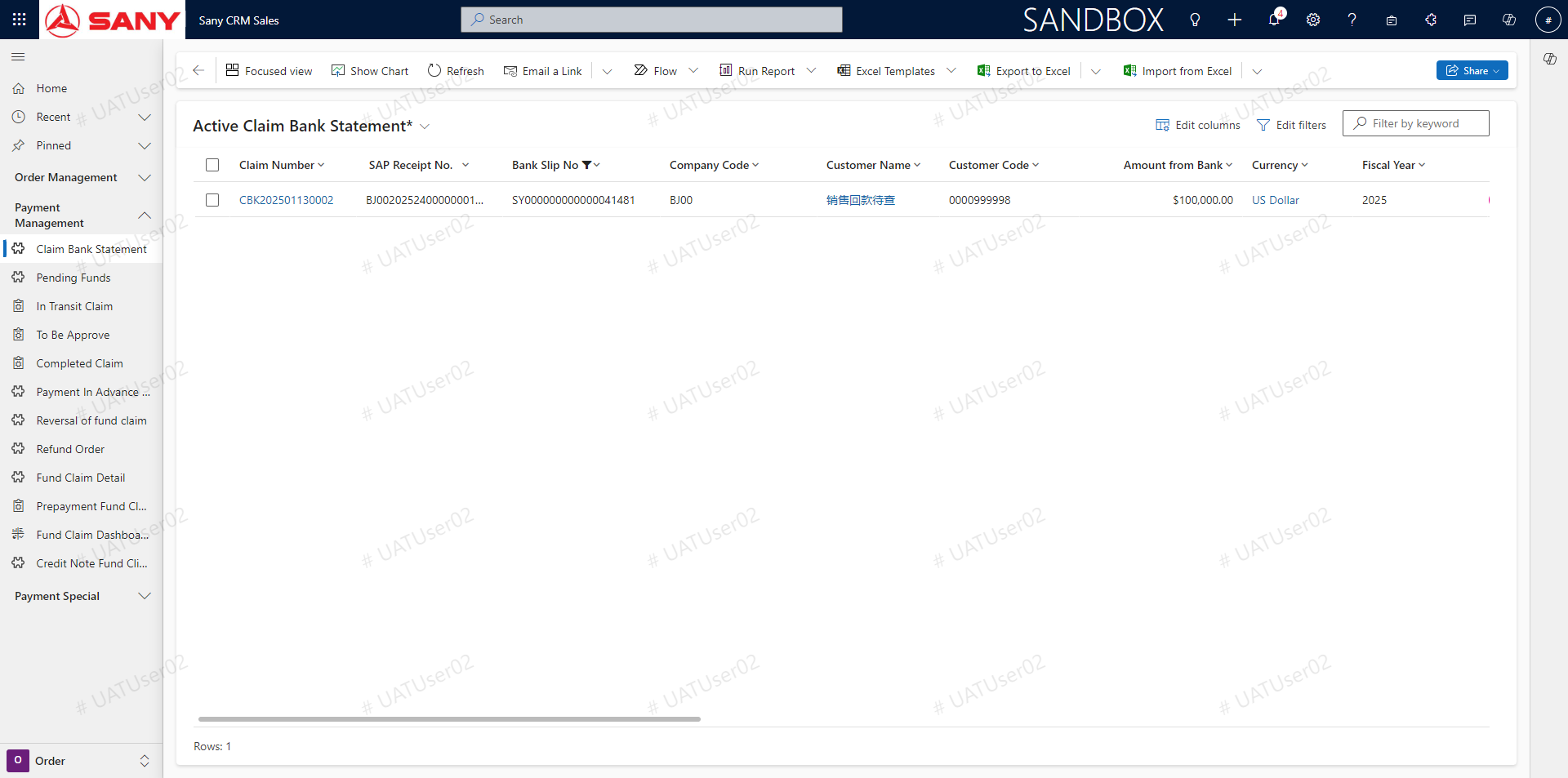
Click the menu to Claim Bank Statement- -> Screening bank serial number / search box search bank serial number- -> Click the claim button to successfully claim the bank serial number (PS: After the bank statement is successfully claimed, it will jump to the bank statement interface, and operate the settlement at the bank statement interface)
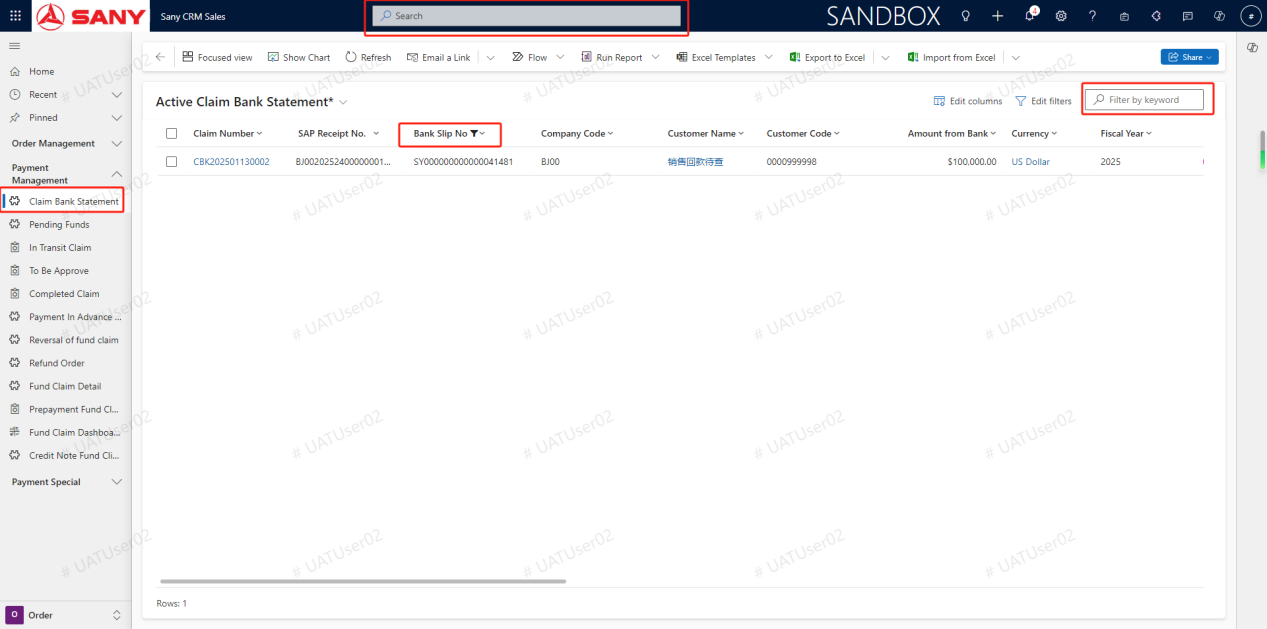
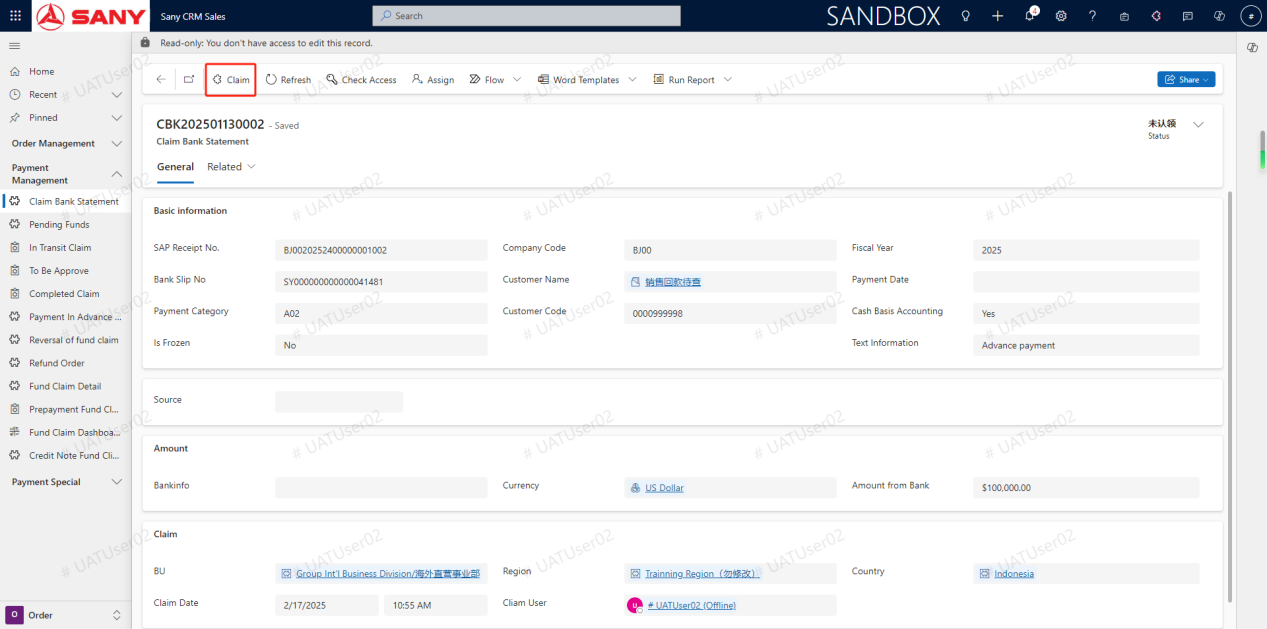
Video Demo
FAQ
Question: Click the Claim Bank Statement button indicates the combat unit or country where you have not expanded the customer; please use the customer sales organization extension function, and then claim the bank statement.
Resolution: Click the customer expansion area in the menu of the customer section, click the new button, enter the customer number on the bank flow, save and then click synchronization