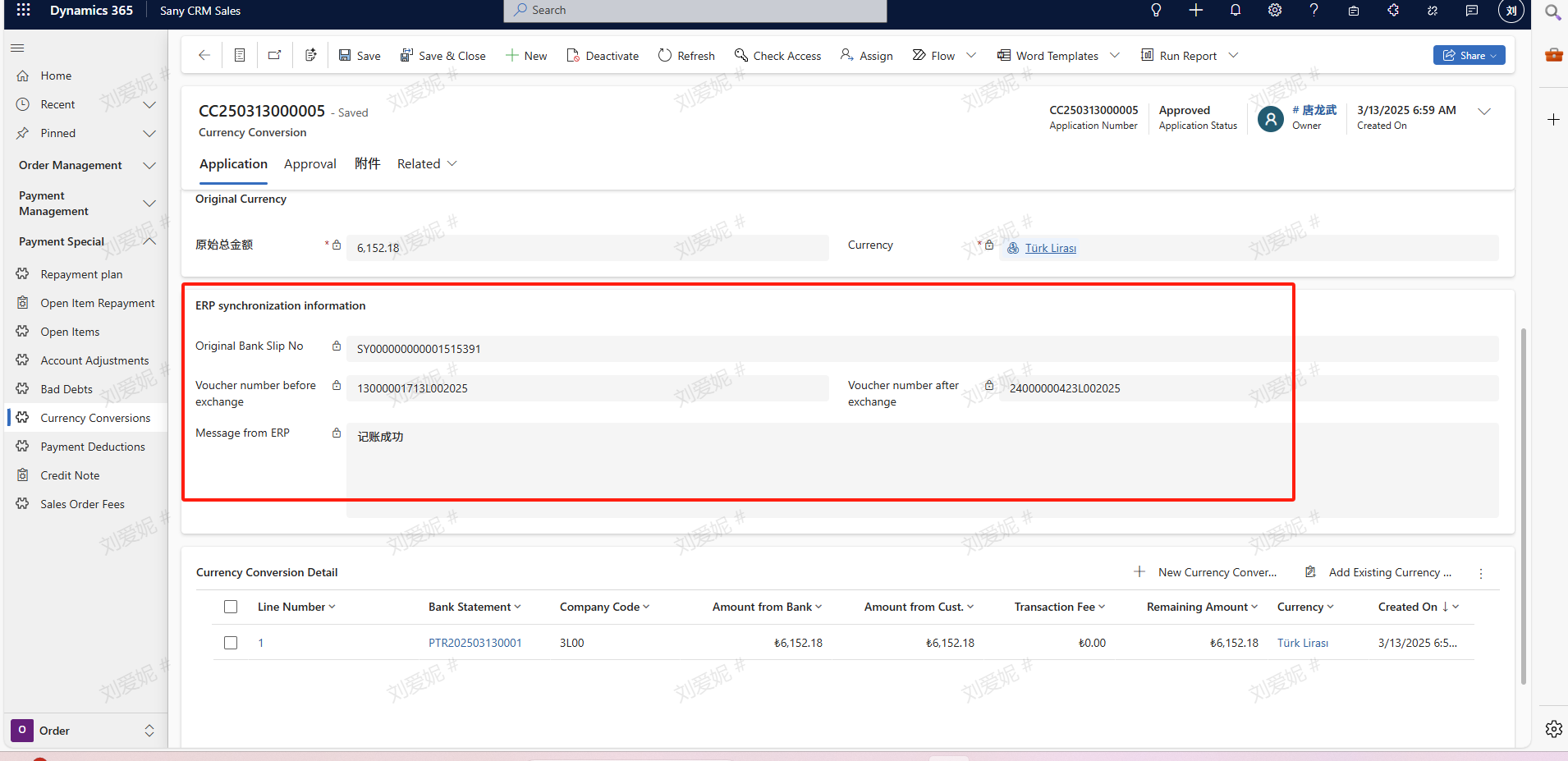
Currency Conversion
Currency Conversion
Entry Path: Sany CRM Sales - -> Order - -> Payment Special- -> Currency Conversion or Spare Parts Management --> Sales --> Payment Special --> Currency Conversion
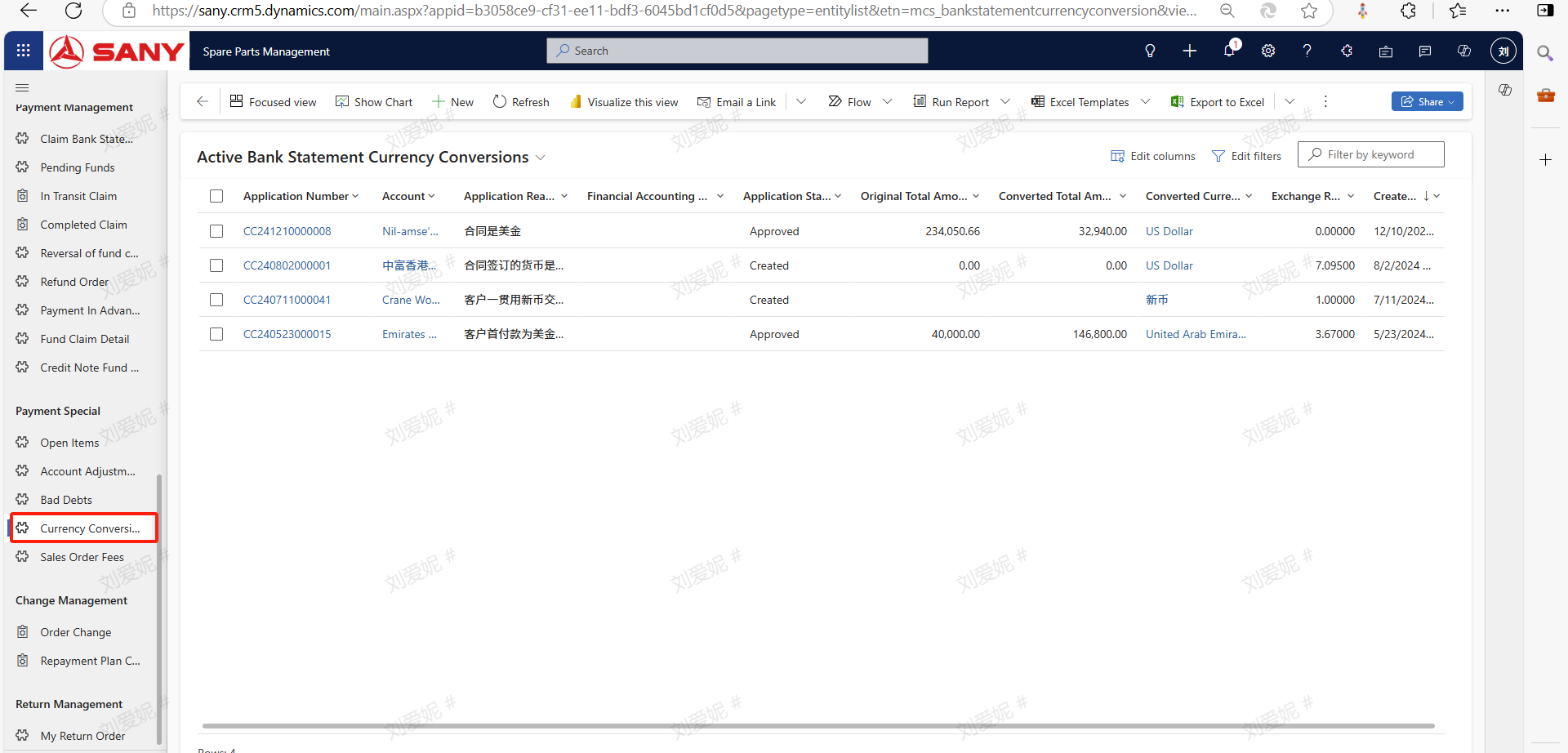
Click the "New" button.
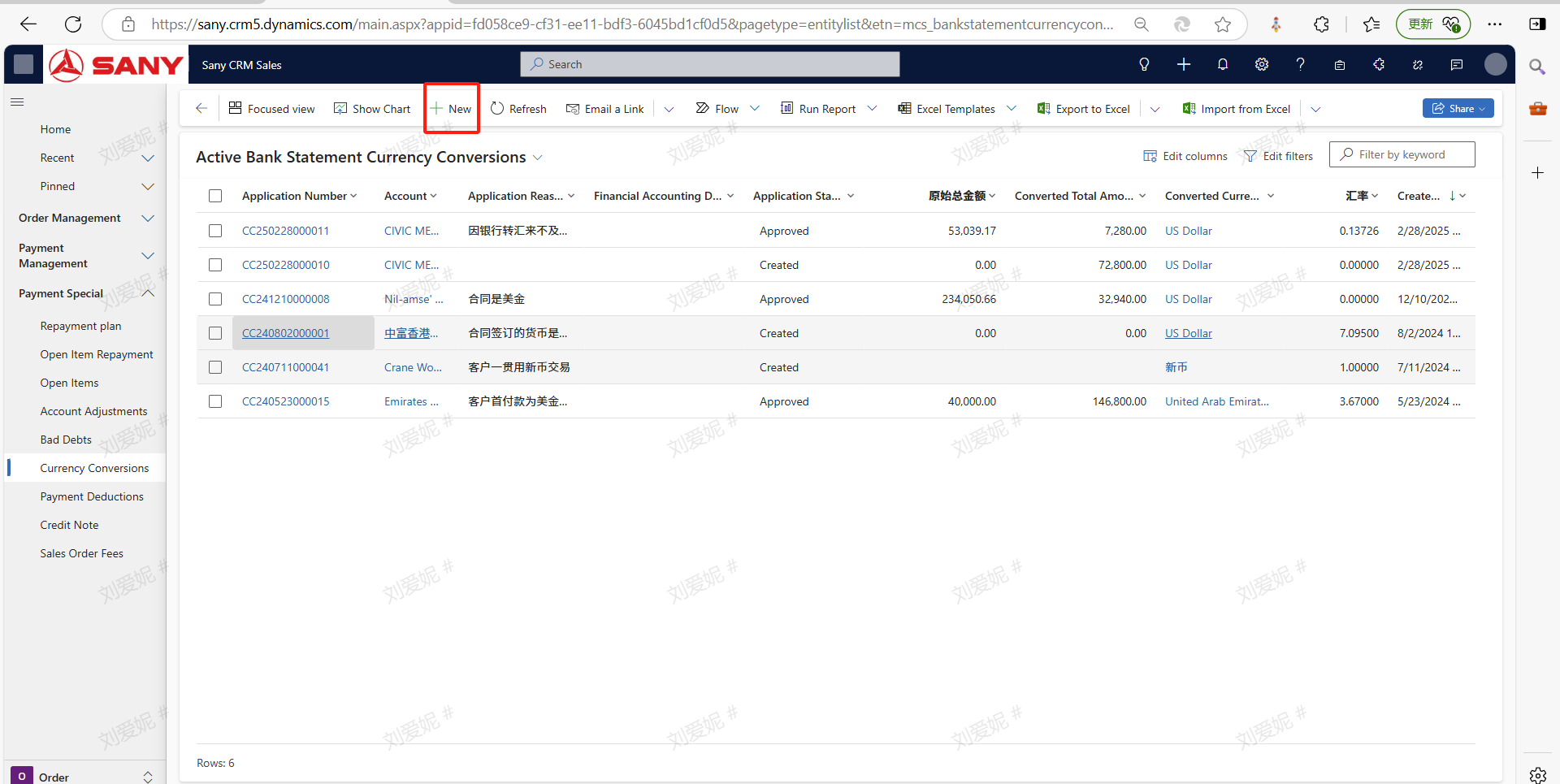
Mandatory information: ① Fill in the "Account" field with the customer, fill in the "Application Reason" field with the content ② Select the original "Currency" ③ Select "Convert Currency" ④ Fill in the "Total Amount After Conversion" ⑤ Click the "Save" button
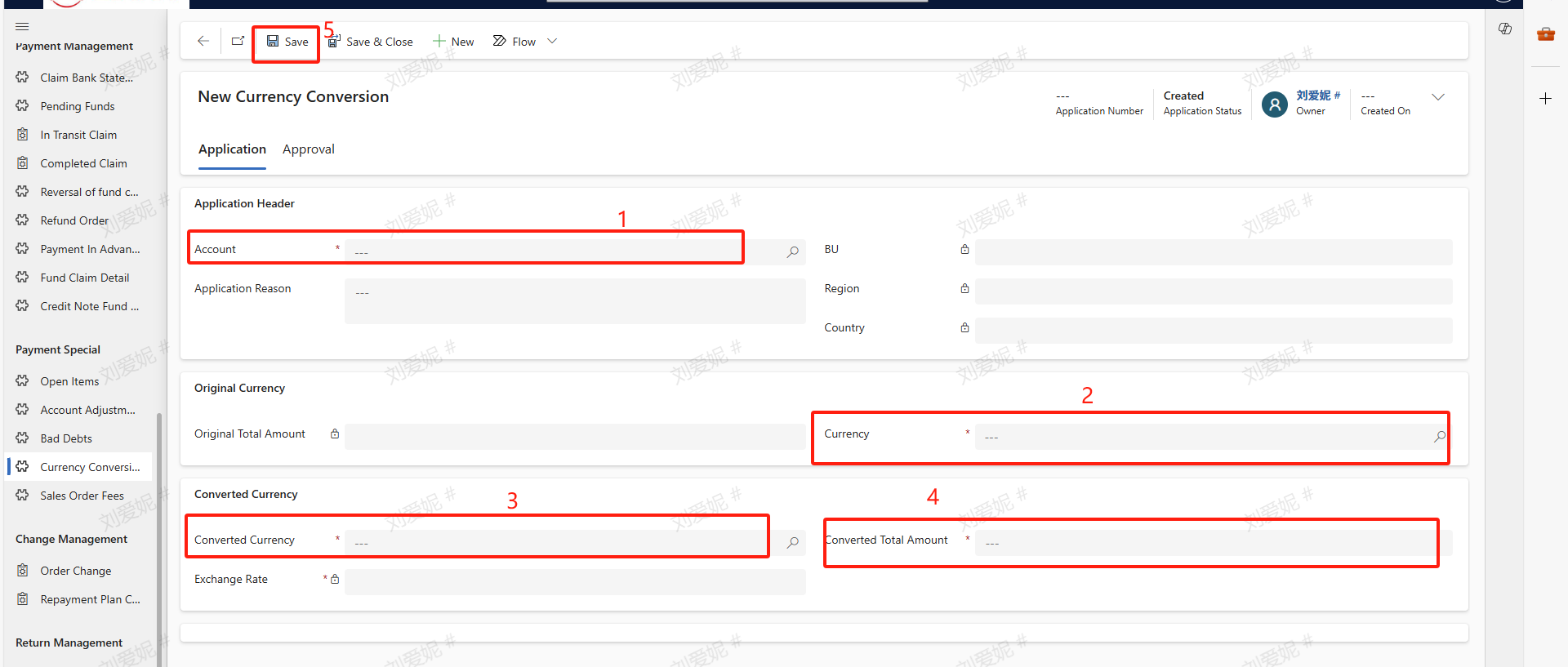
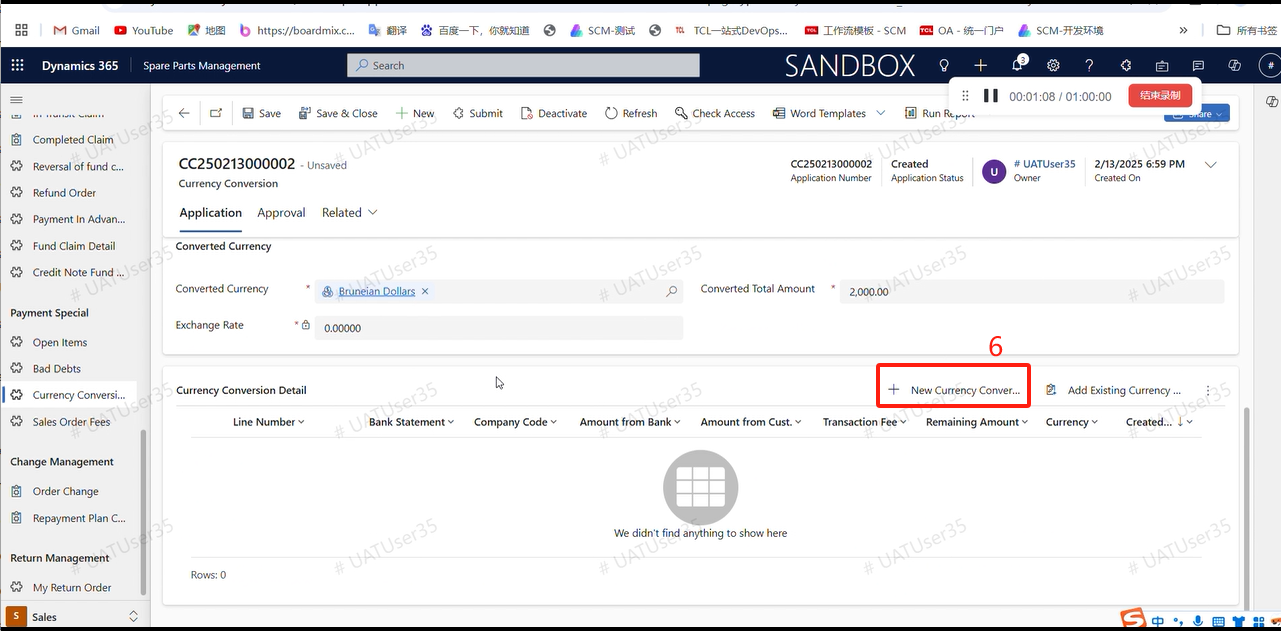
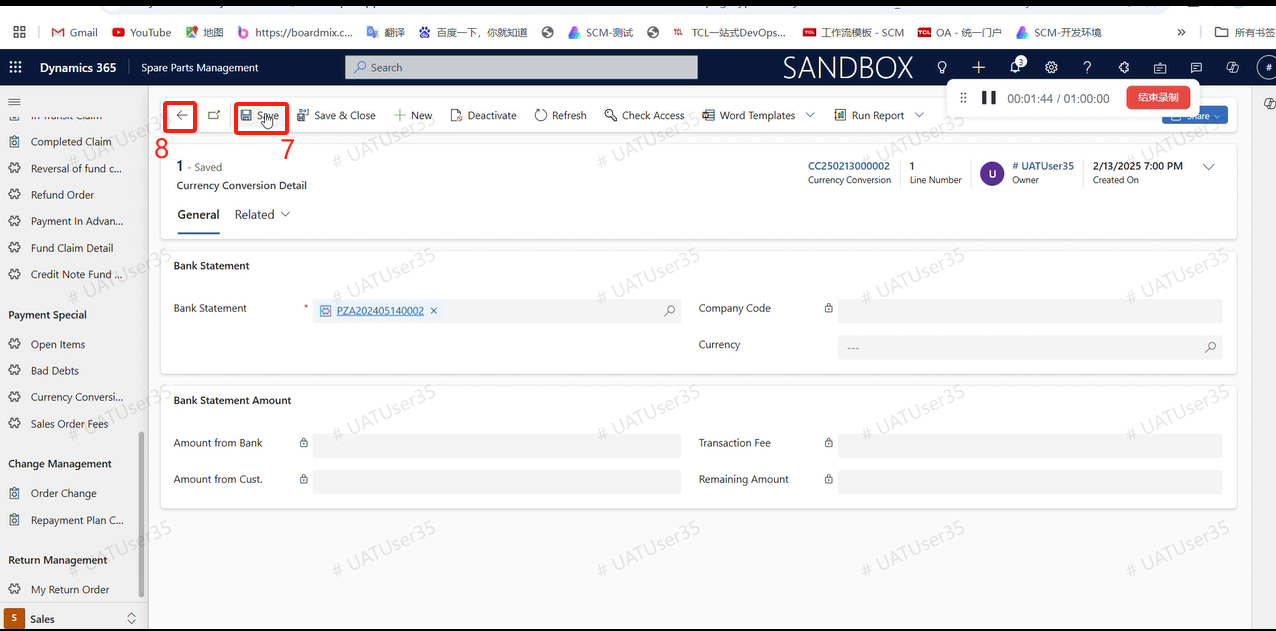
After filling in the required information and saving, ⑥ click on the field "New Currency Exchange Details",⑦ select "Bank Statement" in the field "Bank Statement" (PS: After the bank statement is claimed, the handling fee needs to be filled in) ⑧ save and return, or click "Save and Close"⑨ click the button "Submit" for financial approval. (PS: You need to contact the financial personnel to push the new statement after conversion.)
After the financial approval, the information returned by the ERP will be reflected in the currency conversion interface. Copy the updated voucher and send it to the finance department. Contact the finance department to push an updated transaction to the CRM, then the re-disbursement can be made.