Dealer Purchase Order
Part Purchase Order
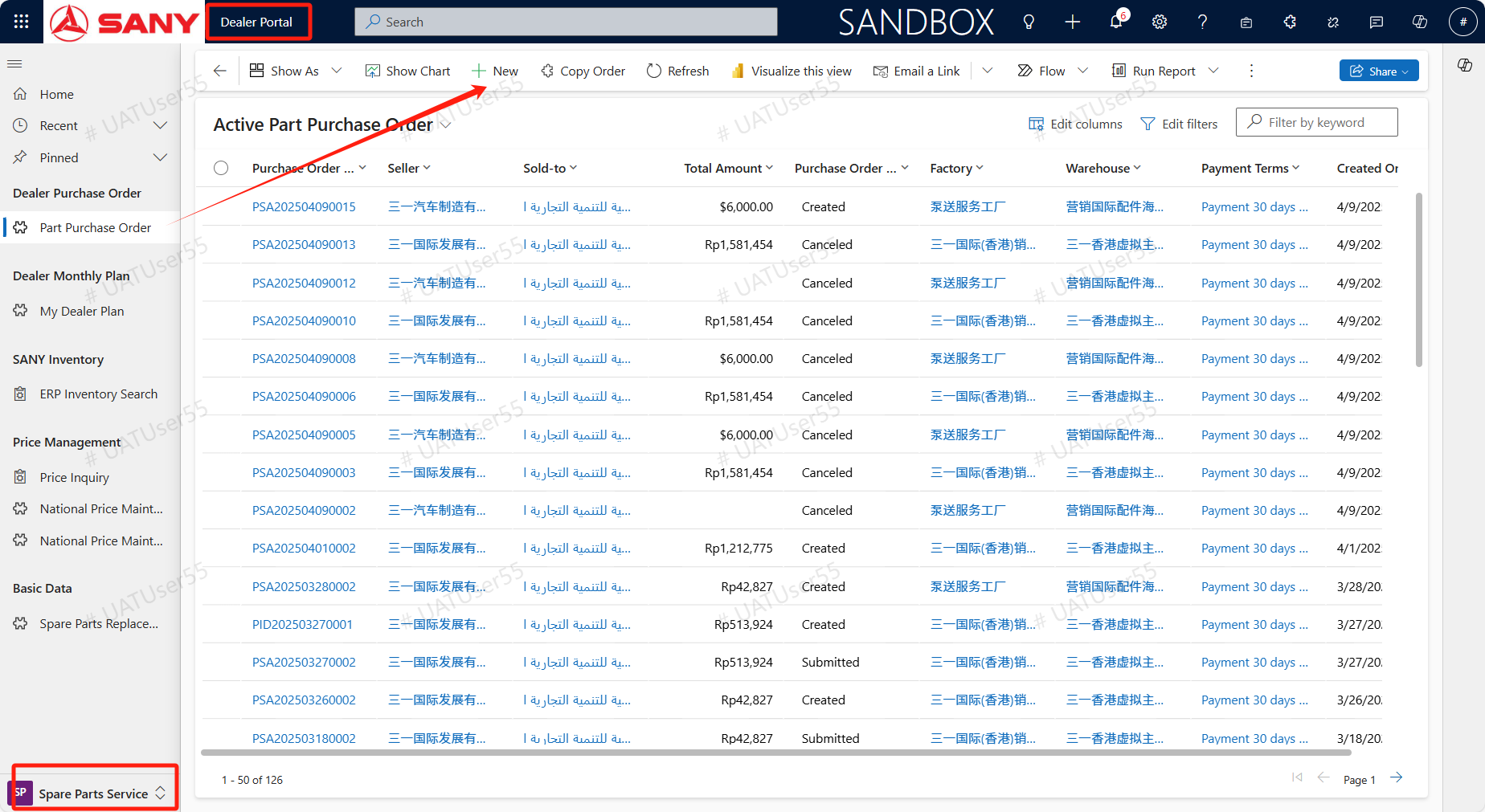
Path:Dealer Portal --> Spare Parts Service -> Dealer Purchase Order --> Part Purchase Order
Create Part Purchase Order
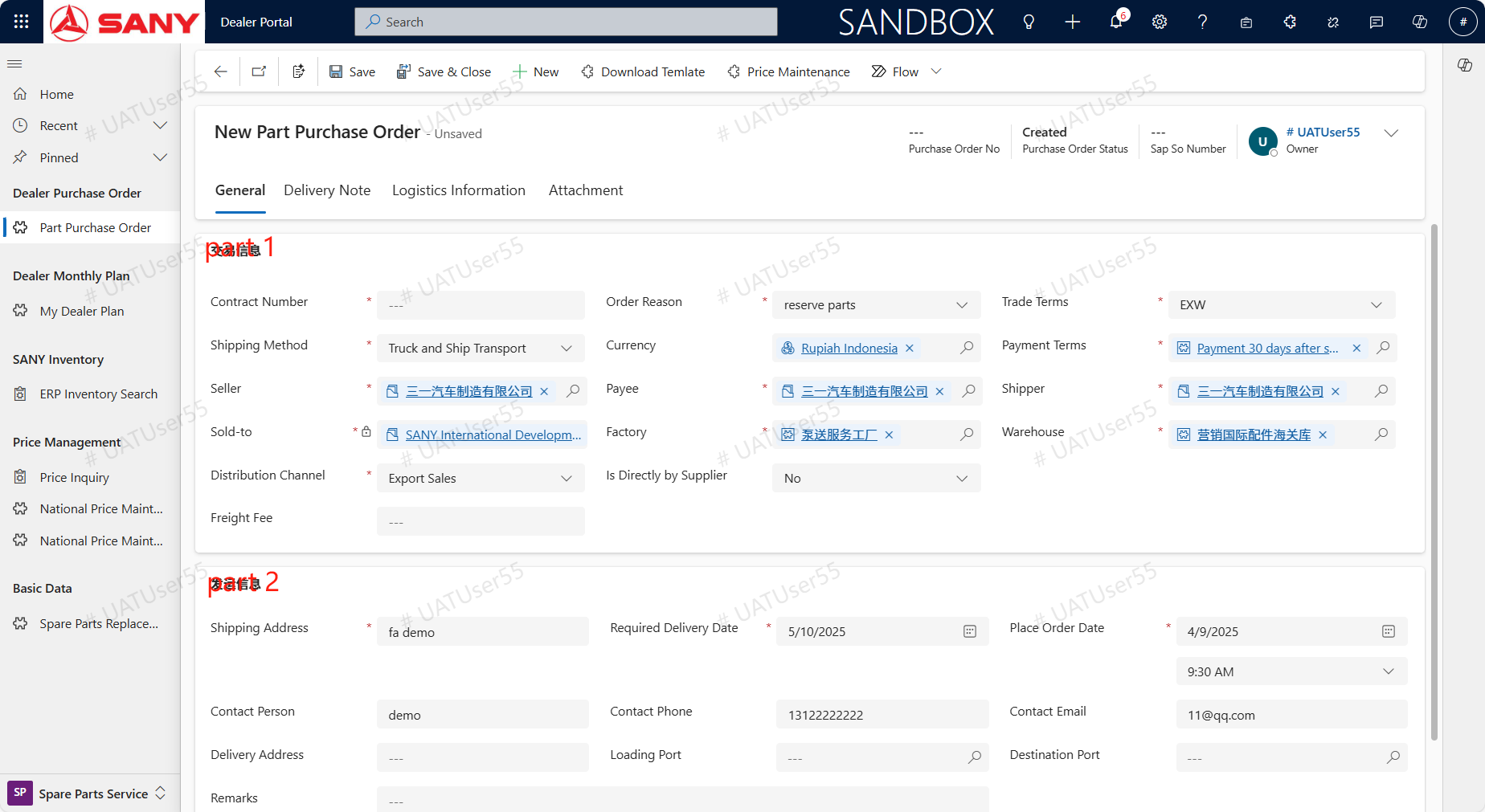
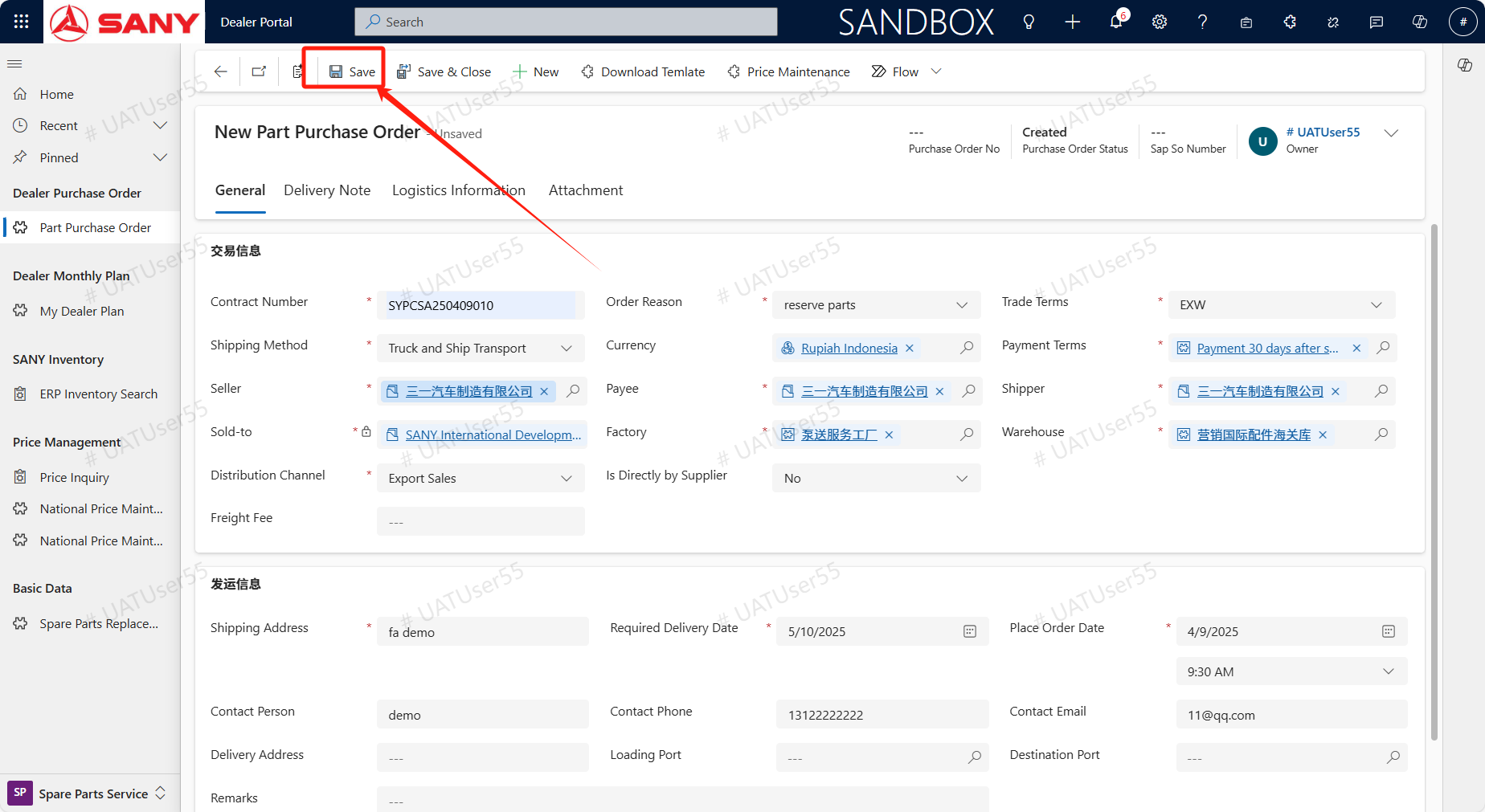
Dealers can initiate purchase requests from the subsidiaries or business units. Open the Part Purchase Order menu,click +New and open a new purchase request page. After opening, the page is divided into two parts: transaction information and shipping information.
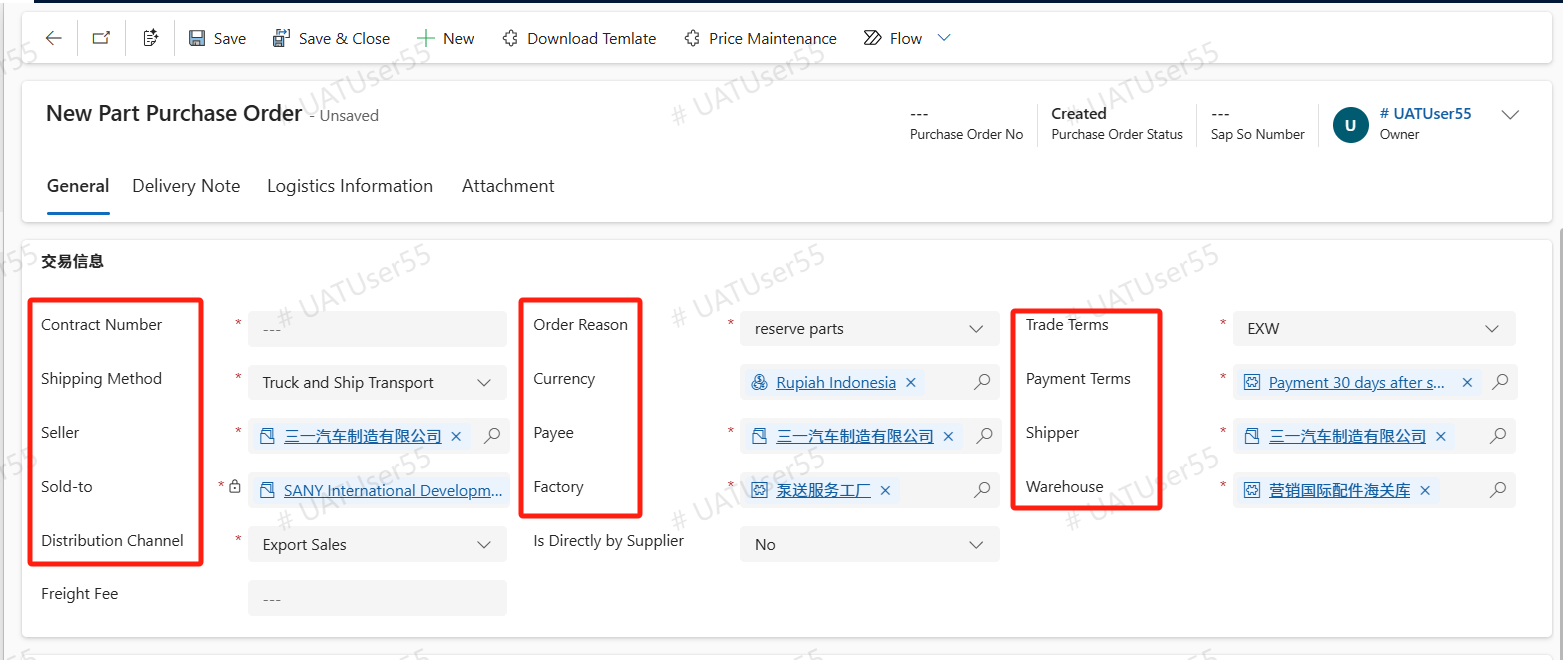
In part 1,besides the Sold-to that filled in by system automatically and can't be changed,other key information such as Seller, Payee, Shipper, Factory, Warehouse, Currency, Order Reason,Trade Terms, Payment Terms, Distribution Channel, etc., need to be checked again. If the default value does not match request, the correct value must be modified and selected by oneself. In addition, the Contract Number is required, and the Freight Fee and Is Directly by Supplier should be filled in according to actual needs. Regarding Distribution Channel, if purchased from the domestic region, the channel is direct sales otherwise is export sales.
In part 2,maintain the Shipping Address,Required Delivery Date. The Place Order Date is default as current date. Other information like Contact Person,Delivery Address can fill in by your needs according to the actual scenario.After all information maintaining,click Save and follow below steps to Add Material.
Add Material
Add Material manually
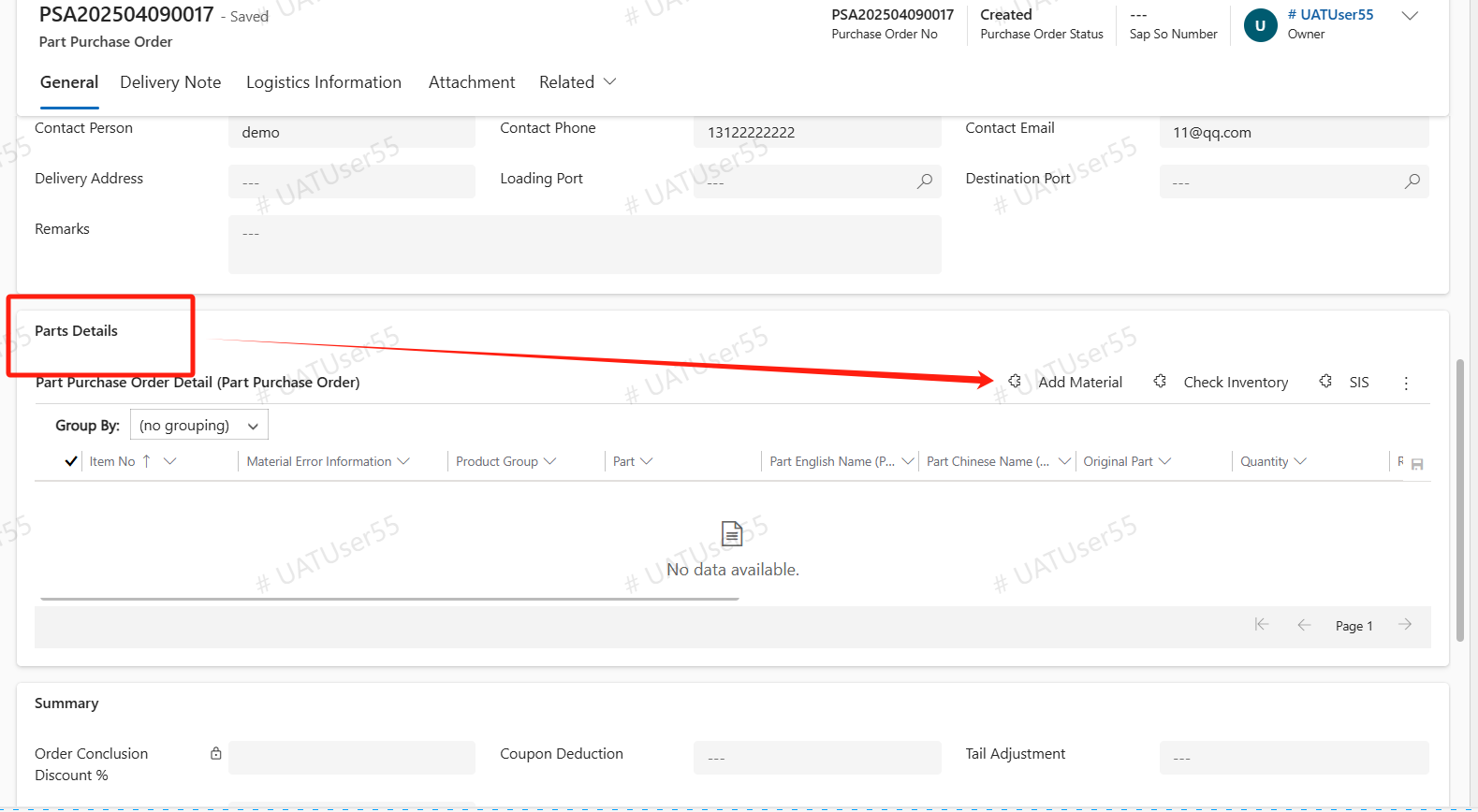
After saving,the page will show Parts Details column. Click Add Material, enter the Part code need purchased in the box in the upper left corner or copy the code from an Excel file and paste it into this box, the max number is 50 at a time.
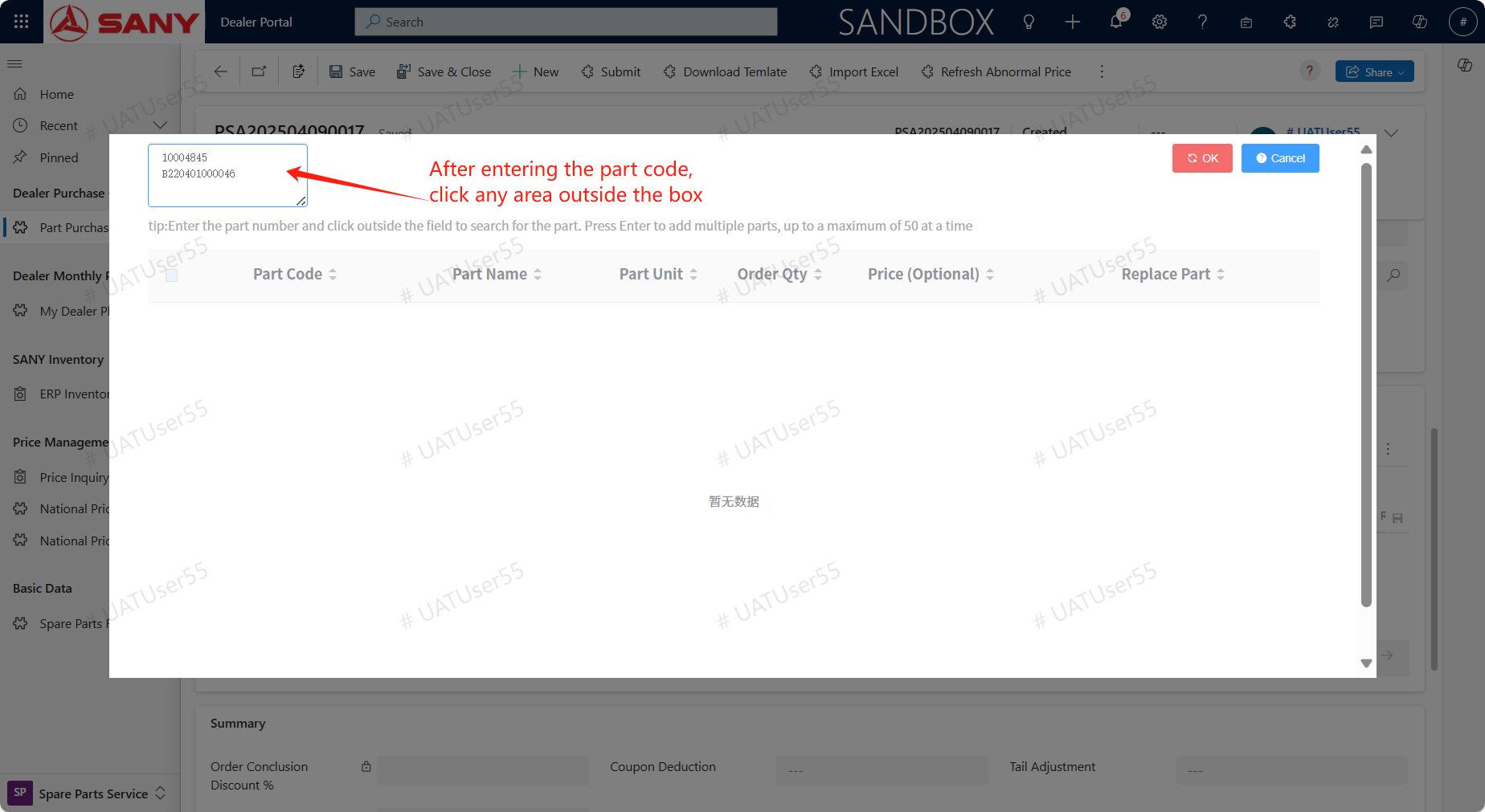
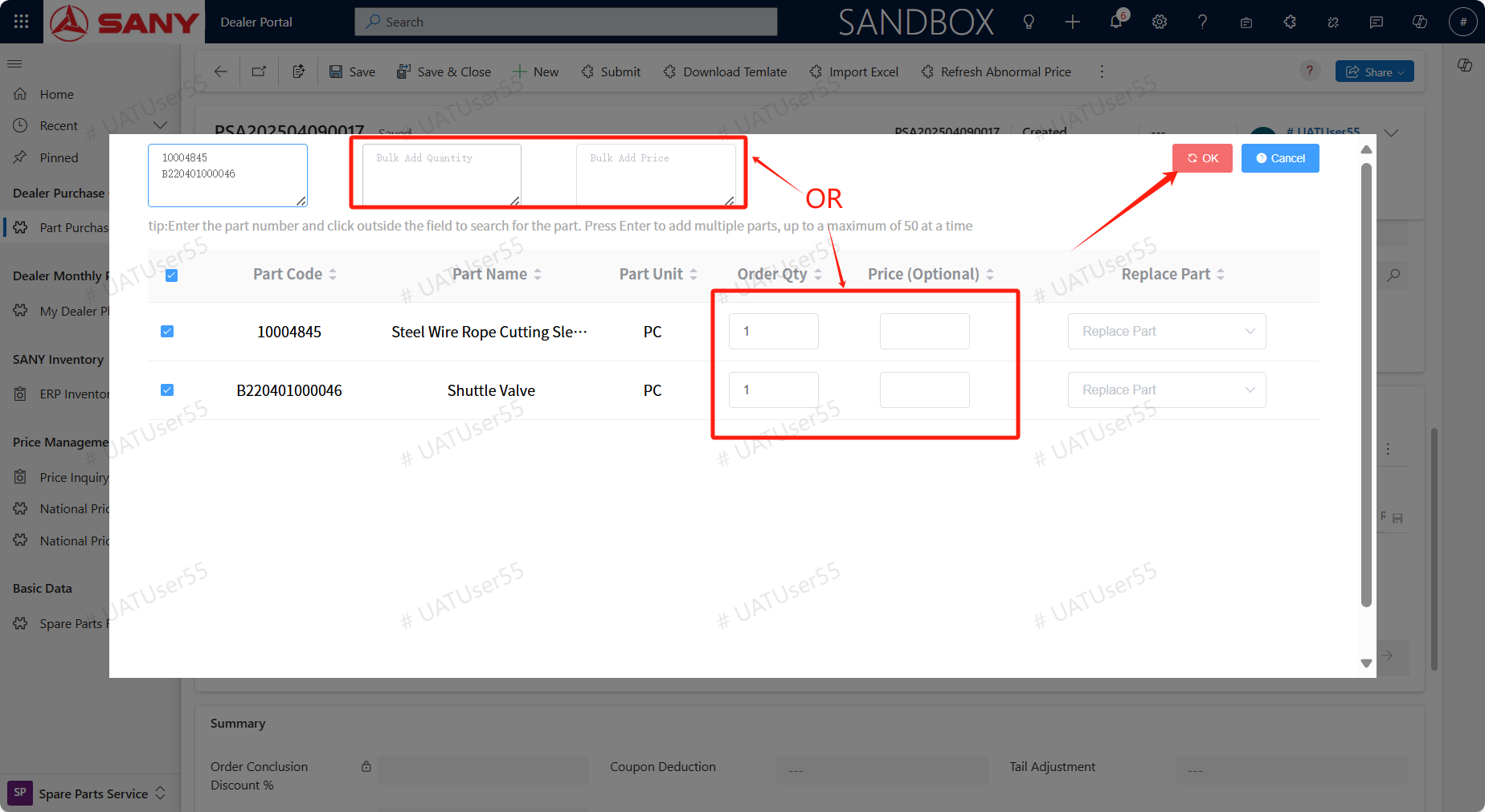
After entering the part code,click any area outside the box and the system will query and show the part details automatically. You can manually enter the Qty and Price line by line,can also enter the Qty and Price of the corresponding accessories in two input boxes to achieve batch addition. After that click OK.
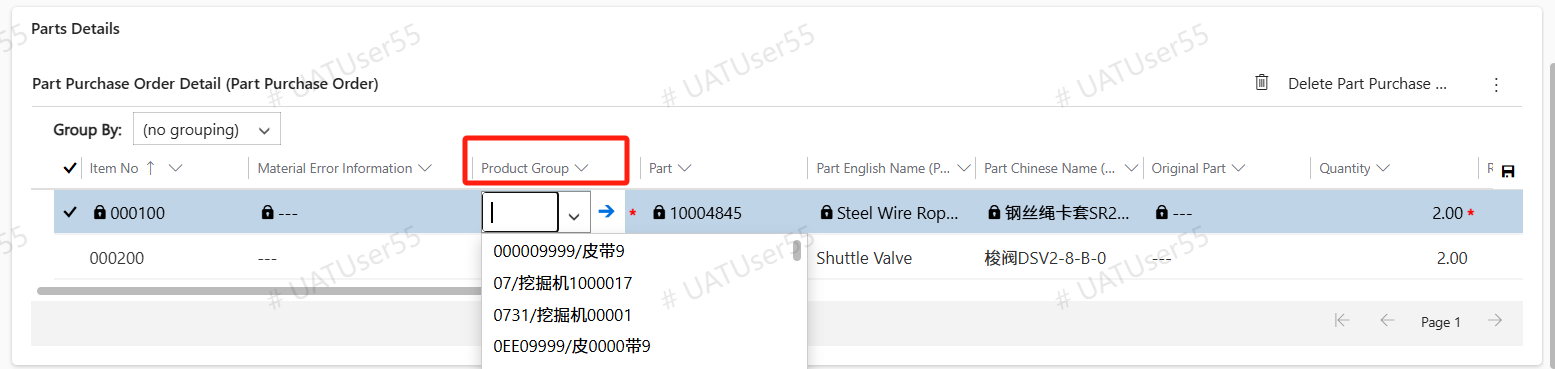
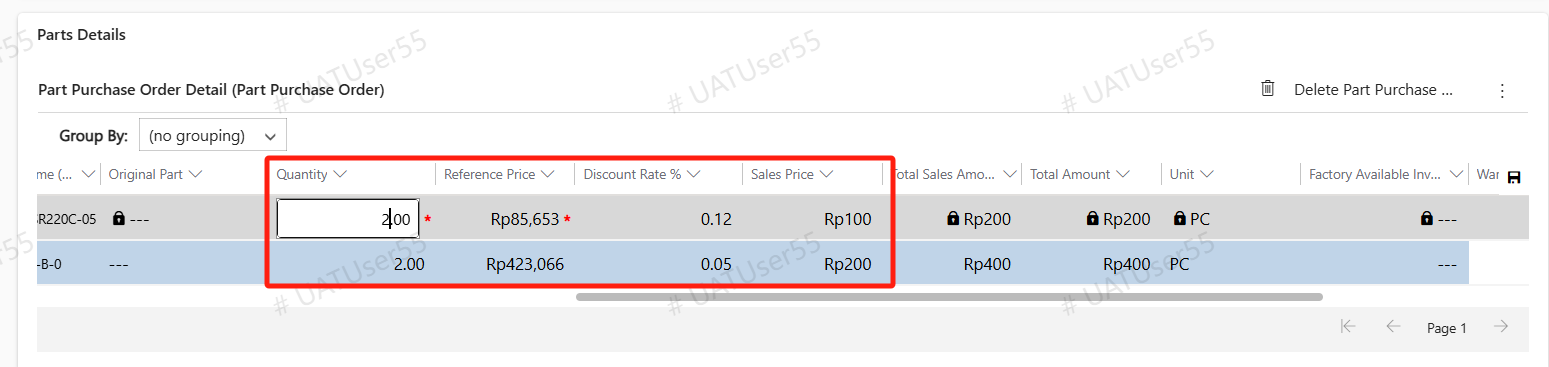
After adding, select the product group for each row of materials, and the system will automatically bring in Reference Price. Discount Rate will be automatically calculated based on the entered prices, and manual modification of Quantity, Discount Rate, Sales Price, etc. is also supported;
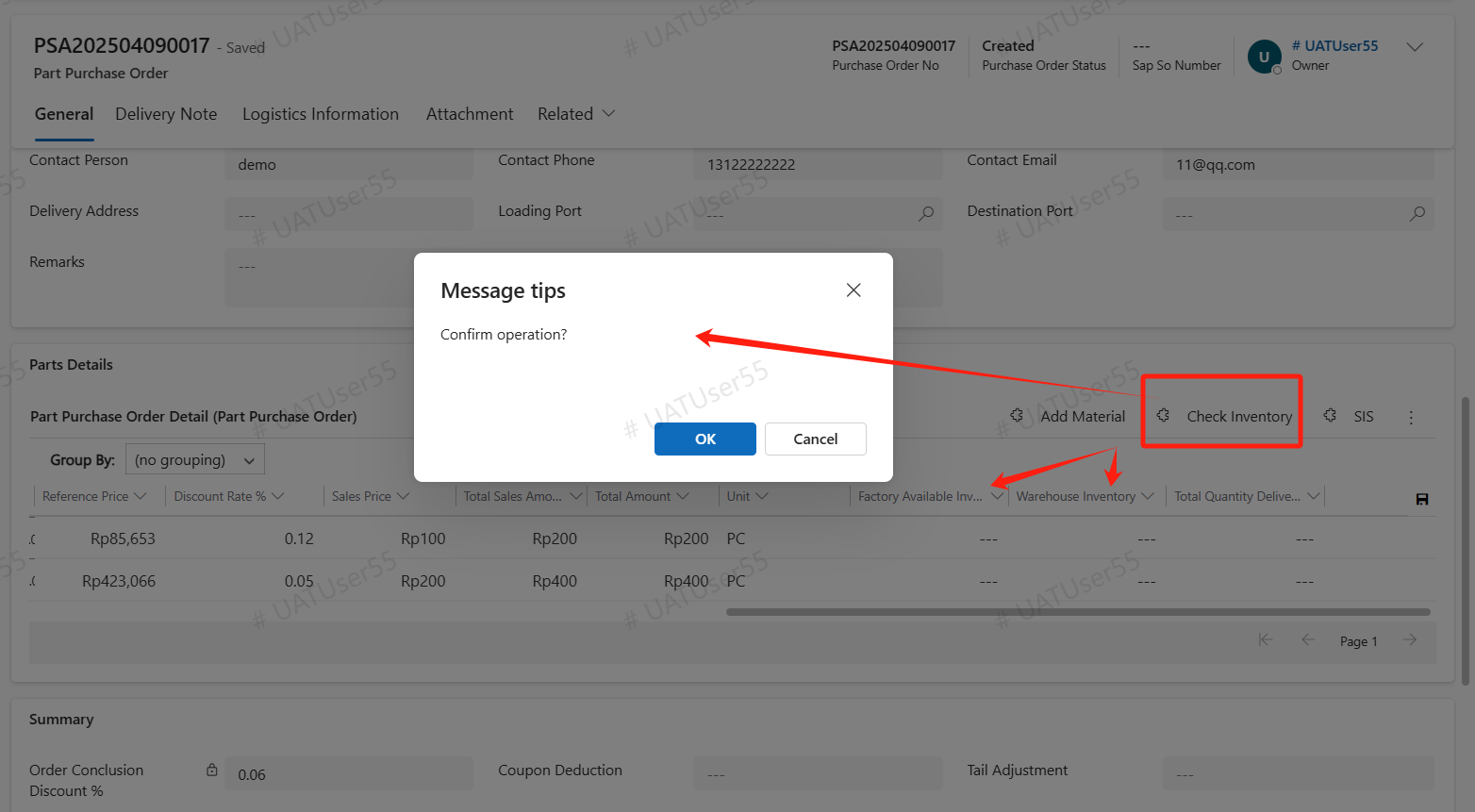
In addition, the Check Inventory button can be used to inquire about the current inventory status of accessories in the purchasing factory.
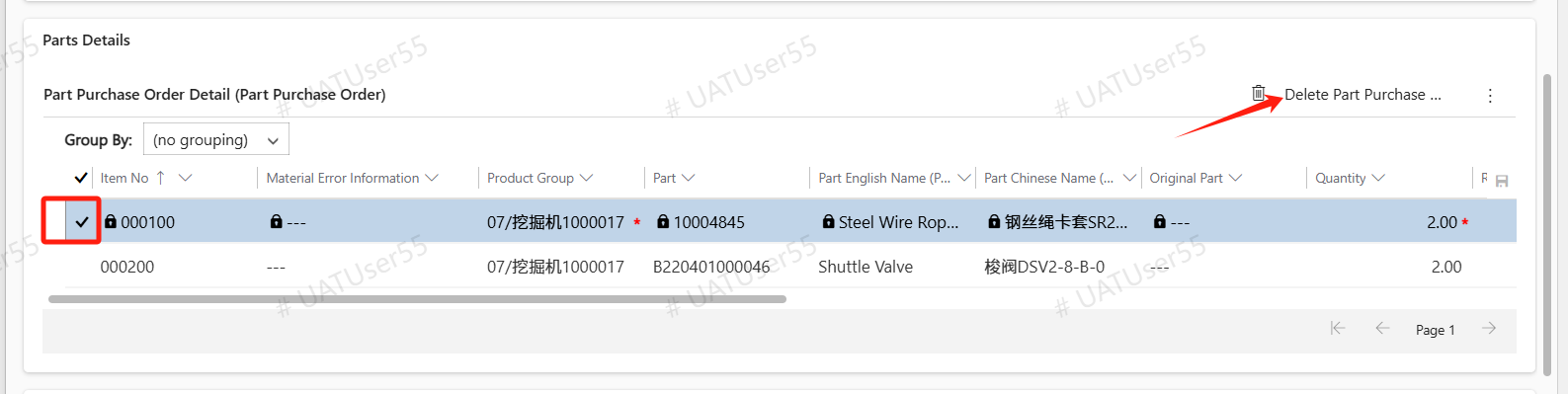
For unnecessary accessories, you can select them and click the "Delete Part Purchase Order Detail" button to delete the accessory.
Import Material from Excel
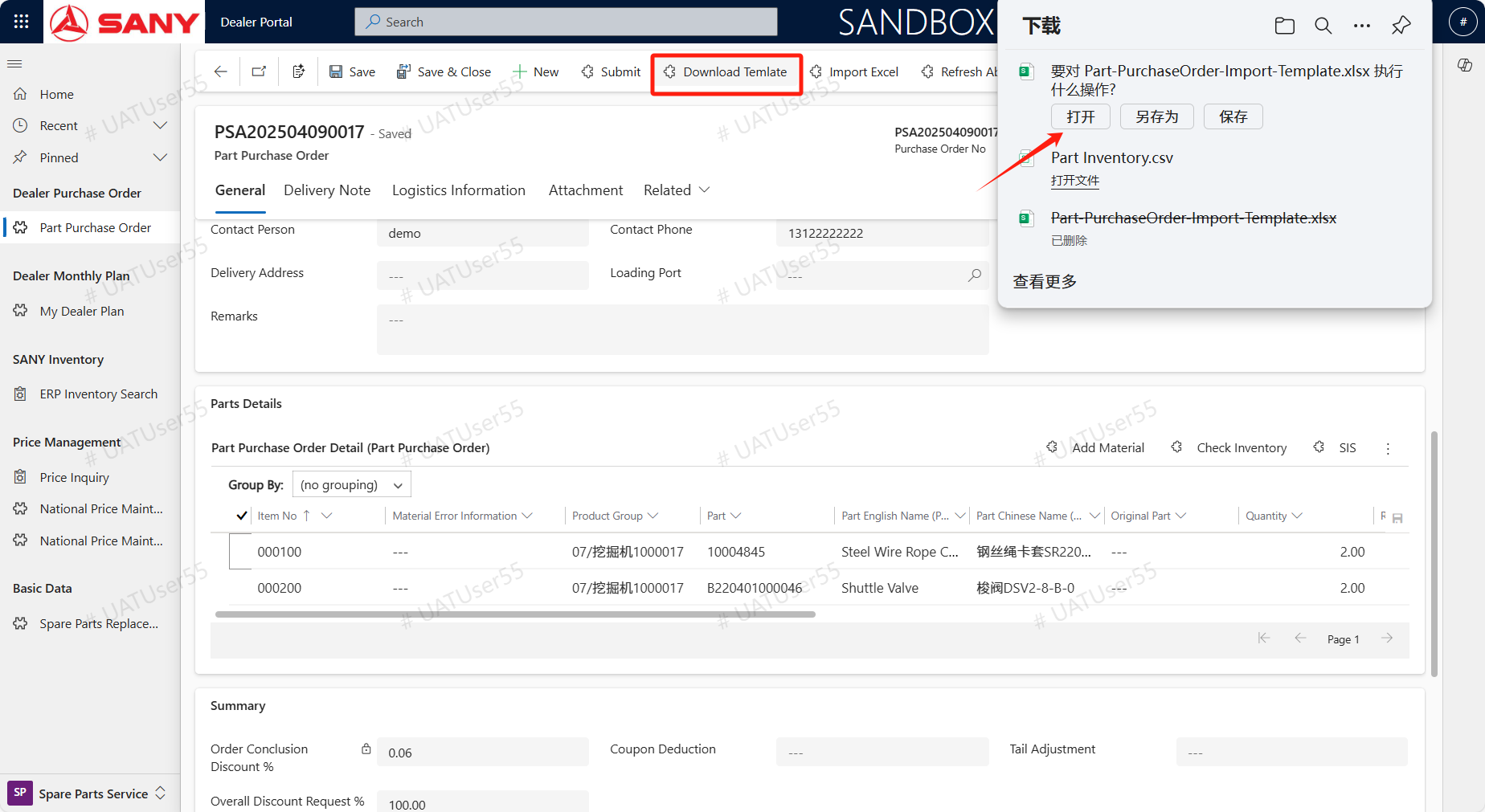
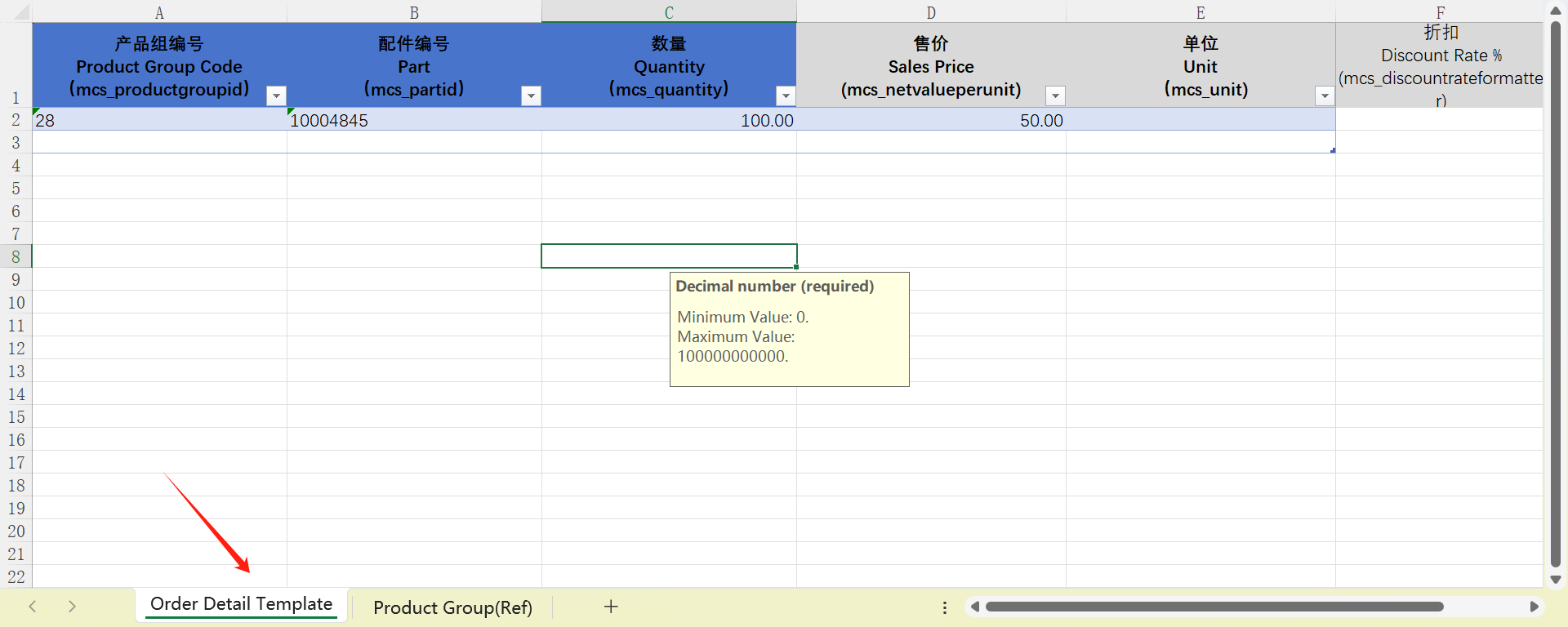
In addition, can also import the materials from excel. Click Download Template button to download the template. After downloading, maintain Product Group Code, Part, Quantity, Sales Price and other information in the Order Detail Template sheet, save. When import from template, the format of all fields should be kept in their original form and not changed . If you are not familiar with product group , you can search for it in the Product Group (Ref) sheet.
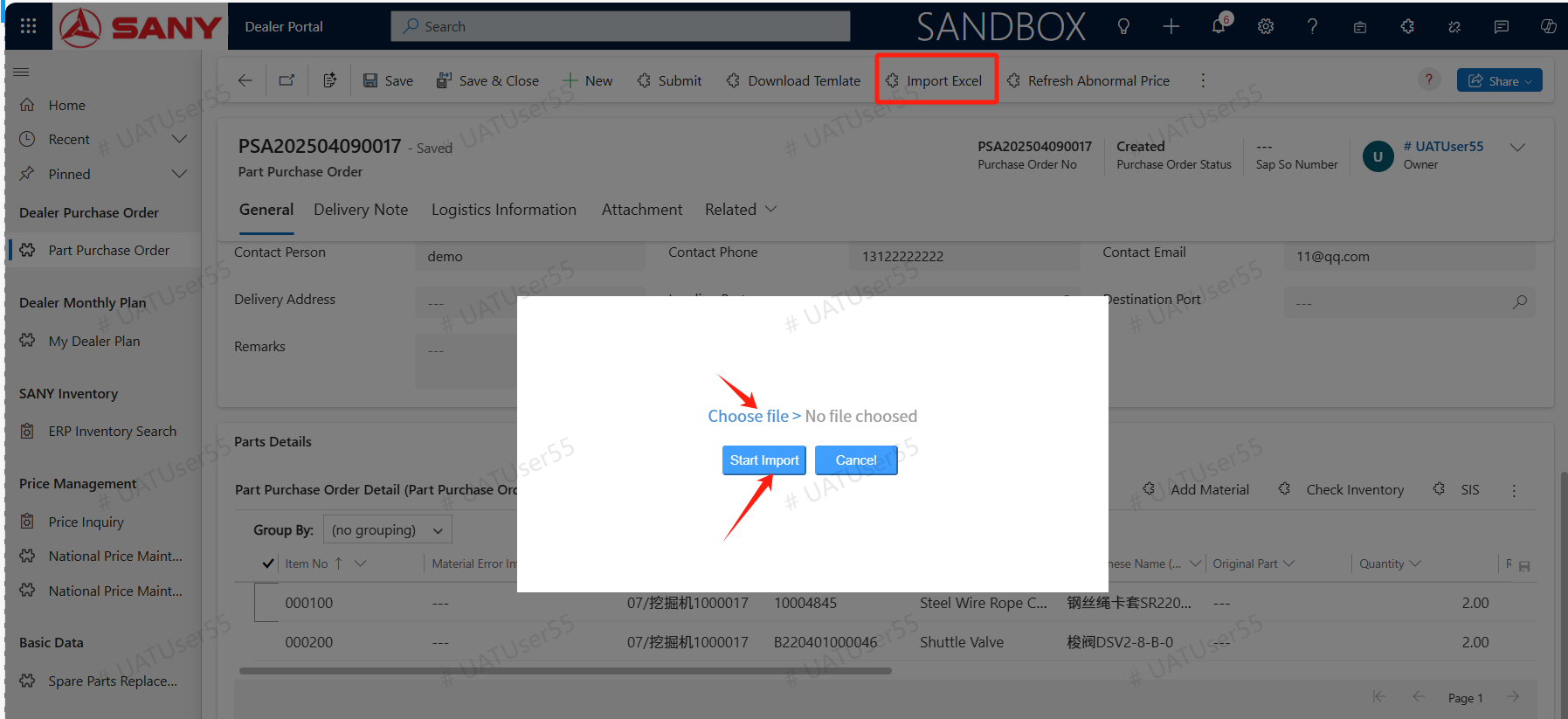
After maintaining the template, click the Import Excel button, choose file, click Start Import, and import the materials from the template.
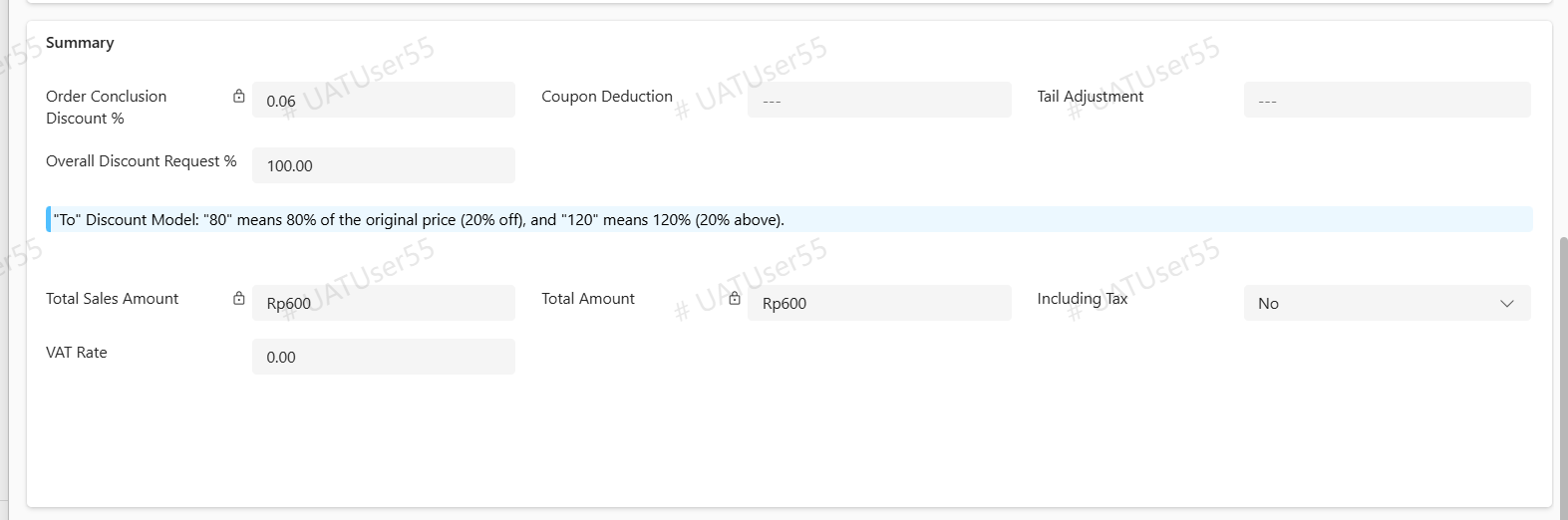
After adding all parts,can view the Total Amount in Summary. Tail Adjustment refers to the separately adjusted tail difference (usually adjusted to the decimal point of the total amount);
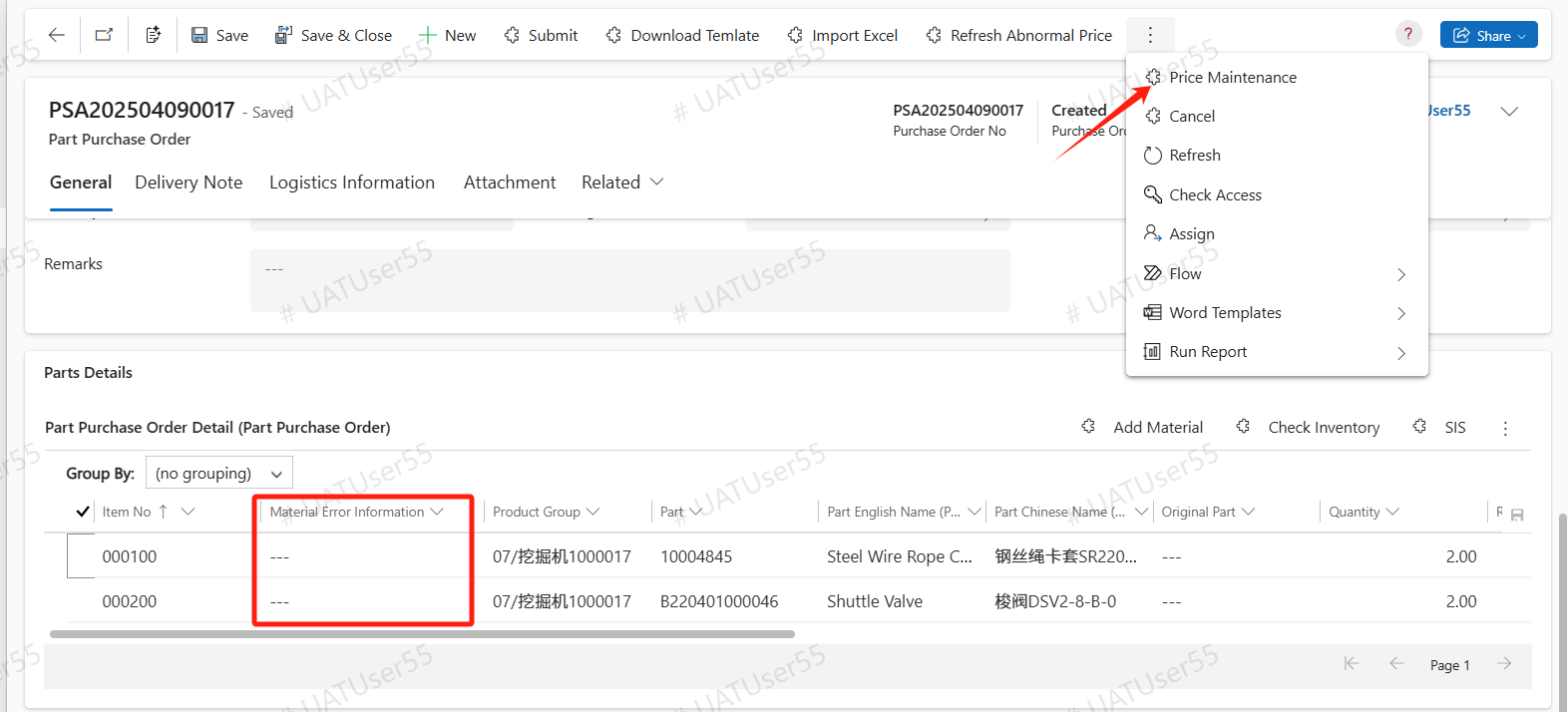
If the Material Error Information shows an error message that the price could not be obtained, you can click the Price Maintenance button to initiate the national price maintenance application process to maintain the price. After the process is completed, click the Refresh Abnormal Price button to recalculate the price.
Submit
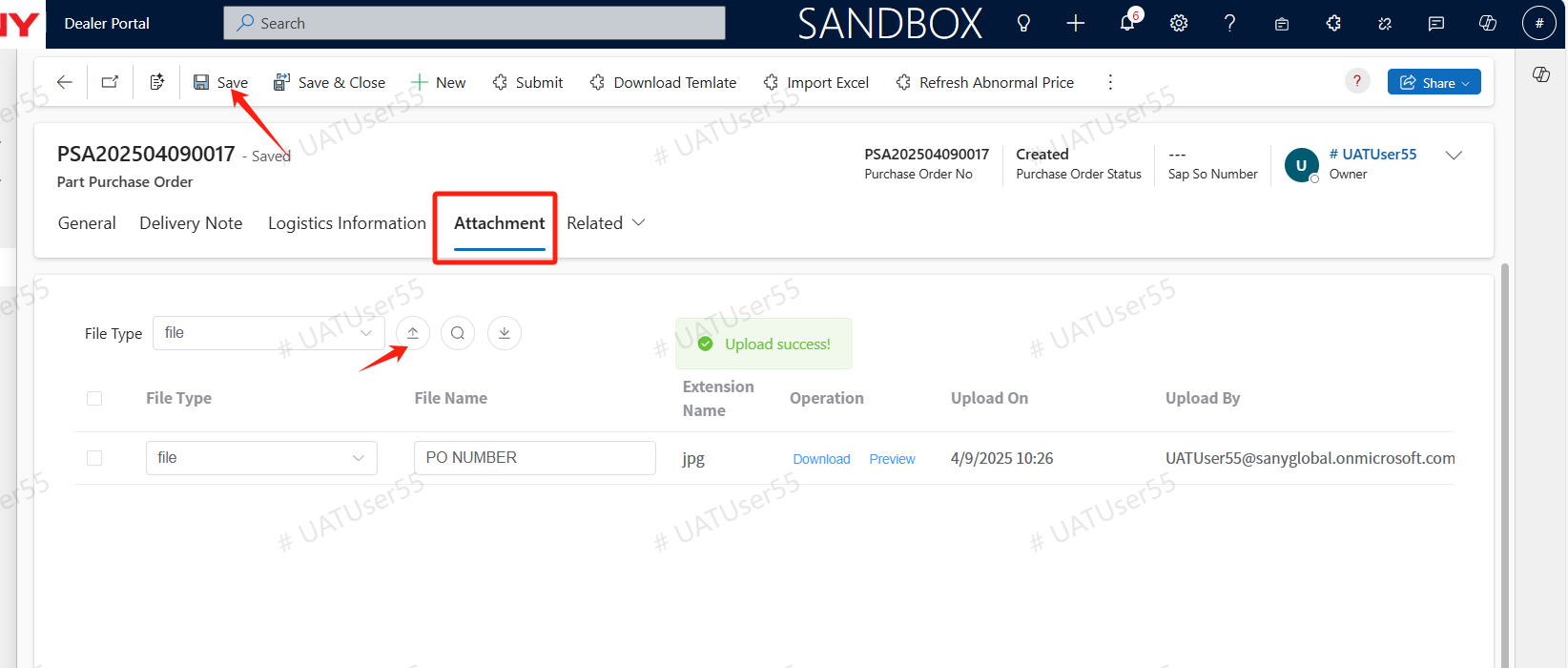
All information has been fully supplemented, and part details have been added. If there are attachments such as purchase contracts, you can be upload them on the attachment tab.
Finally, click the Submit button to submit the purchase request.
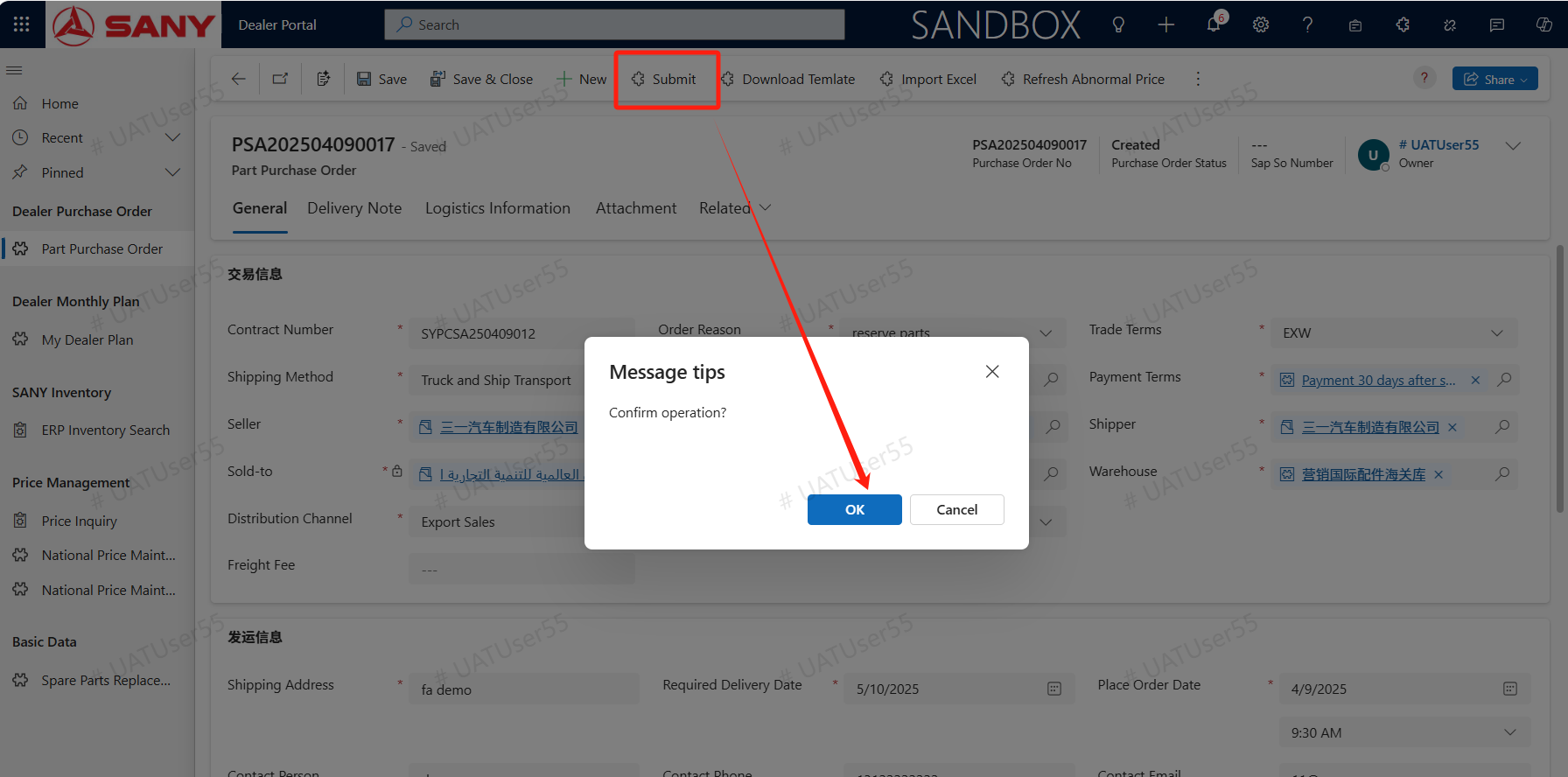
After submission, the purchase order status will be updated to Submitted, and the system will automatically generate a parts order, which will be approved by Sany's parts personnel.
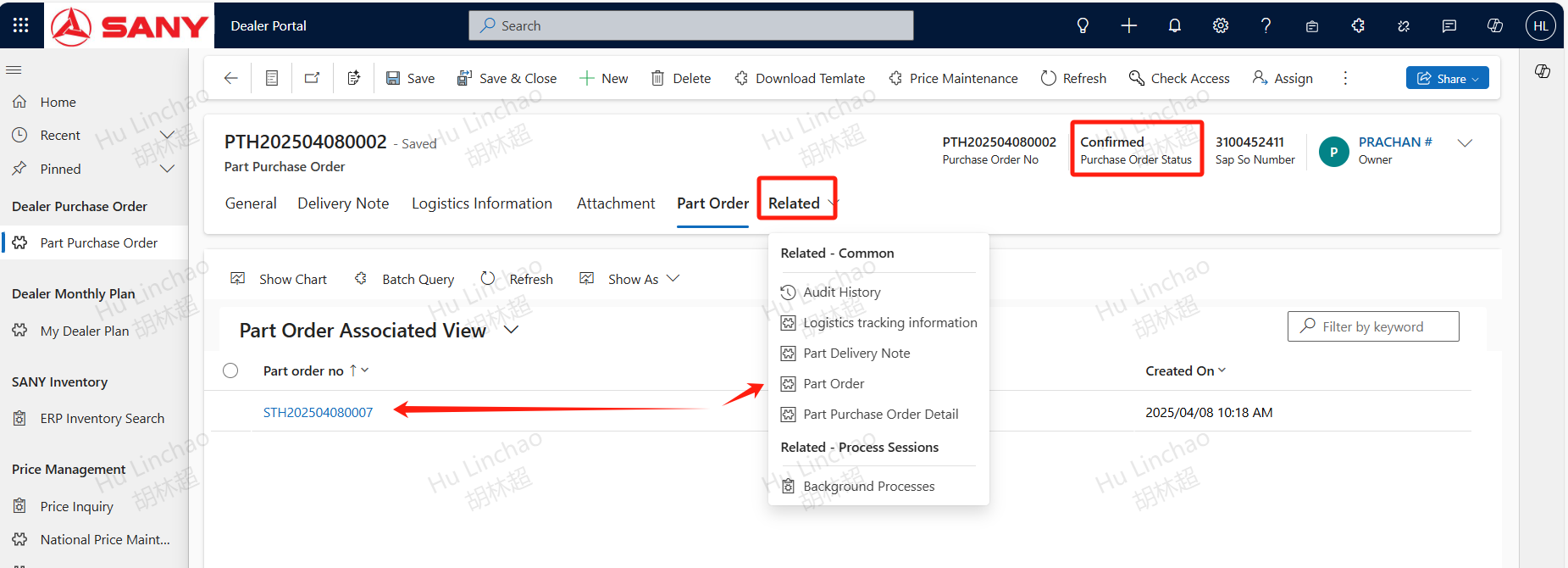
After the approval of the part order, the status of the accessory procurement request is updated to confirmed. You can find the generated accessory orders in the related accessory orders section.
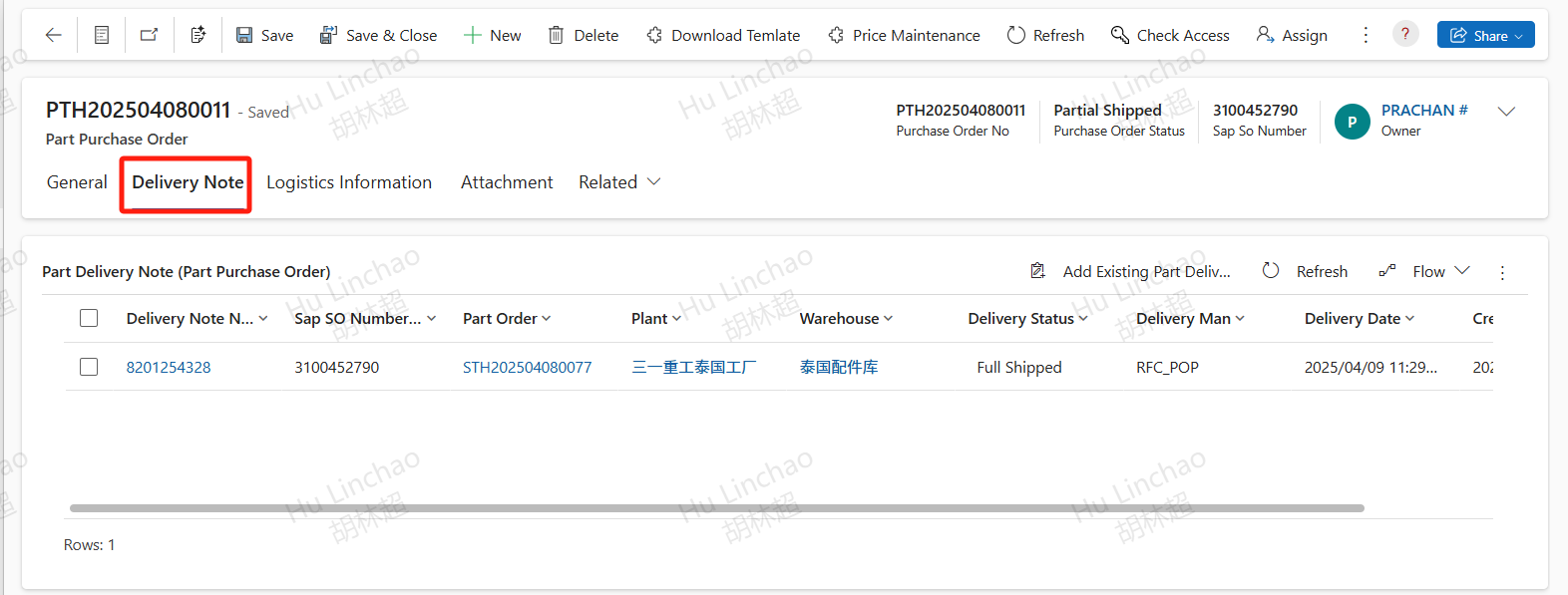
If the accessories have already been delivered from ERP, you can view the delivery information and shipping status on the Delivery Note tab.