Tech lmprove
Tech lmprove
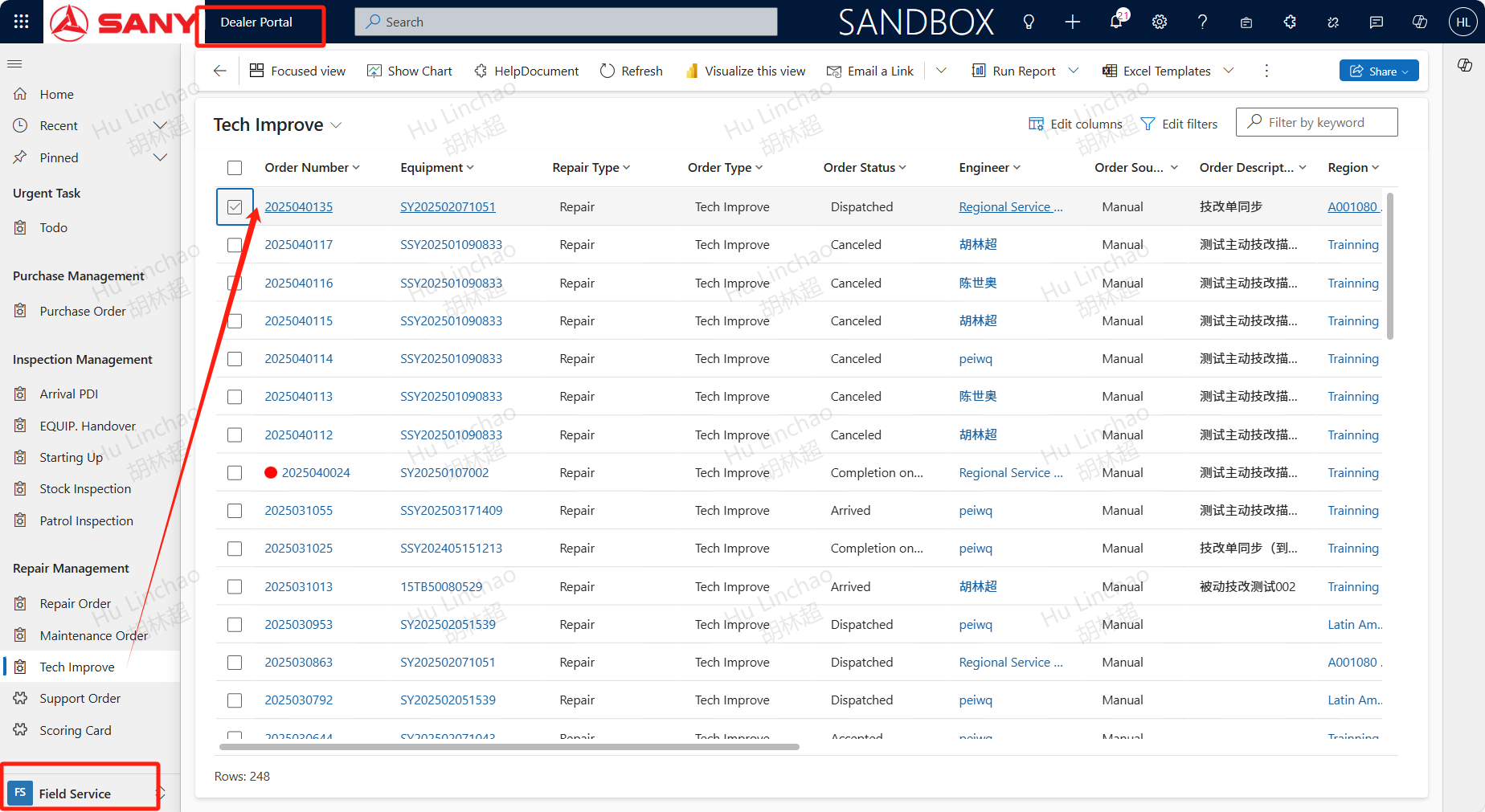
Path:Dealer Portal --> Field Service --> Repair Management --> Tech lmprove
Create
The Tech lmprove order is created by the technical renovation work order, which is issued by the technical renovation specialist of the business unit. The dealer engineer does can't create the technical work order.
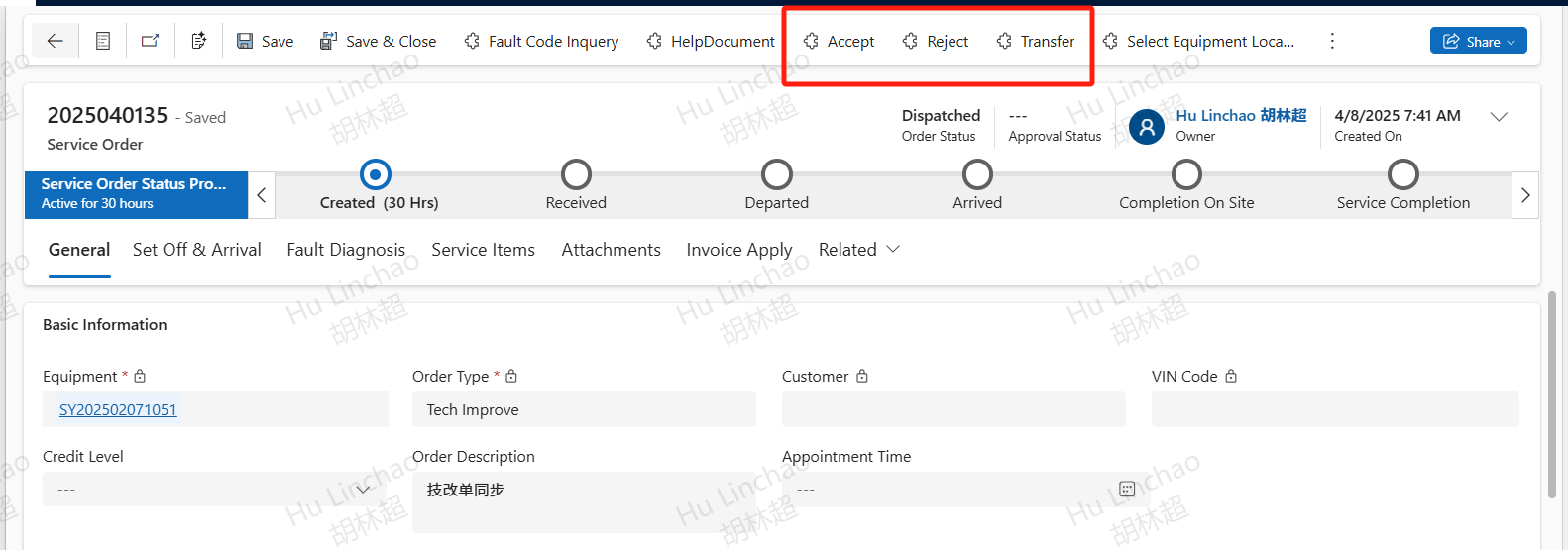
After dispatching, the engineer can click the receive button to receive the Tech lmprove order. You can reject then the service supervisor will transfer again, or click the 'transfer' button after receiving the order and before completing the on-site work. After entering the 'note explanation', click 'confirm' to complete the transfer.
View PLM Attachment
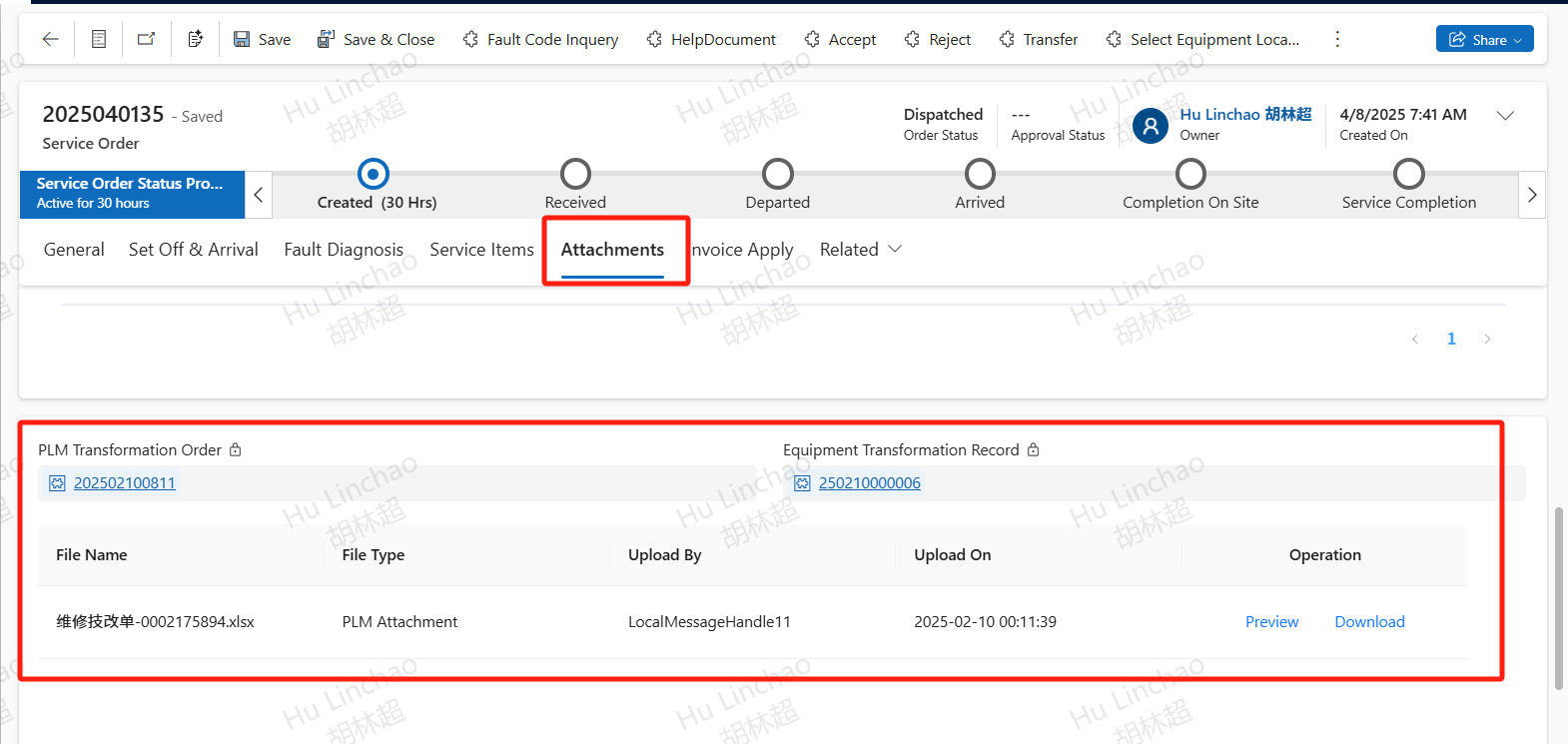
After receiving,engineer can view the tech file under Attachments tab.
On-site process
Fault Diagnosis
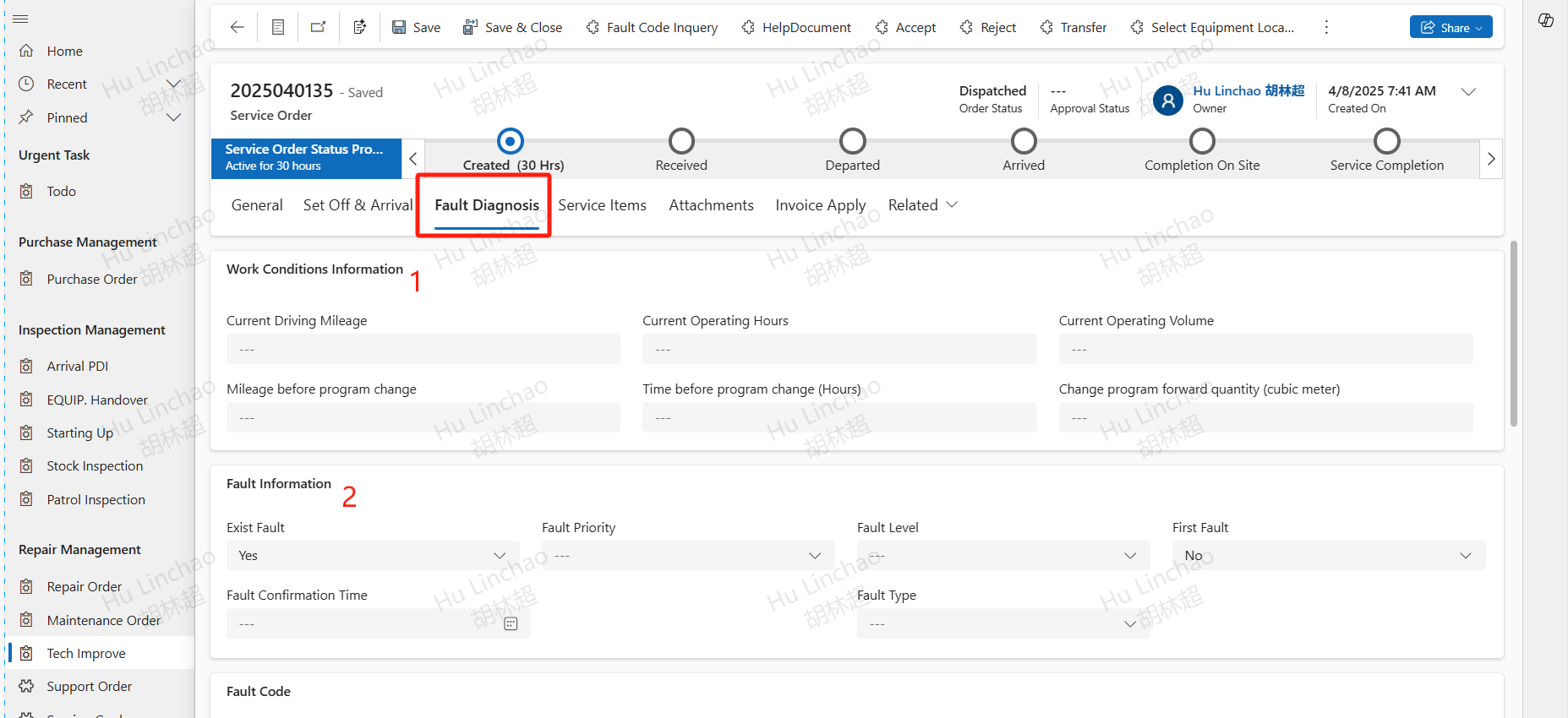
According to the actual situation, in the Work Conditions Information, maintain the Current Driving Mileage, Current Operating Hours, Current Operating Volume and other information;Maintain detailed fault information in the Fault Information;
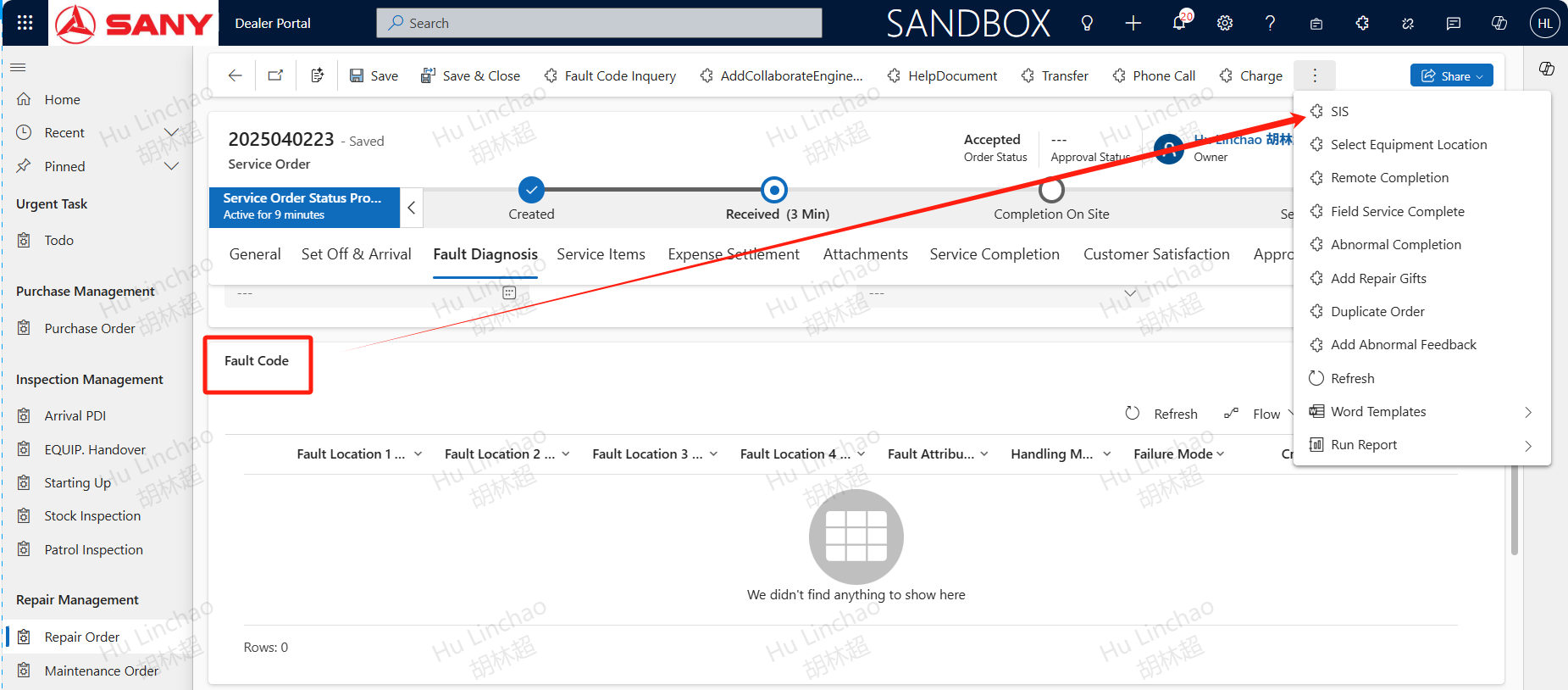
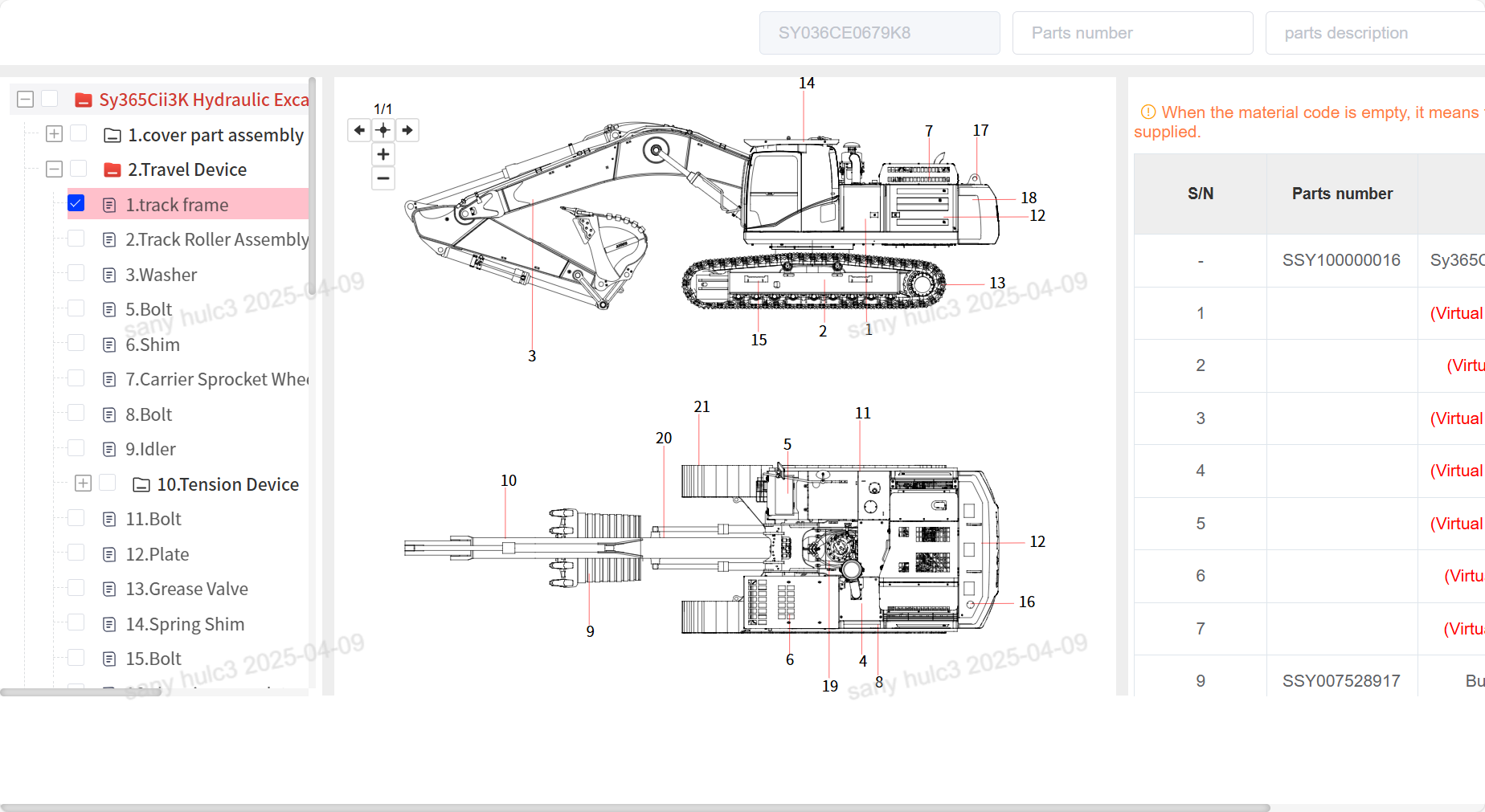
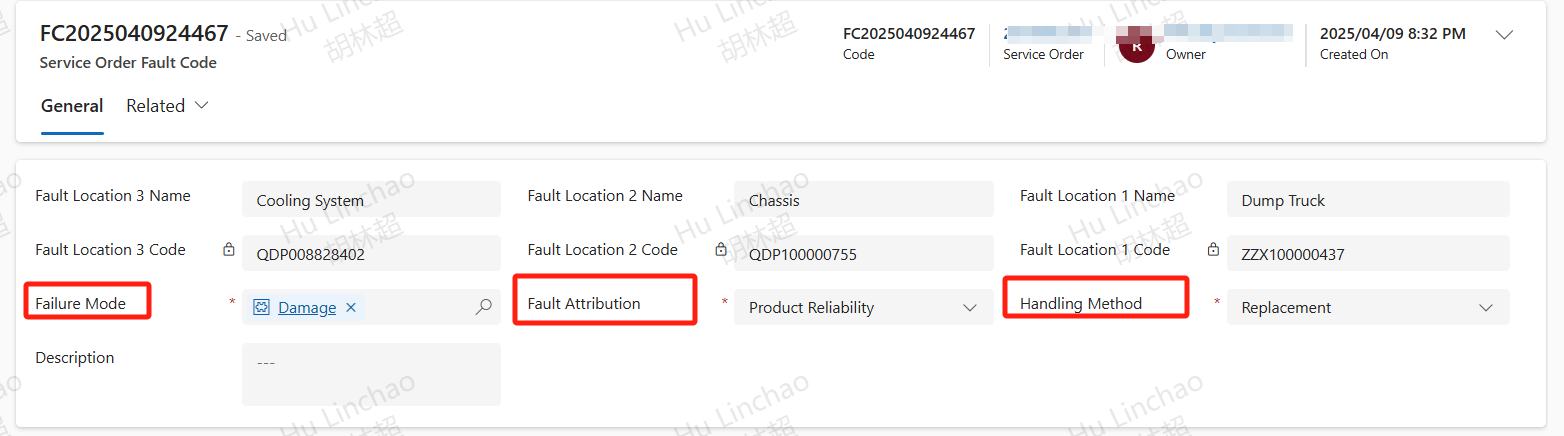
If need to add fault code,In the Fault Code section, click the SIS button to select the fault location from the SIS system. After adding the Fault Code, double-click on it to complete the fault information such as Failure Mode, Fault Attribution, Handling Method, and then save the details.
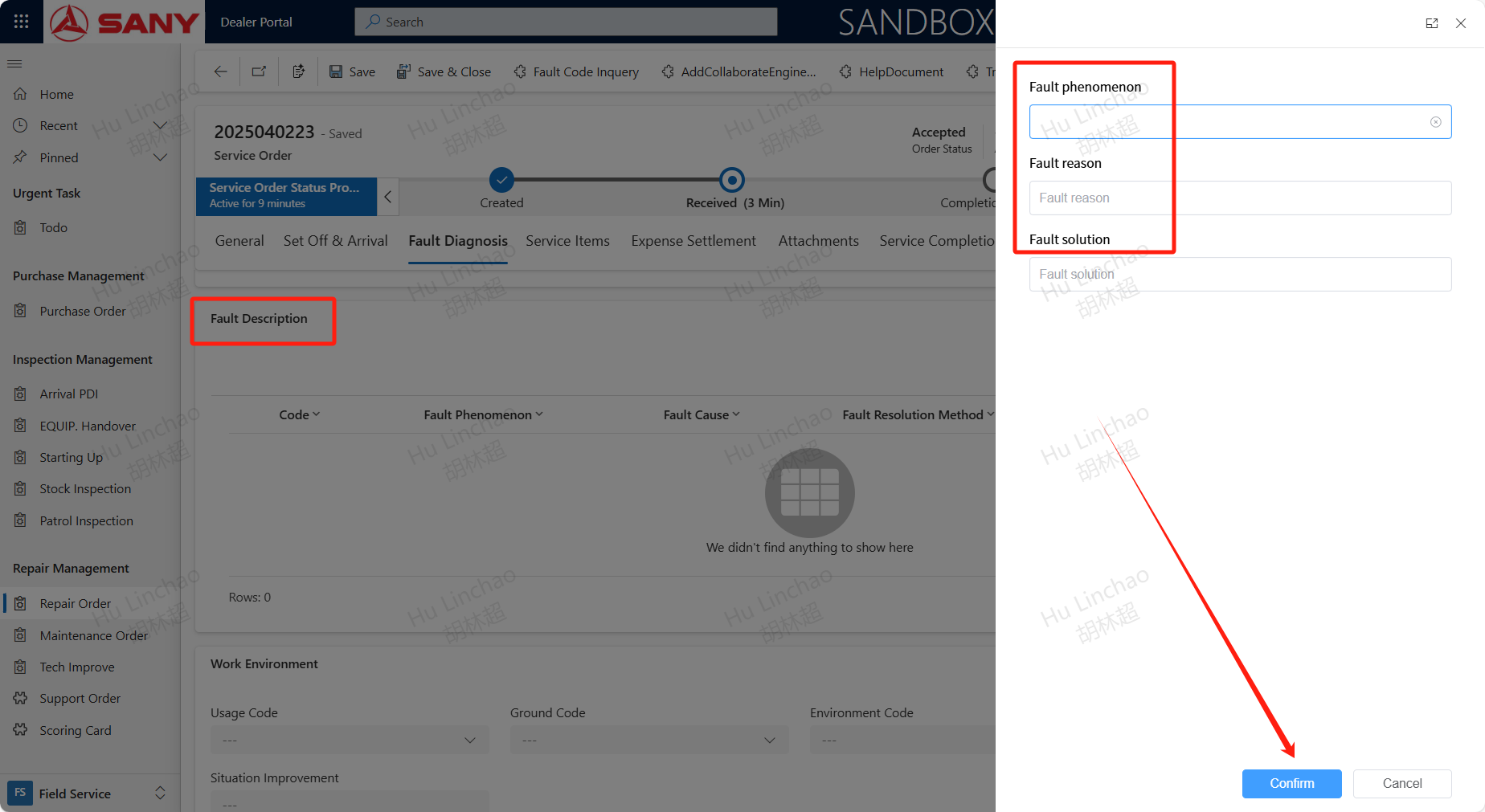
In the Fault Description section, click the add button to include a Fault Description.
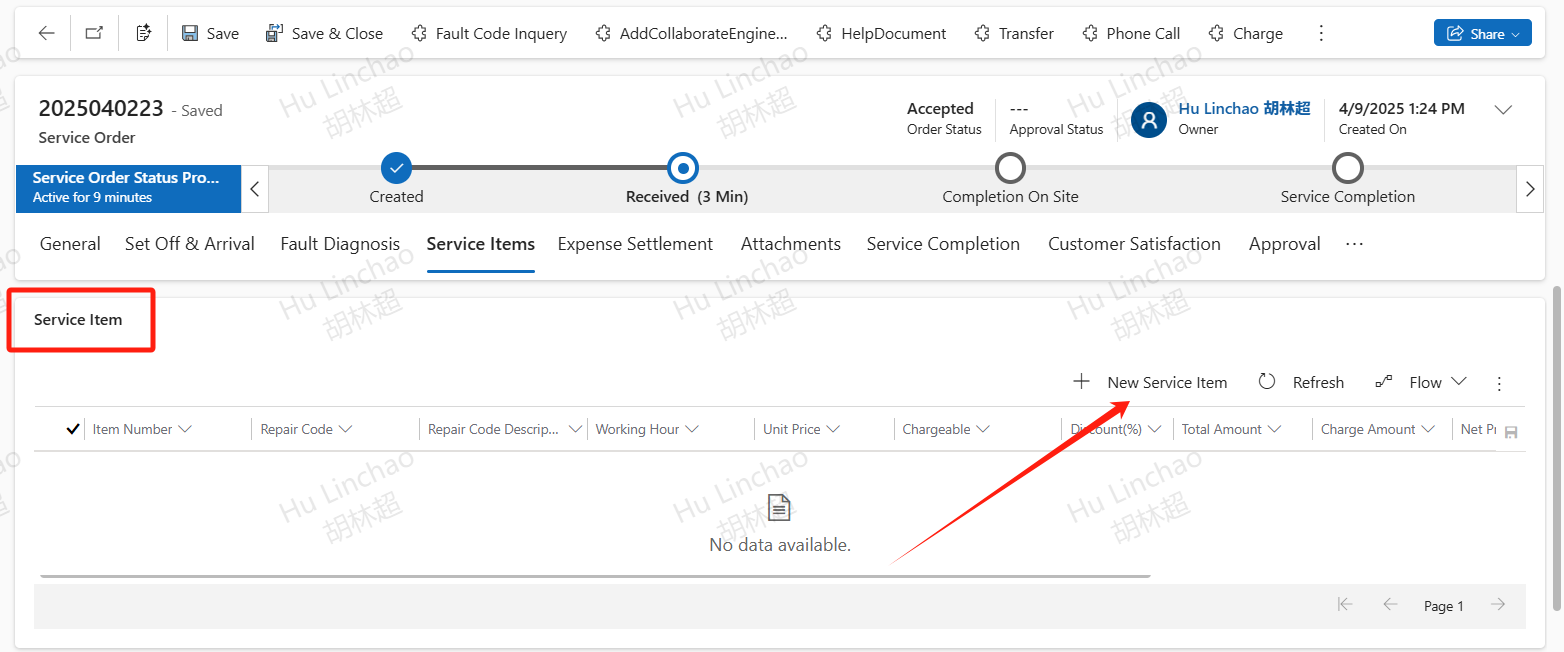
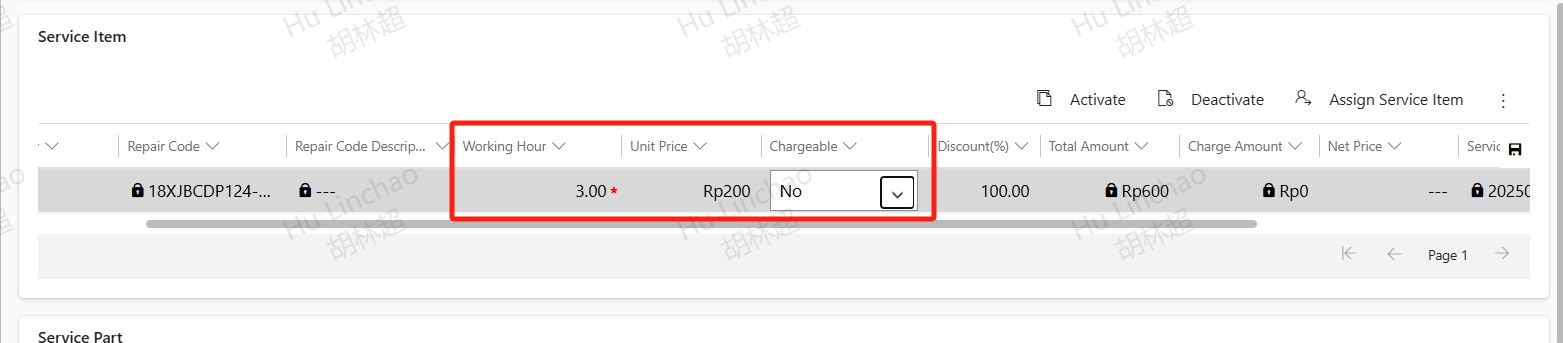
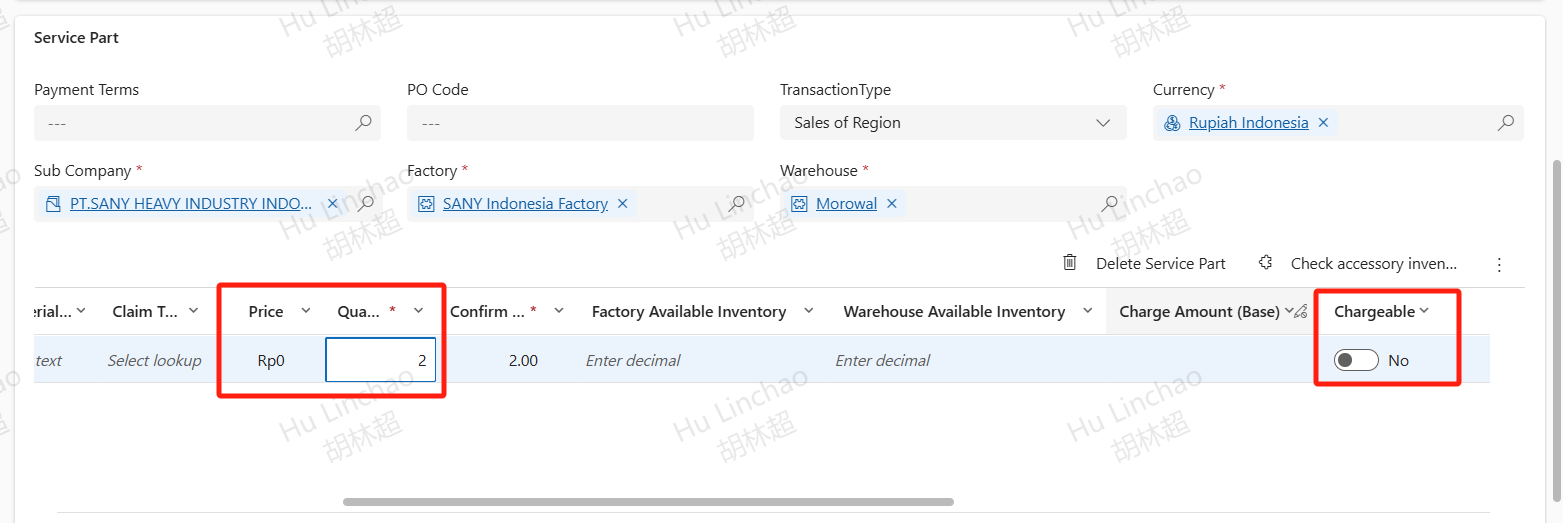
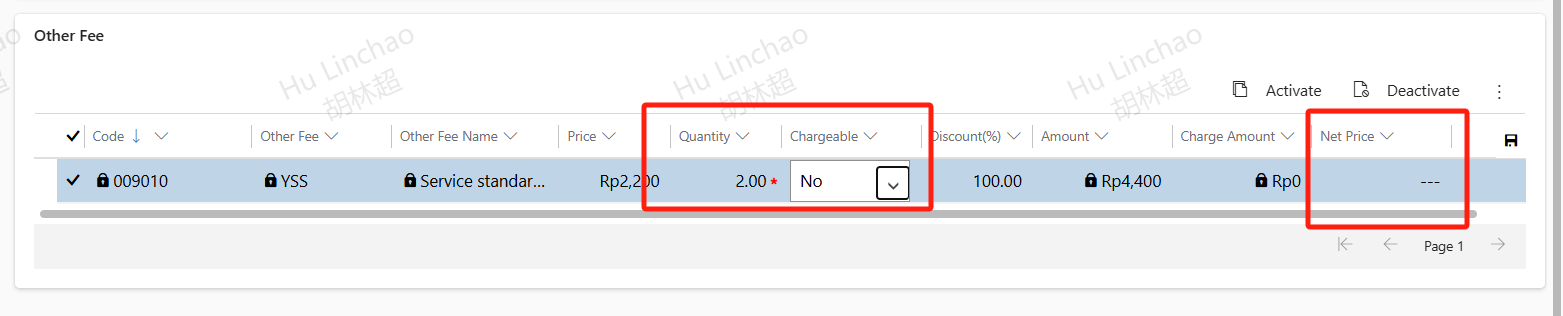
In the Service Items tab, add maintenance items, service parts, other fee, etc. based on the actual situation. After adding the fee, please verify if it needs to be charged. If it is charged, please select 'Yes' in the field, and the unit price and quantity of all fees can be modified.
Maintenance Item
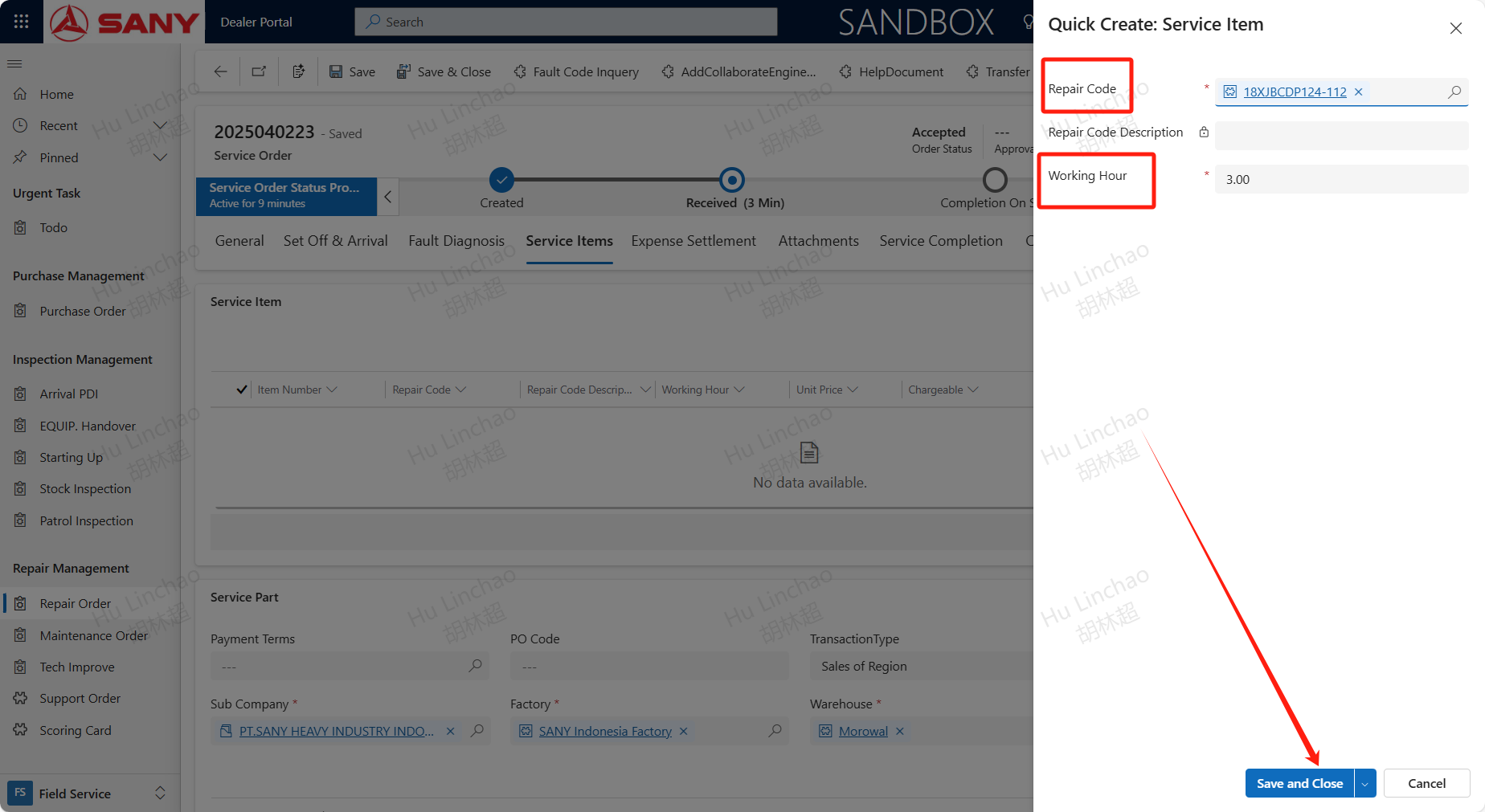
Click +New Service Item, add the repair code, the number of man-hours, then save and close. The repair codes are synchronized domestically based on the equipment's product group. If there is currently no corresponding repair code, other fees can be temporarily used as a substitute.
Service Part
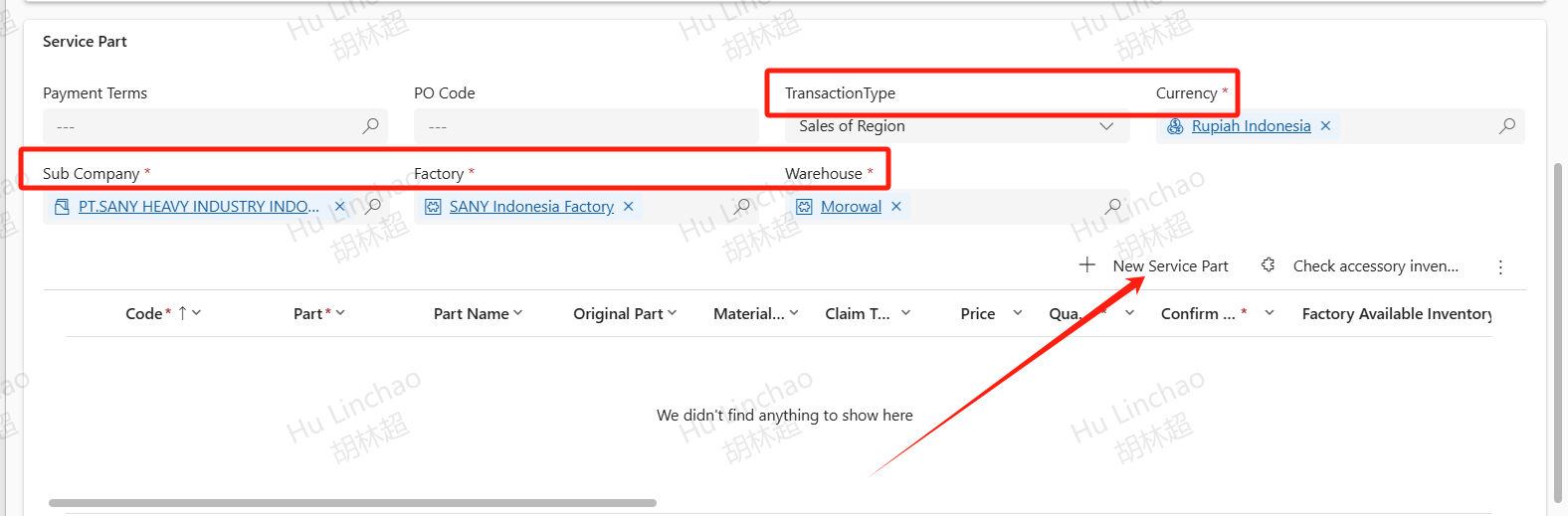
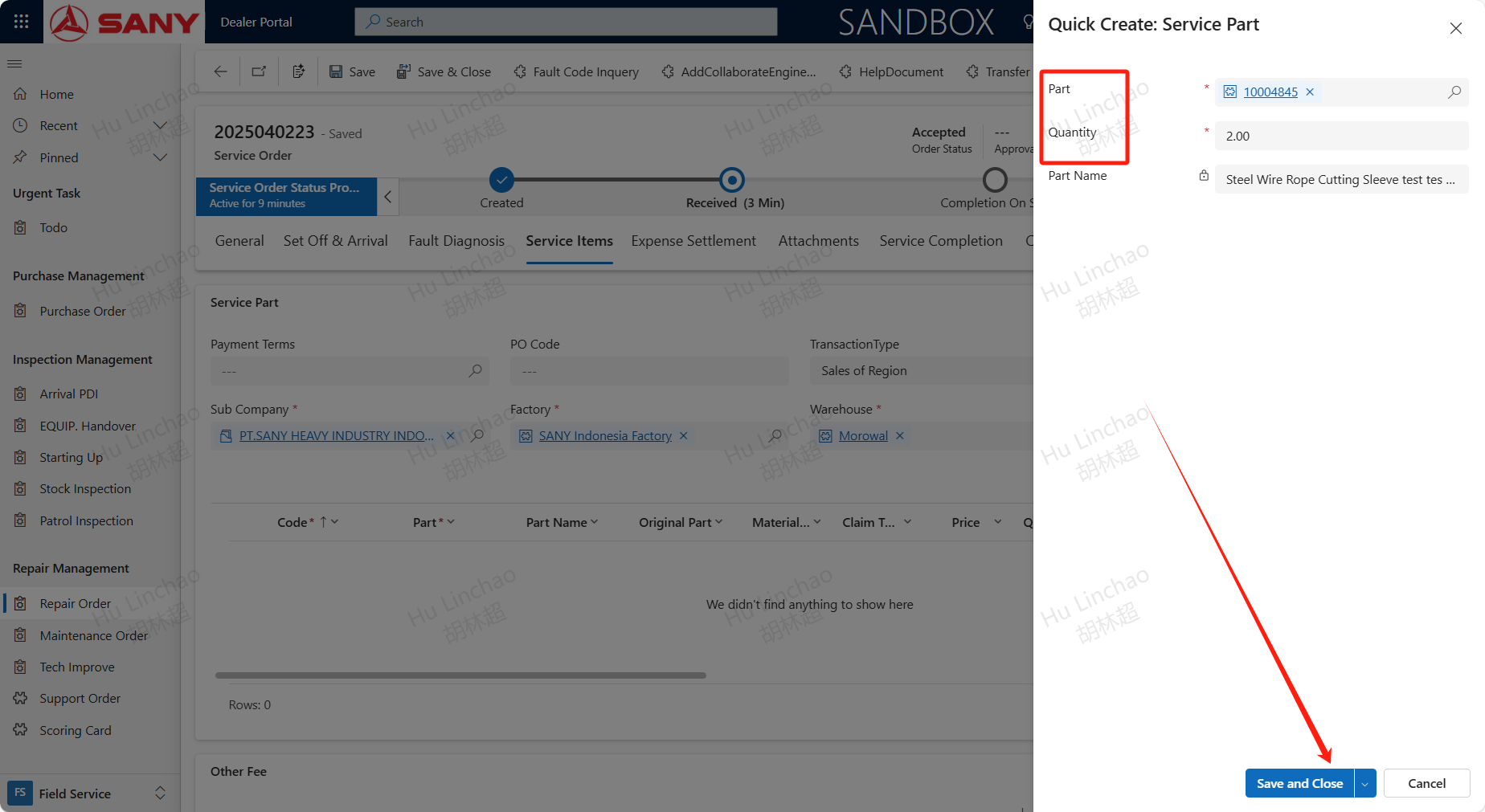
Select the correct TransactionType,Currency,Sub Company,Factory,Warehouse,The parts will be automatically brought in from the technical renovation notice,can also click +New Service Part button then input Part and Quantity then save and close to add the part.
Other Fee
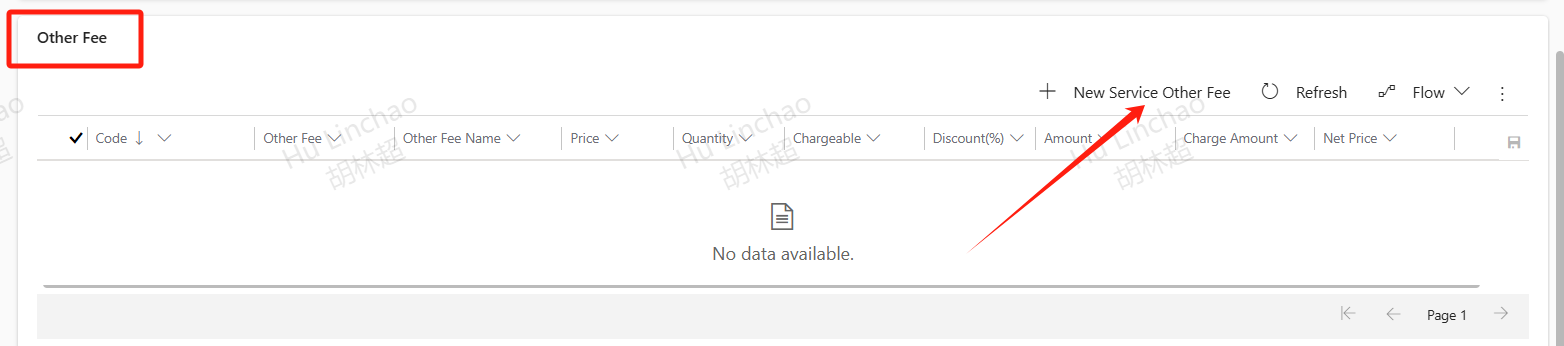
Click +New Service Other Fee to add other service fees, input the other fees and quantities, save and close to add other expenses.
Charge
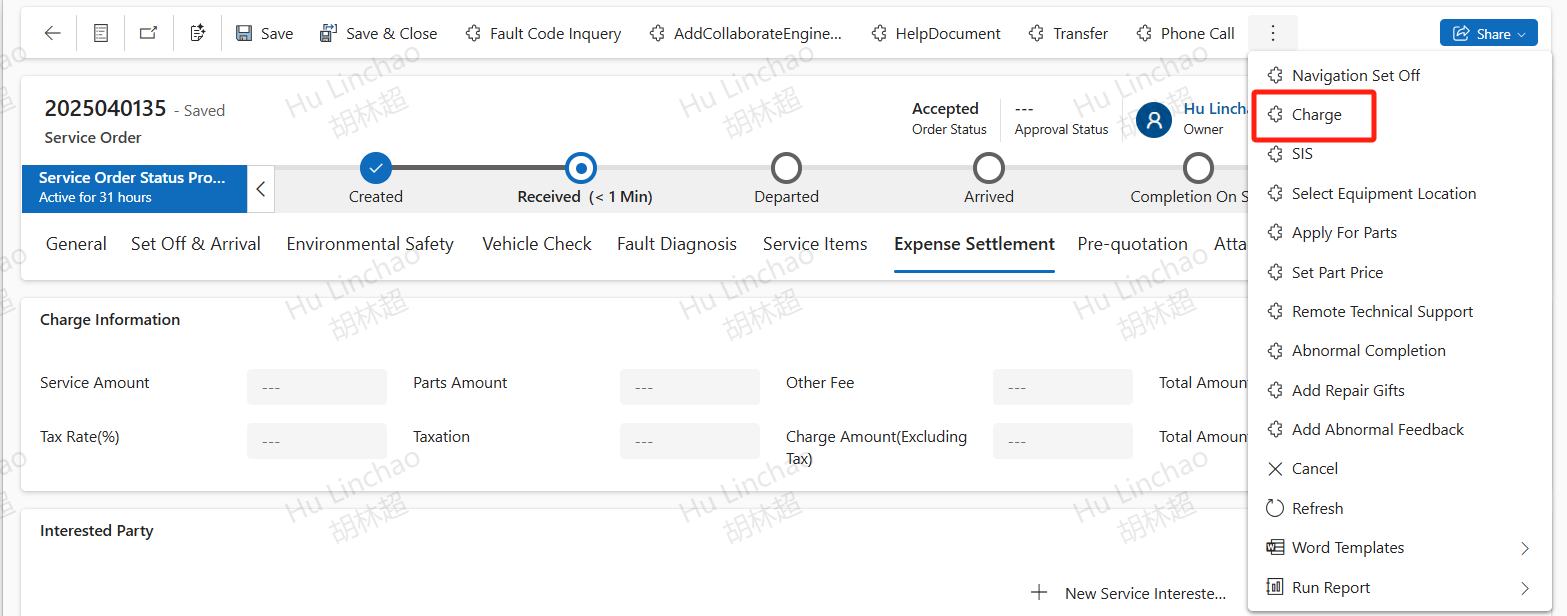
After completing the maintenance items, parts, and other fees, click the 'Charge' button, and the system will compute the total amount for this service order.
Add Abnormal Feedback
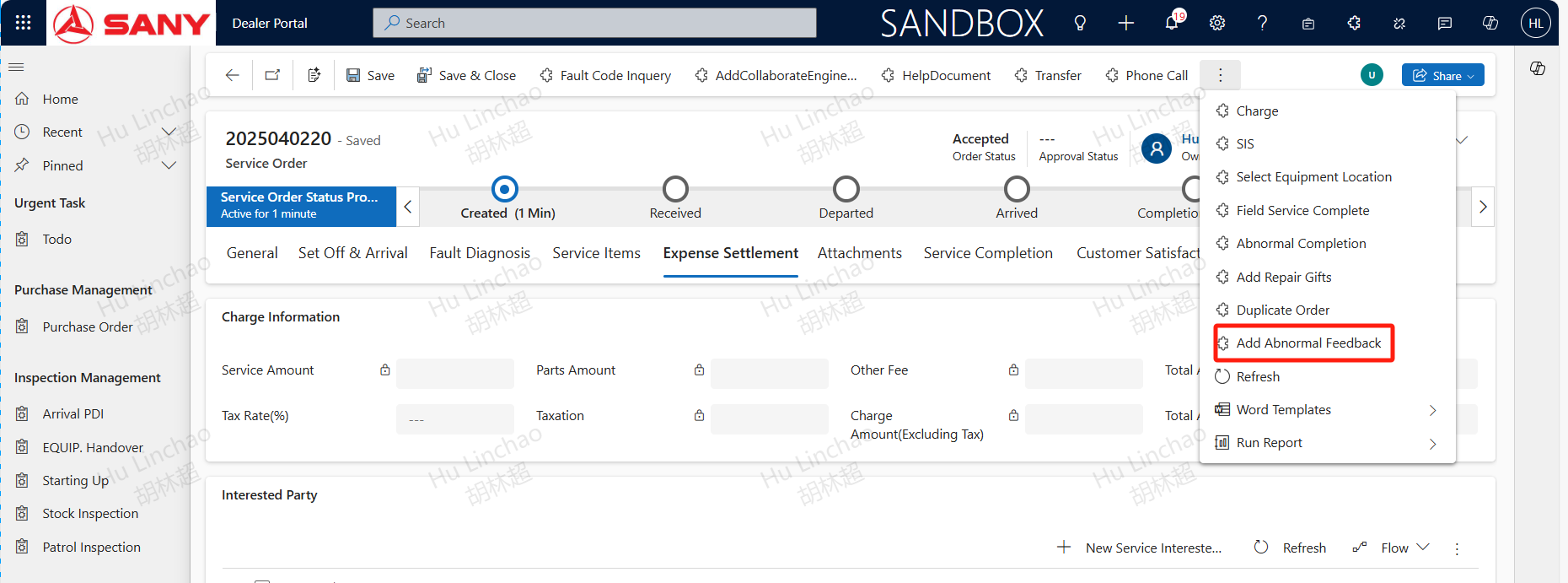
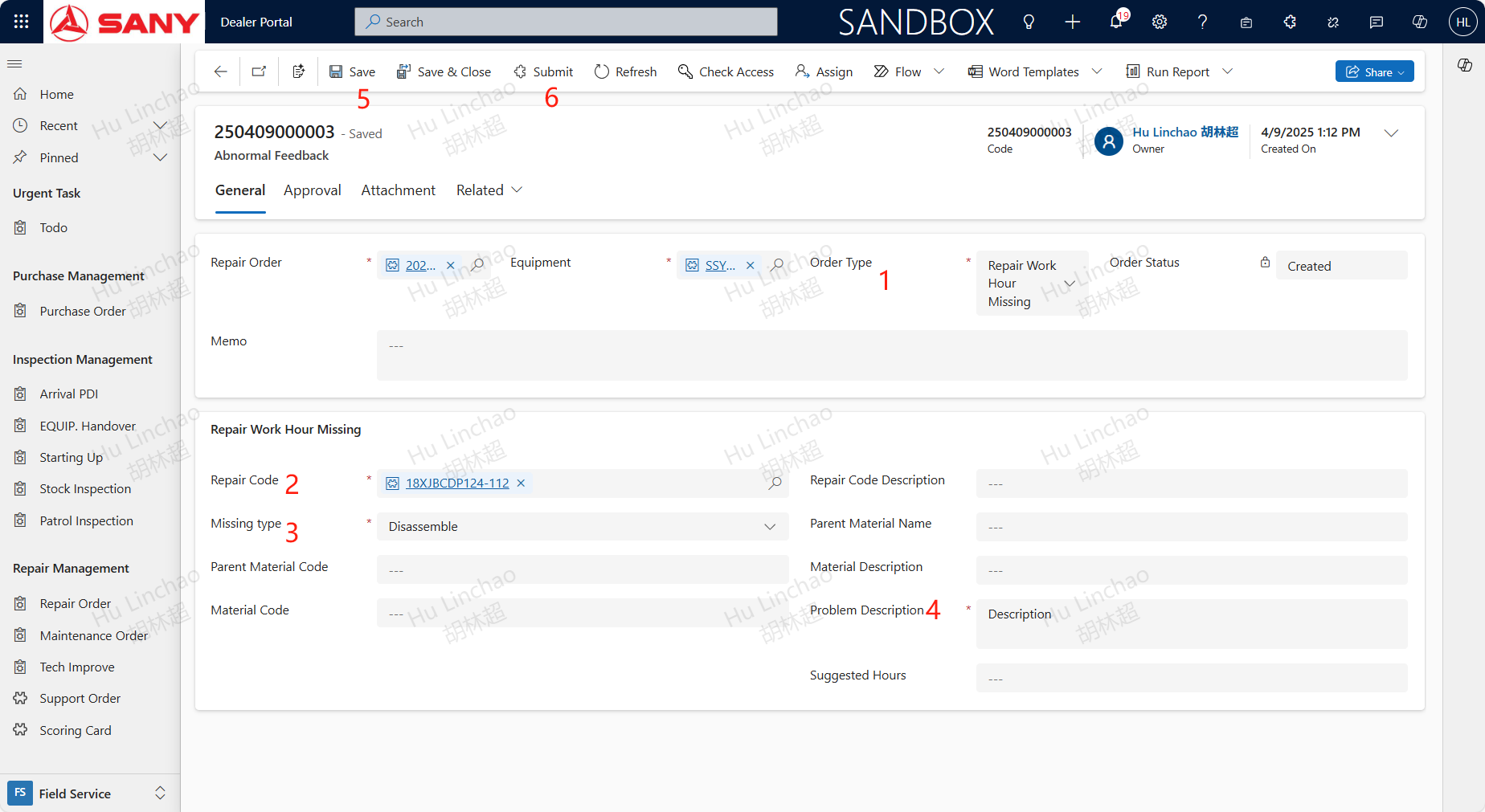
If during the maintenance process, anomalies are found in the system configuration such as Repair Work Hour Missing,Work Hours Quantity Change,SIS Abnormality, they can be addressed by creating an anomaly feedback for maintenance. Upon creation, the maintenance order and equipment are automatically imported from the service order. Select the Order Type of it that requires maintenance: Repair Work Hour Missing,Work Hours Quantity Change,SIS Abnormality. Different types require different information to be maintained. Taking Repair Work Hour Missing as an example, you need to select the Repair Code,Missing type and Problem Description. After all information is supplemented and saved, submit the feedback.
Field Service Complete
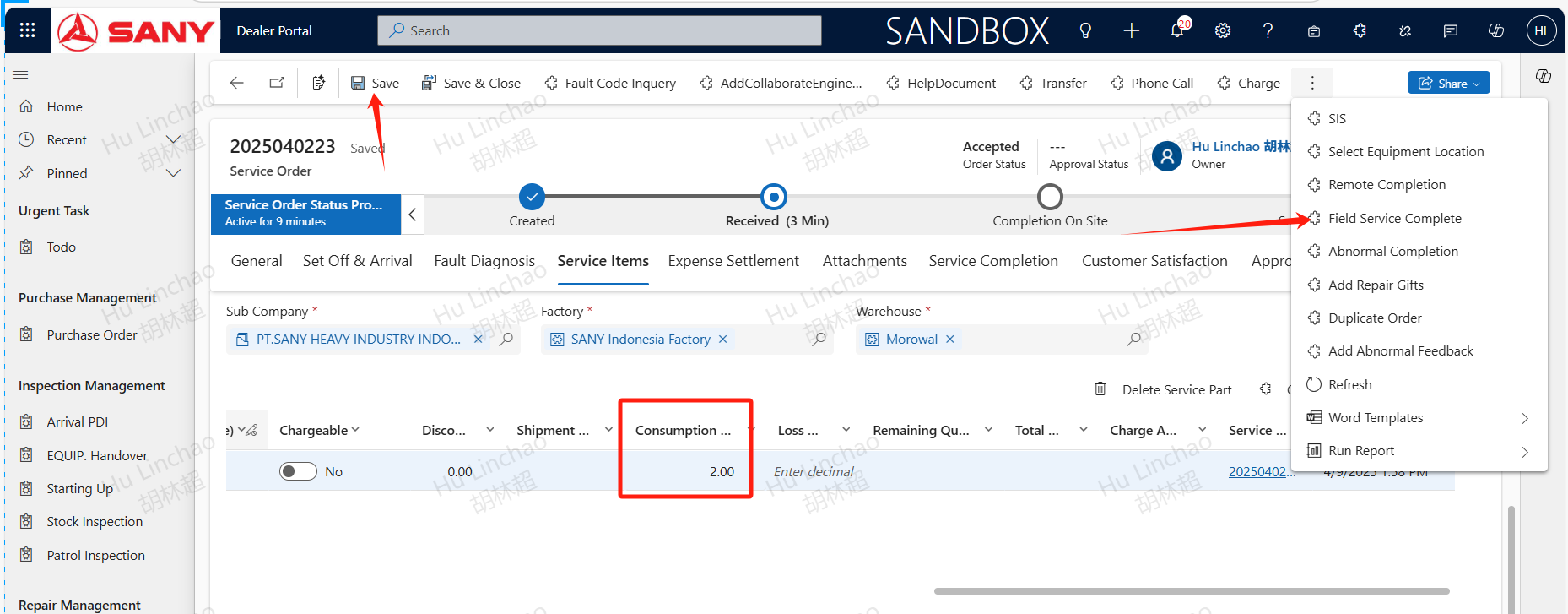
After the on-site service work is completed, fill in the actual quantity of parts consumed, and click the on-site completion button to finalize the on-site work.
Service Completion
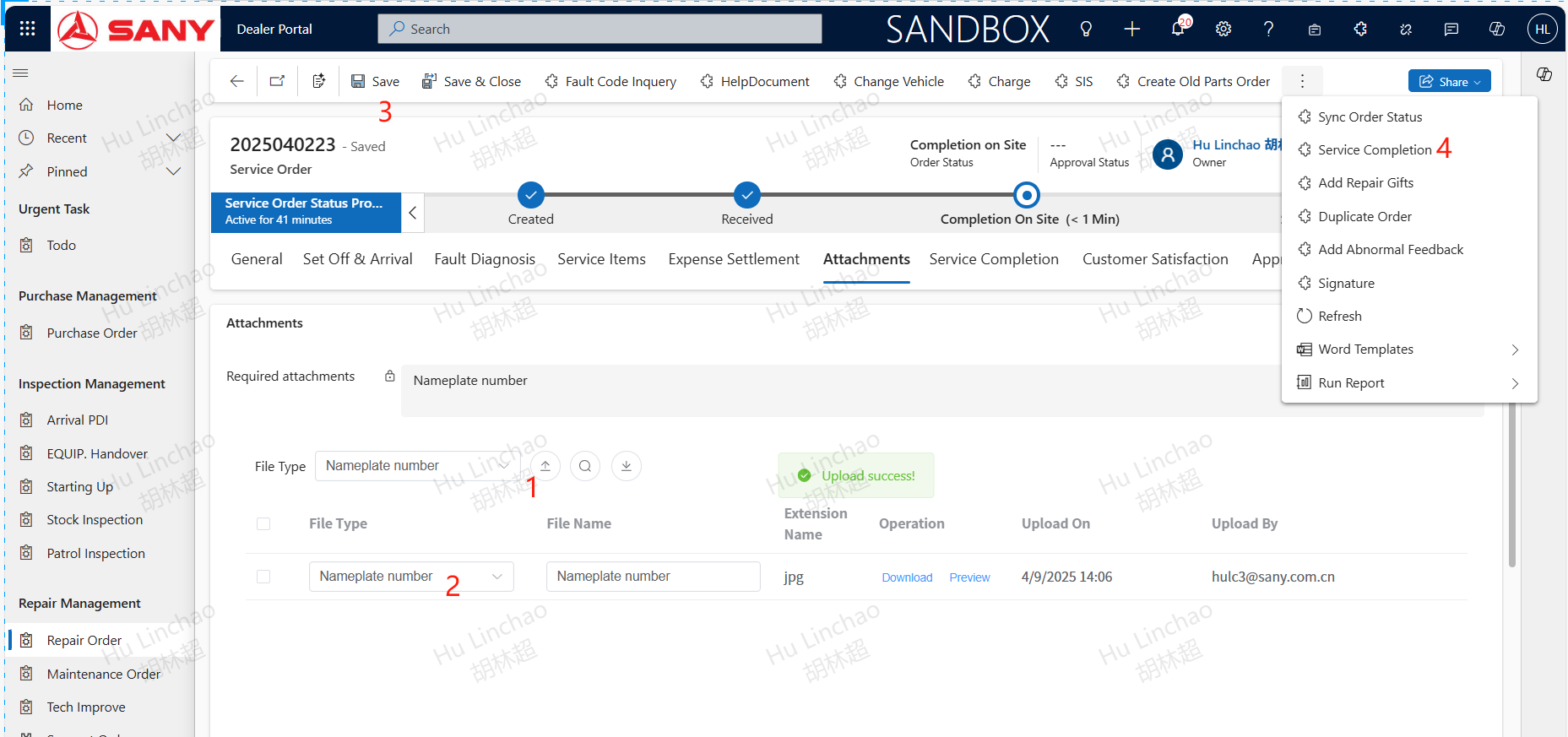
Under the attachments tab, upload the mandatory photos before completion, select the correct file type, save, and then click the service completion button to submit for service completion approval.