Starting Up
Starting Up
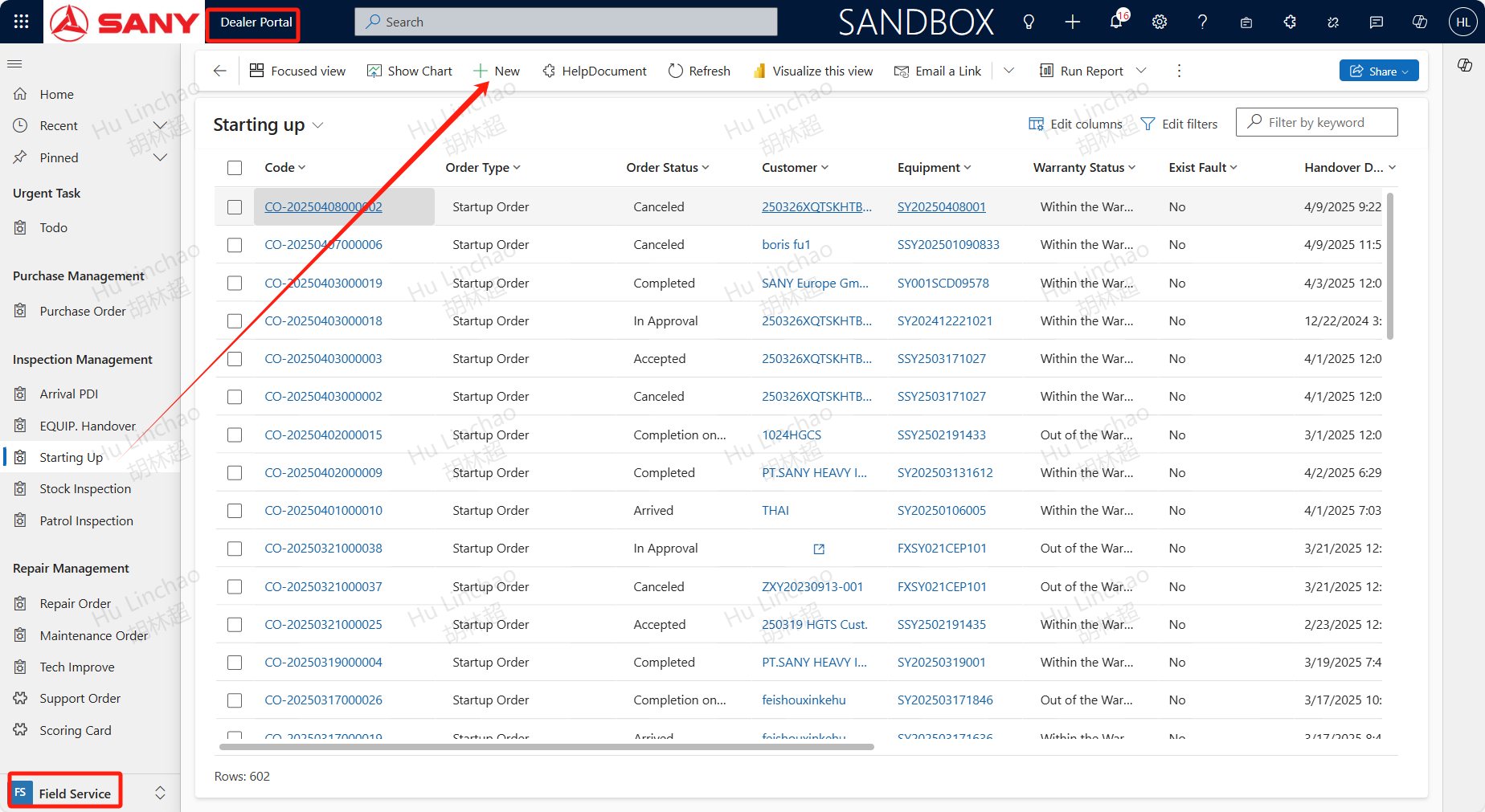
Path: Dealer Portal --> Field Service --> Inspection Management --> Starting Up
Create
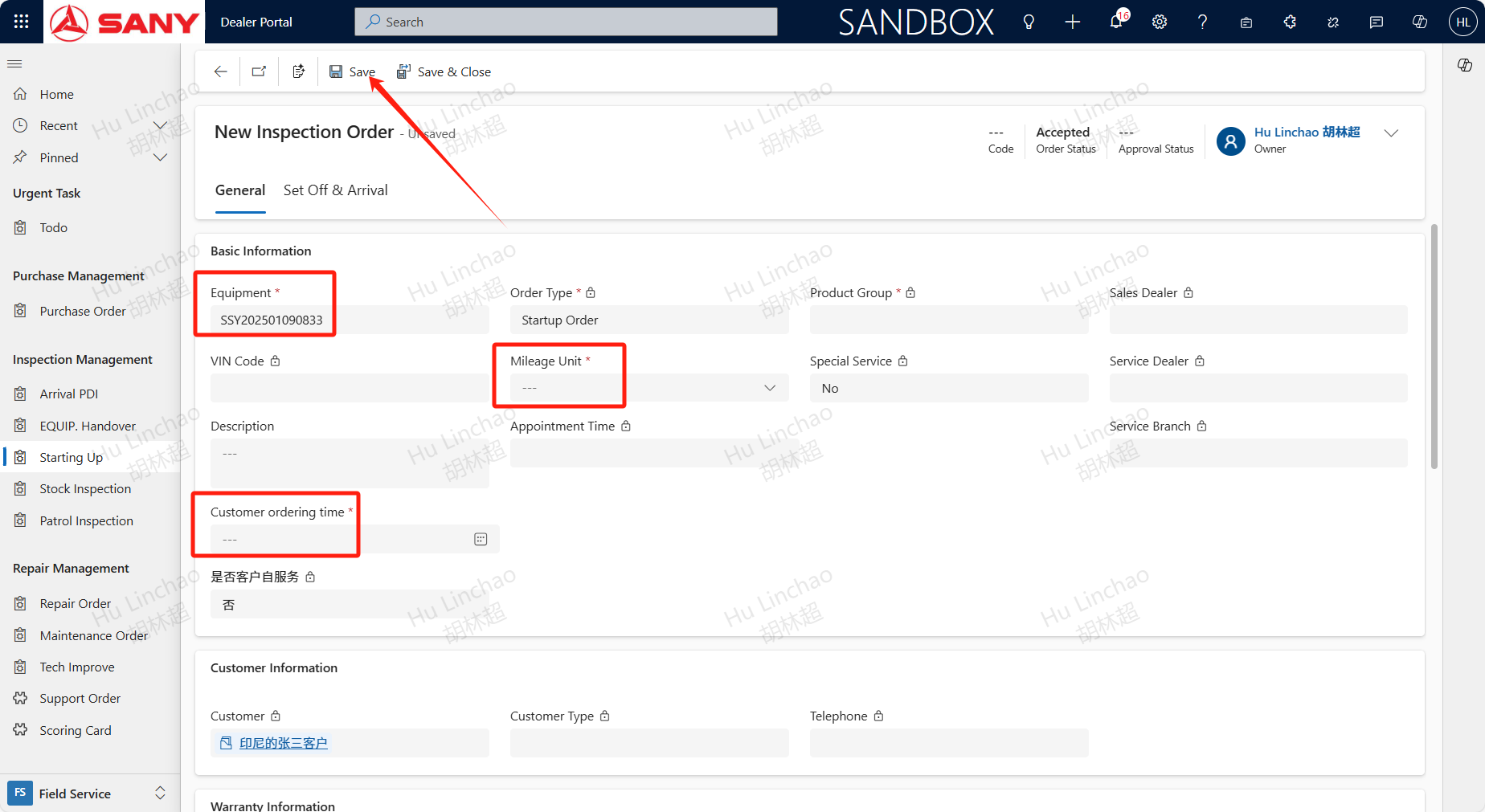
Prerequisite:The device has been delivered and the handover date is not empty; The engineer opens the Starting Up menu, clicks +New, enters the required information such as the device code that needs to be turned on, and saves it to create a startup order.
Transfer
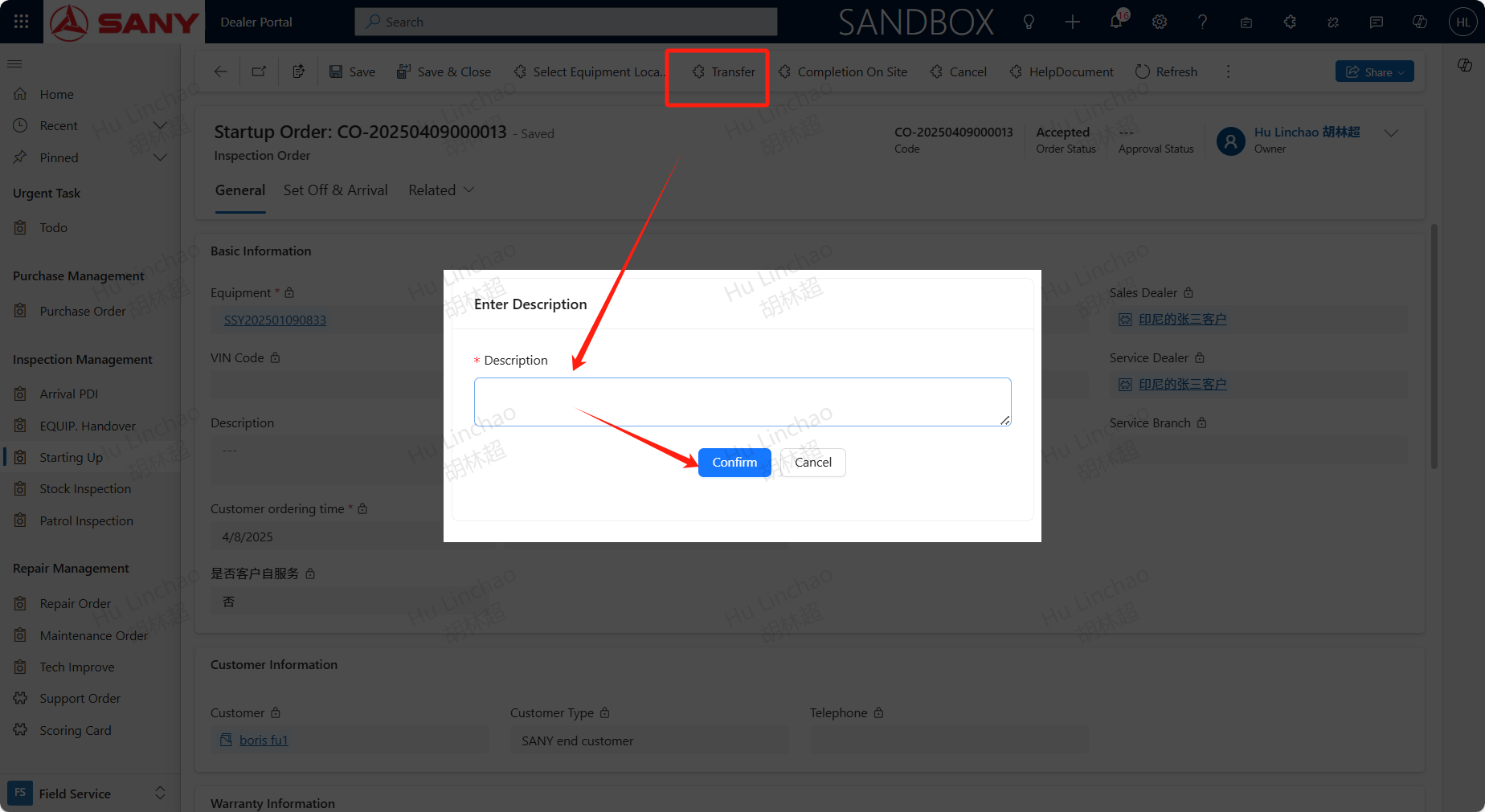
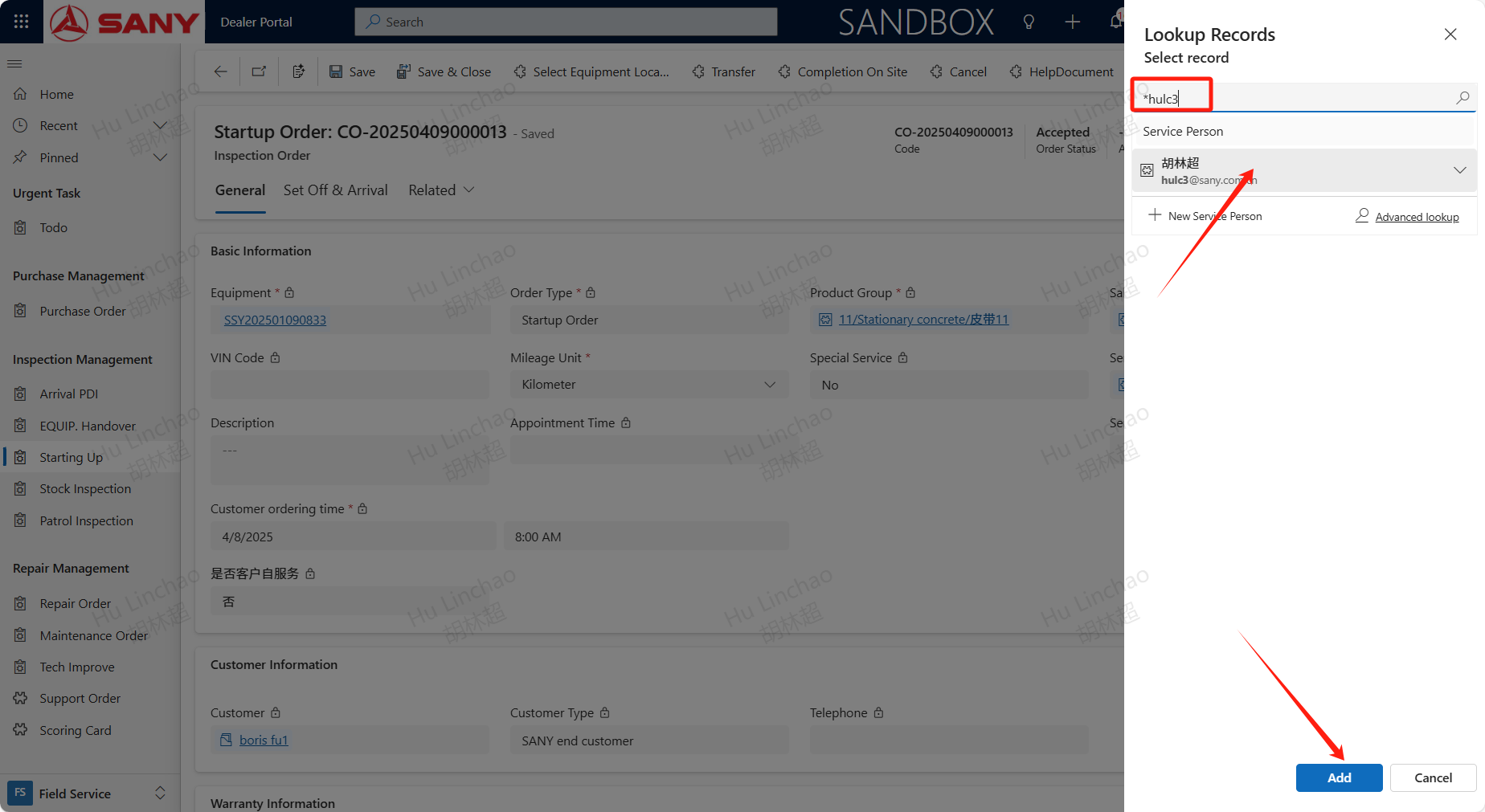
Dealer's engineer can click the 'transfer' button to transfer to other engineers under the same dealer. Click the 'transfer' button, enter the 'description', and click 'confirm' to complete the transfer.
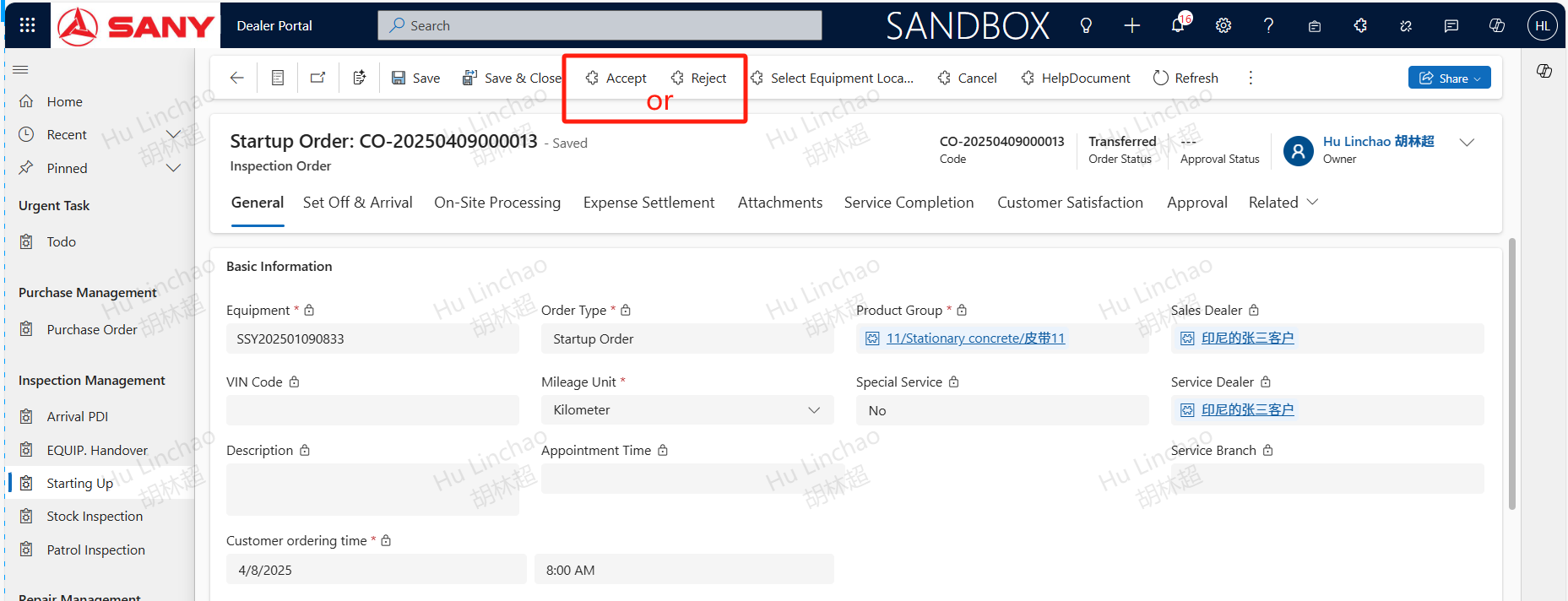
For the engineers who have been transferred, they can click the accept button to accept the order. If they are unable to process it, they can click the reject button to refuse. The rejection service order needs to be accompanied by a note. If refused, the service ticket will be forwarded to the regional service minister.
Cancel
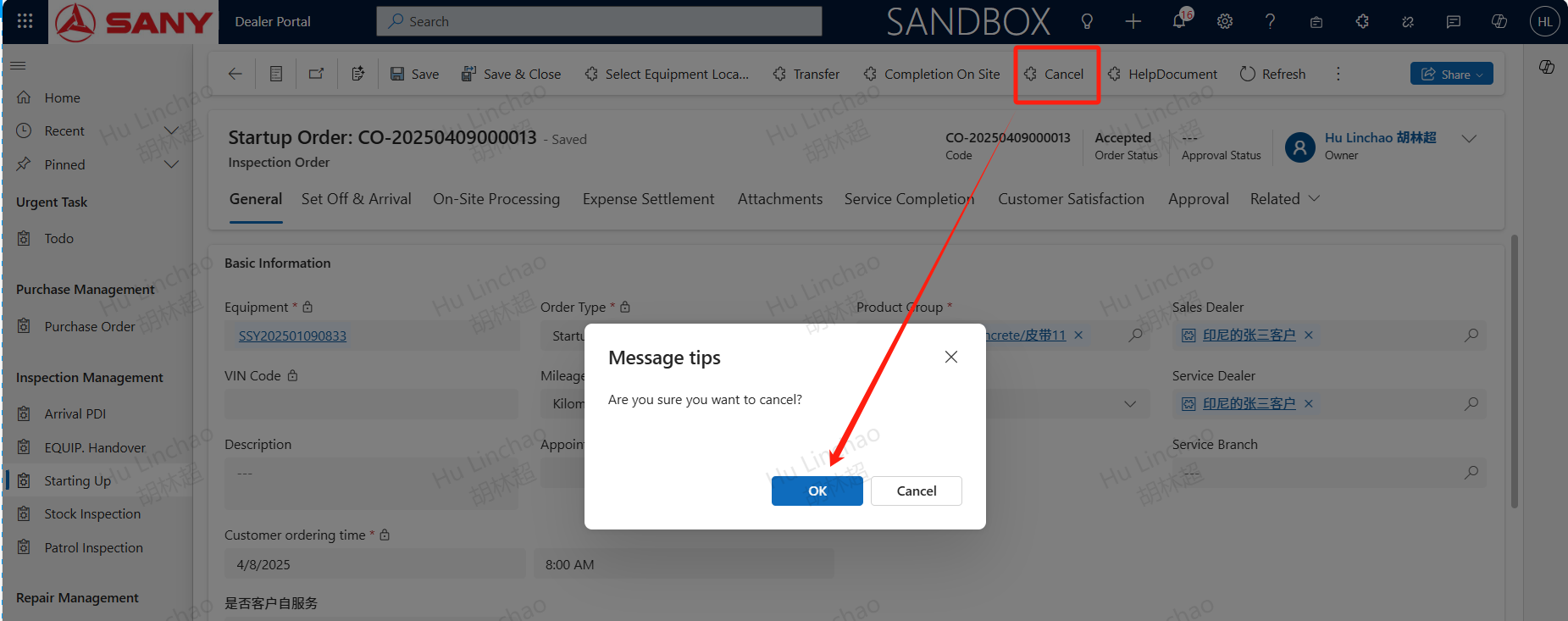
Before on-site completion, if the customer cancels this service, the engineer can click the cancel button, select the reason for cancellation, cancel this service, and after approval, the service order will be officially cancelled;
Completion On Site
After the order created, need to refresh the page to see the tabs for on-site processing, expense settlement, attachments, service completion, etc;
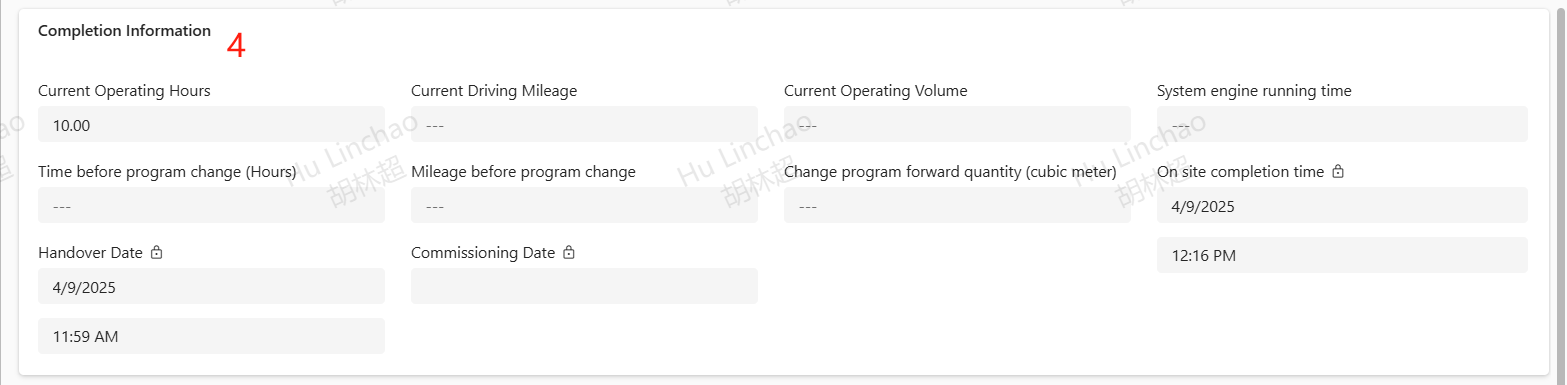
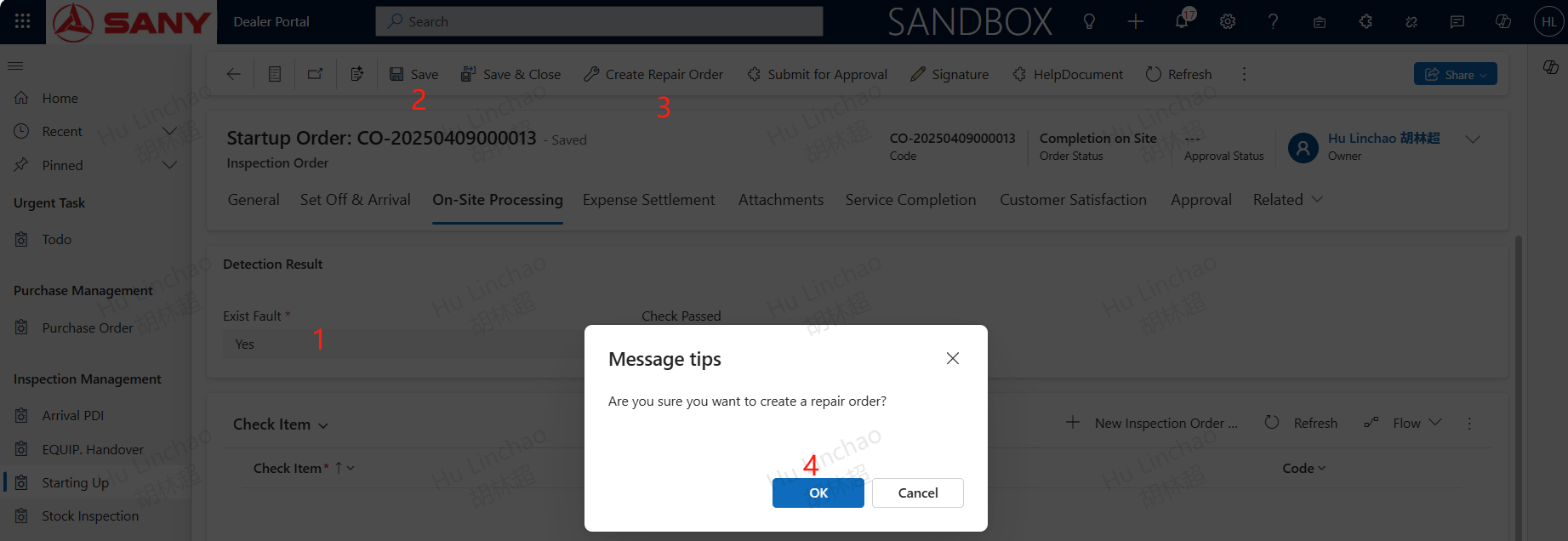
After completing the necessary handover information, On on-site processing tab maintain Detection Result and check Item. The items should be checked item by item. The current operating hours, current mileage, and current operating volume in the completion information cannot be empty at the same time; **If a fault is found during on-site inspection and needs to be repaired, select yes for Exist Fault ** and then refer to the next step to create a repair order;
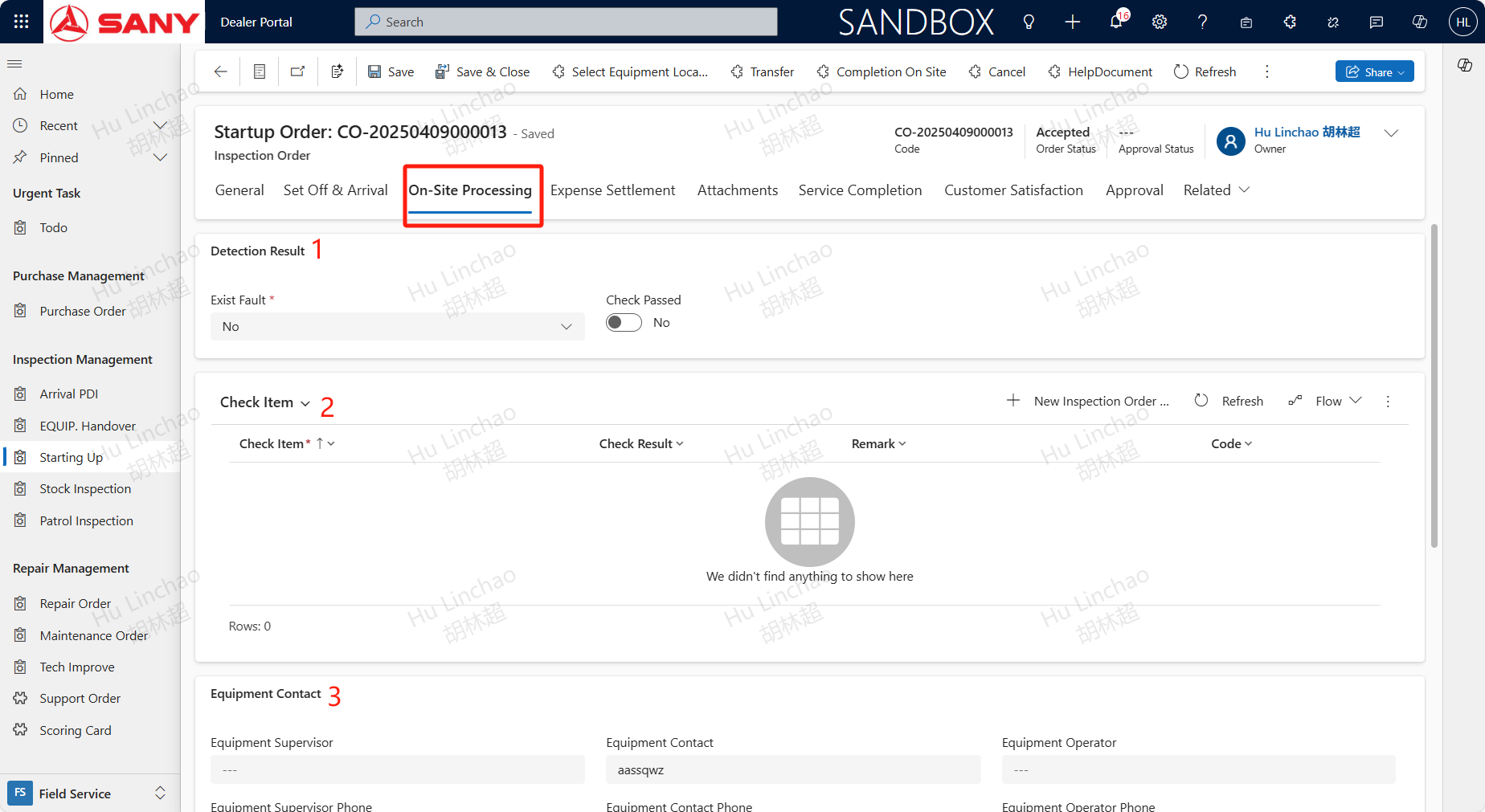
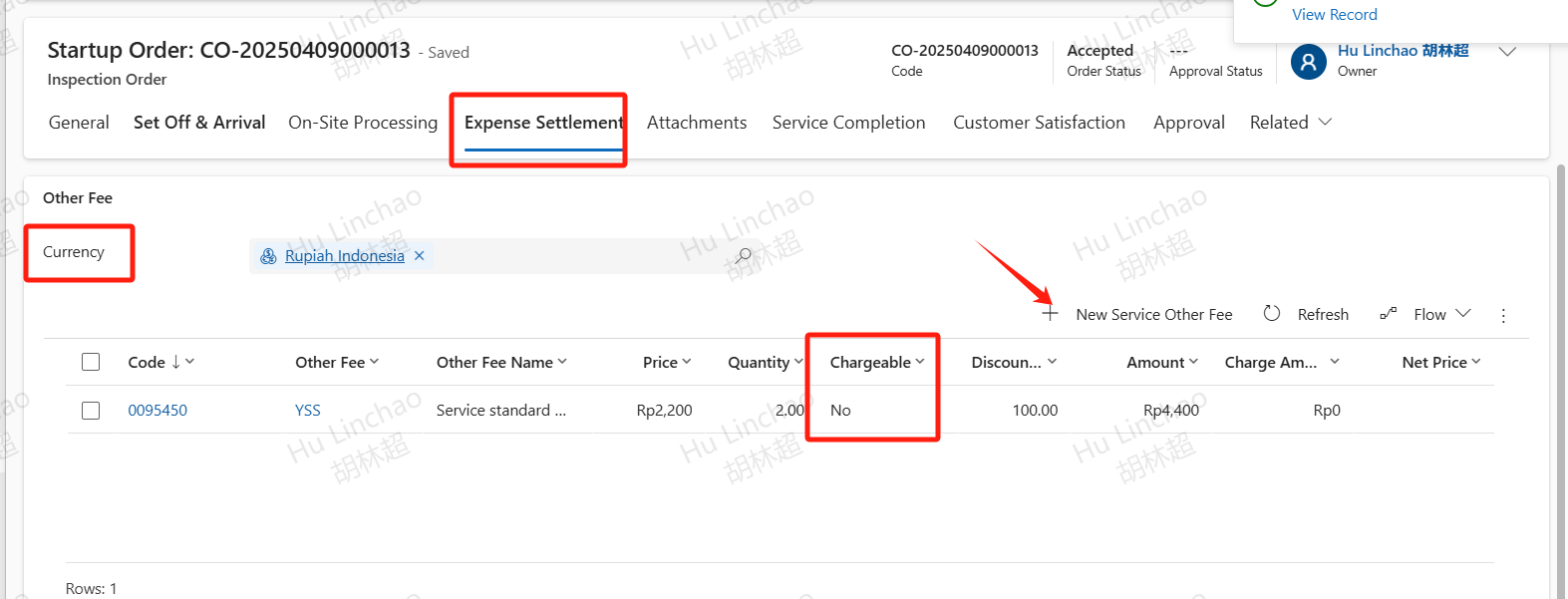
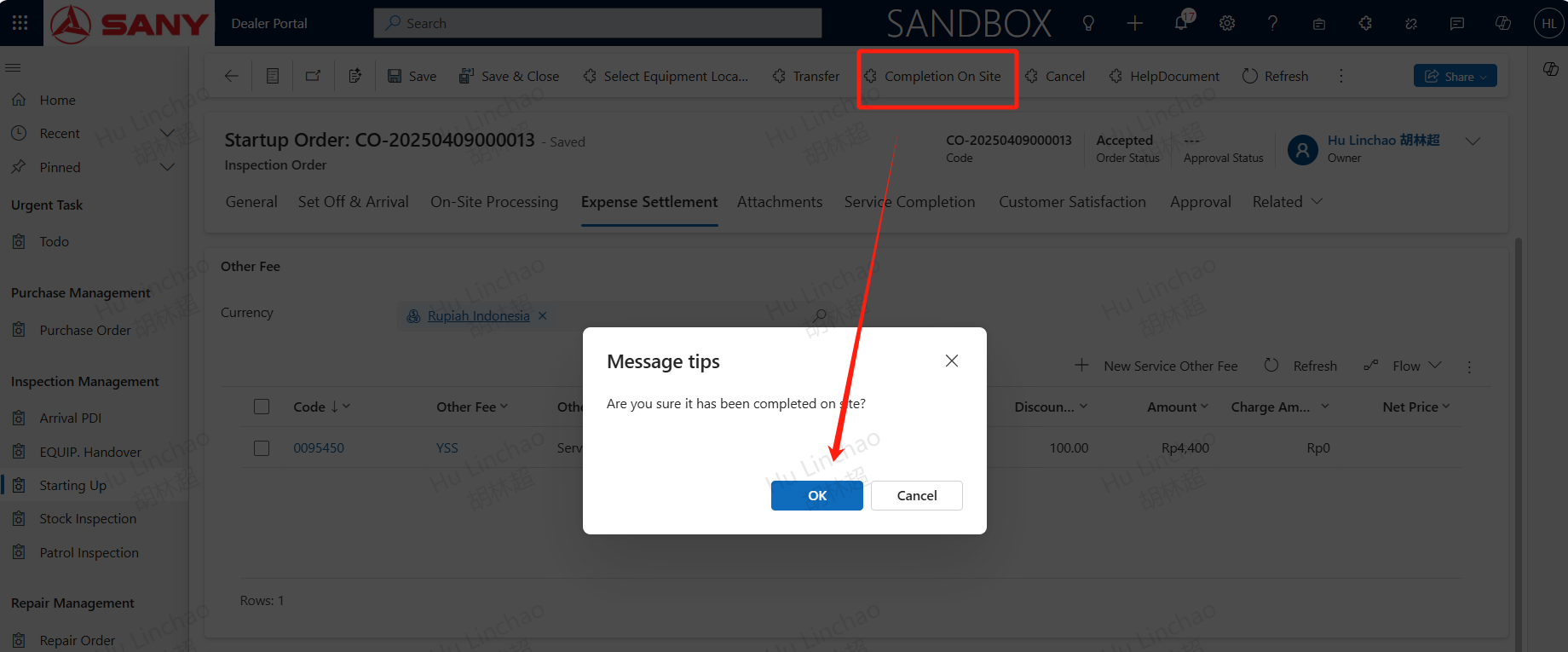
If necessary, add service fees in the expense settlement tab and follow up with the actual situation to choose whether to charge; After completing the on-site work, click the Completion On Site button to proceed with on-site completion.
Create Repair Order
Select yes for Exist Fault,save then can find the Create Repair Order button,click it to create a repair order.
Submit for Approval
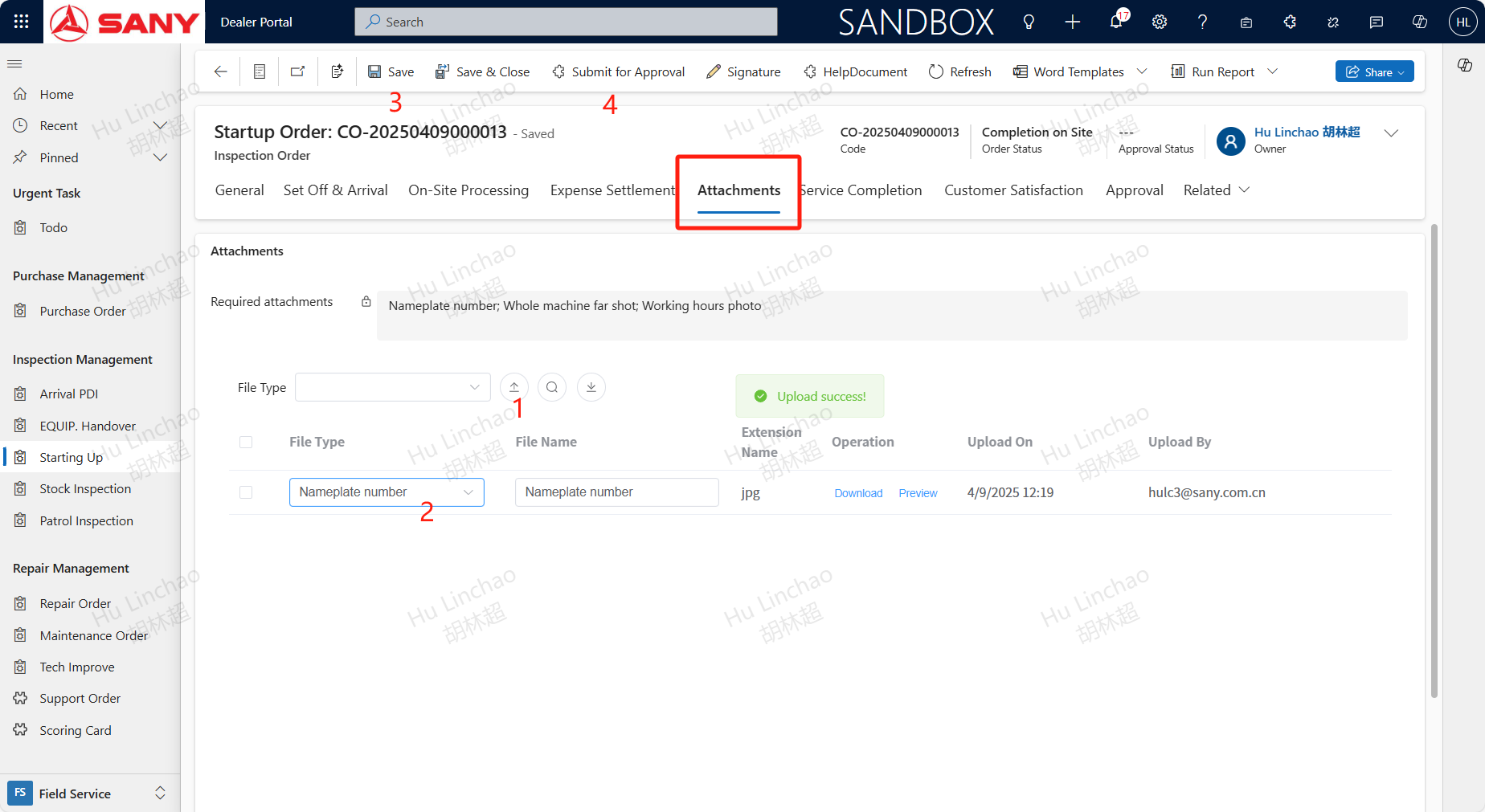
After saving, complete the missing other required information. If there are any missing information, the system will give a prompt. Finally, upload the necessary attachment photos and save them. Click the submit approval button, and once approved, the service will be completed. If a fault is selected and a repair order is created, it is necessary to wait for the completion of the service order then the starting up order can submit for approval.