Contract Performance Sharing
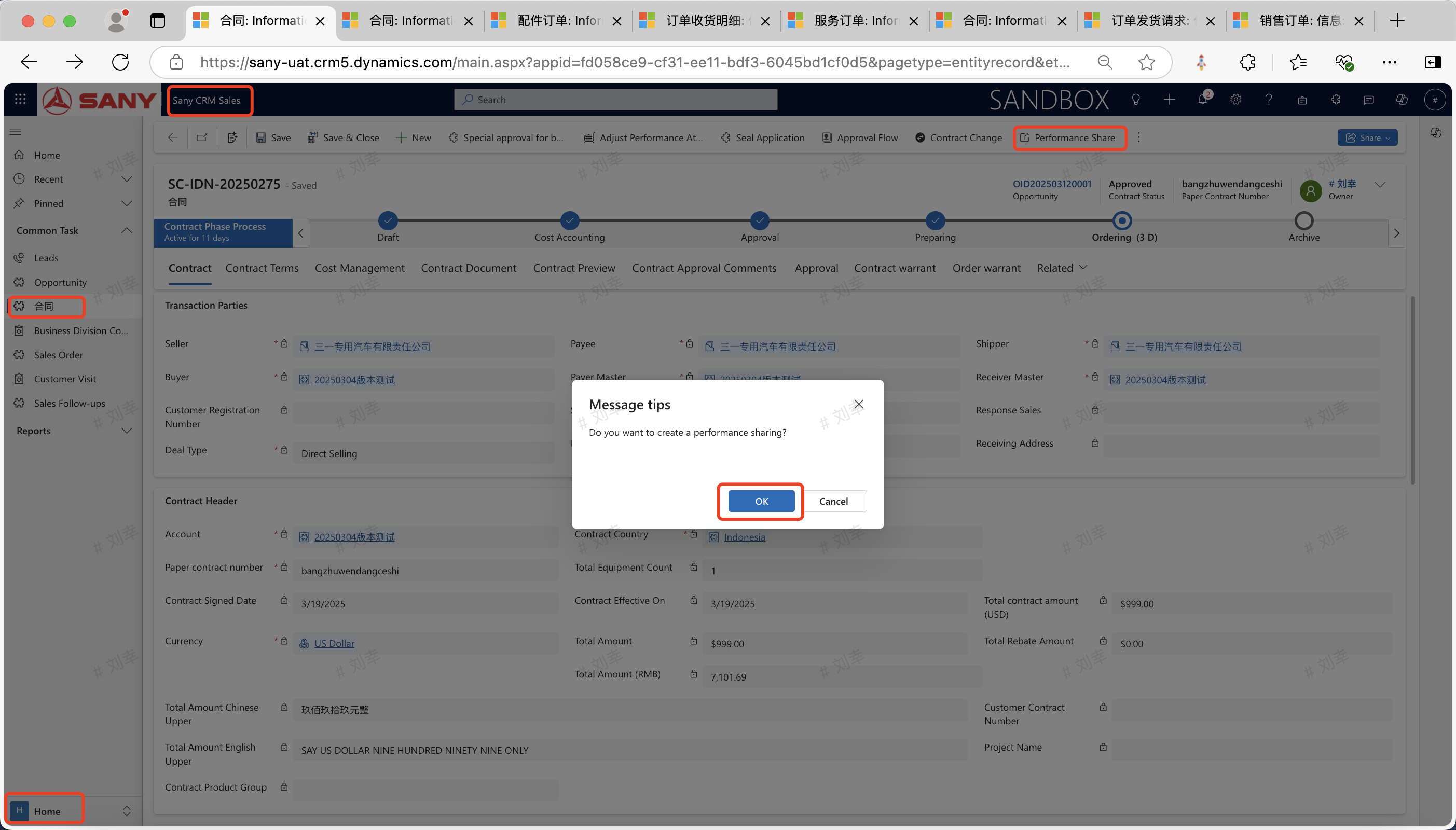
Entry Path: After the contract is approved, open the contract that needs to be shared -> Click "Performance Sharing" -> In the sharing details, enter the sharing unit and the sharing ratio.
Create a Performance Sharing Form
After the contract is approved, a performance sharing form can be created based on the contract. If there is already a performance sharing form for this contract, it will prompt that the sharing already exists, and it is not allowed to create it again.
 When creating a performance sharing form, the system automatically fills in the contract information and initializes the performance sharing details according to the contract line items based on the sharing rules. Click "Save" to create the performance sharing form.
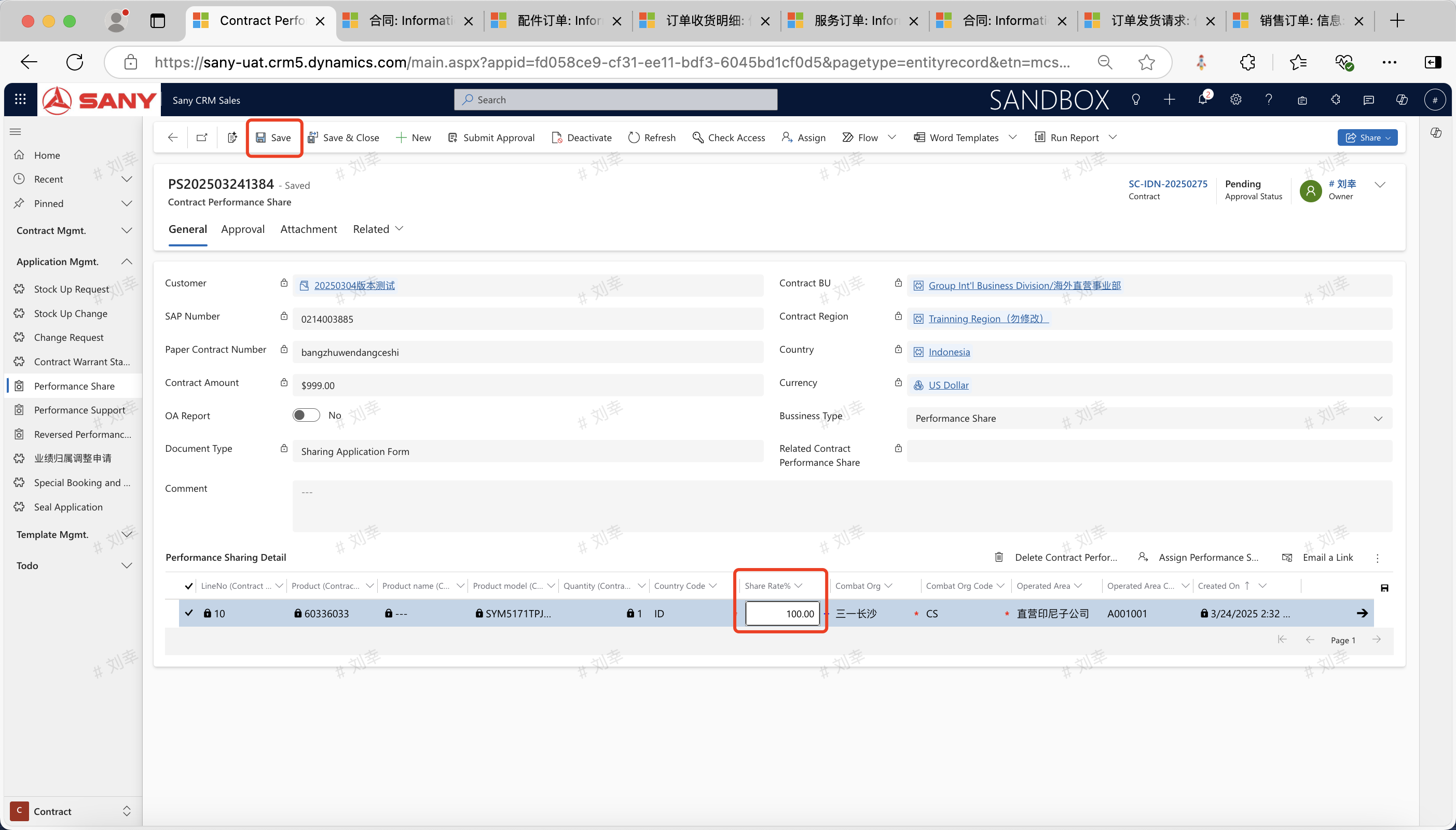
Enter performance sharing details
Enter Performance Sharing Details
You can click "Create New Performance Sharing Details" in [Performance Sharing Details] and then add a line of performance sharing organization. (The sum of the sharing ratios must be 100%).
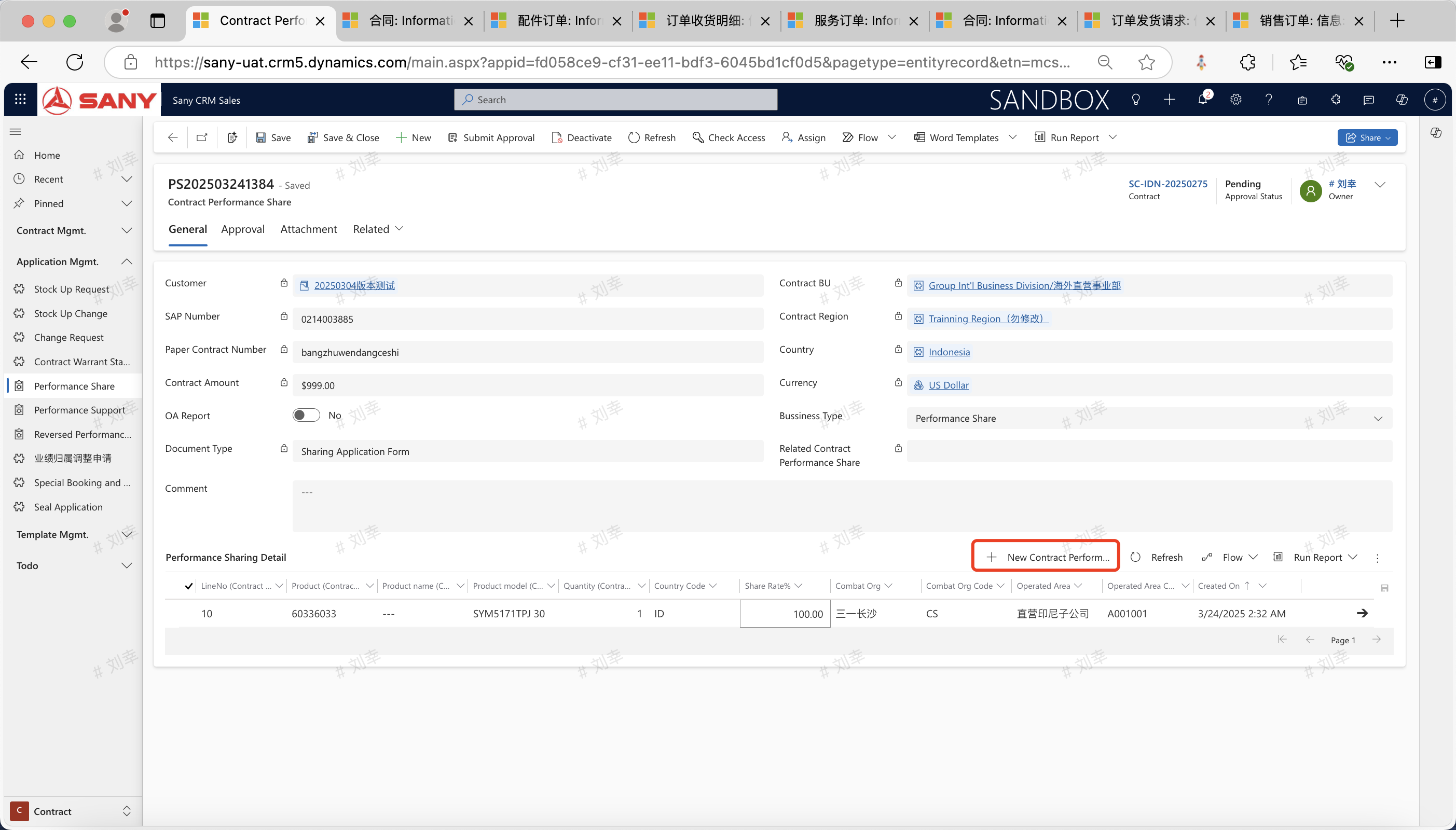 If you need to adjust the performance sharing unit initialized by the system, double-click to open the "Performance Sharing Details" to adjust the combat organization and the department of the self-operated direct sales area for sharing. You can also select the details and delete them.
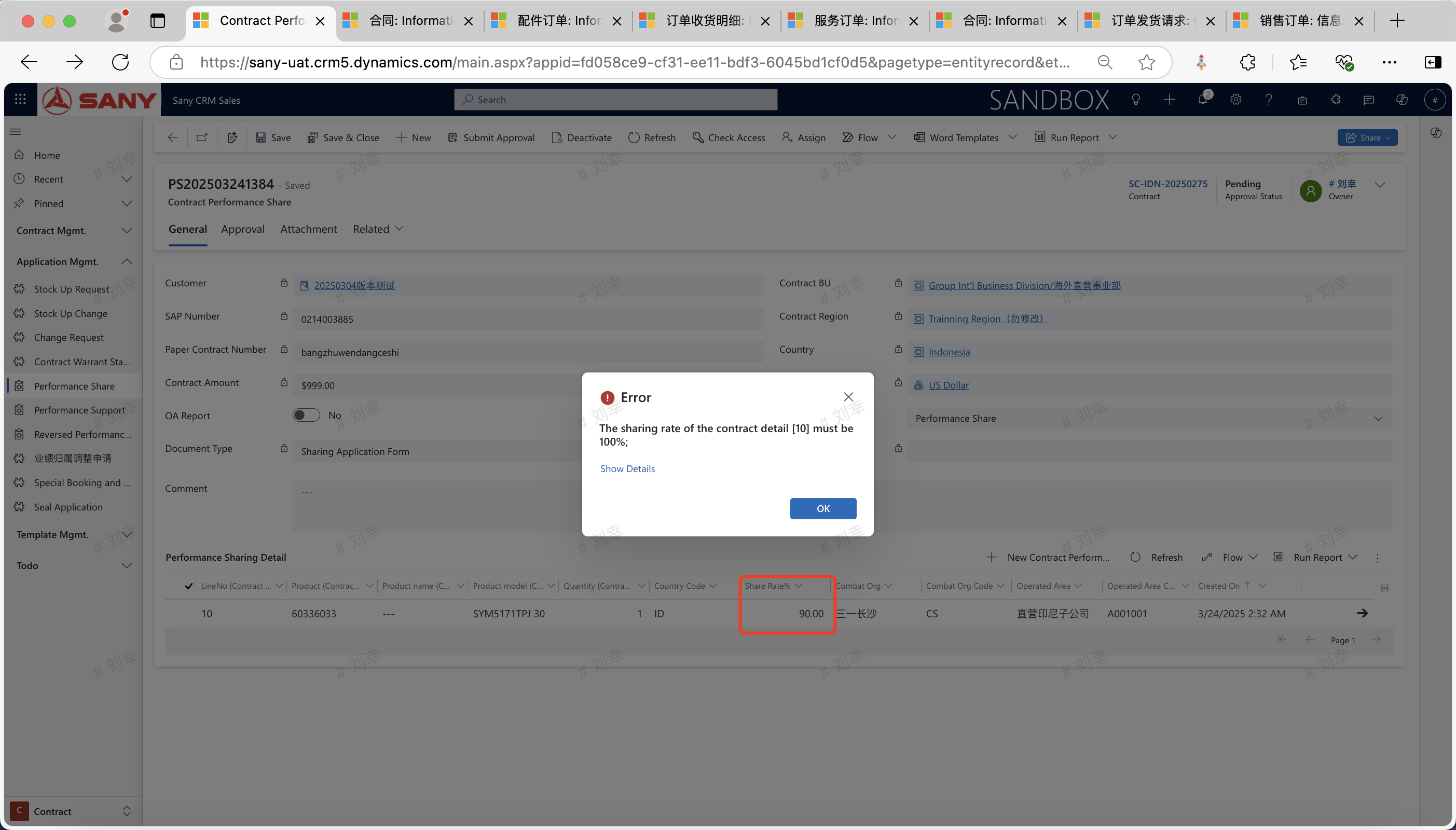
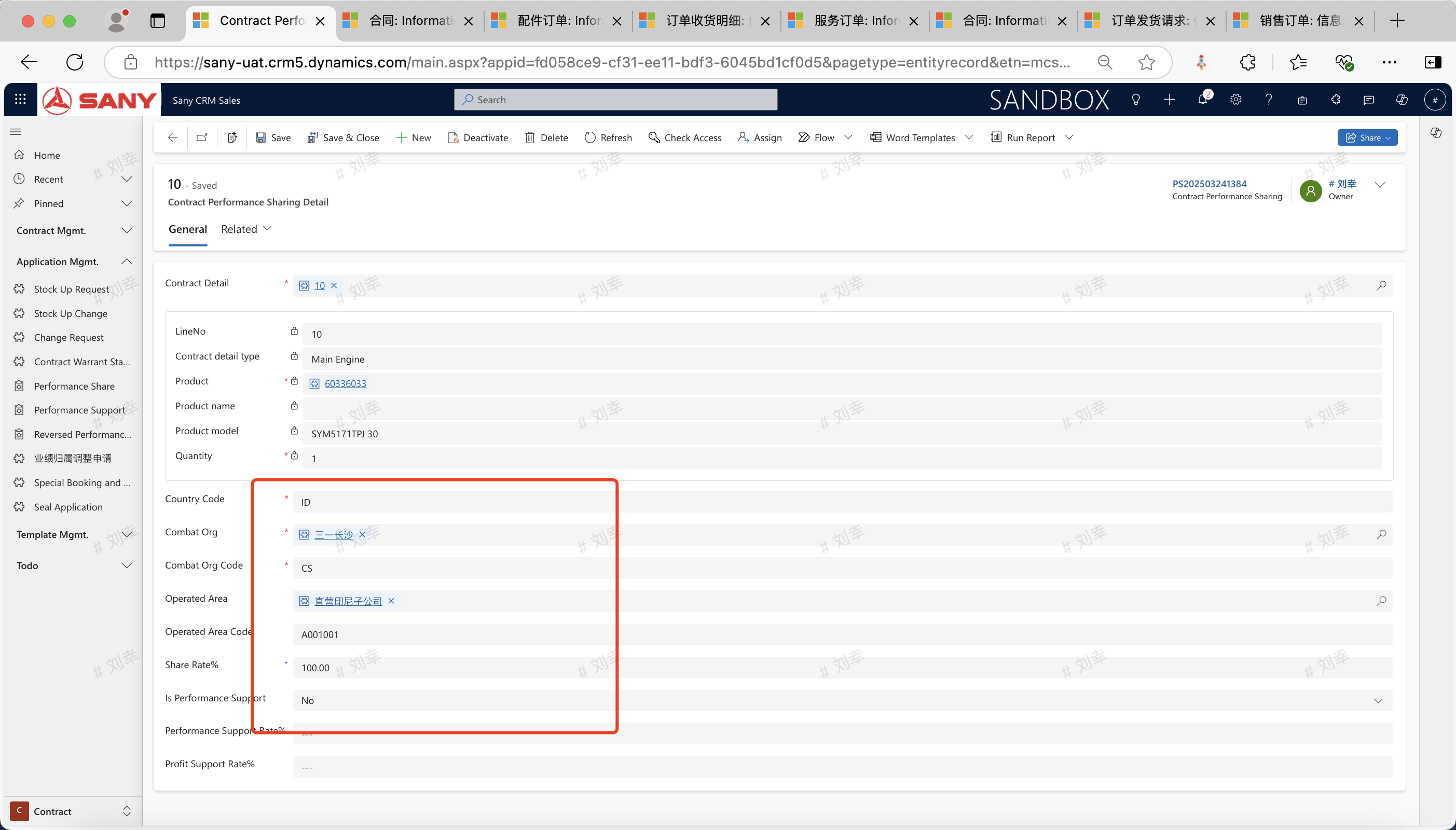 The sum of the sharing ratios of the contract lines must be 100%. If this is not met, a prompt will be given when submitting the performance sharing for approval.
Approve the Performance Sharing Form
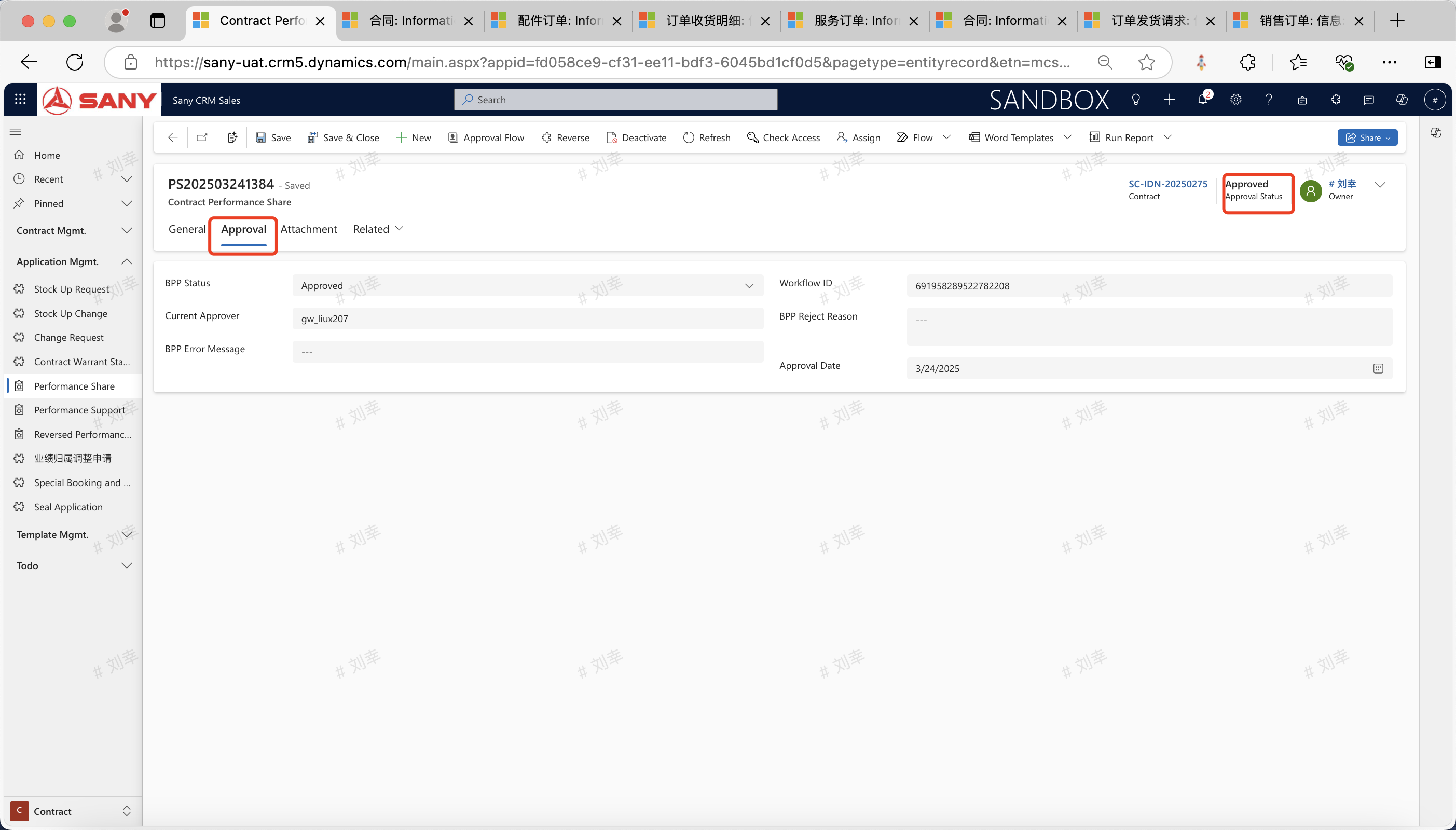
Click the "Submit for Approval" button to initiate the BPP approval process for performance sharing. Click the "Approval" tab to view the approval information. After the approval is completed, the status of the performance sharing form is updated to "Approved", and the sharing results can be viewed in the BW report.