Shipment Application
Create Shipment Application
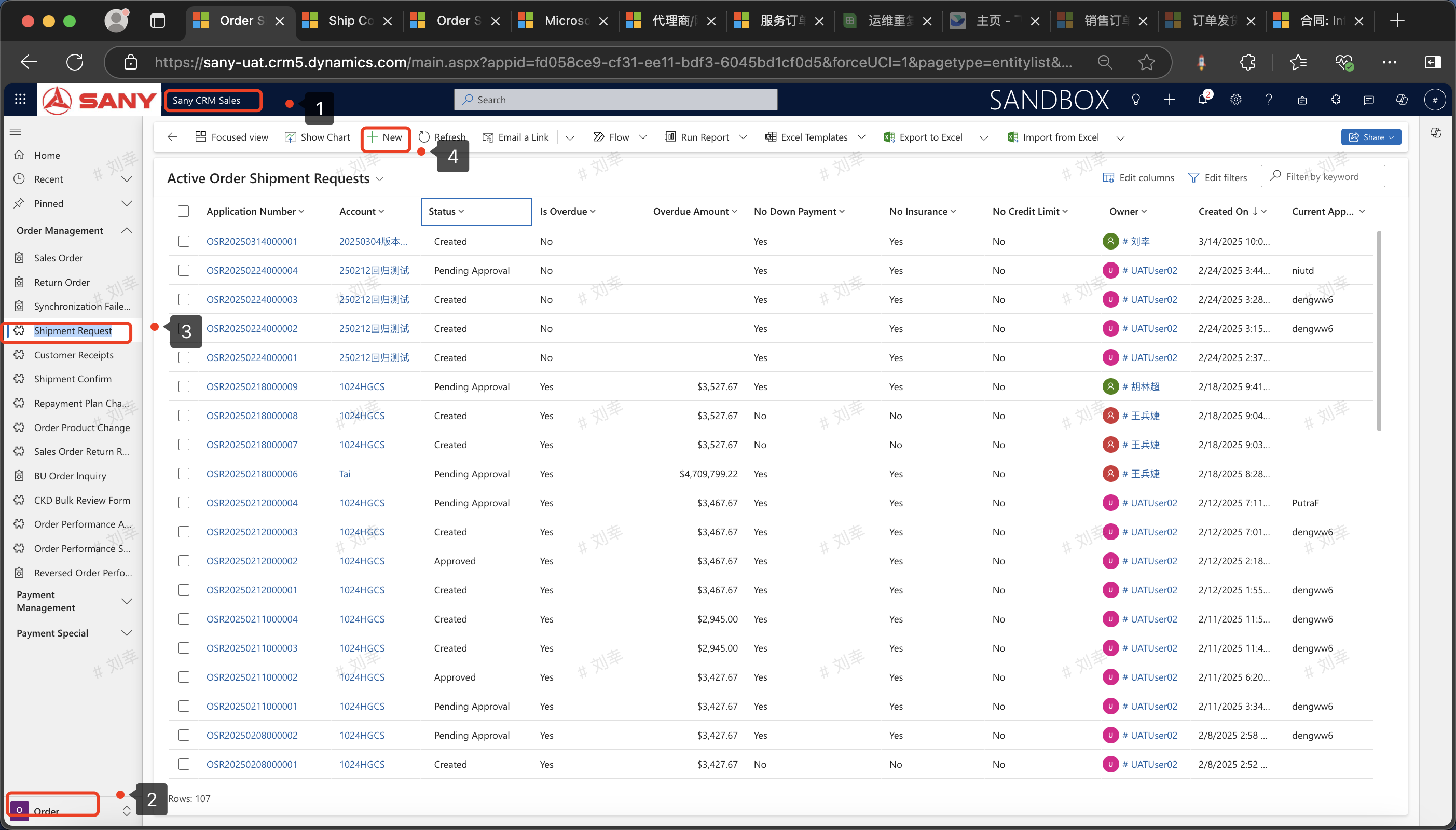
Entry Path: Sany CRM Sales -> Order -> Order Management -> Shipment Request -> New
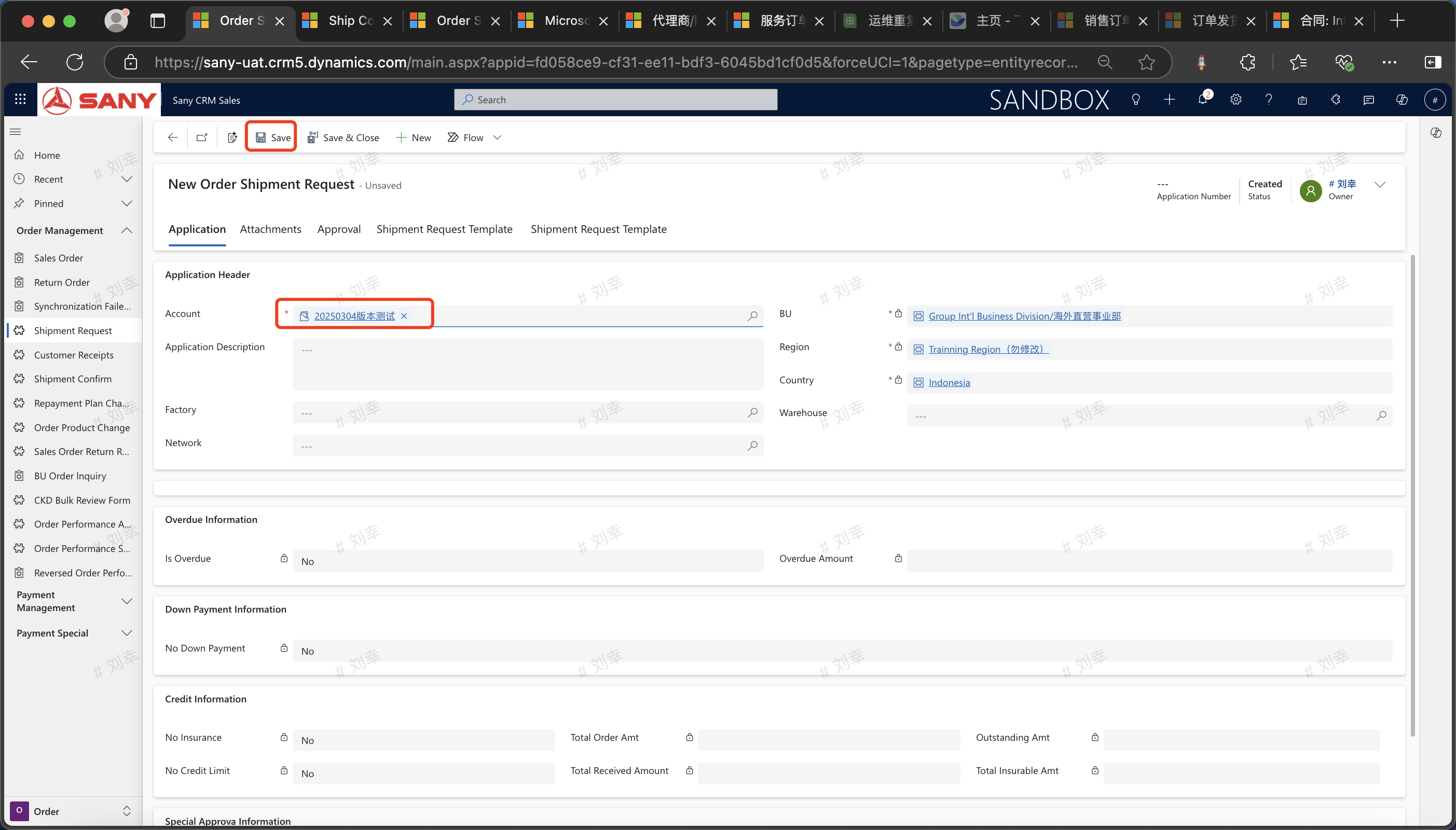
 After selecting the customer, the data of the Business Division, Region, and Country will be automatically populated according to the customer information. Fill in the [Application Description]. (Choose whether to fill in [Factory] and [Network Point] according to the business situation.) Click "Save".
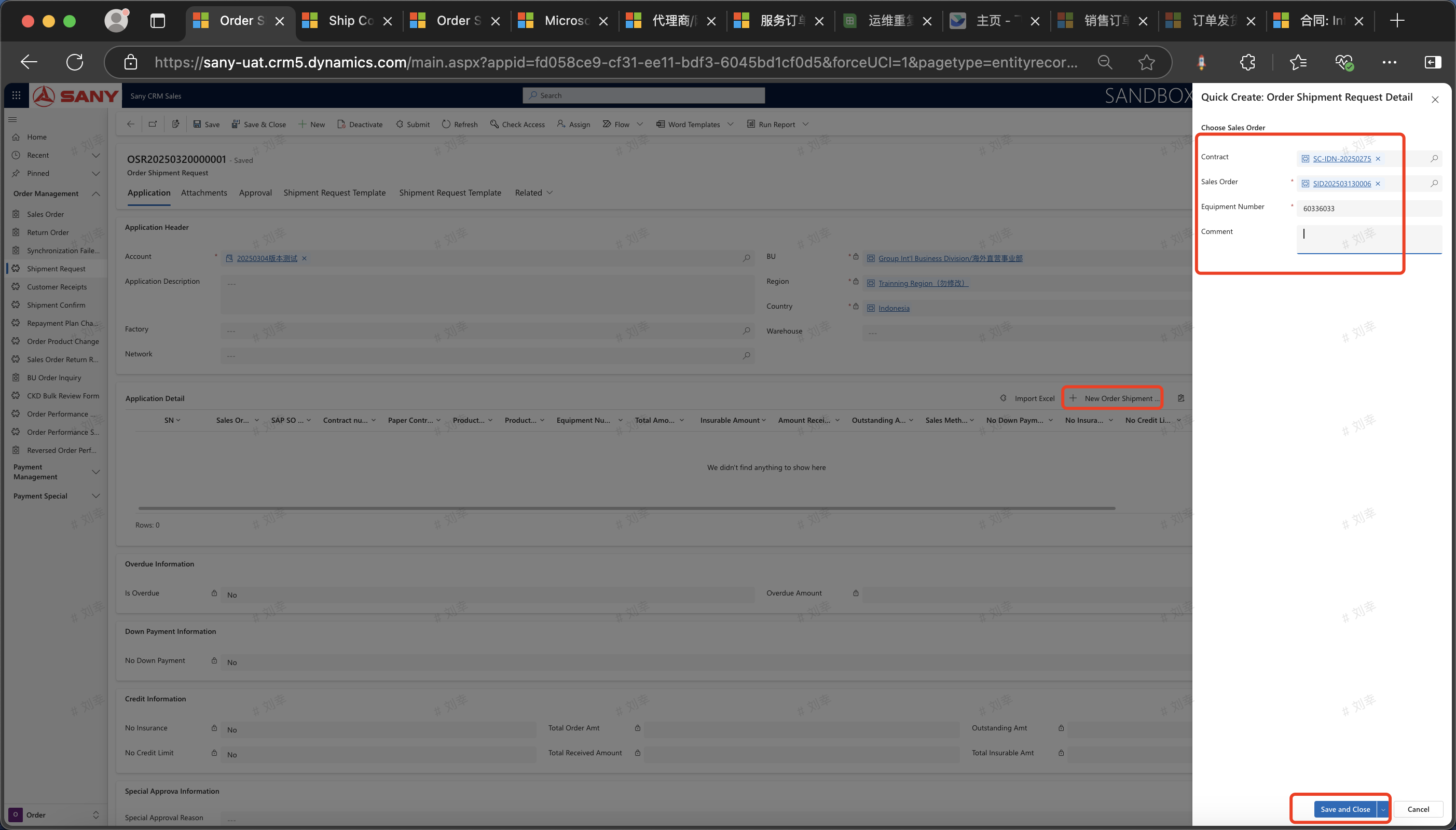
In the "Application Details", click "Create New Order Shipment Request Details".
In the pop-up window, select the unsent sales order of this customer, fill in information such as the equipment number, and click Save and Close.
 Bulk import shipping request
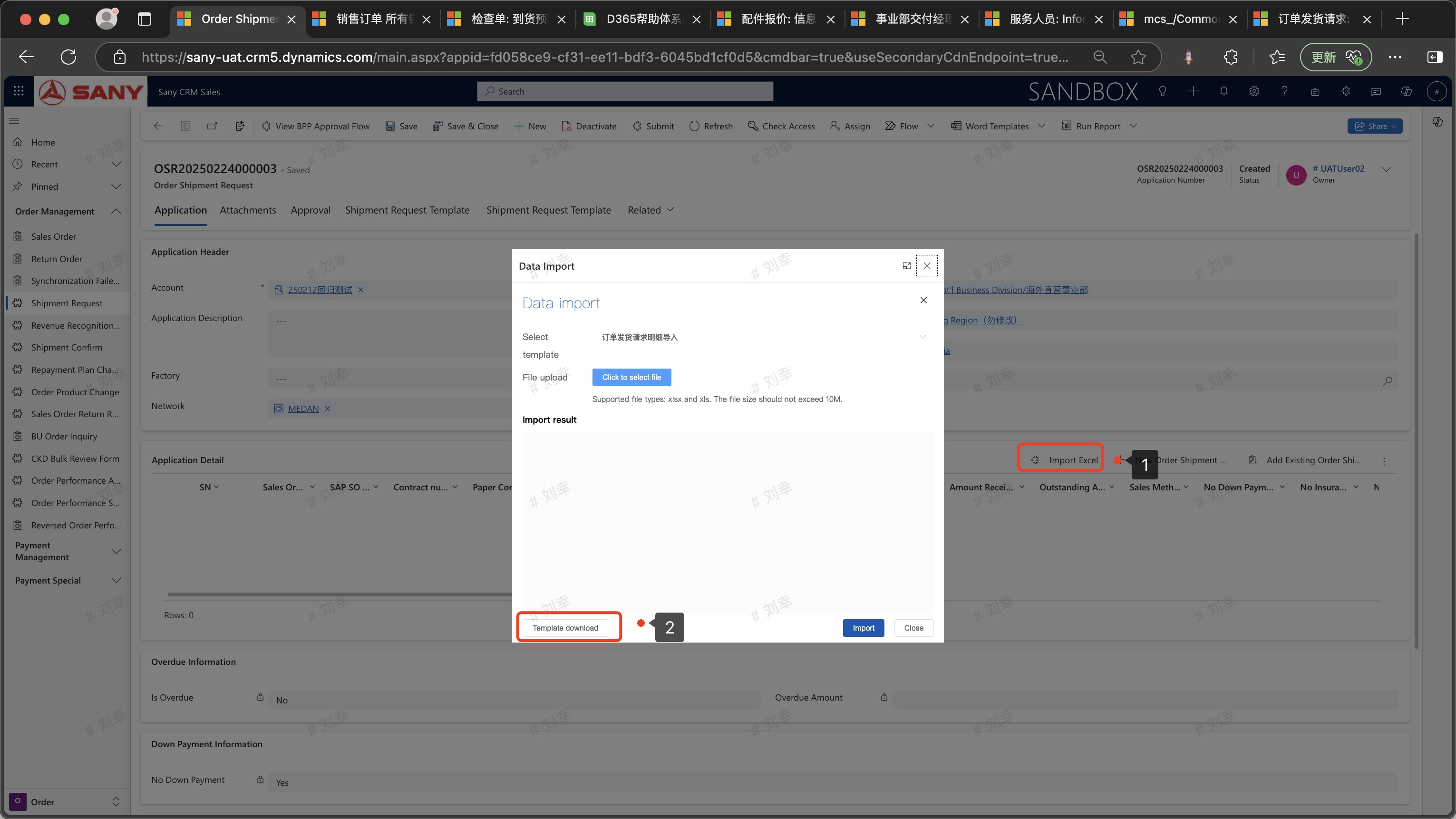
Download the batch import template as shown in the image
Bulk import shipping request
Download the batch import template as shown in the image
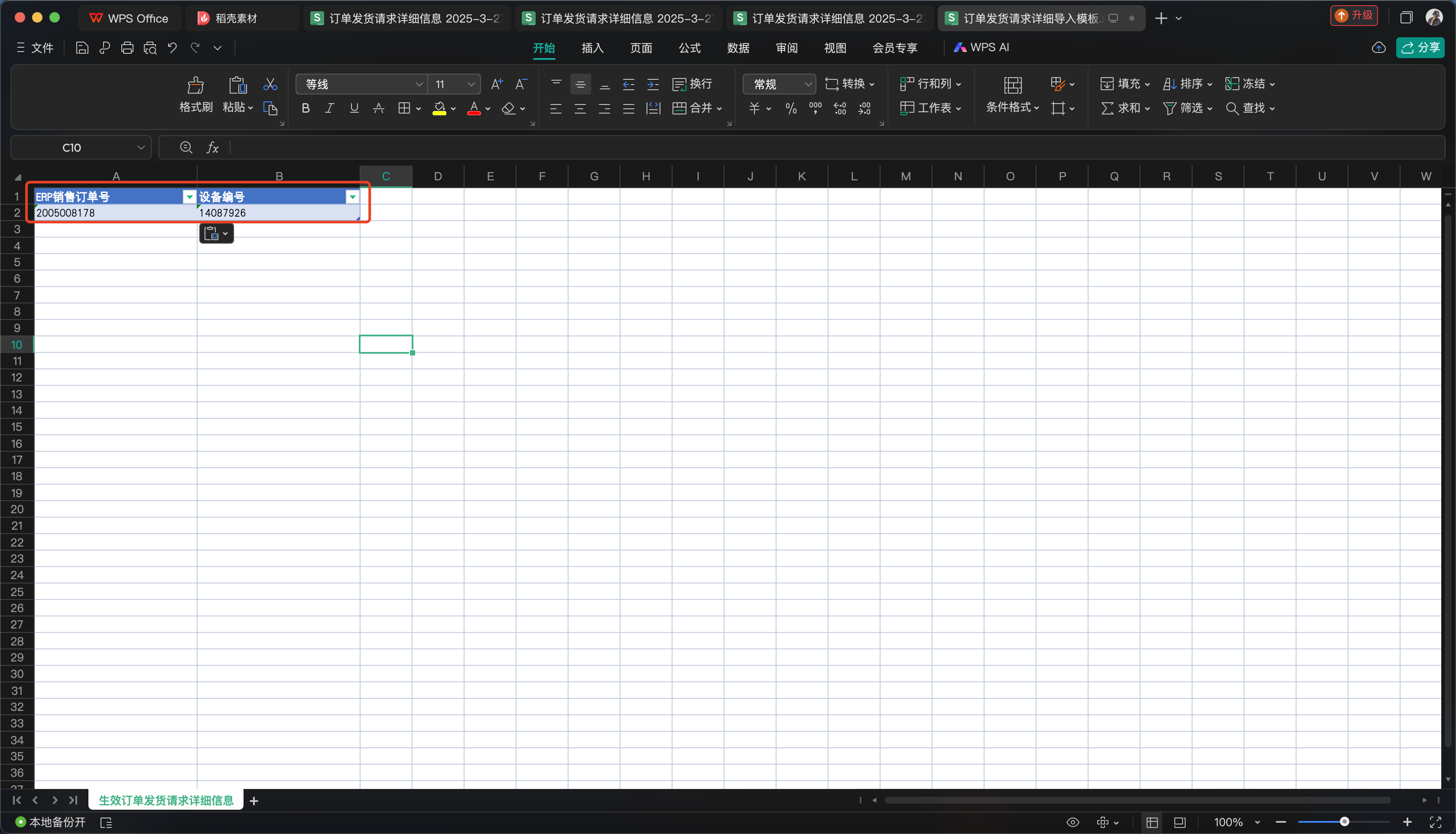
 Download and fill in the template content (sales order number should be "unshipped" "in progress" order)
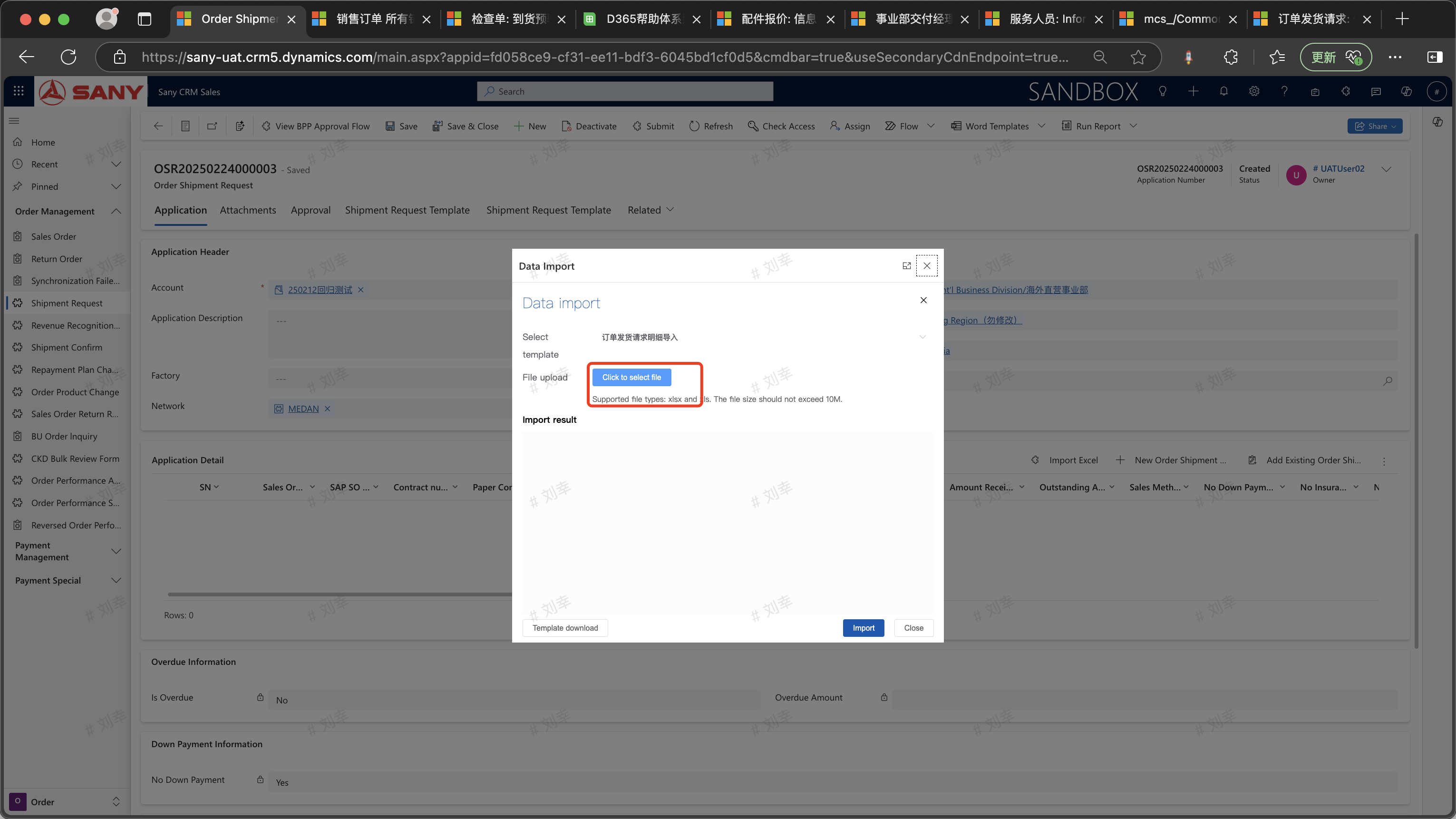
 "Click to Select File" to upload the attachment
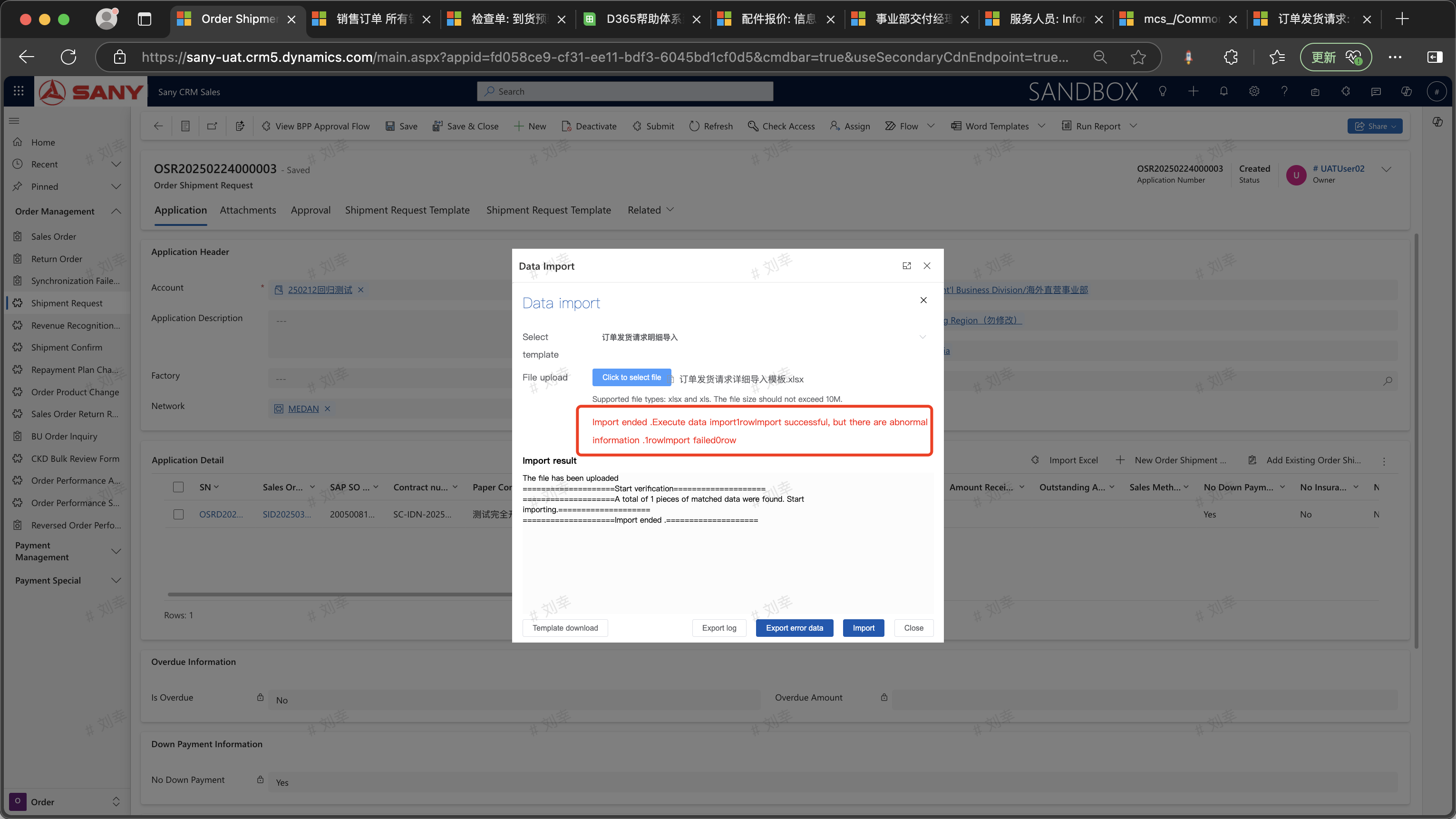
 If the import succeeds, the system displays the following message: The import is complete. Import 1 piece of data, import 1 piece of data successfully, and import 0 pieces of data failed
 Batch Import
On the page, click the three dots on the right side of "Add Existing Order Shipment Please..." to expand the options. Click "Excel Template" and select "Download Template". After completing the template maintenance, click "Import Excel" on the page.
Batch Import
On the page, click the three dots on the right side of "Add Existing Order Shipment Please..." to expand the options. Click "Excel Template" and select "Download Template". After completing the template maintenance, click "Import Excel" on the page.
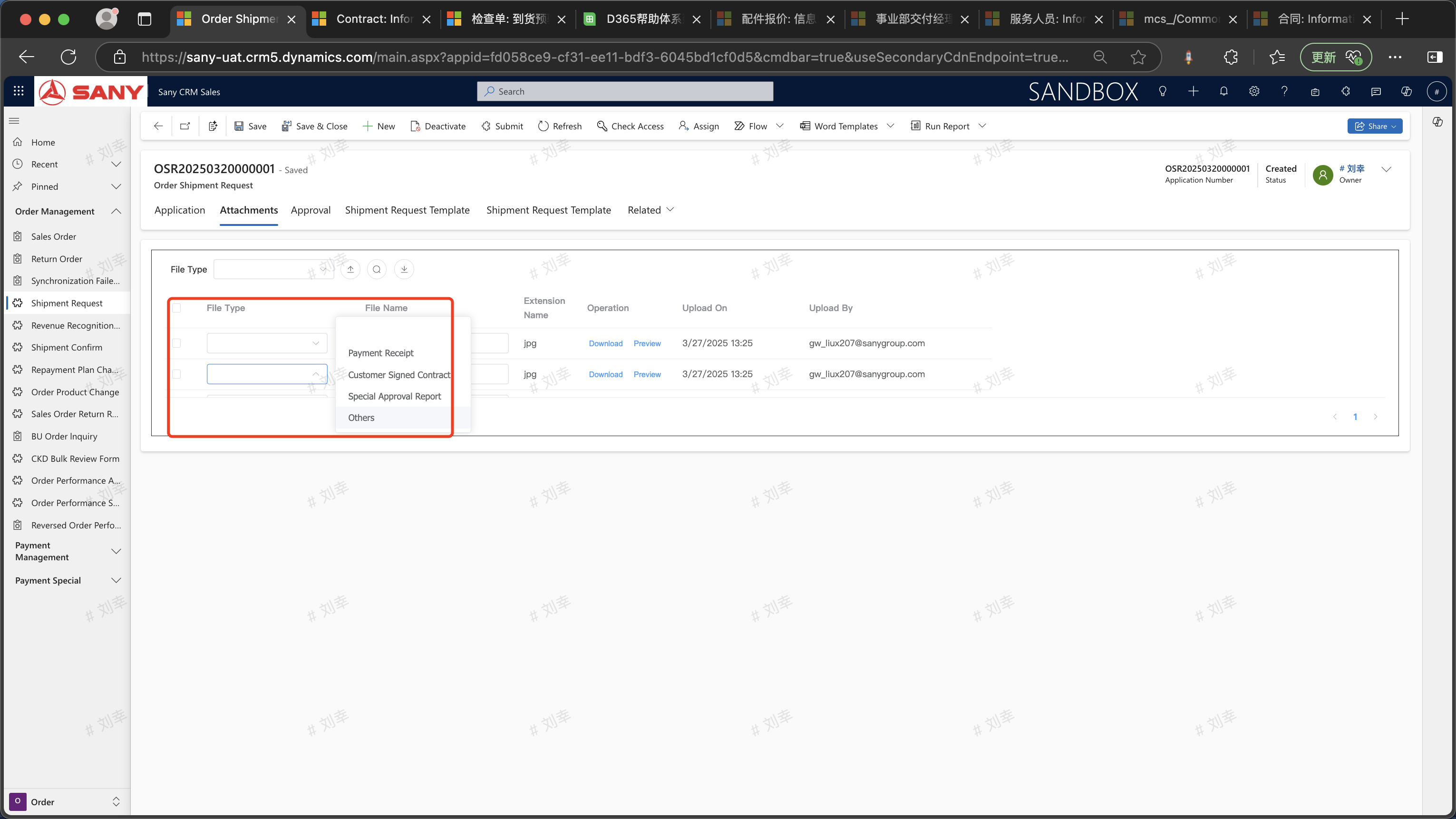
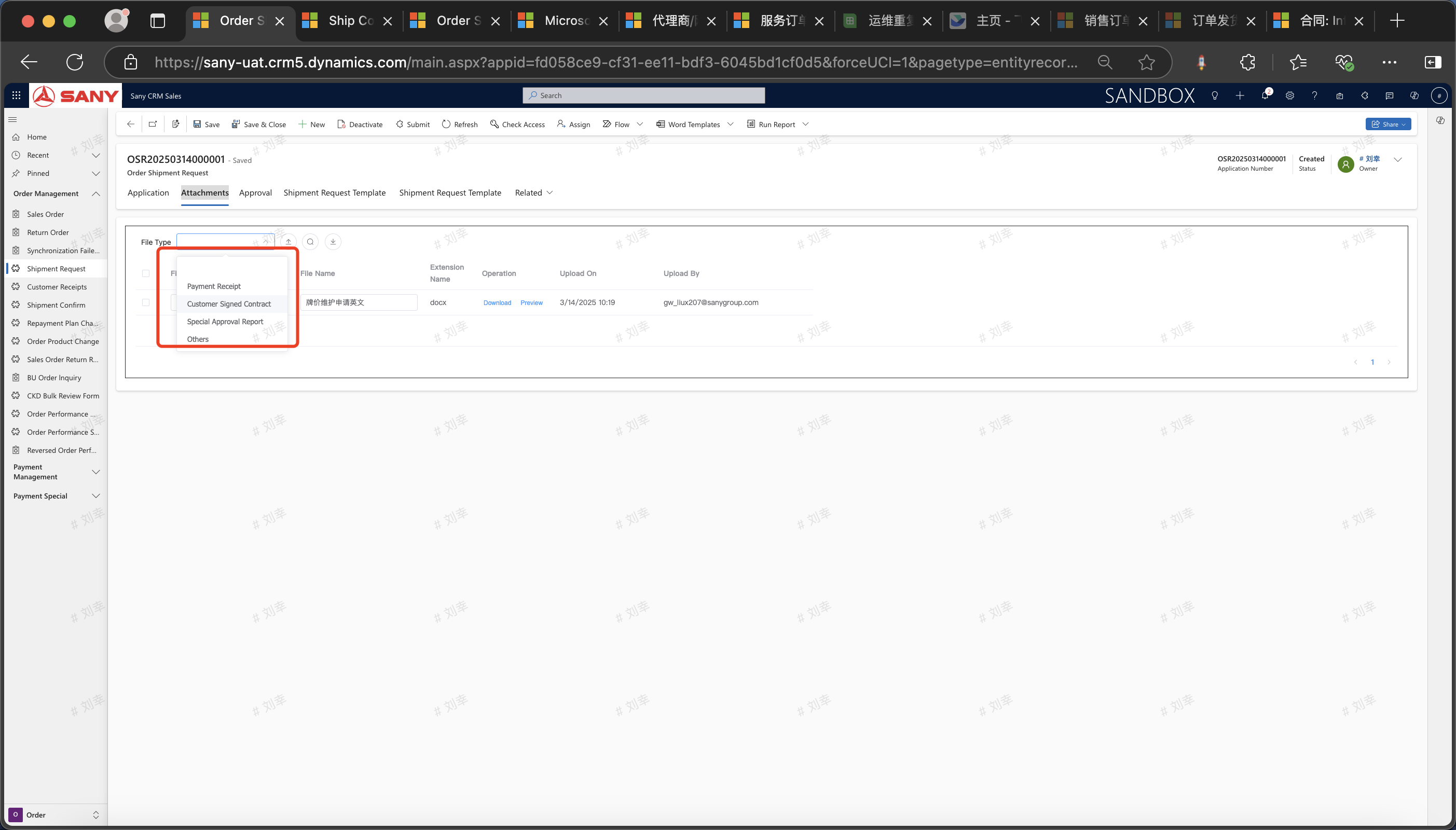 Hold shift while uploading the file and select the file type
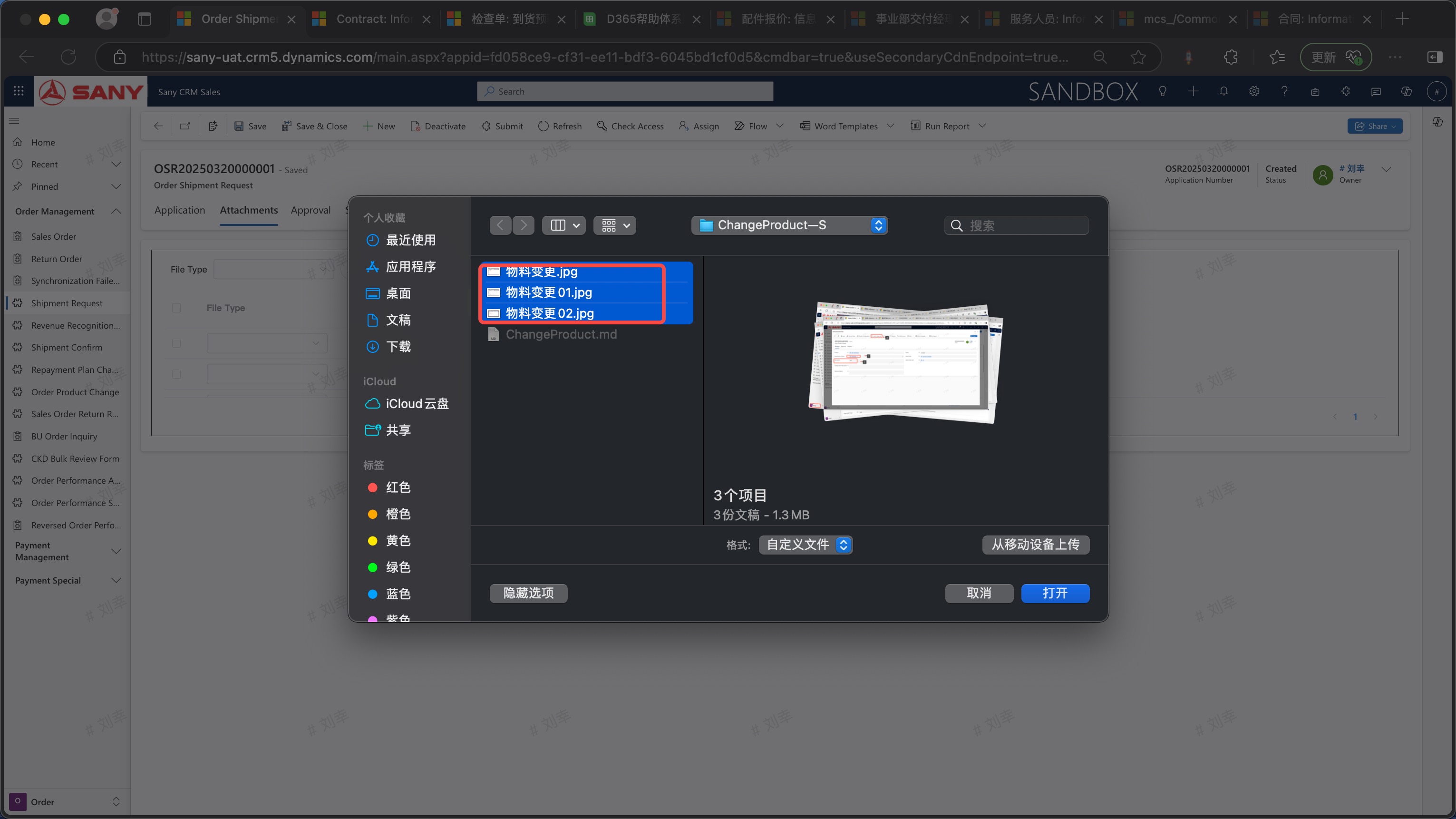 Upload other attachments such as the "Signed Version of the Contract", and click "Submit". After the approval is passed, it will synchronize with the ERP to create a delivery note.