Company Inspection
Create an Application for Returning to the Company for Inspection
Entry Path:Sany CRM Sales -> client -> customer management -> Company inspection
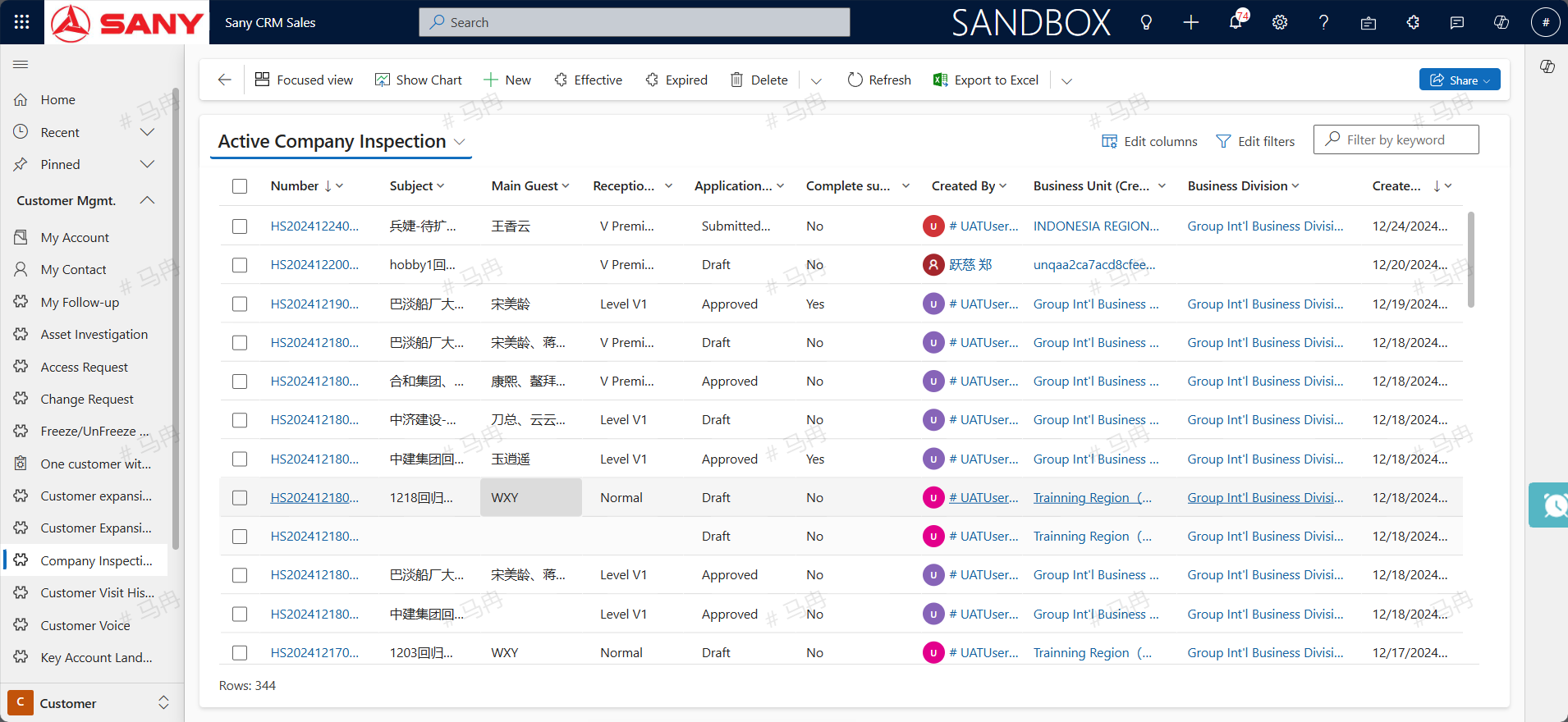
Create a new application for returning to the company for inspection
Click the "New" button on the list page, and the page will jump to the blank detail page.
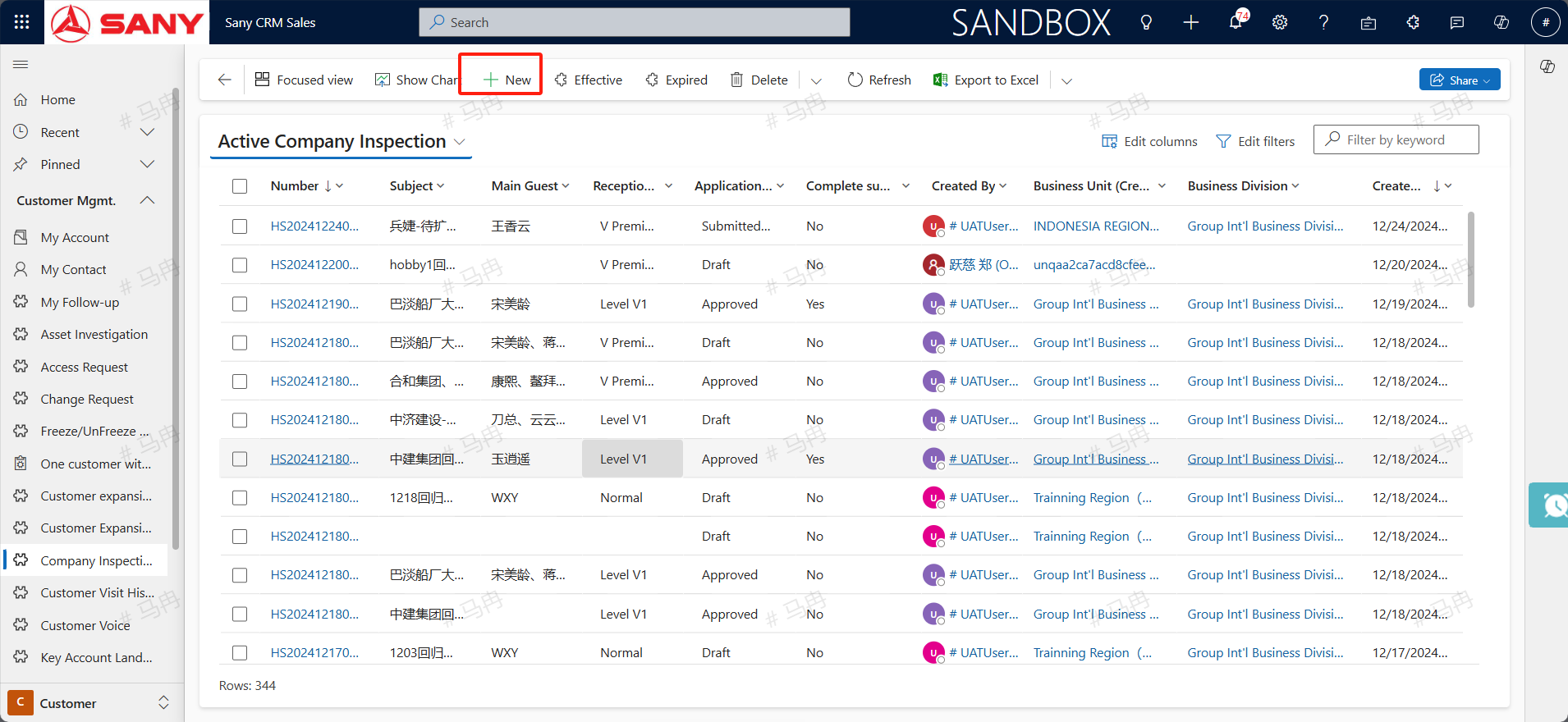
Create a new visiting unit
Click the "Create New Visiting Unit" button, and the page will jump to the page for creating a new visiting unit.
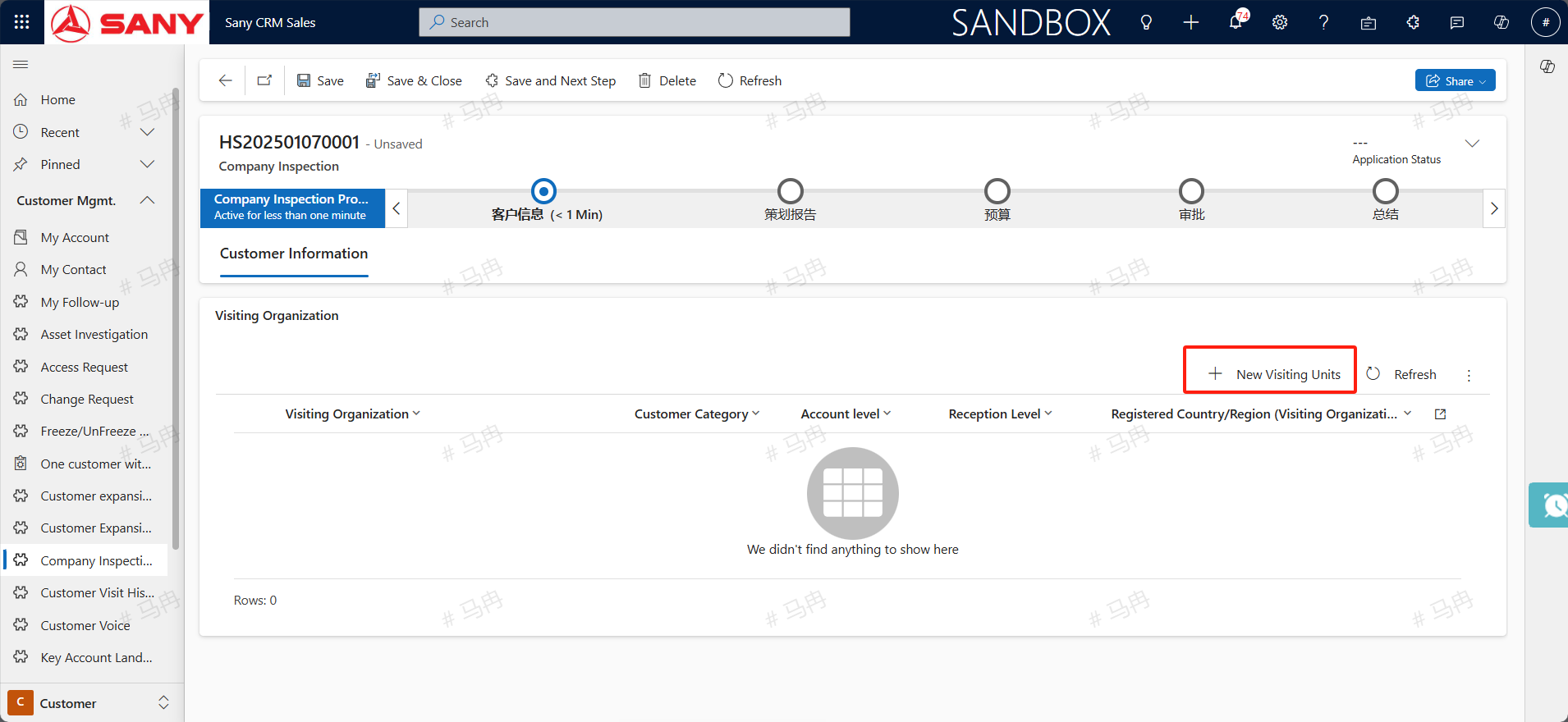
Fill in the "Visiting Unit", "Reception Level", and "Customer Profile", then click the "Save" button. After that, add the "Visiting Personnel".
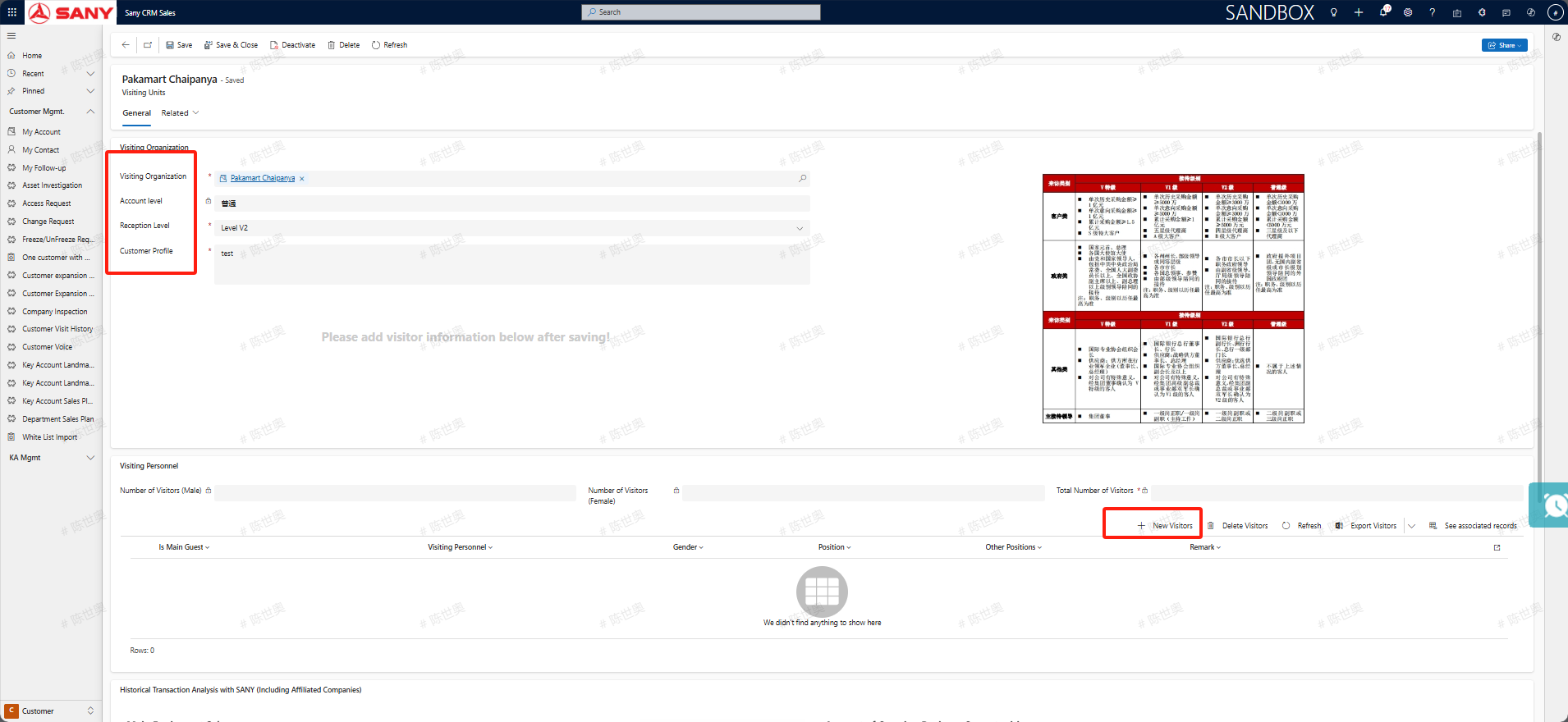
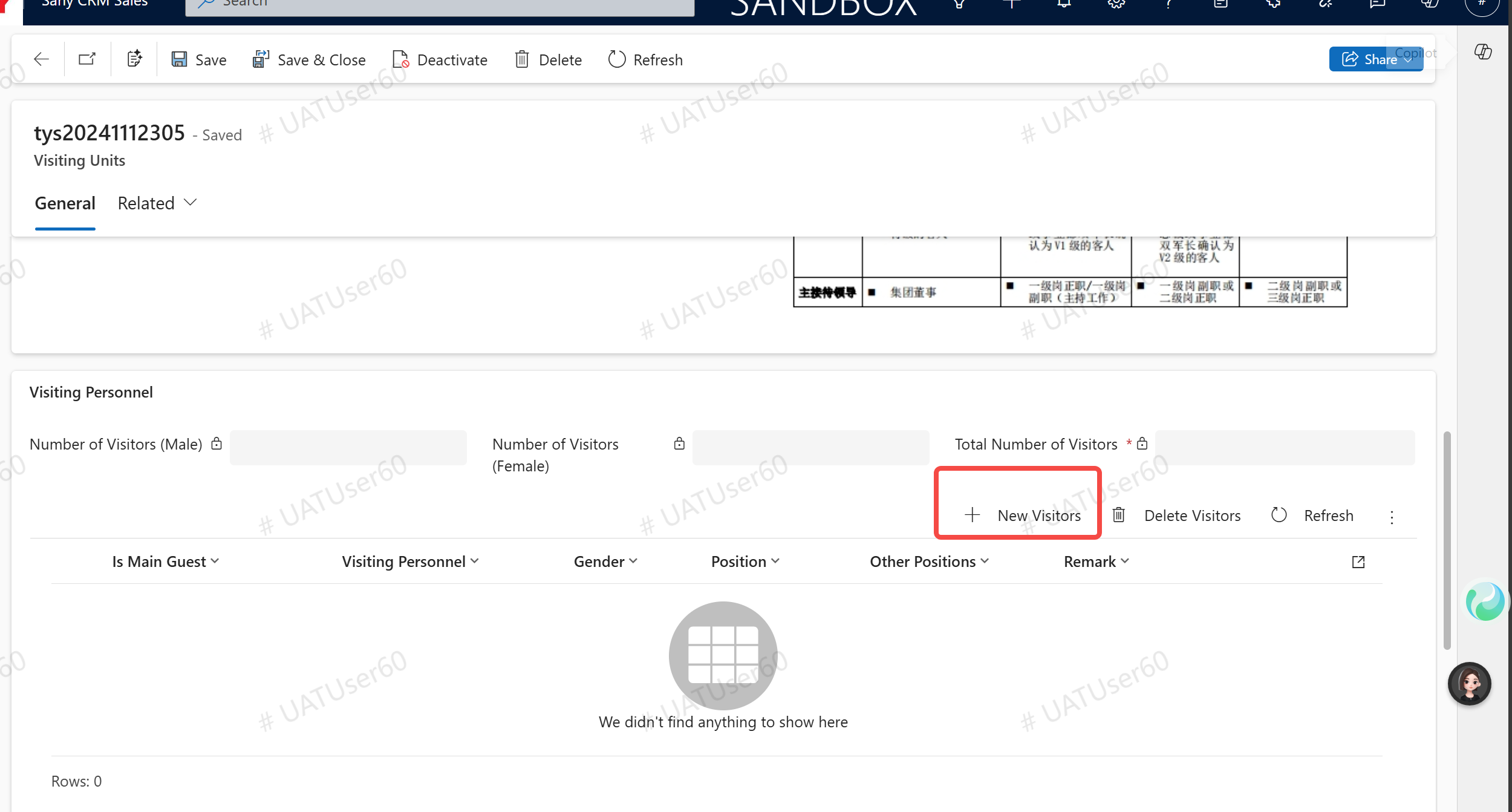
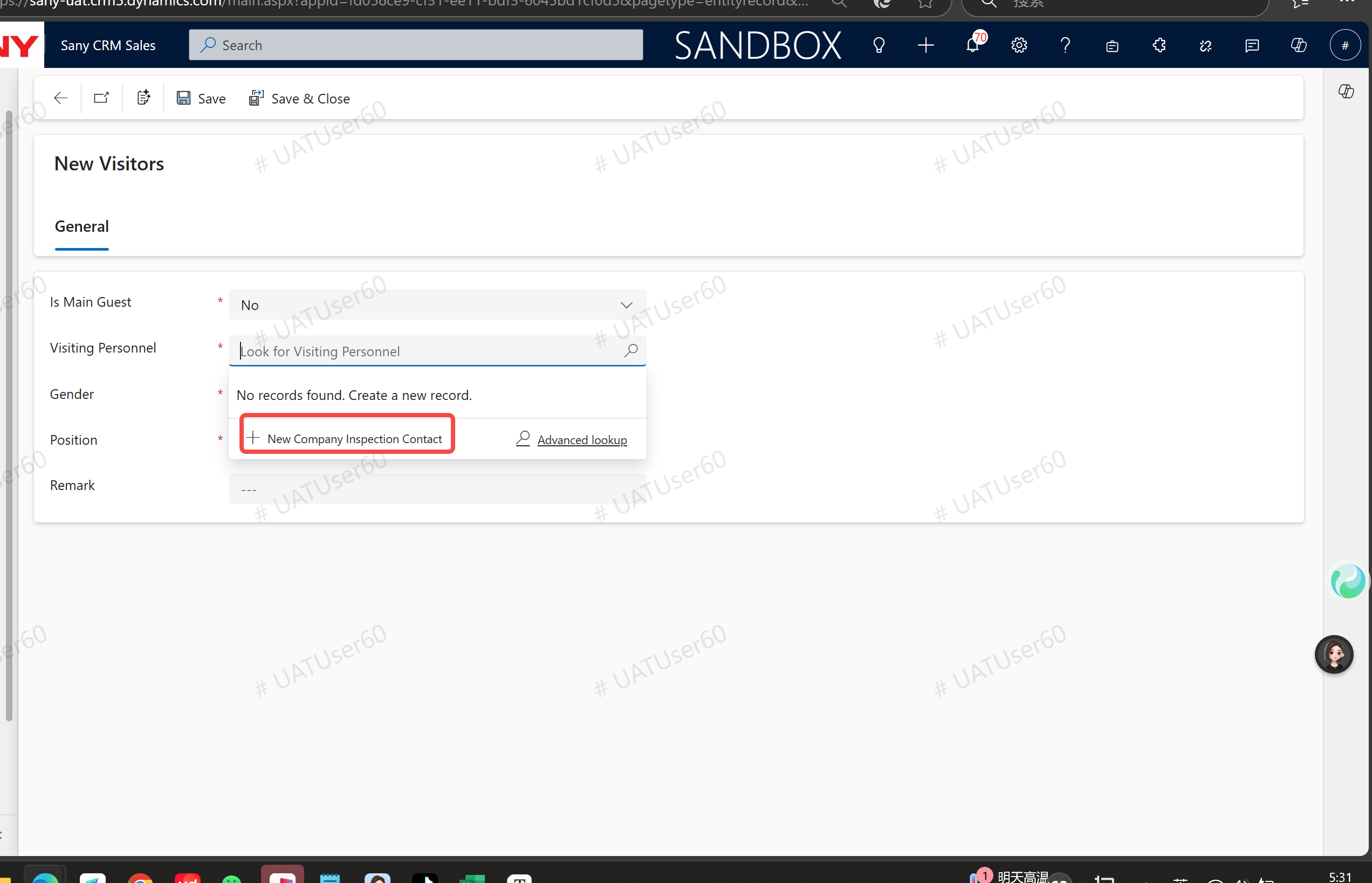
If the visiting unit has never added visitors, click the button to create a visiting person.
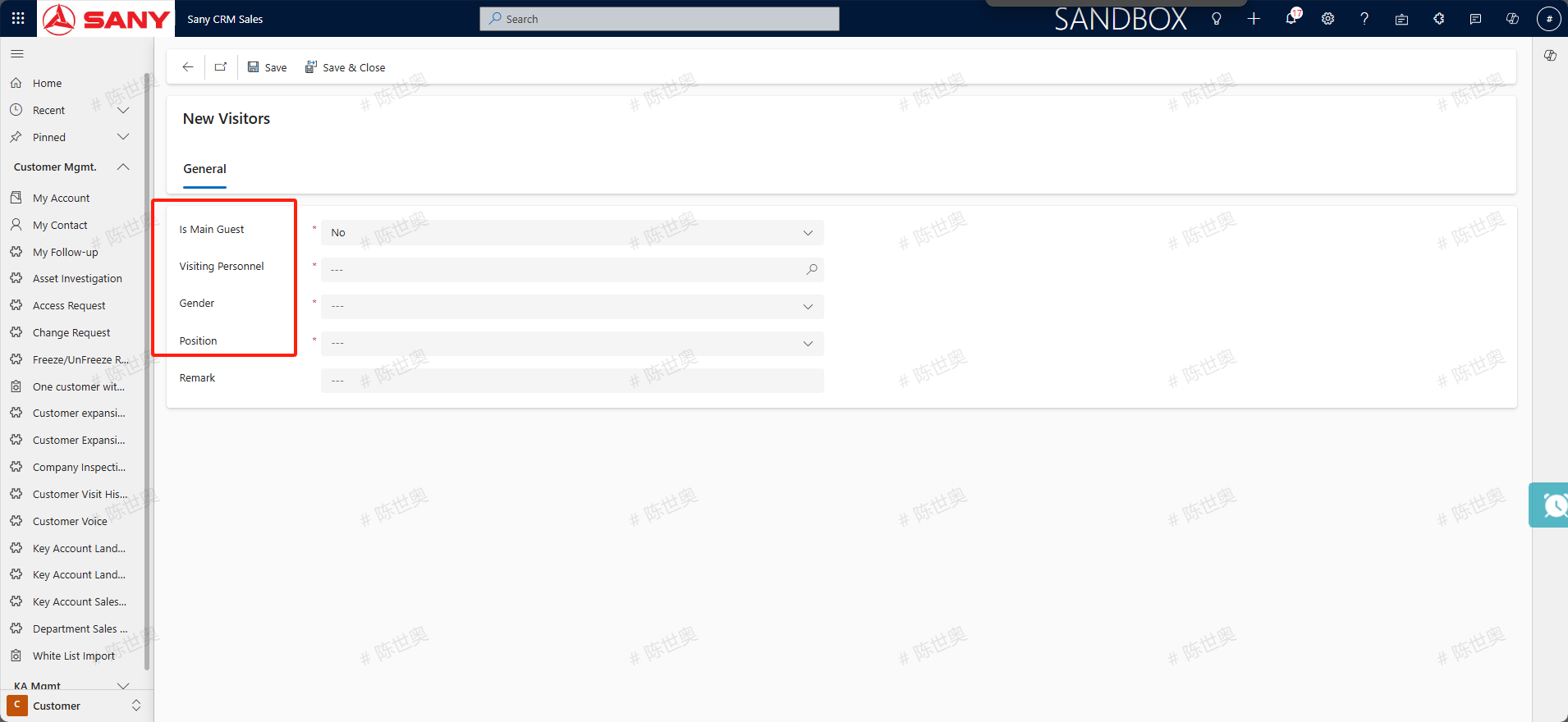
If no visiting personnel have ever been added for this visiting unit, click the "Create New Contact for Returning to the Company for Inspection" button to create the visiting personnel.
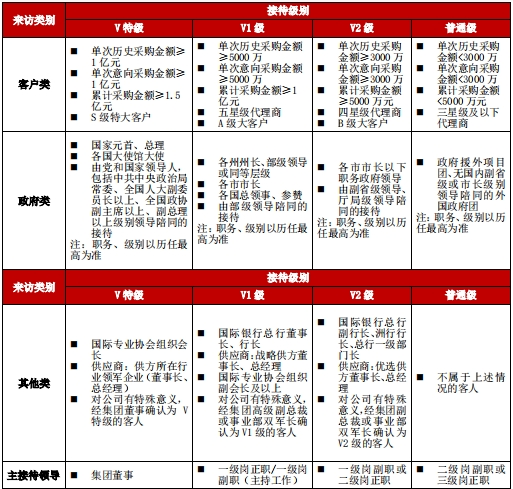
The reception level shall be filled in according to the following illustration:
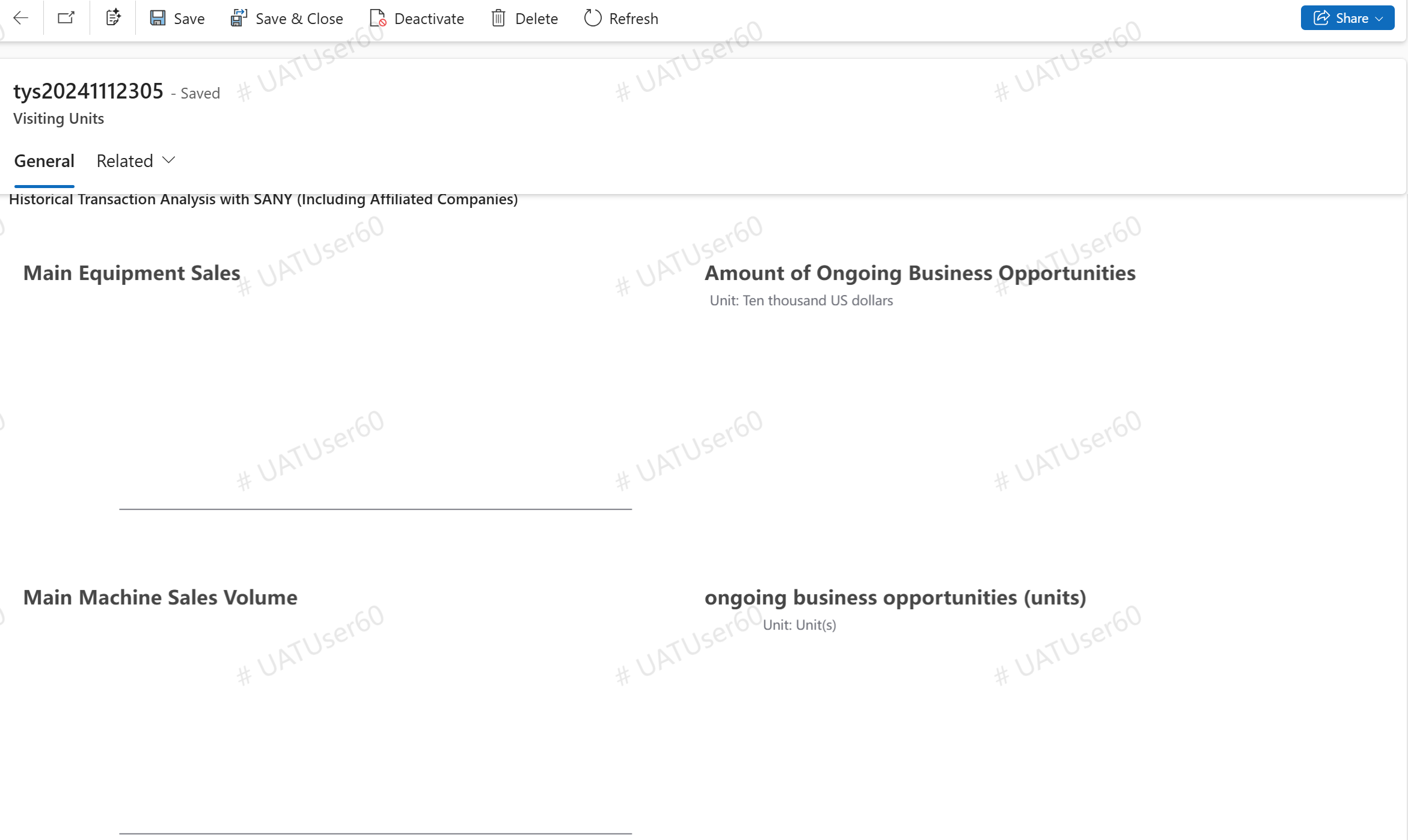
After adding the customer, you can scroll to the bottom and view the "Analysis of Historical Transactions with Sany", that is, the order amount of main machines (orders in a non-canceled status) of this customer (including affiliated companies maintained in D365) and Sany in the past three years, the quantity of main machines in terms of product groups in the orders of the past three years, the amount of ongoing business opportunities, and the quantity of ongoing business opportunities in terms of product groups.
After completing the filling, click the "Save and close" button to add the visiting unit successfully, and the page returns to the company's inspection details page.
Click the "Save and Next" button to display the "Planning Report" and "Business Itinerary" TAB.
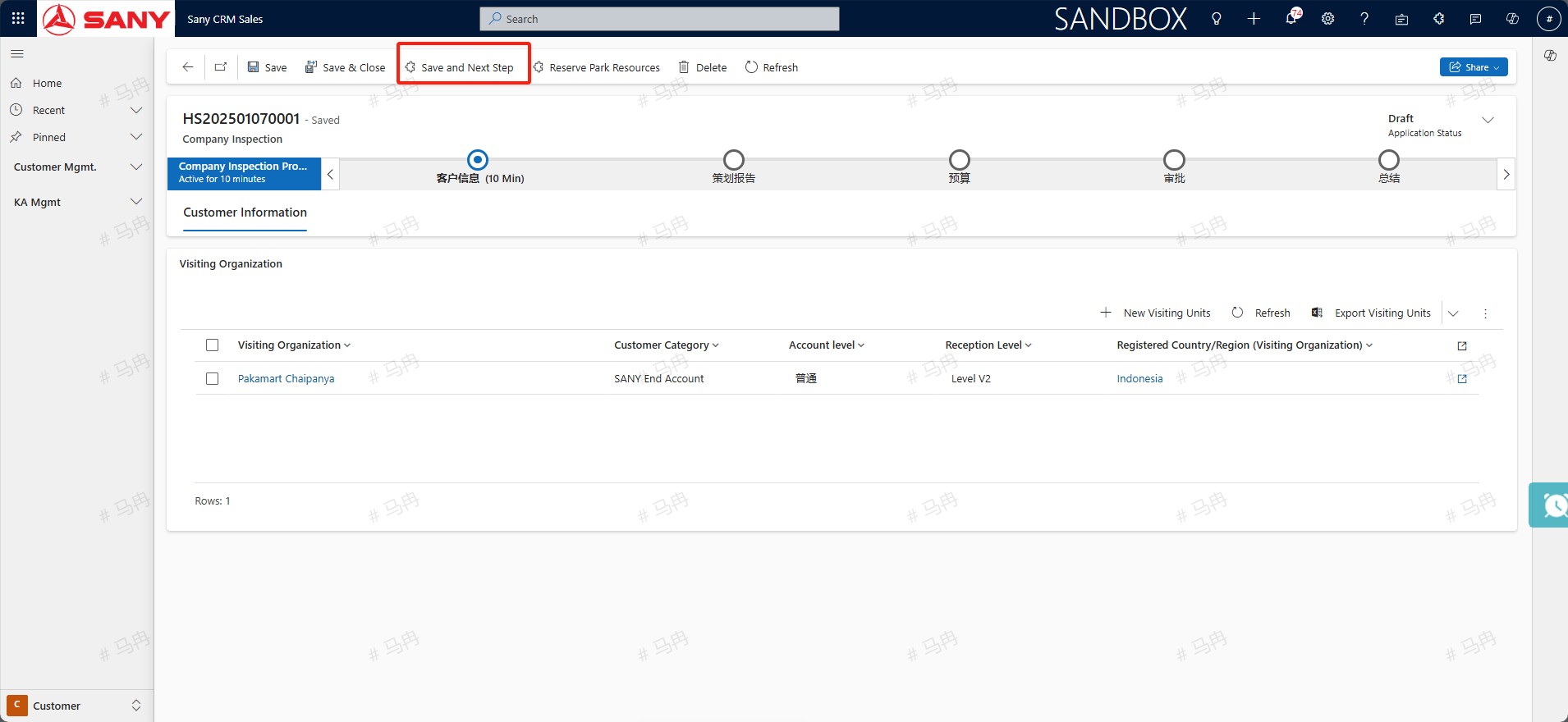
Edit the planning report and arrange the business itinerary
In the "Planning Report" TAB, select a "main reception leader", fill in a number of "main escorts", select "Purpose of visit" and other information.
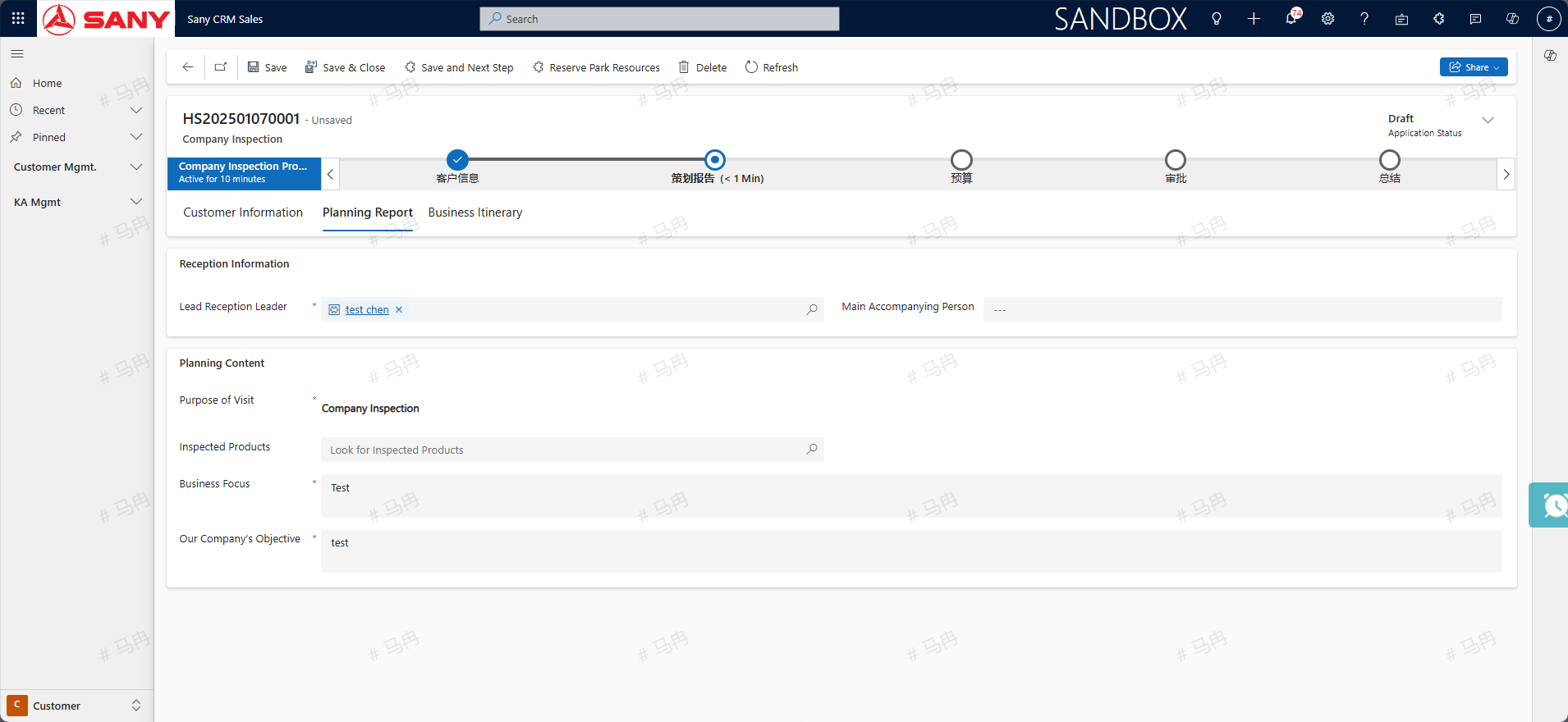
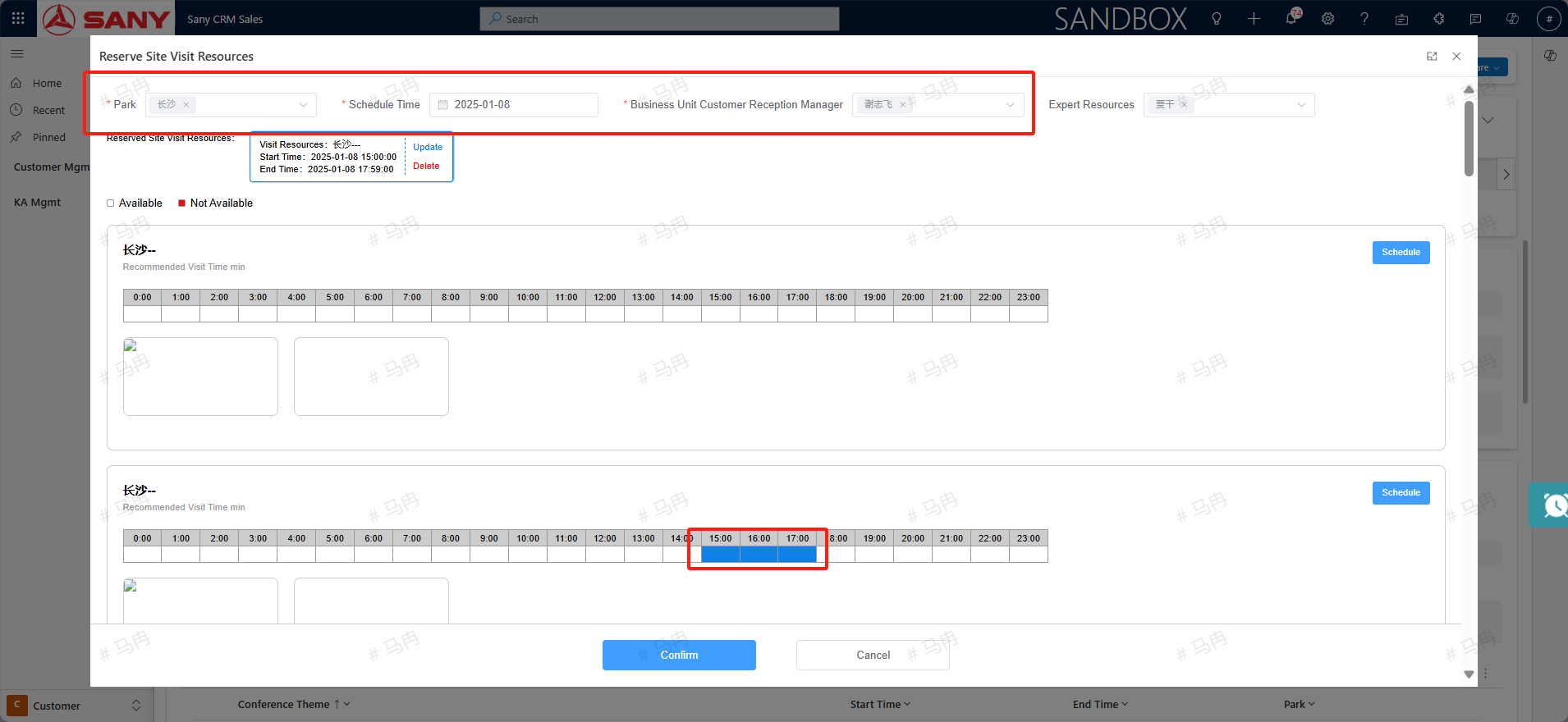
Click the "Reserve Park Resources" button on the "Business Itinerary" tab, and it will jump to the page for reserving visiting resources.
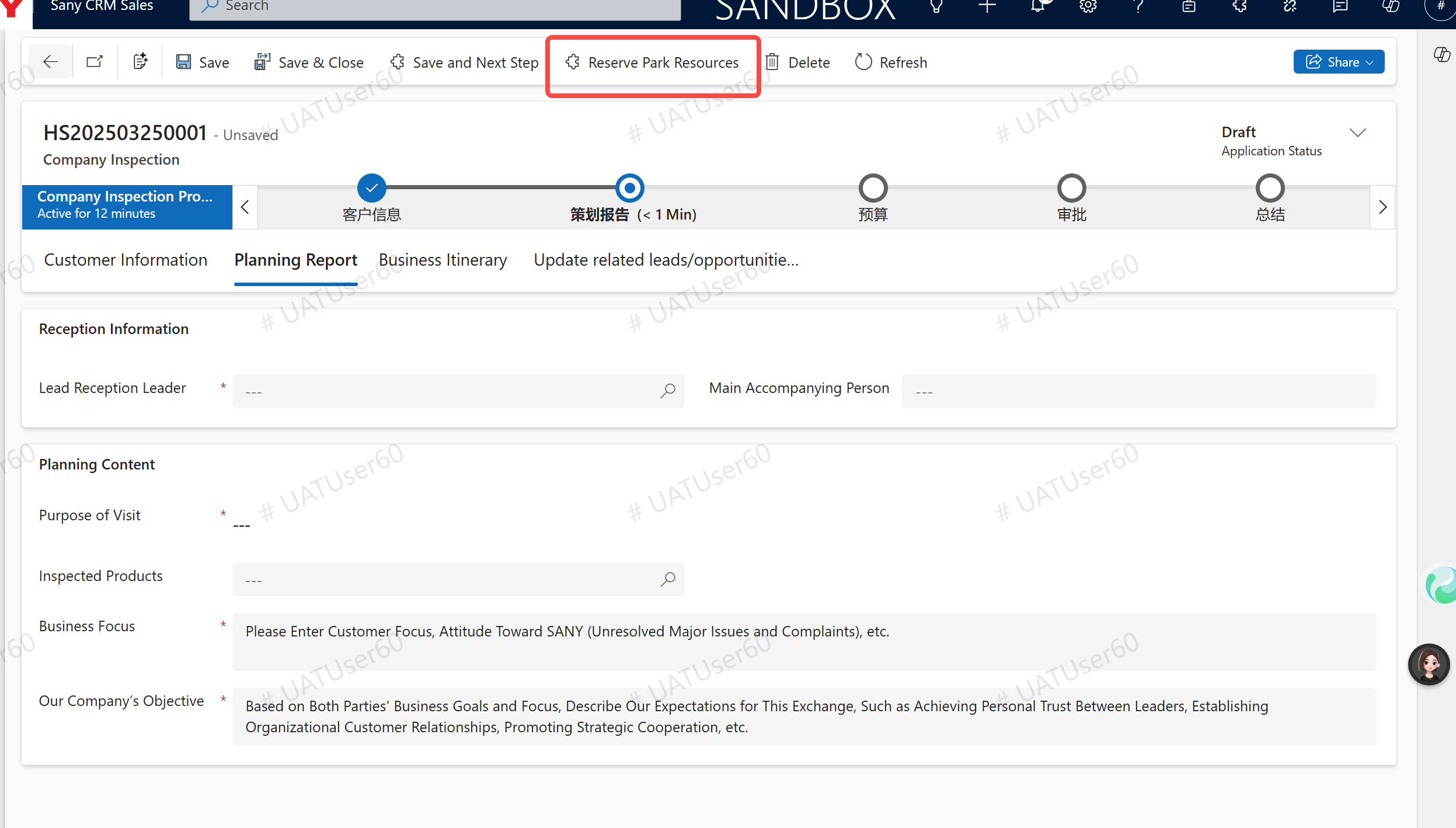
Select the park, the expected time of the scheduled resources, the customer reception manager of the business unit, and the information of expert resources; If you need to book the resources to visit, click the pre-booking button, select the scheduled time, and then click the OK button to return to the main page;
If there is no visit arrangement, select the park, time, customer reception manager of the business department, and expert resources, and click the "OK" button directly to return to the main page.
(The reception manager of the business department can be selected according to the following table, and the subsequent system will be optimized to automatically take out)
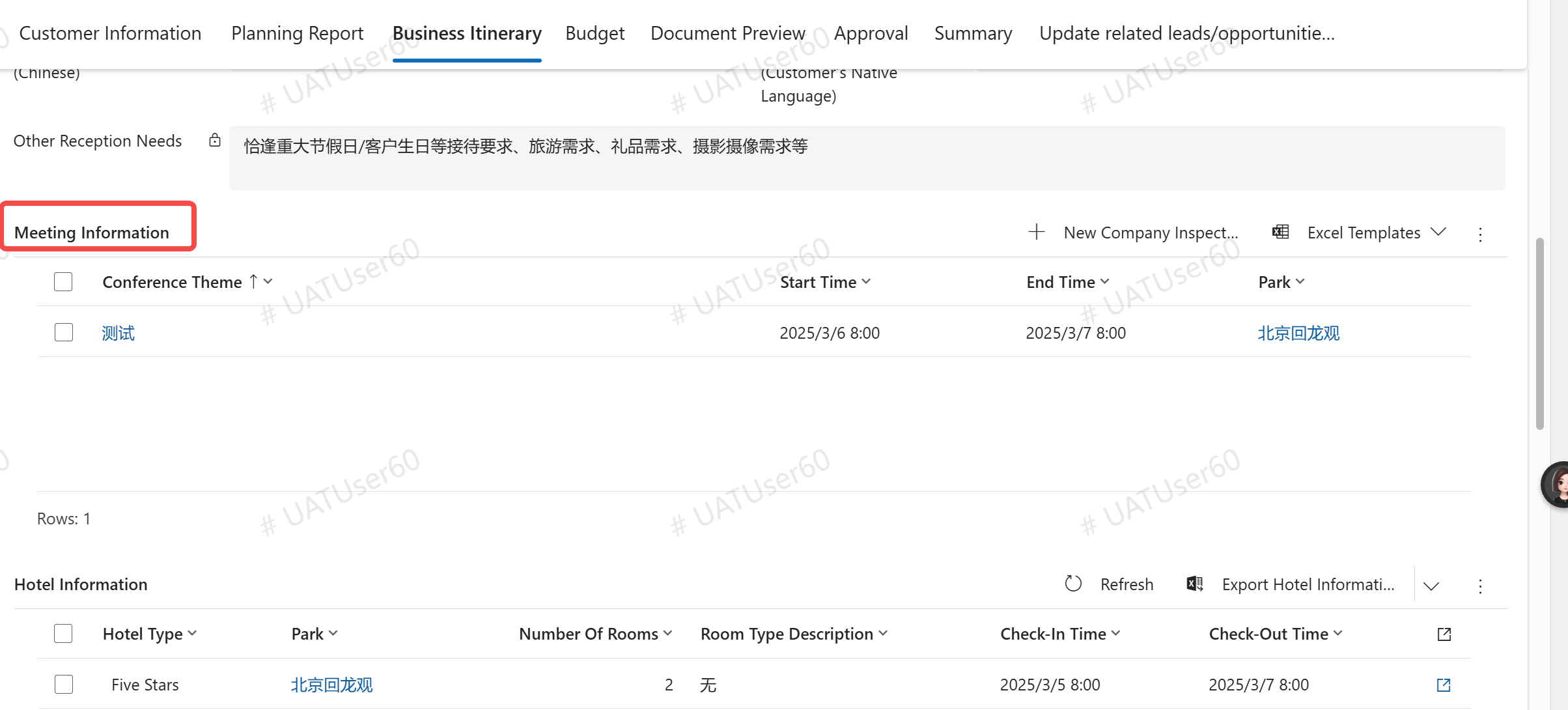
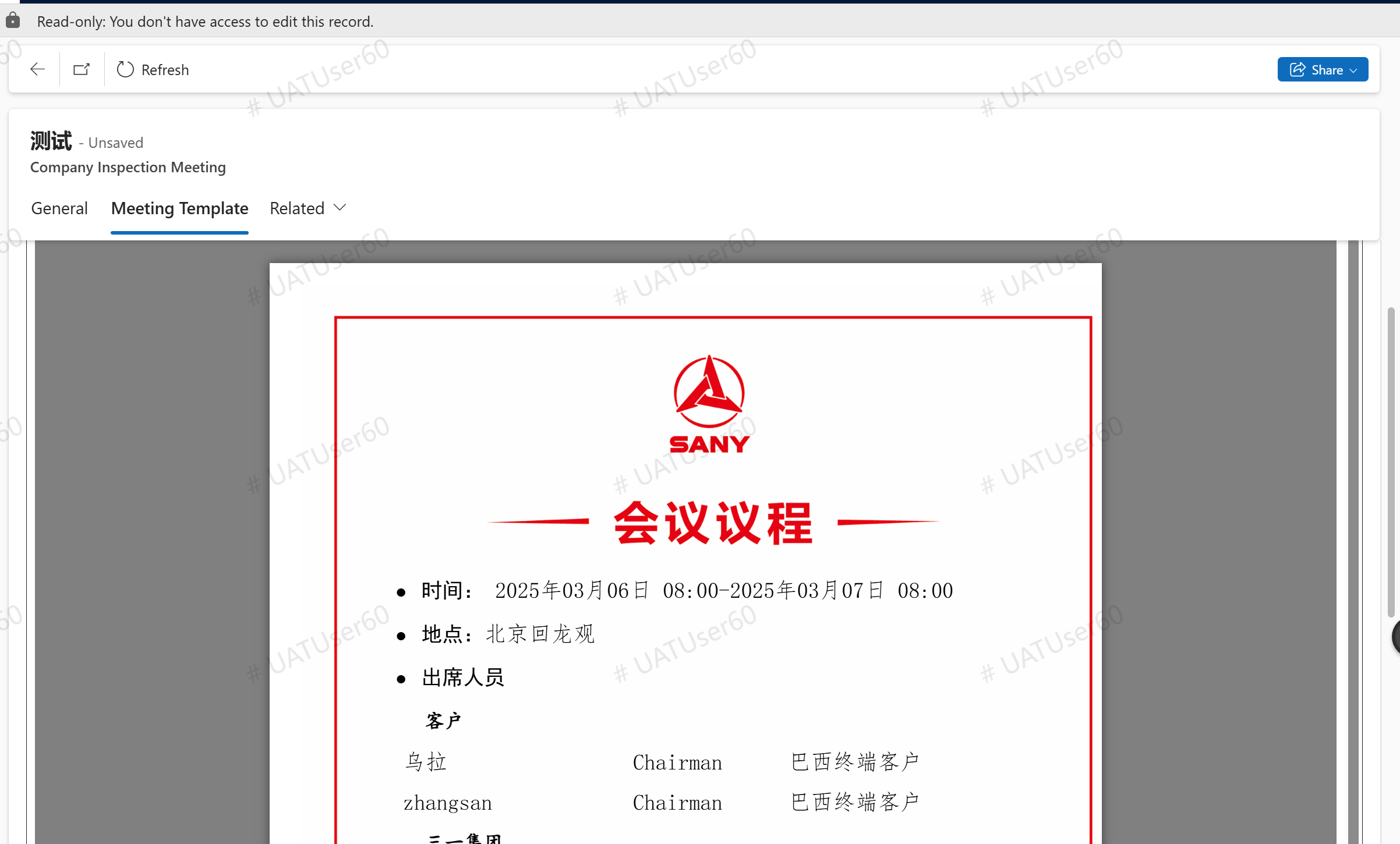
Edit the meeting information, and the system will automatically generate a meeting agenda document. (After the application form is approved, a Feishu calendar event will be automatically created for Sany's attendees.)
automatically reserve vehicle resources, and send a message about reserving catering resources to the reception manager of the business division.
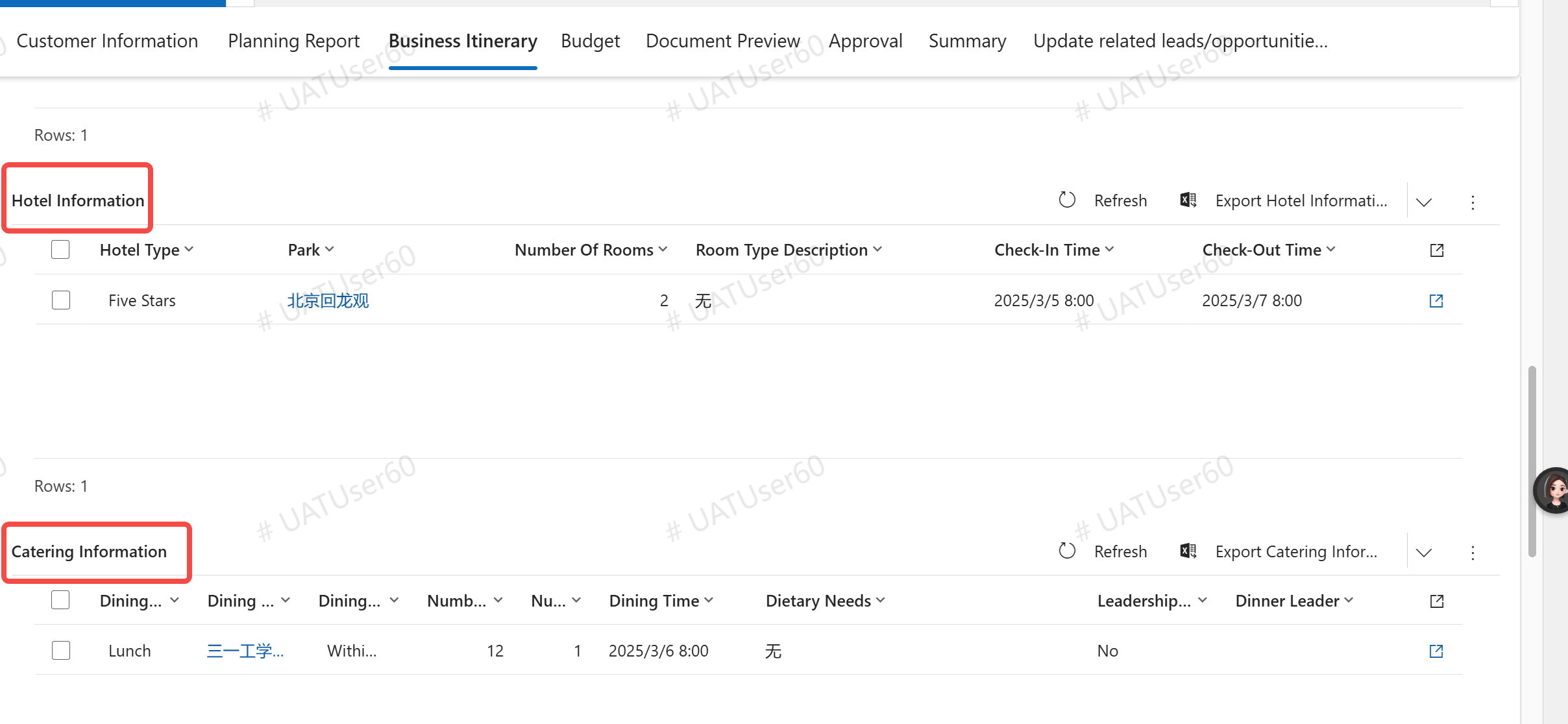
And after filling in the itinerary, click the "Save and Next" button, and the "Cost Budget" tab will be displayed.
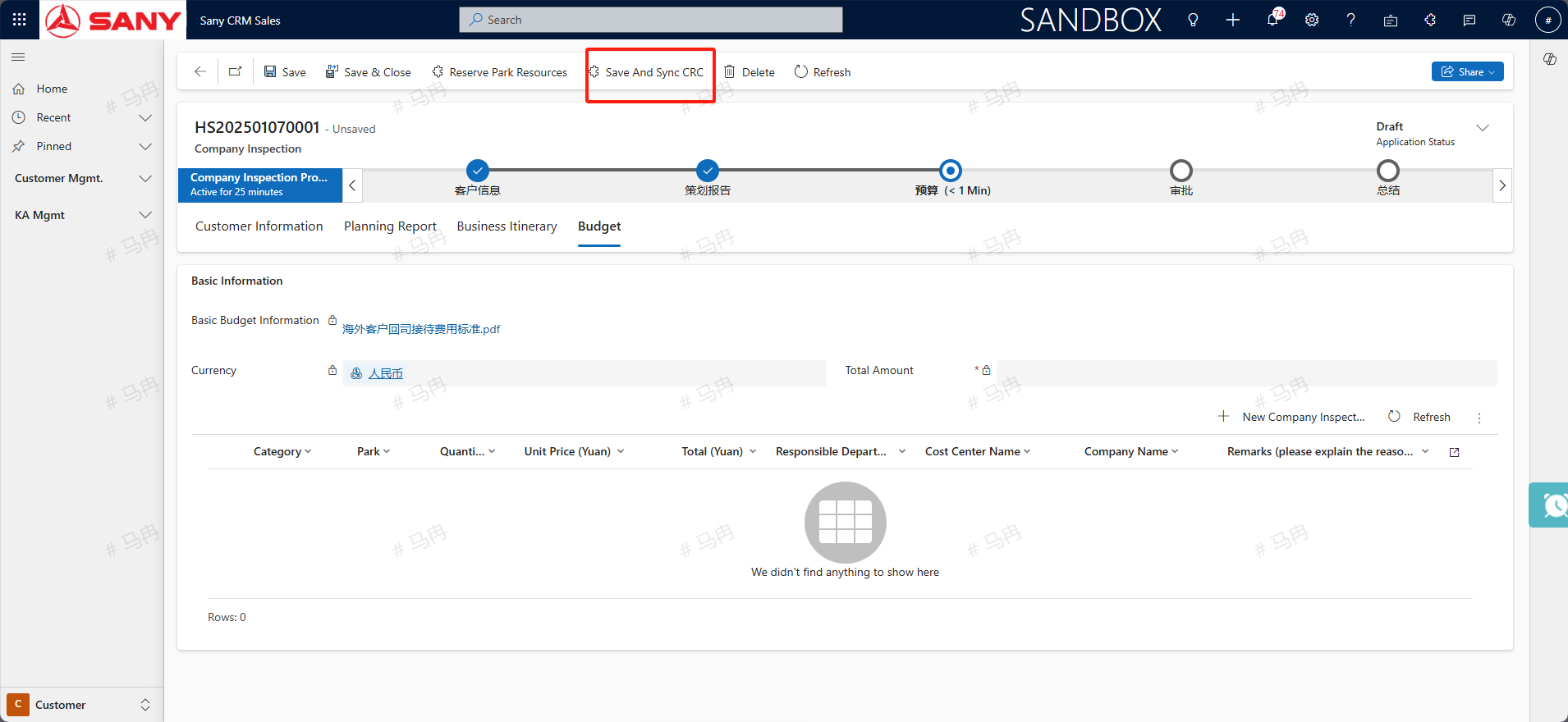
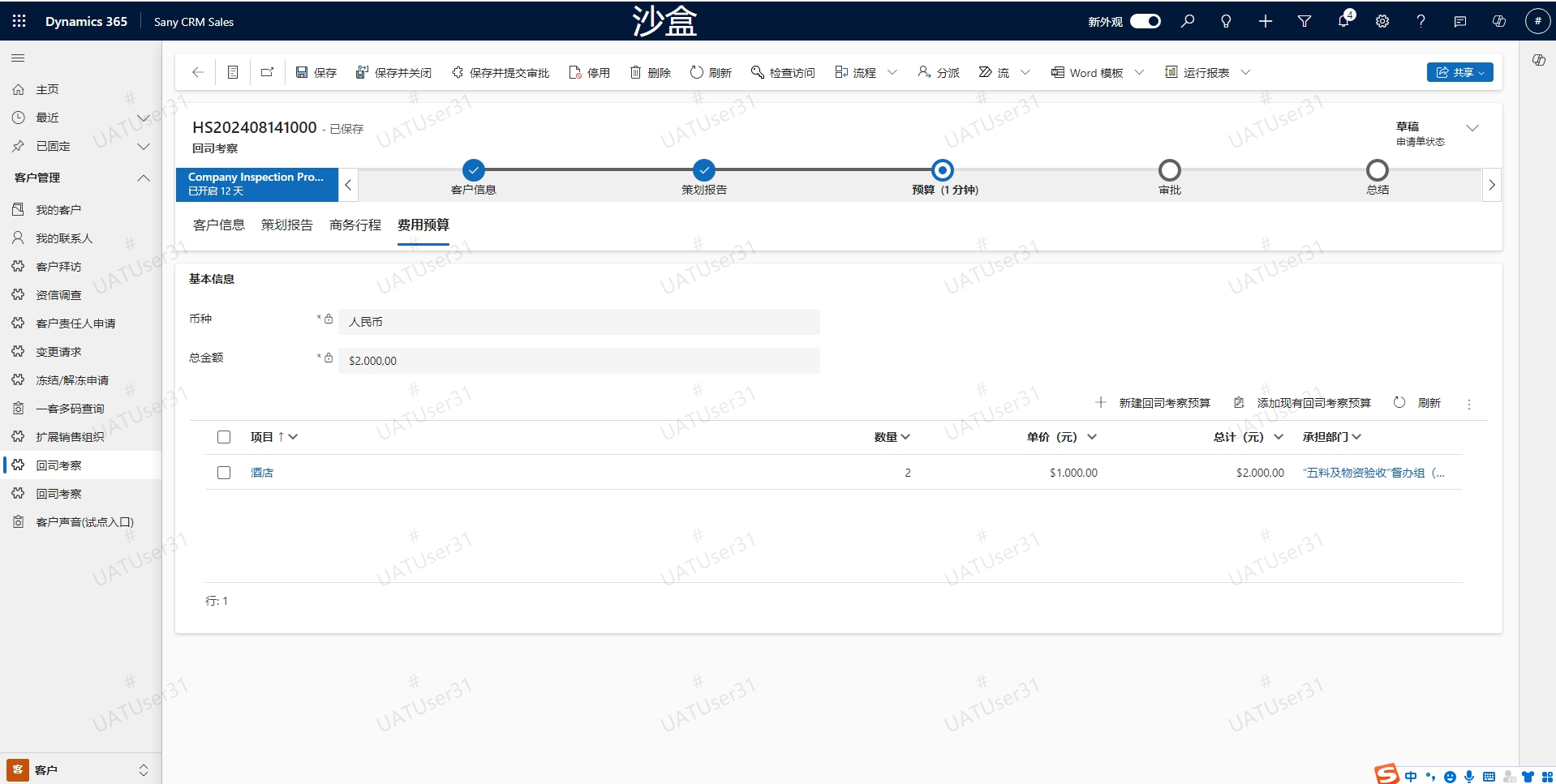
Edit the cost budget
Add budget items in the "Cost Budget" tab. After adding, click [Save and Synchronize with CRC]. If the visiting resources are successfully reserved in CRC, a prompt indicating successful operation will be shown after the page loads for a few seconds. If the reserved resources are occupied by others at this exact moment, a failure prompt will be displayed, and you need to click [Reserve Park Resources] again.
Note: If you have submitted the vehicle usage requirement, you need to add a budget of the "Urban Vehicle Usage" type and select the correct cost center (the system will automatically obtain the department of the submitter and bring out the cost center. If the cost center is not brought out, it means that the cost center has not been maintained for this hierarchical department, and you can select the superior department).
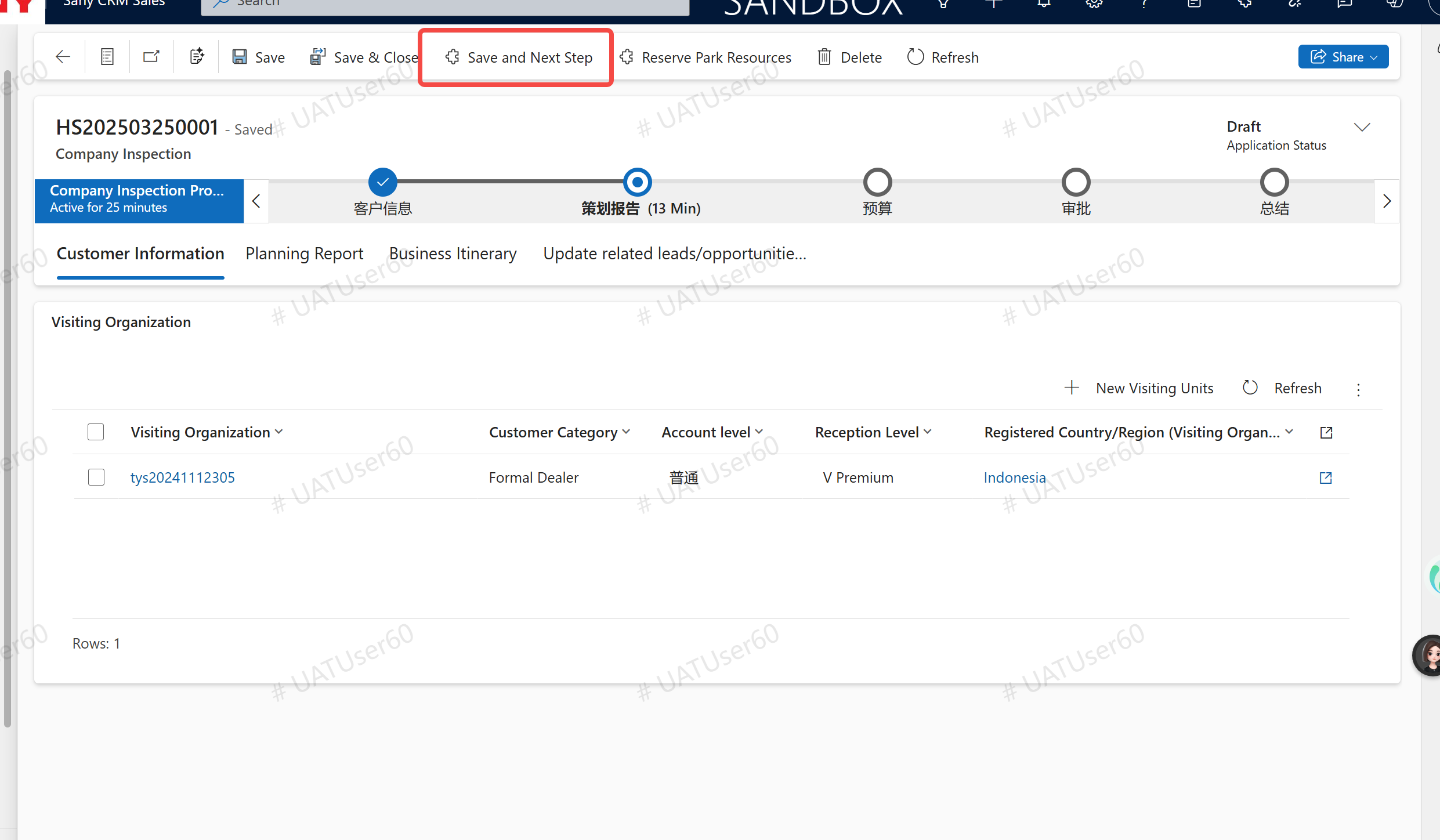
After the previous step is successful, click "Save and Submit for Approval", and the "Reception Plan" and "Approval" tabs will be displayed.
View the reception plan and the approval process.
On the "Solution" TAB page, you can preview the solution document automatically generated by the system, and download the document in word and PDF format.
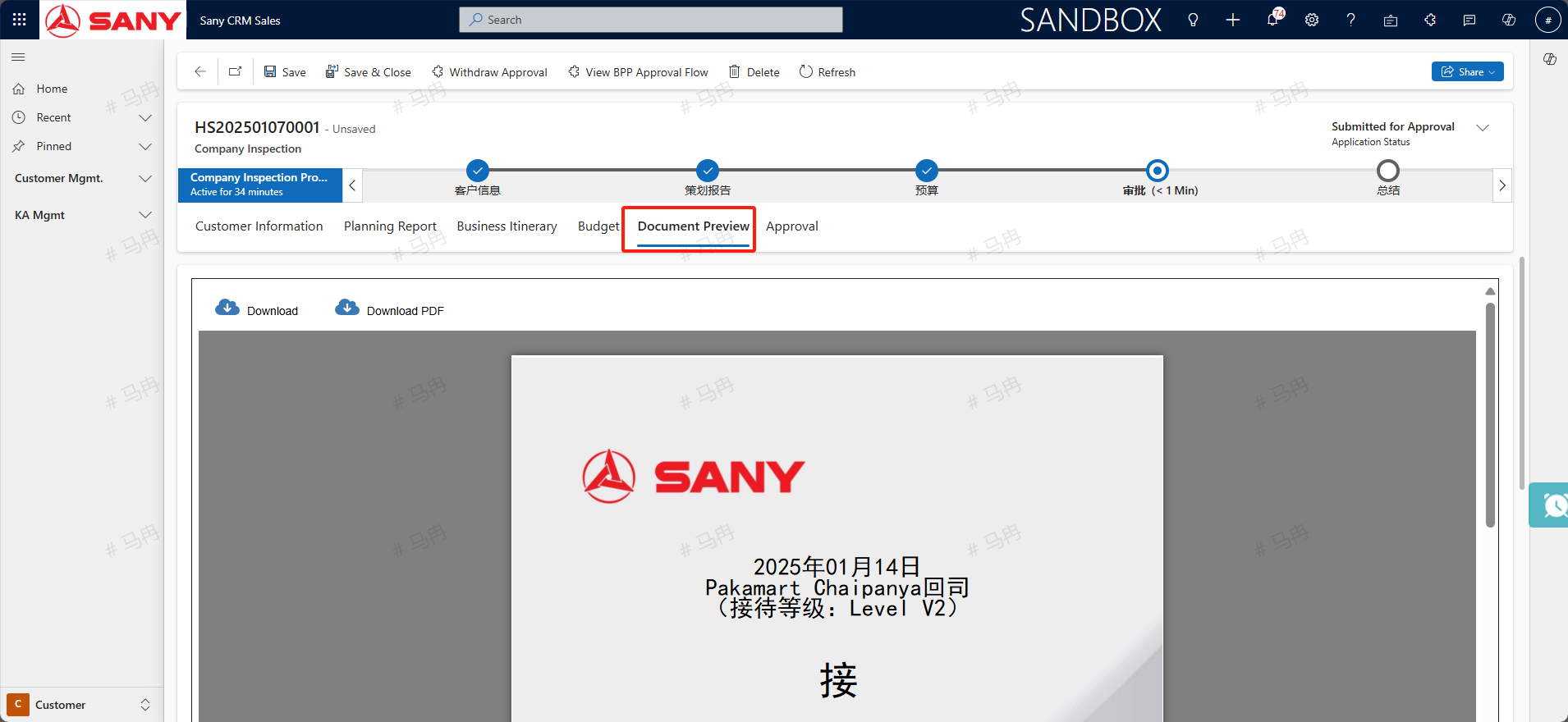
Click [View BPP approval flow] button to jump to the BPP approval page.
Click the "Withdraw approval" button to withdraw the approval.
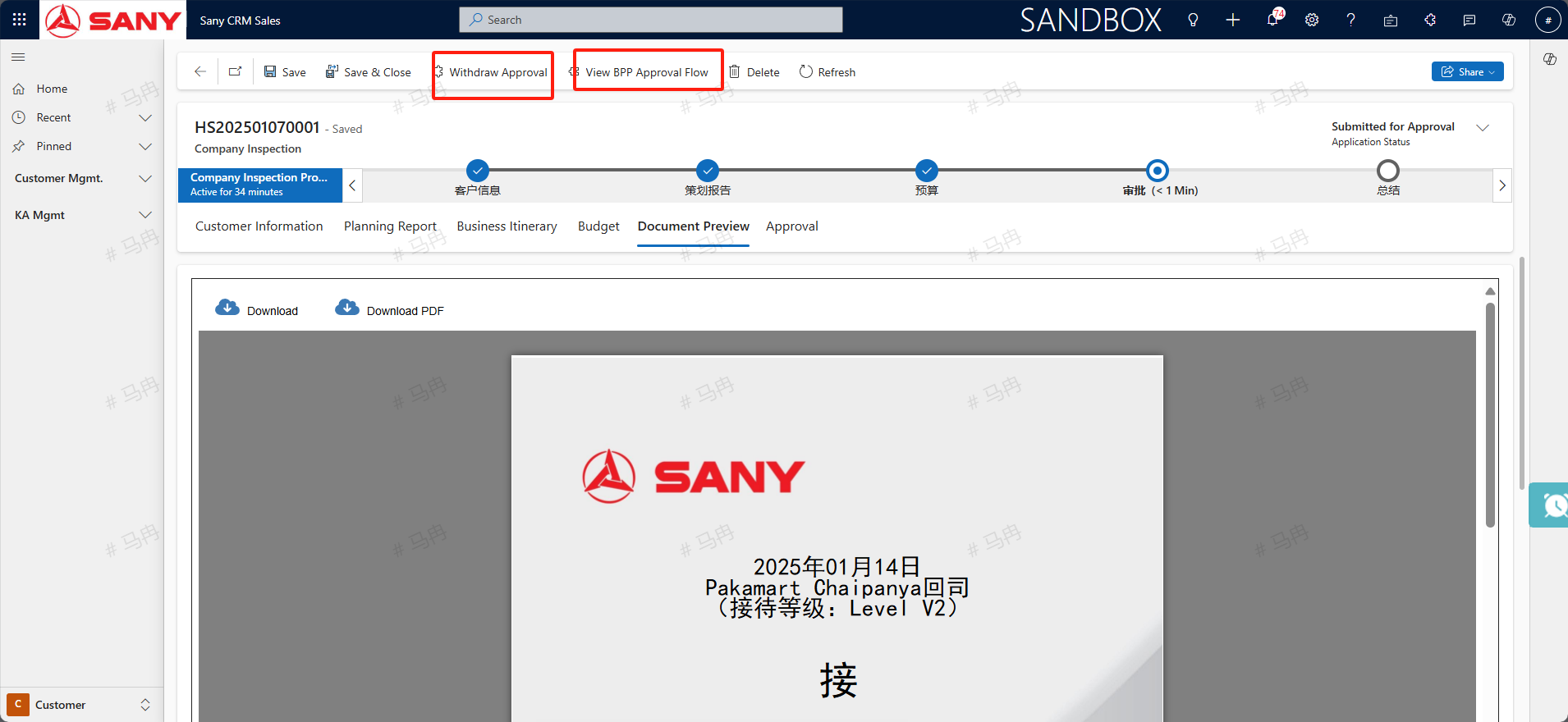
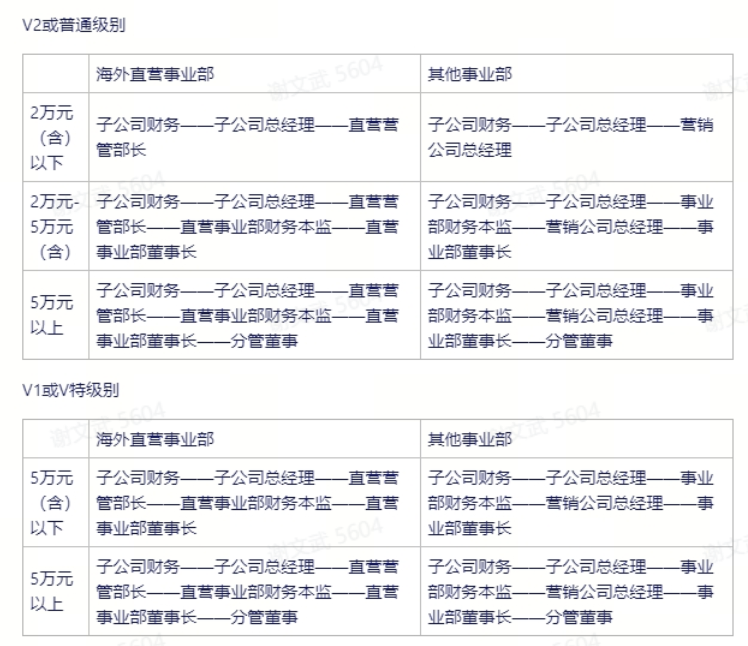
After logging in the BPP system with the domain account and password, select the approver: ①V special and V1 need the approval of the subsidiary's finance - country chairman/General manager of overseas marketing company - Financial Supervisor of Regional Business Department/Financial Supervisor of Regional Business Department - Chairman of Regional Business Department/Chairman of Business Department; ②V2, general level requires the approval of the subsidiary's finance - chairman of the country/General manager of the overseas marketing company
BPP Approval (BPP System)
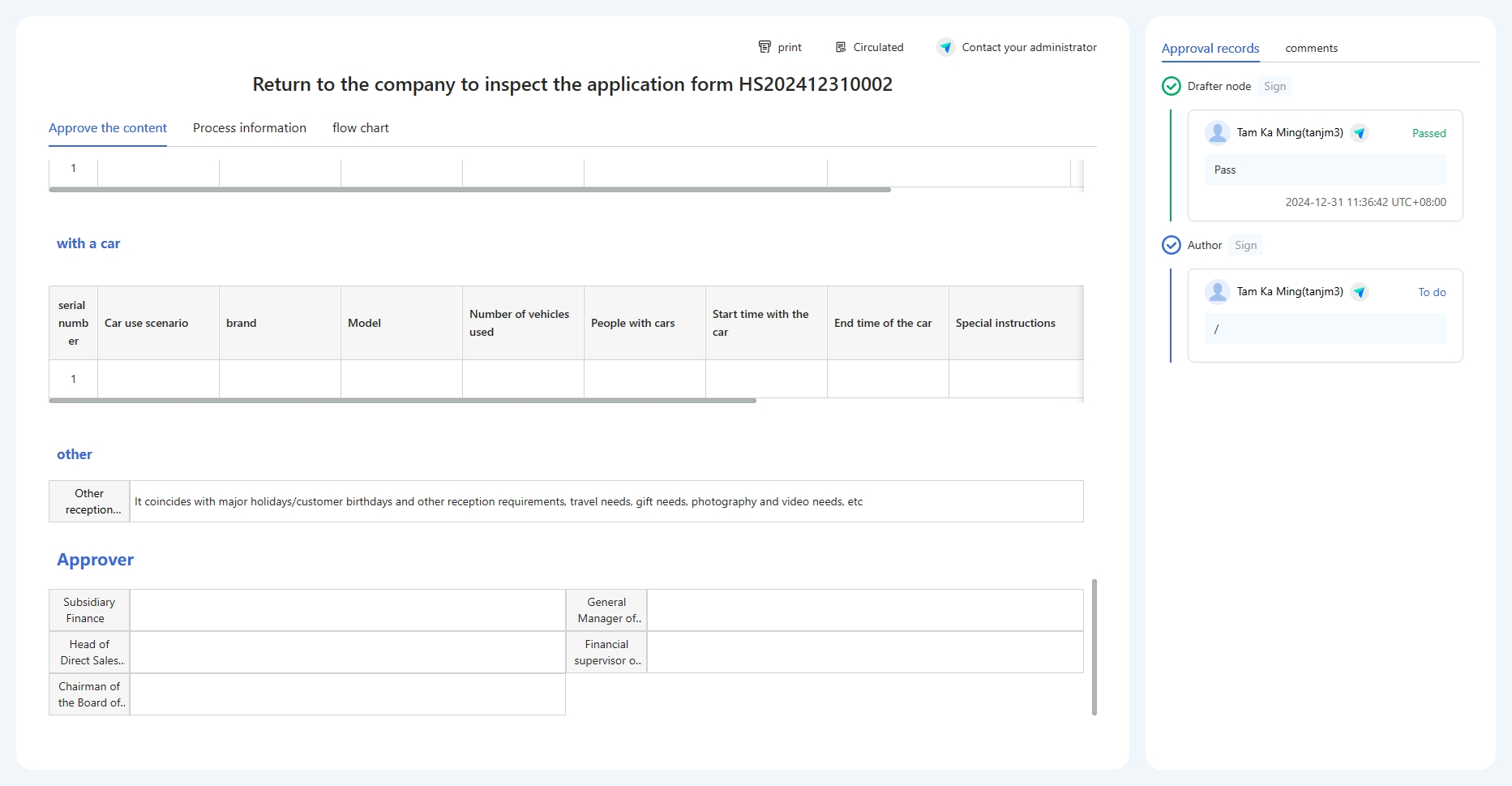
After logging in to the BPP system with the domain account and password, select the approver.
After selecting the approver, click the [Pass] button, and the approval will start from the next node.
Summary of the Inspection Visit Returning to the Company (D365 System)
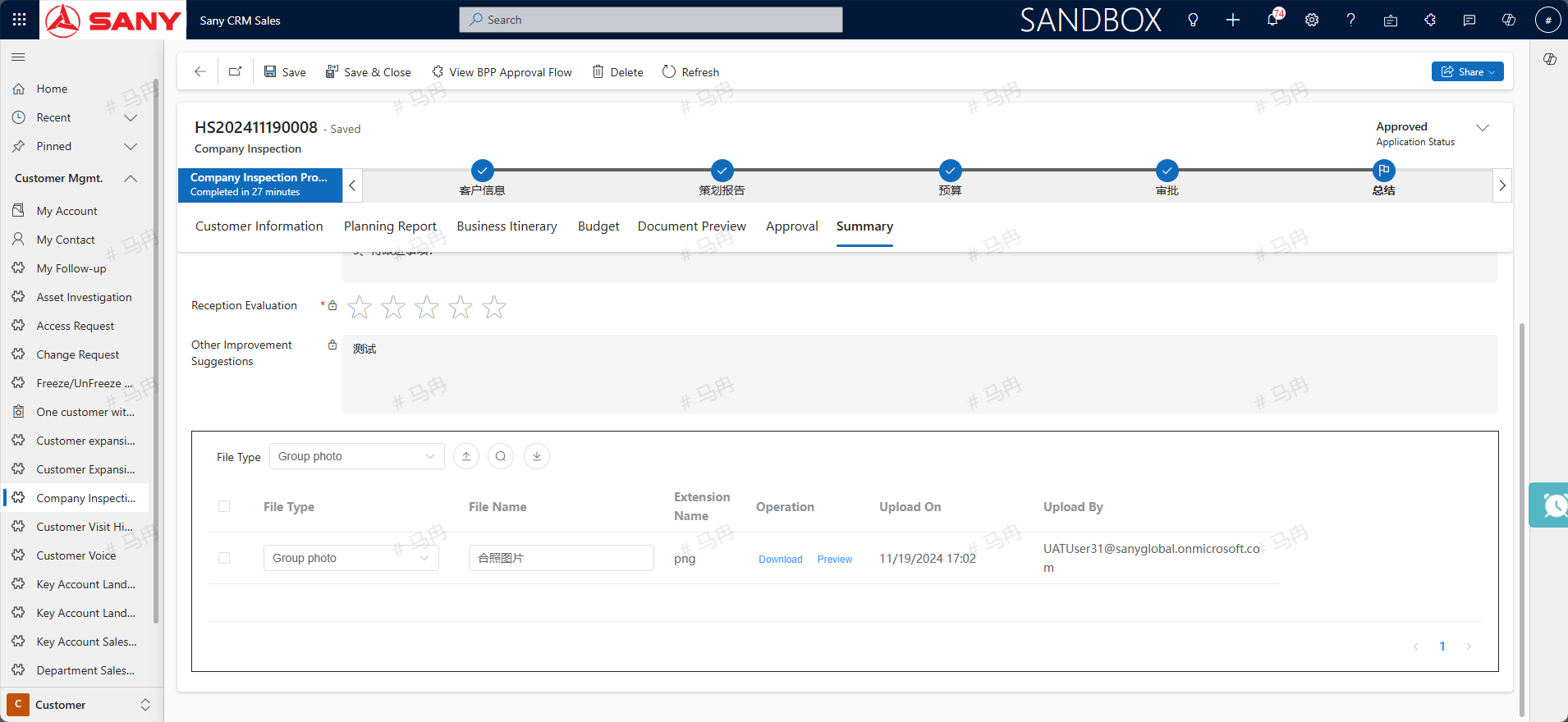
After the approval, the "Summary" tab will be displayed.
After the visit to the company is completed, please fill in the reception record within 72 hours. When the reception level is V Special or V1, a file with the attachment type of "group photo" must be uploaded.
Flying Book Group (Flying Book)
After approval, automatically create a flying book communication group, and different reception levels automatically pull into the group of personnel are also different ①V or V1: The document creator, the reception management specialist of each business unit, the reception personnel in charge of the park, the chairman of the country/the general manager of the overseas marketing company, automatically establish a group chat, the name of the group chat is "(return date) customer return reception communication group", such as "7.24-7.26 Indonesia Batam customer return reception communication group", the country is the customer's country (customer master data); ②V2 or ordinary: the document creator, the reception management specialist of each business unit, the reception personnel in charge of the park
And the Feishu robot automatically sends the welcome message "Hello leaders, (return to the company start and end date) customer reception application is as follows, please complete CRC resource booking as soon as possible, more communication details please complete before the formal reception (such as customer specific travel arrangements, exhibition hall visits, catering, car, etc.)"
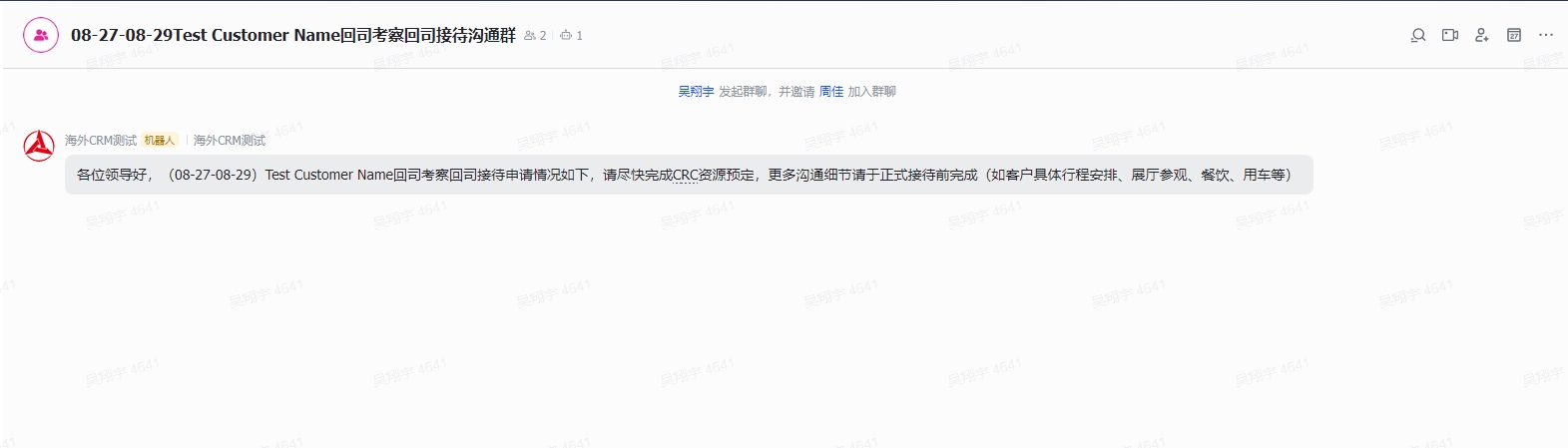
Feishu Robot Sends Messages to Leaders
After the approval is passed, the Feishu robot will synchronize the message to the leaders of the Platform Management Department.
Feishu Robot Reminds to Write a Summary of Returning to the Company
Starting at 8:00 am (Beijing time) on the day after the end date of returning to the company, the Feishu robot will send message reminders to the applicant for returning to the company to write a summary. The reminders will be sent every 12 hours until the summary is filled out. The message will include a system link that can be clicked to enter the CRM system.