The freezing and unfreezing of customers
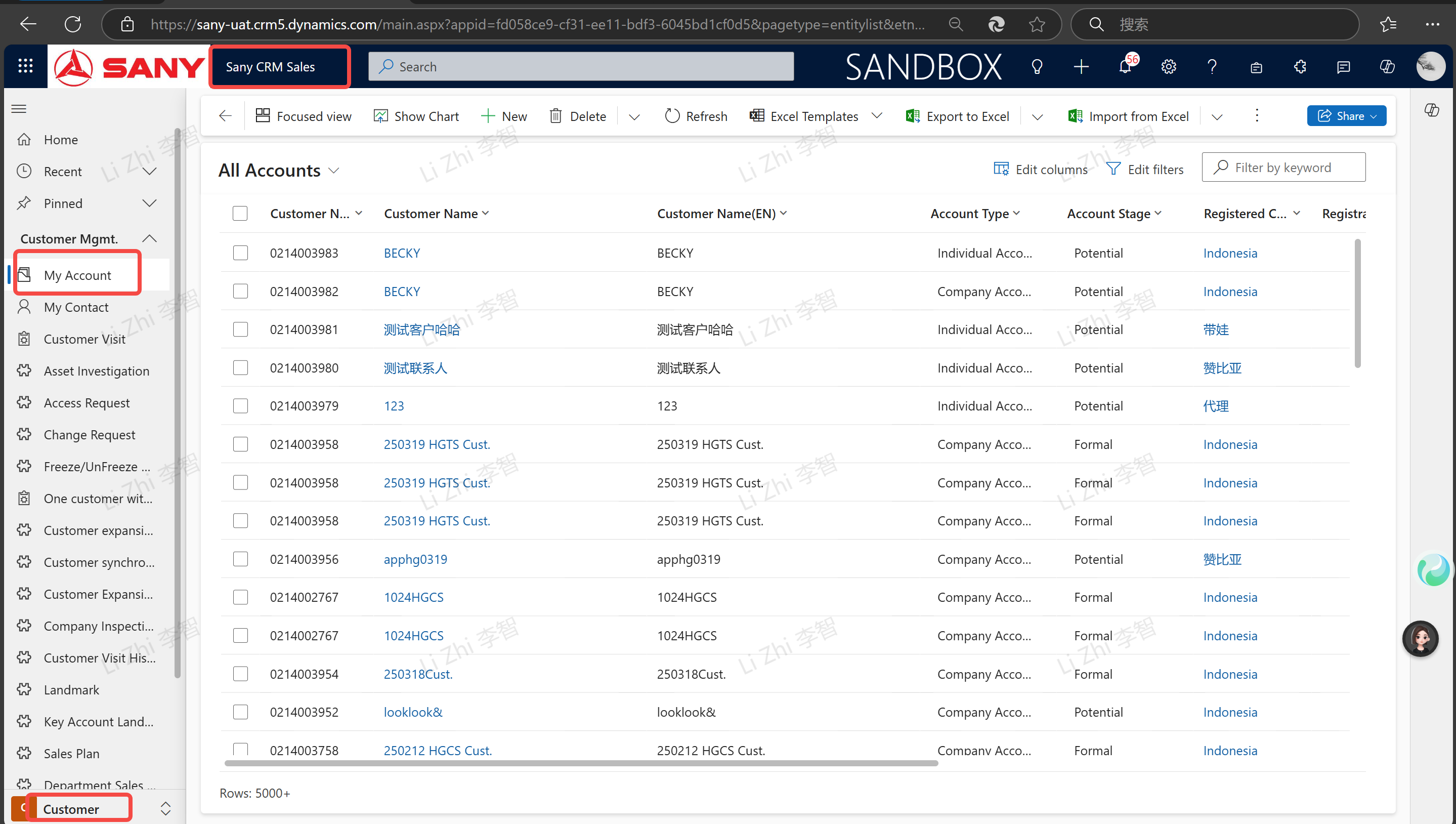
Entry Path: Sany CRM Sales --> Customers --> Customer Management --> My Customers
freezing
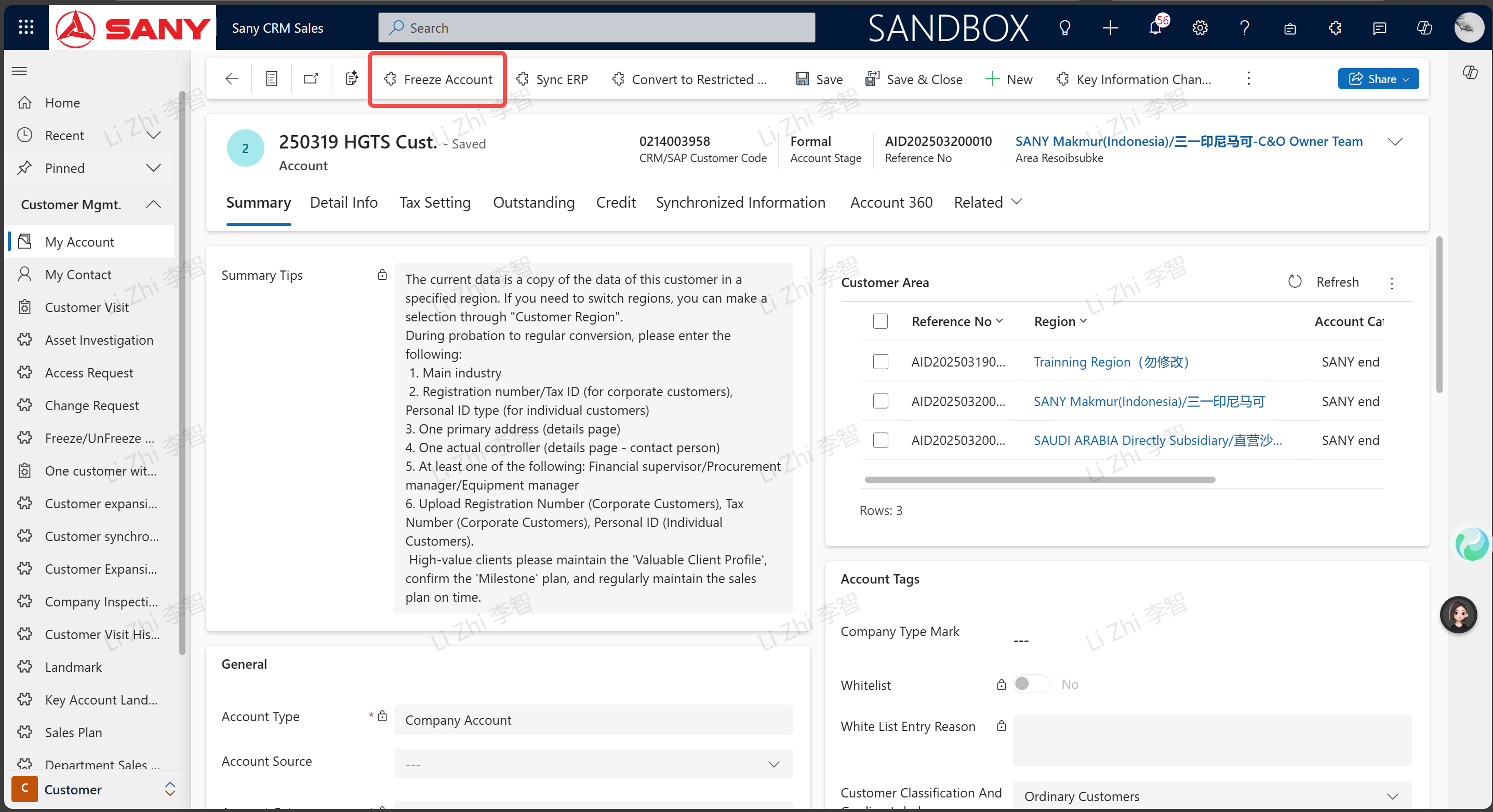
The customer responsible person finds the customer that needs to be frozen, double-clicks to enter the customer details page, and clicks the "Freeze" button.
Fill in the "Freeze Type" and "Freeze Reason", click "Save" and then click "Submit for Approval".
Explanation of Freeze Types (Multiple selections are allowed)
Transaction Freeze: Creating marketing/parts sales documents is not allowed.
Financial Freeze: Unfreezing funds/offsetting is not allowed.
Service Freeze: Creating service documents is not allowed.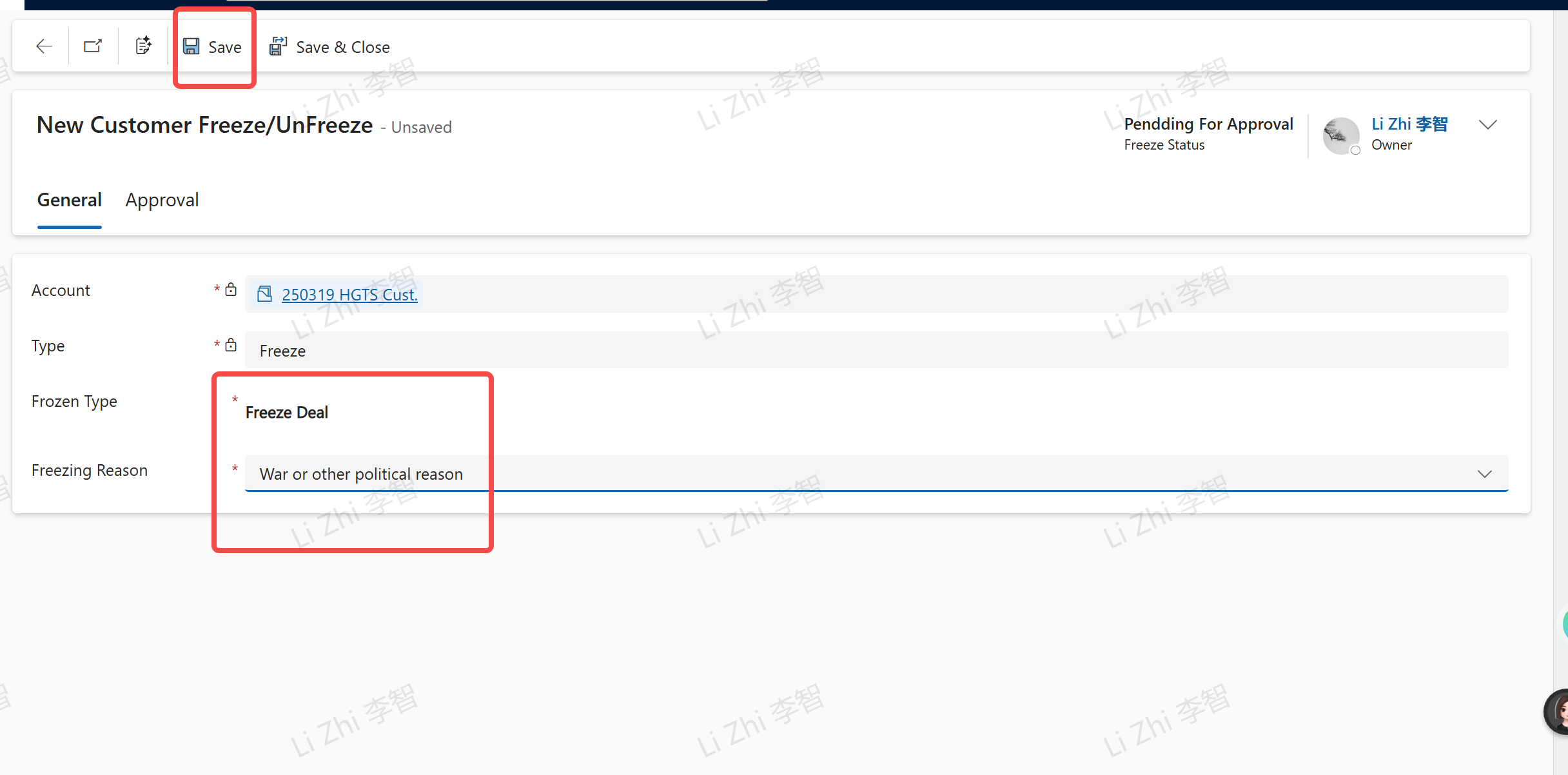
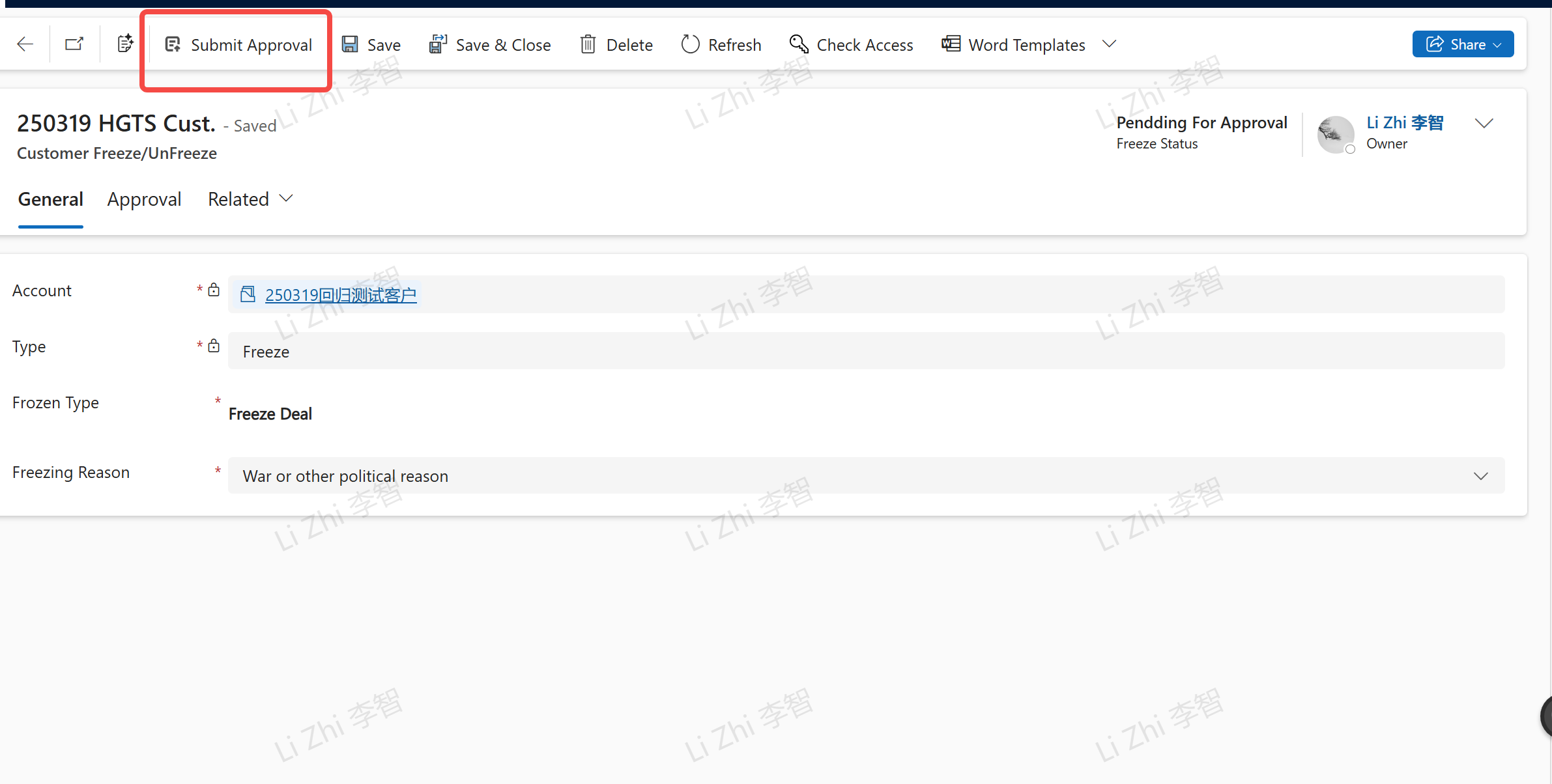
Check the "Approval Process"
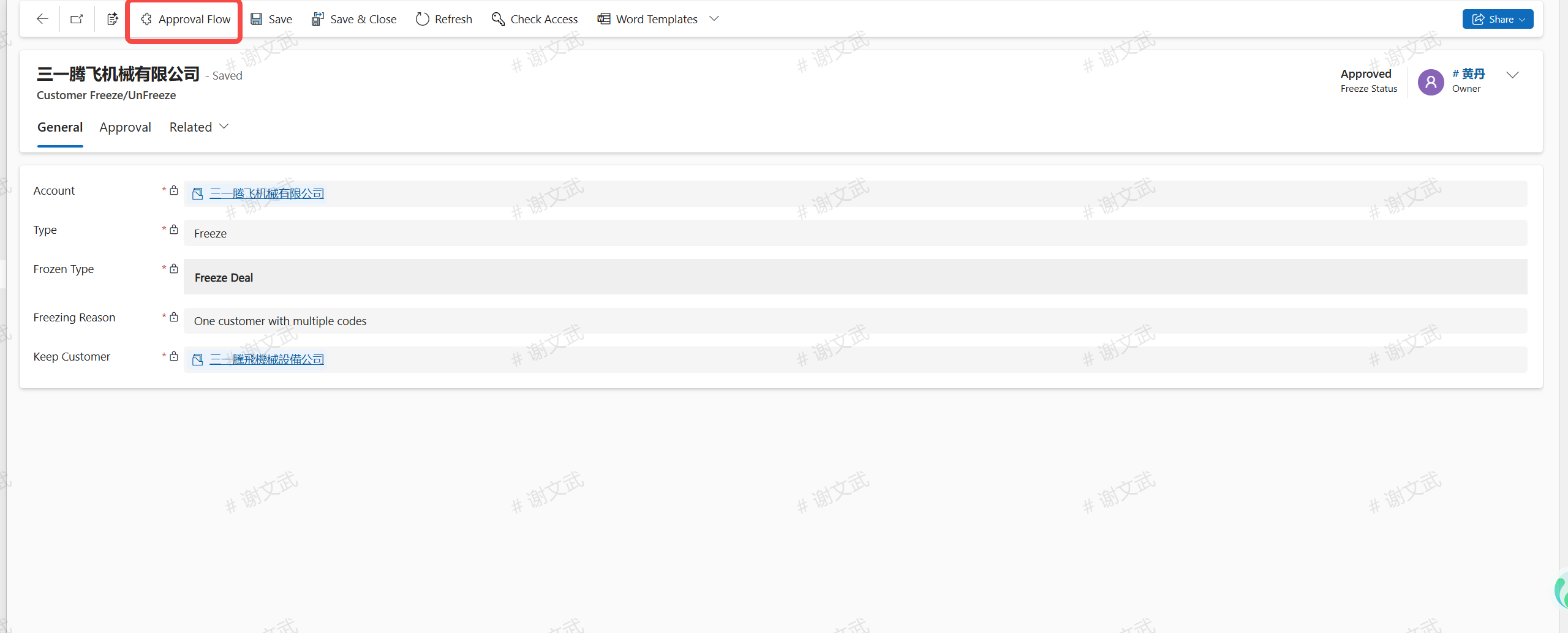
Once the approval is passed, the customer will be frozen.
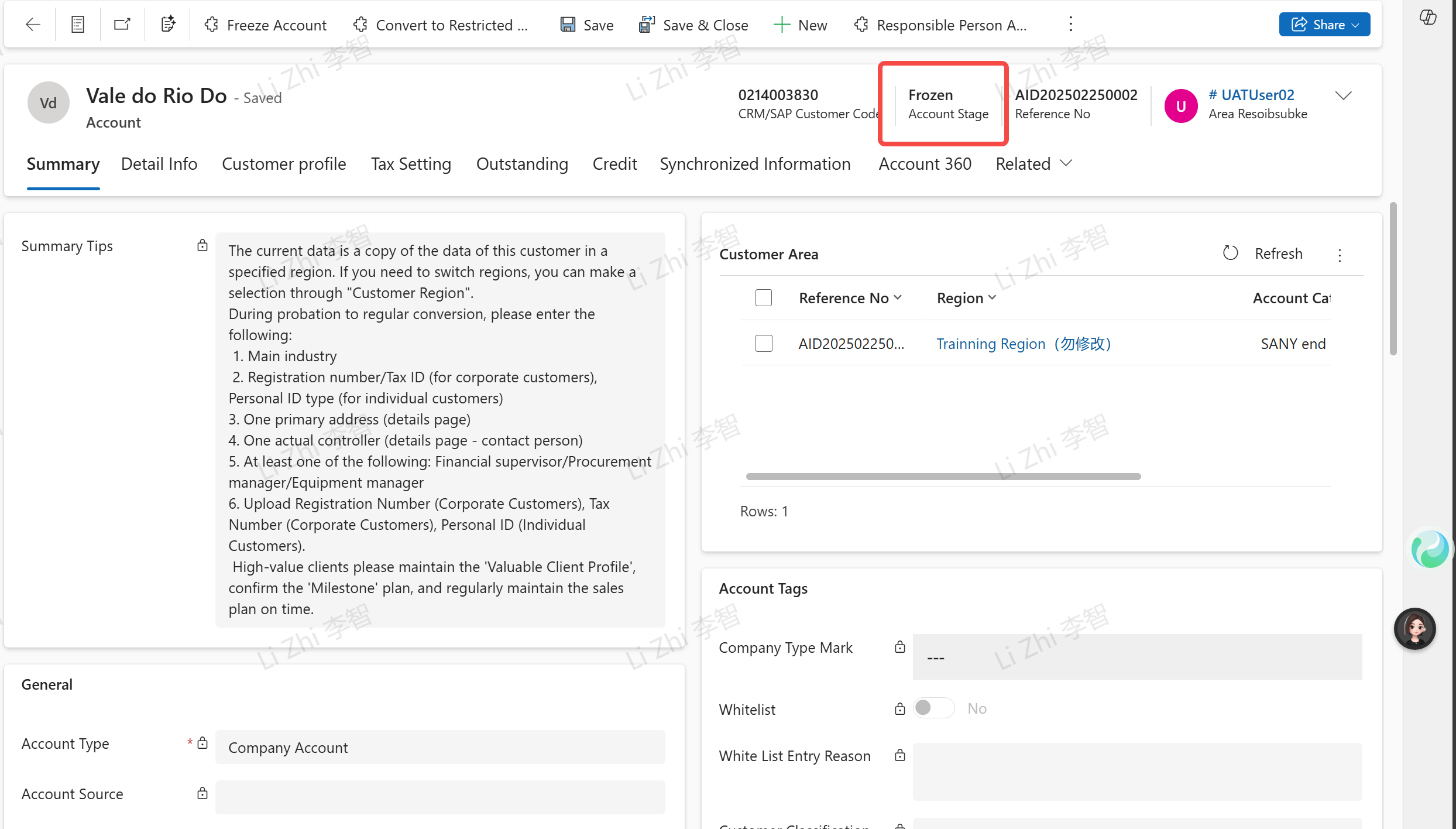
For customers who have been frozen, if the cooperative relationship has been restored, they can apply for unfreezing.
UnFreeze
Note: Unfreezing is not allowed for the situation where one customer has multiple codes and is frozen.
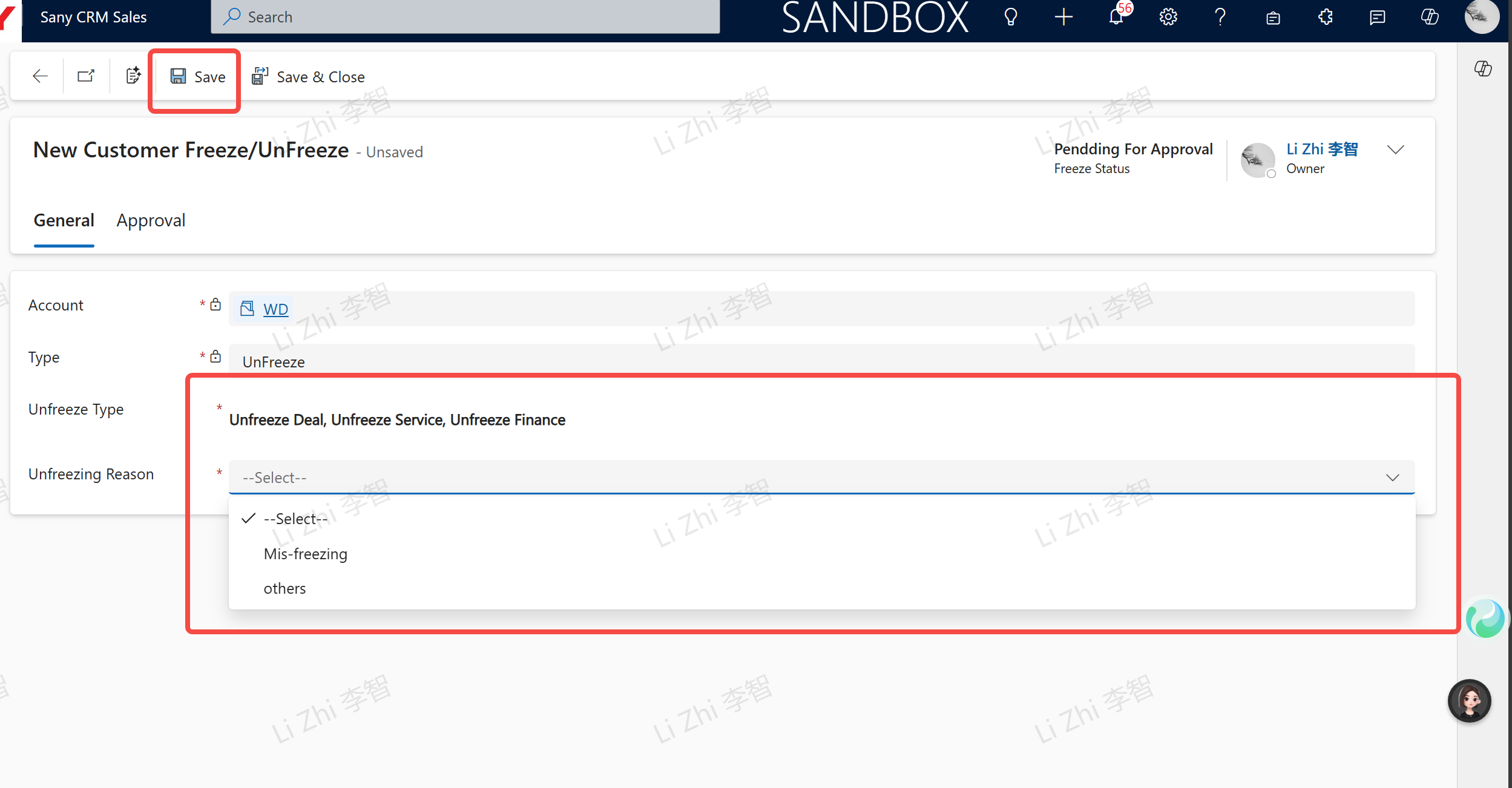
Double-click on the frozen customer to enter the customer details page. Click the "Unfreeze" button to initiate the unfreezing process. Select the "Unfreeze Type" and the "Reason for Unfreeze". After clicking "Save", click "Submit for Approval".
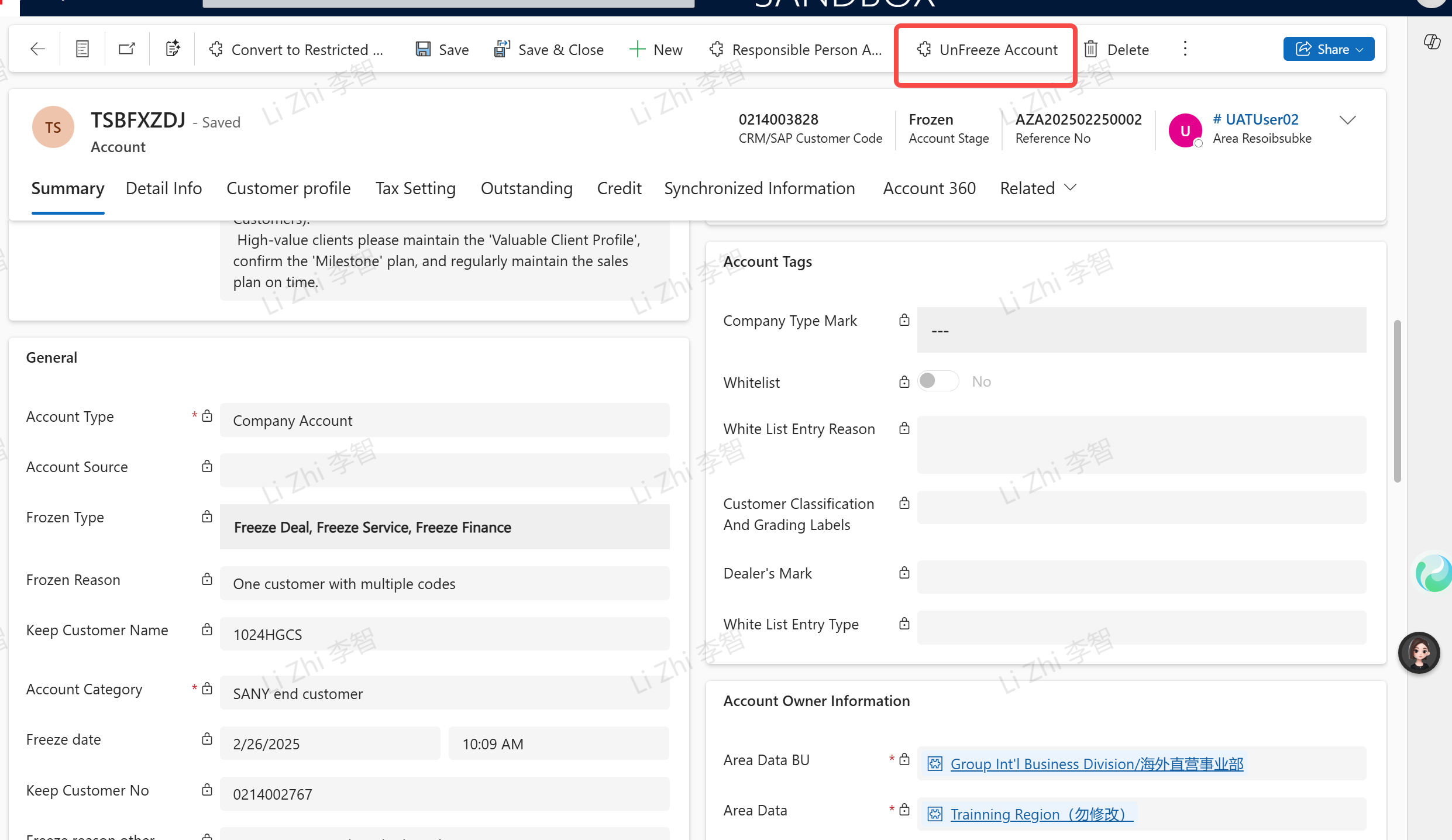
Select the "Unfreeze Type (multiple selections are allowed)" and "Unfreeze Reason", click "Save" and then click "Submit for Approval".
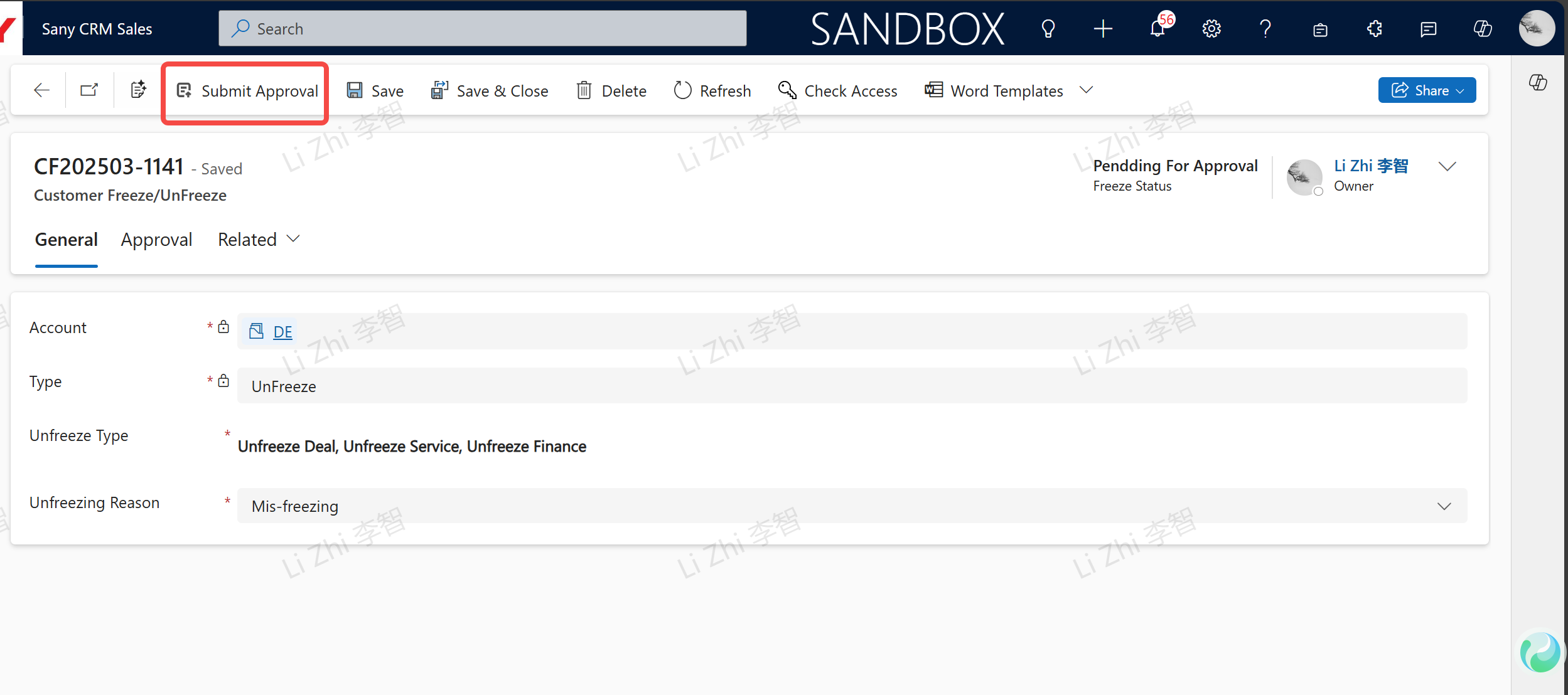
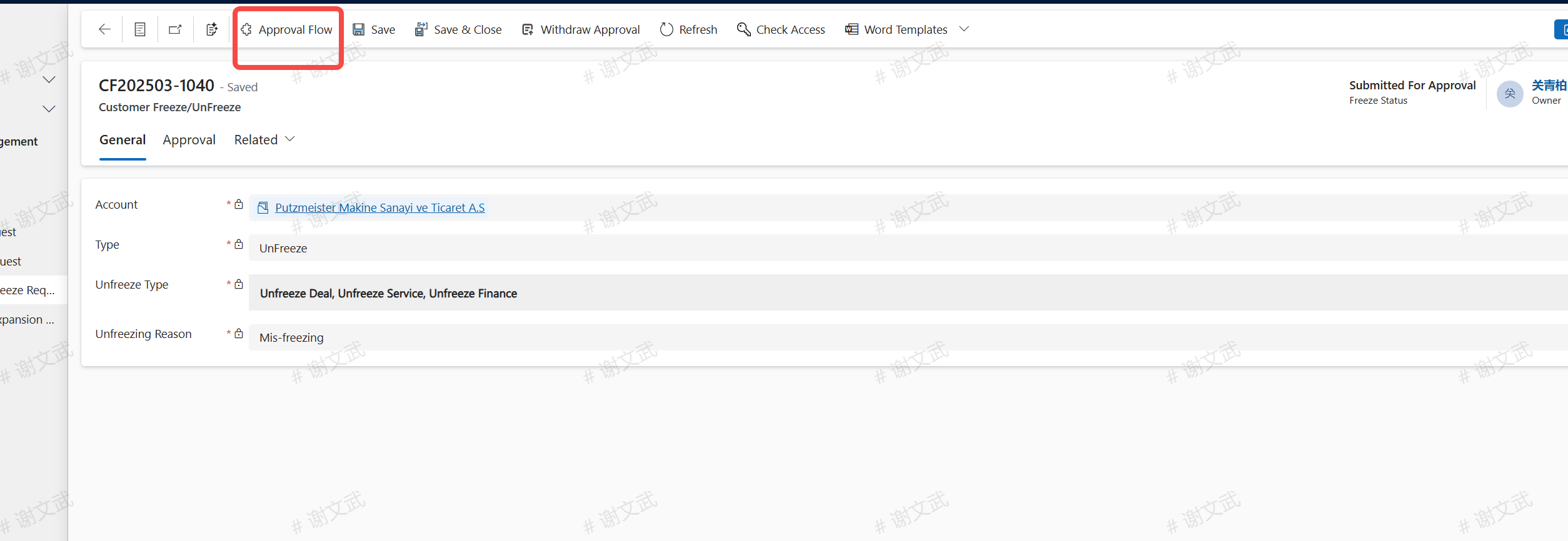
Check the approval and click on the "Approval Process".
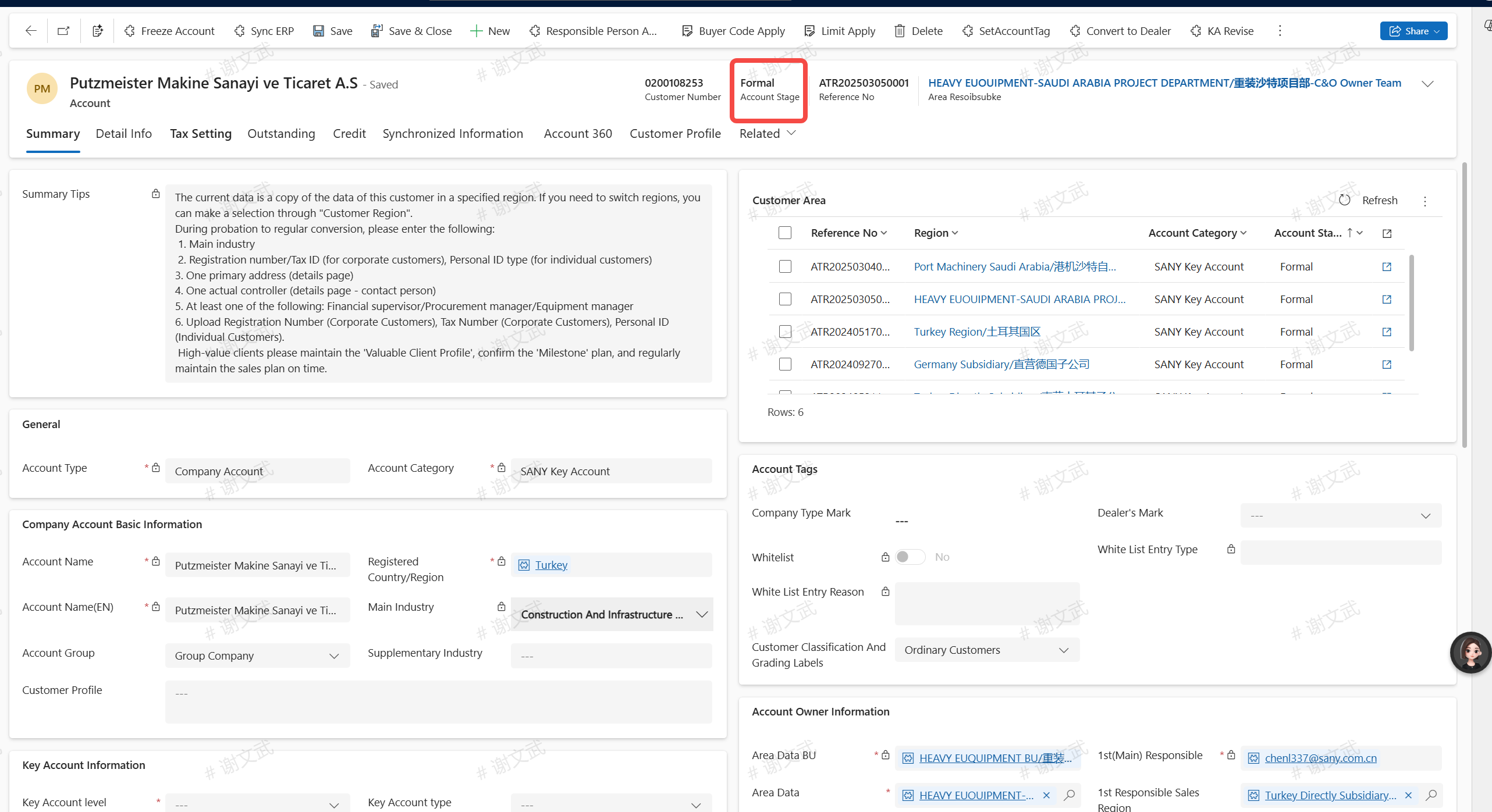
Once the approval is passed, the customer will be restored as an official customer again and can be used normally during the subsequent order processing.
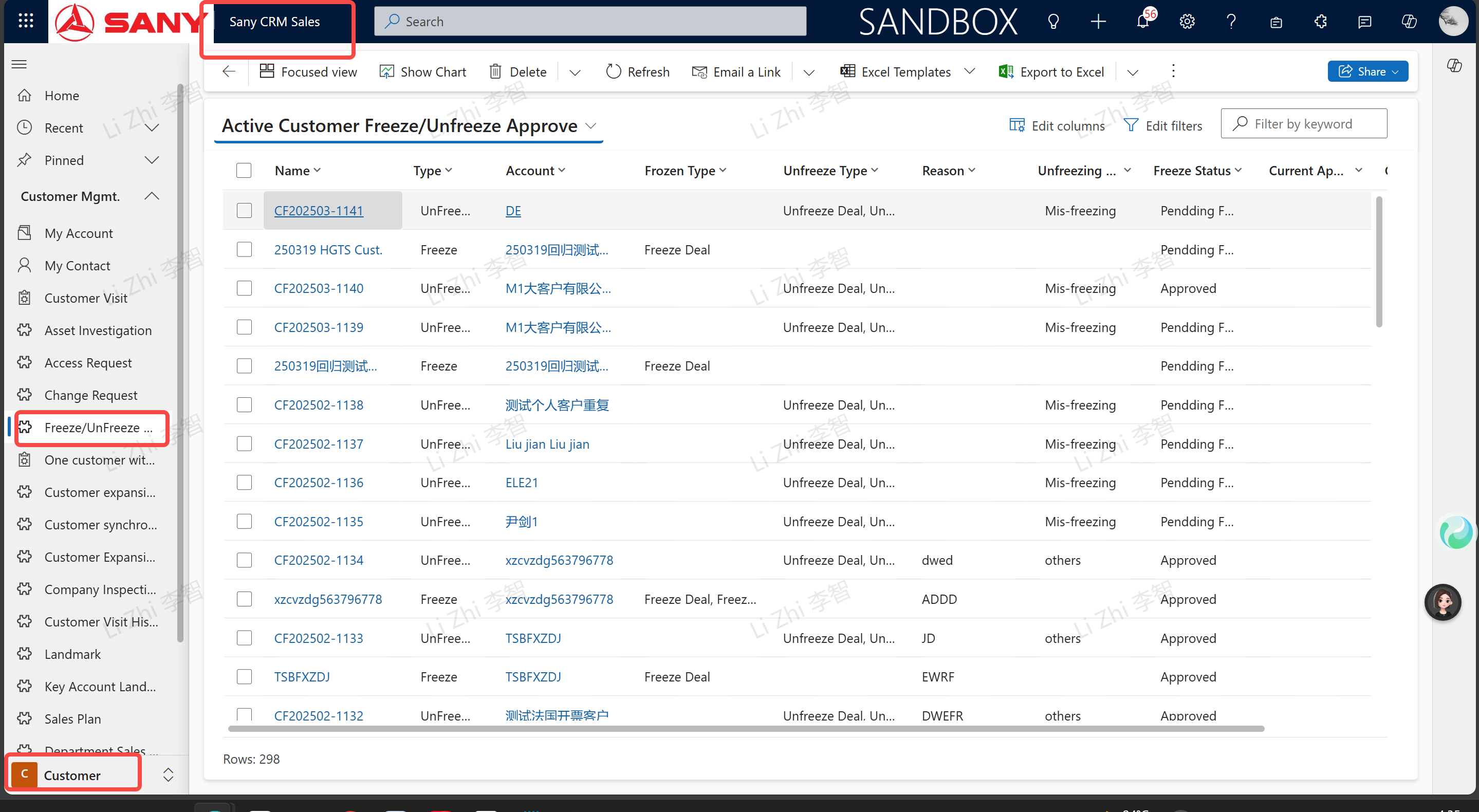
Check the application for freezing/unfreezing.
Viewing Path: Sany CRM Sales --> Customers --> Customer Management --> Freezing/Unfreezing Application