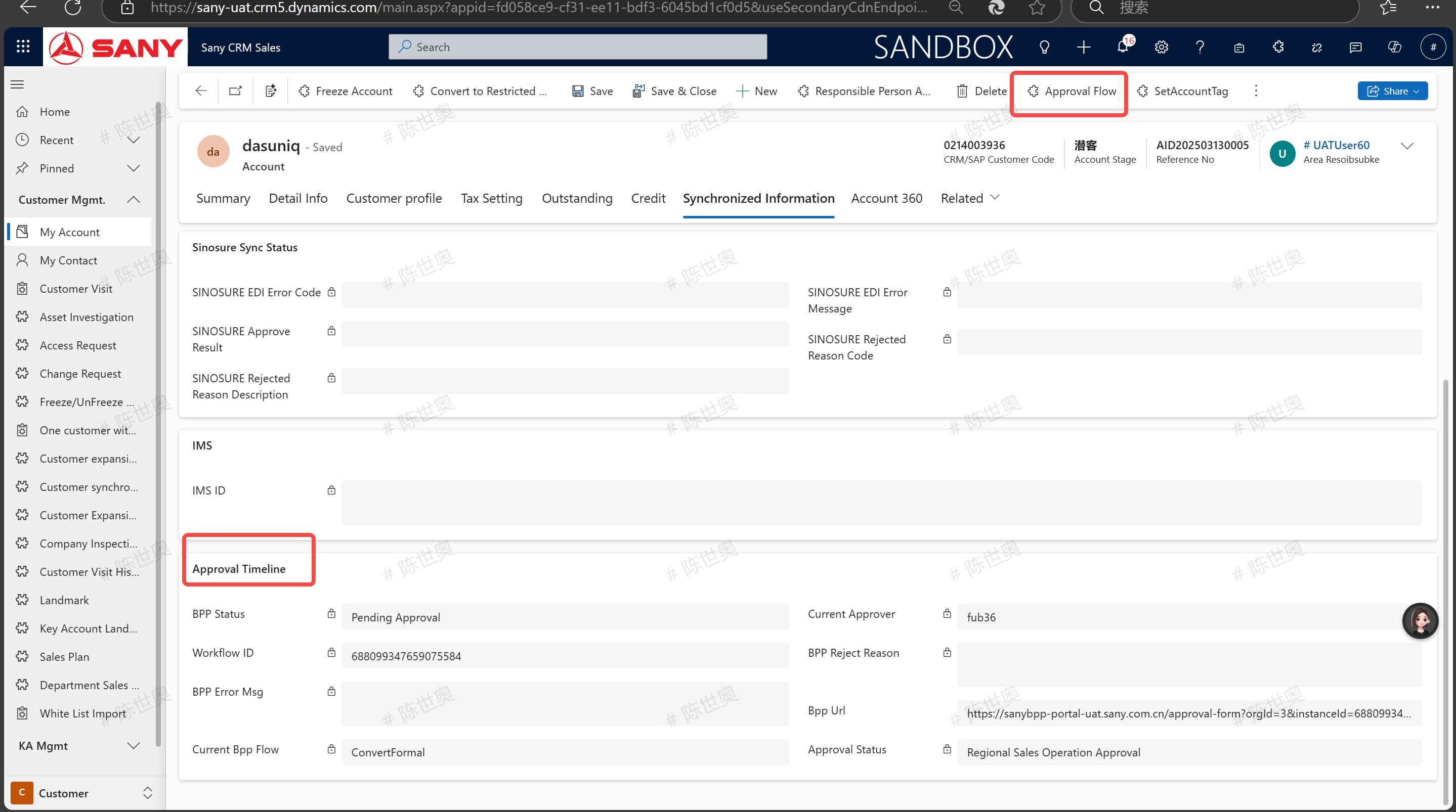
Customer
New customer
Entry Path: Sany CRM Sales -> Customers -> Customer Management -> My Customers -> + New
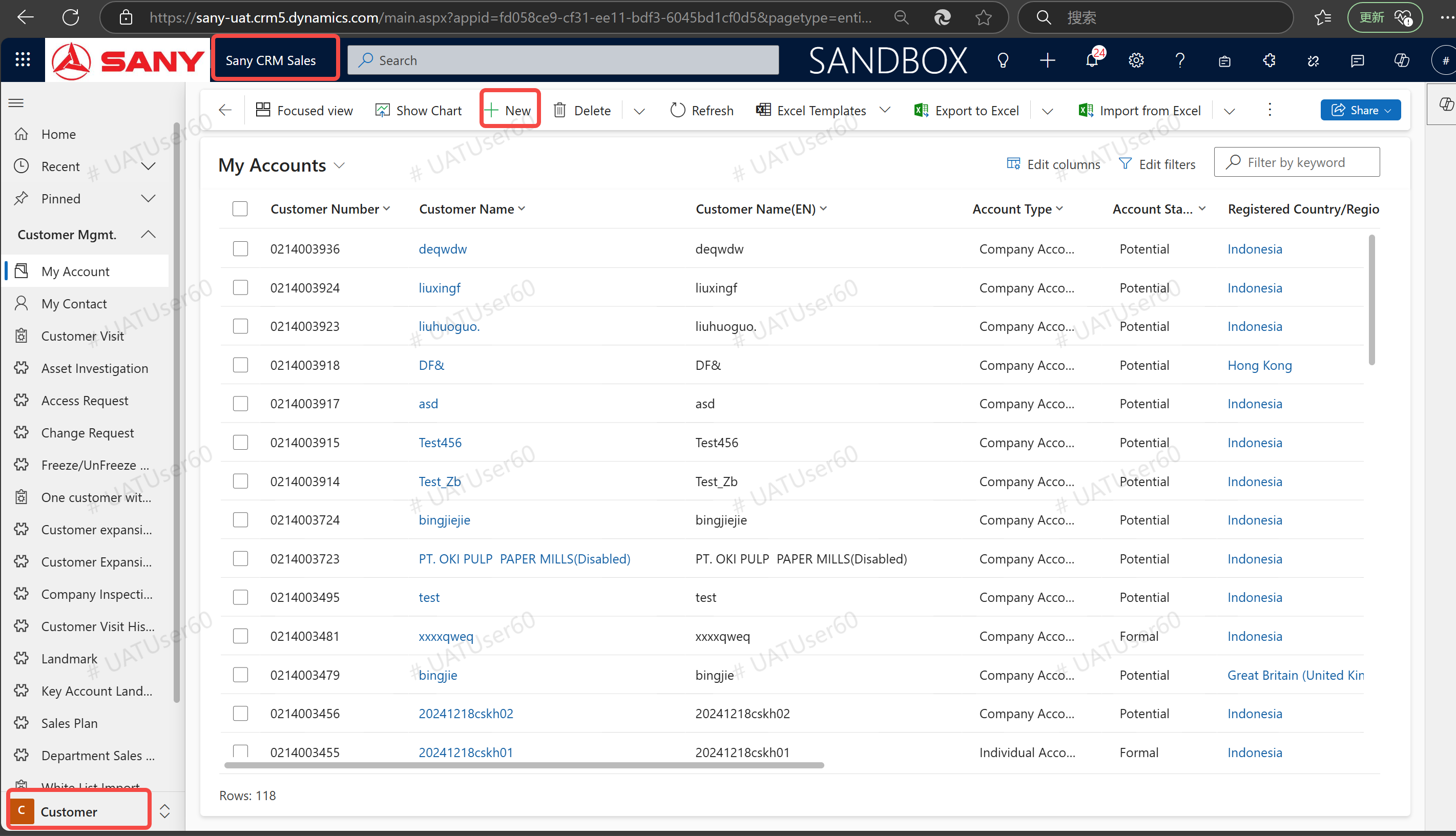
Required Information: All fields on the page with\ * will be checked by the system when saving whether the required information is complete. If there is any deficiency, a prompt will be given at the top. Click the corresponding prompt to automatically jump to the missing place to fill in the information.
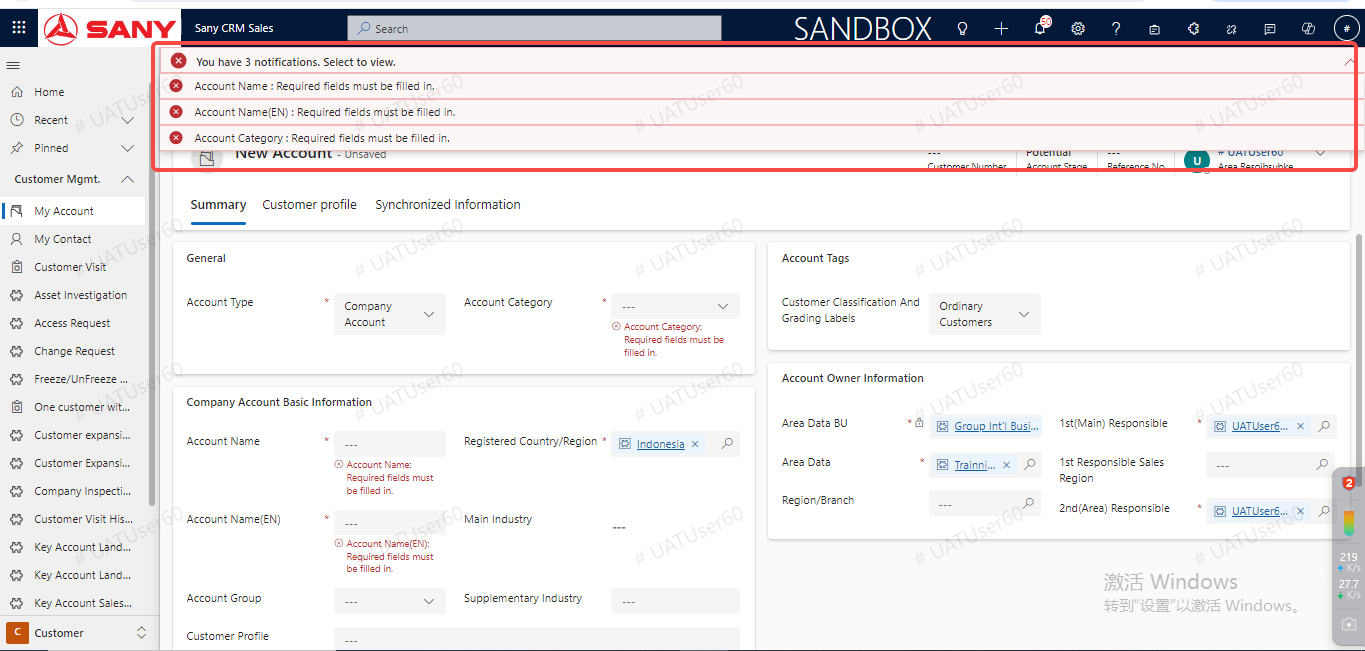
Sany terminal customer entry and conversion
Create New Potential Customer
Select "Corporate Customer" as the customer type and "Sany End - customer" as the customer category. The fields of "Customer Name", "Customer Name (English)", and "Registered Country/Region" are mandatory.
After completing the entry of all mandatory fields, click "Save" to generate a potential customer.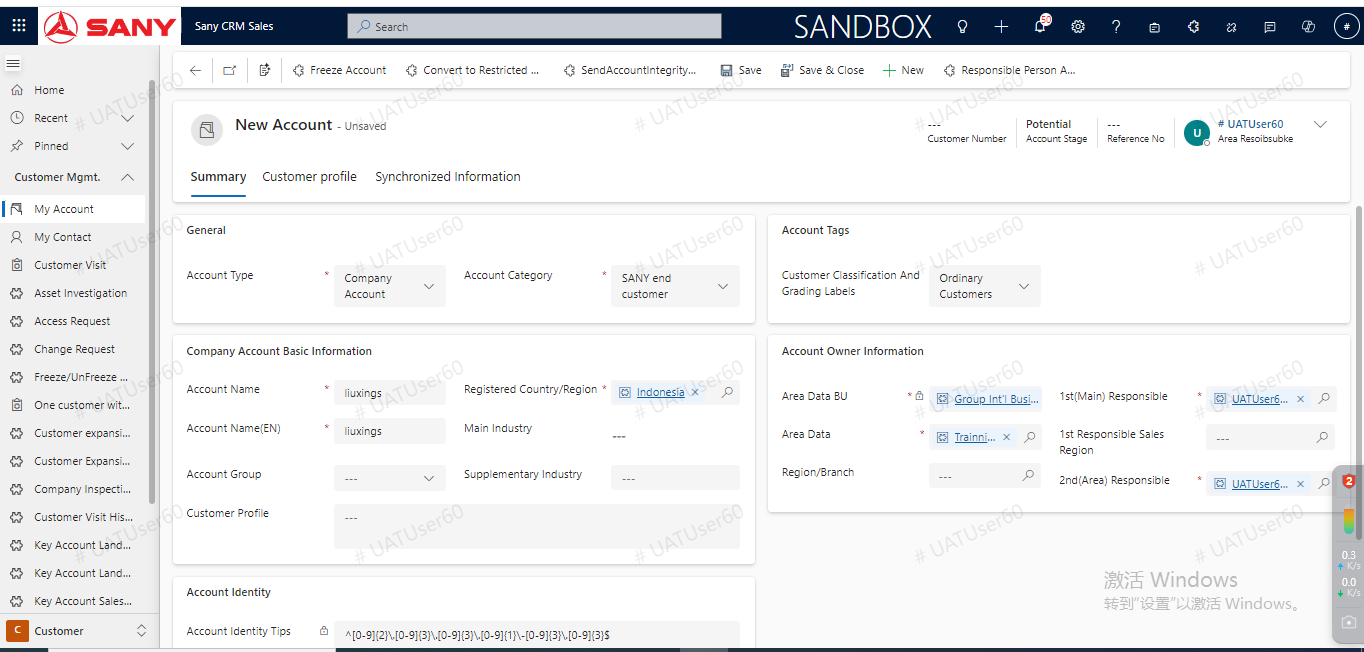
Basic Information Entry
Summary Maintenance: Maintain "Main Industry", "Registration Number" and "Tax ID Number" in the customer identification;
Details Maintenance: Maintain "Address" and "Contact Person";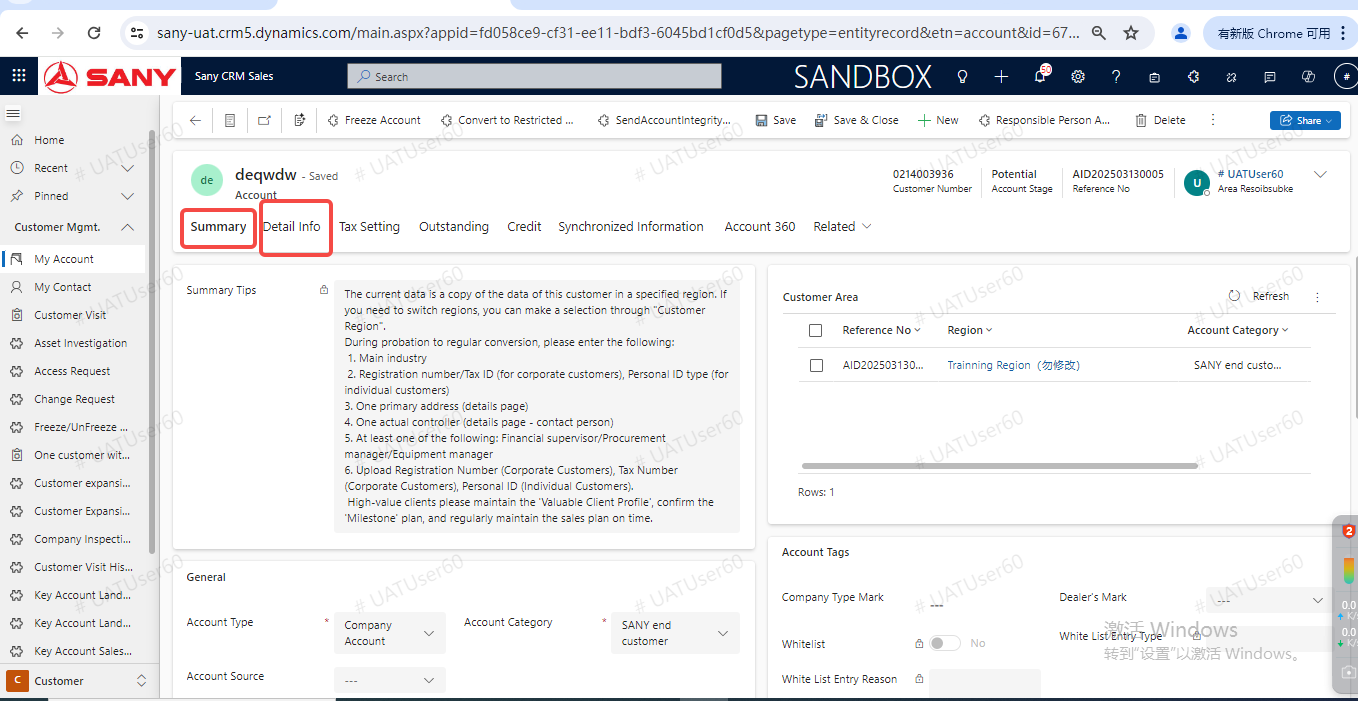
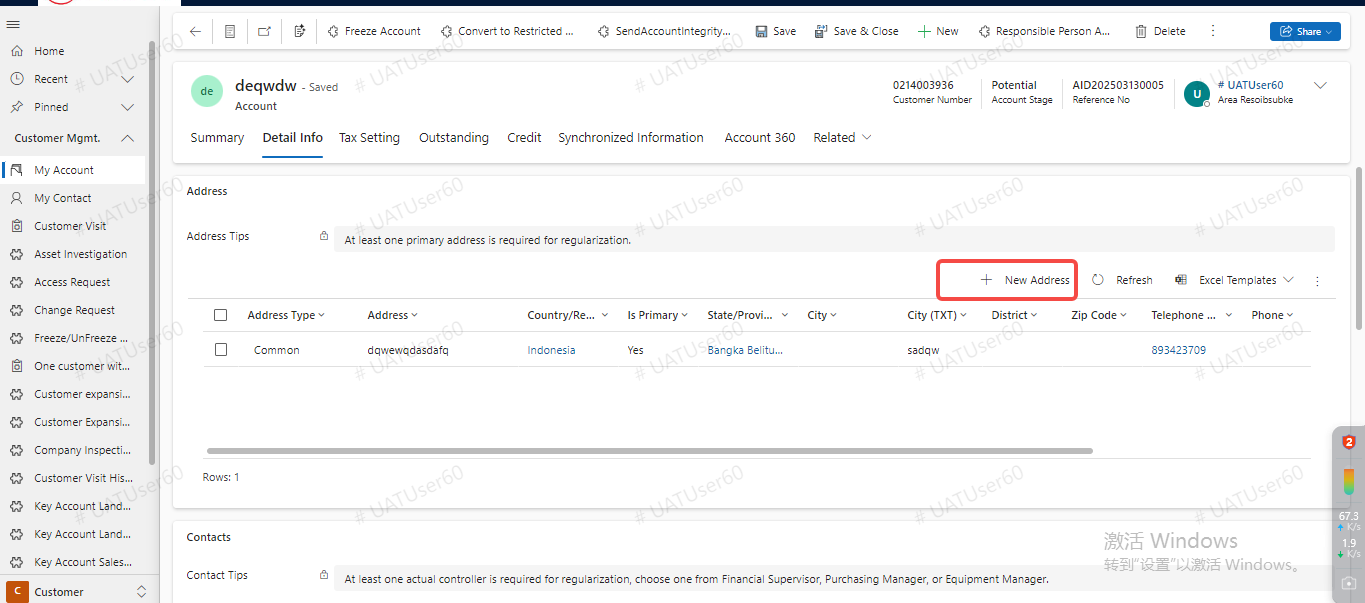
Address & Contact Information Entry (One primary address must be maintained).
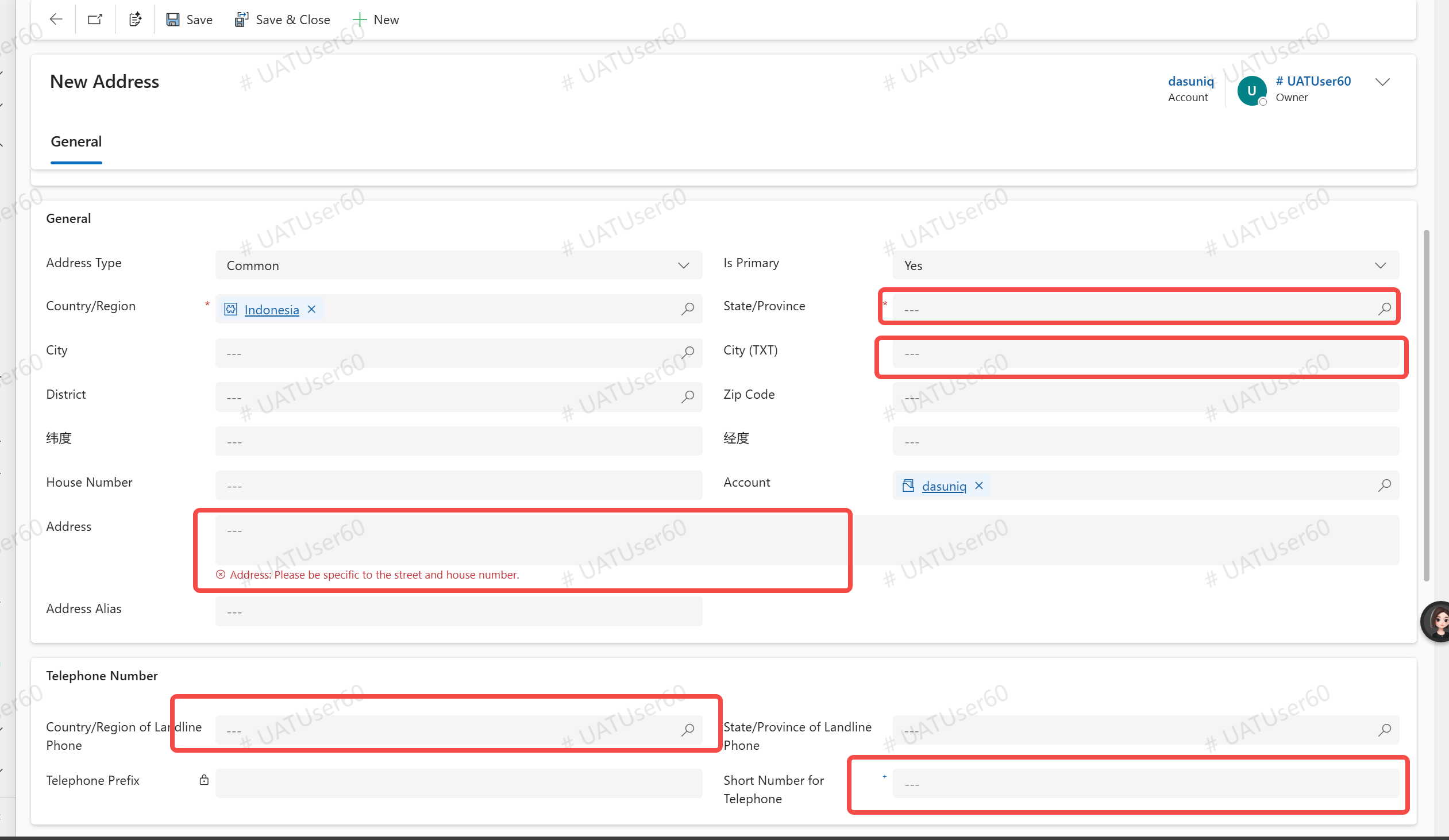
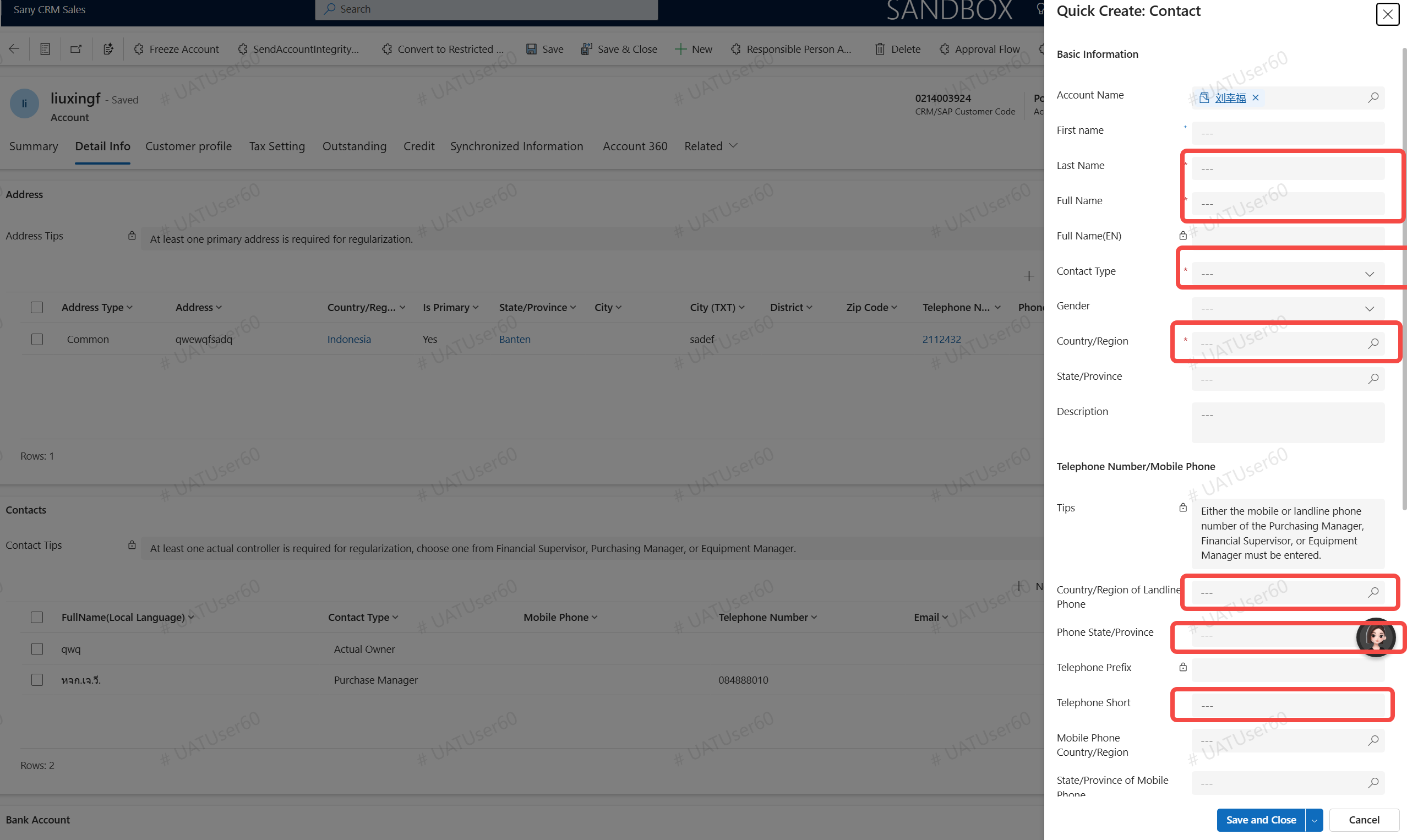
Create New Customer Address: Maintain the following information: "Country/Region", "Customer Location", "City or City (Text)", "Customer Address", "Landline Telephone Number", "Social Media Account and Other Contact Information".
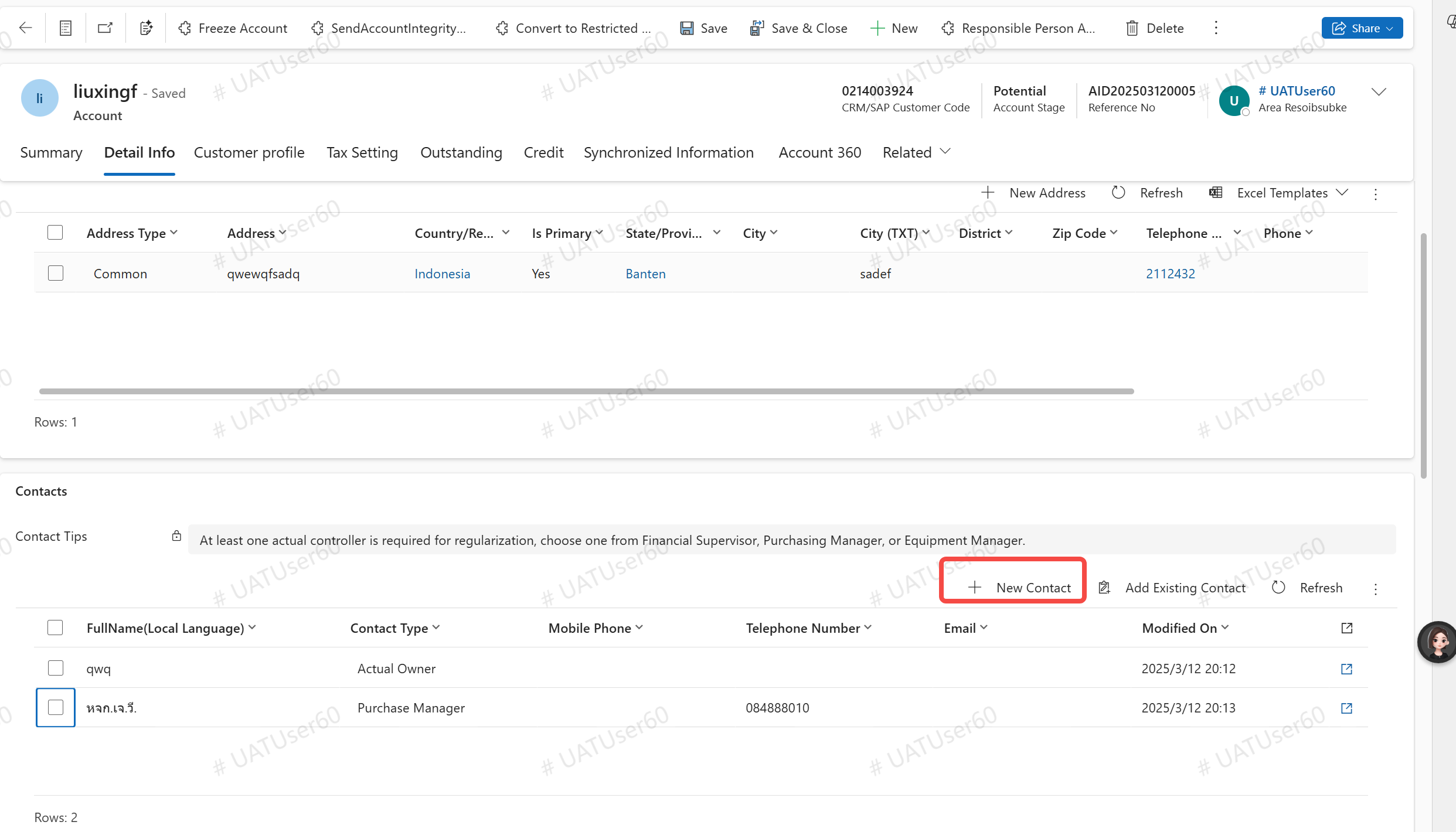
Create New Contact Person: In the contact information, maintain at least one of "Actual Controller", "Equipment Supervisor/Purchasing Manager/Finance Supervisor". When selecting "Equipment Supervisor/Purchasing Manager/Finance Supervisor", a short number of the landline or a short number of the mobile phone needs to be added. After the maintenance is completed, click "Save"
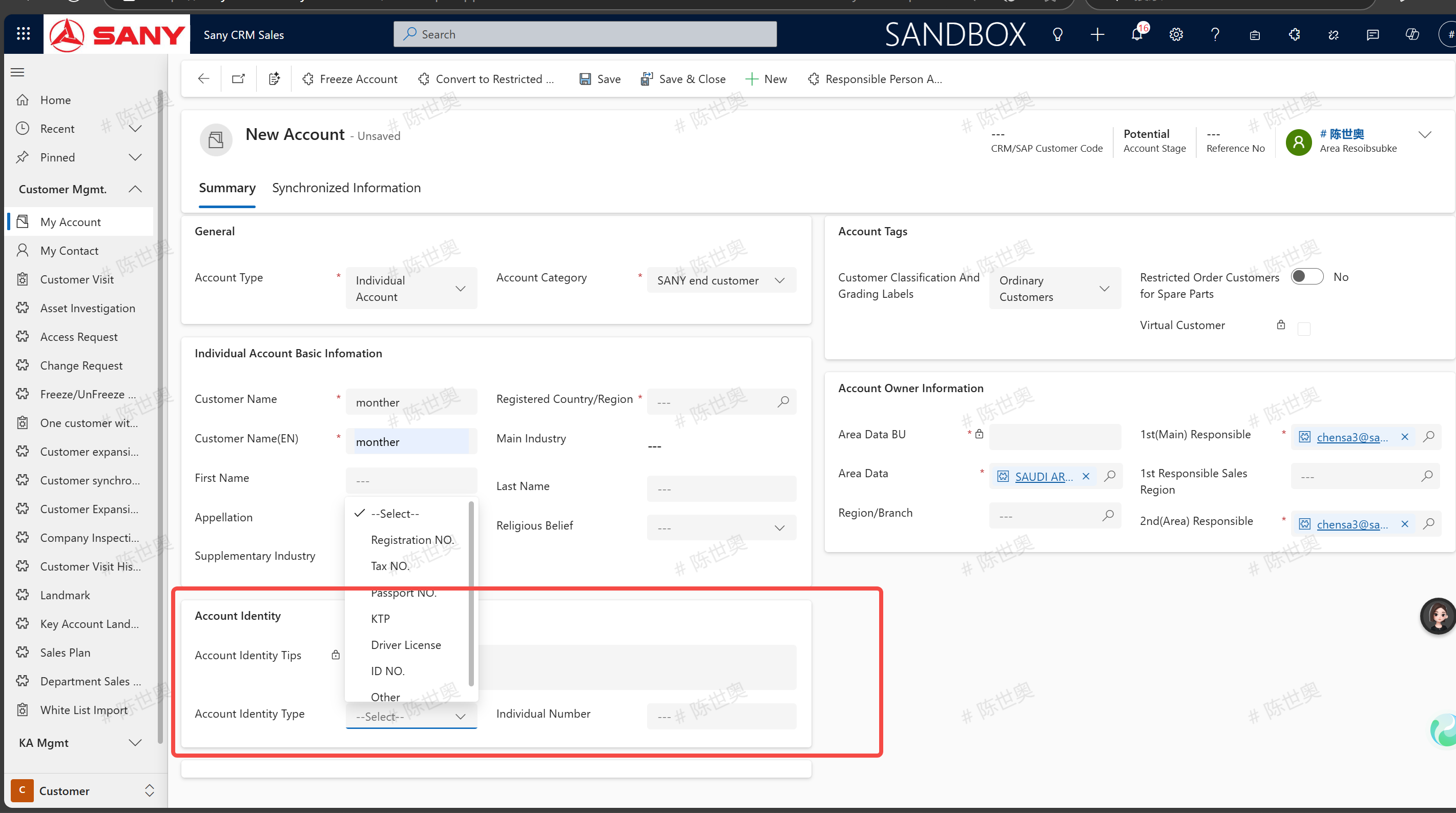
Note 1: If the customer type selected is an individual customer, maintain the main business industry in the basic information of corporate customers on the summary tab, and maintain the customer's certificate type and individual ID number in the customer identification.
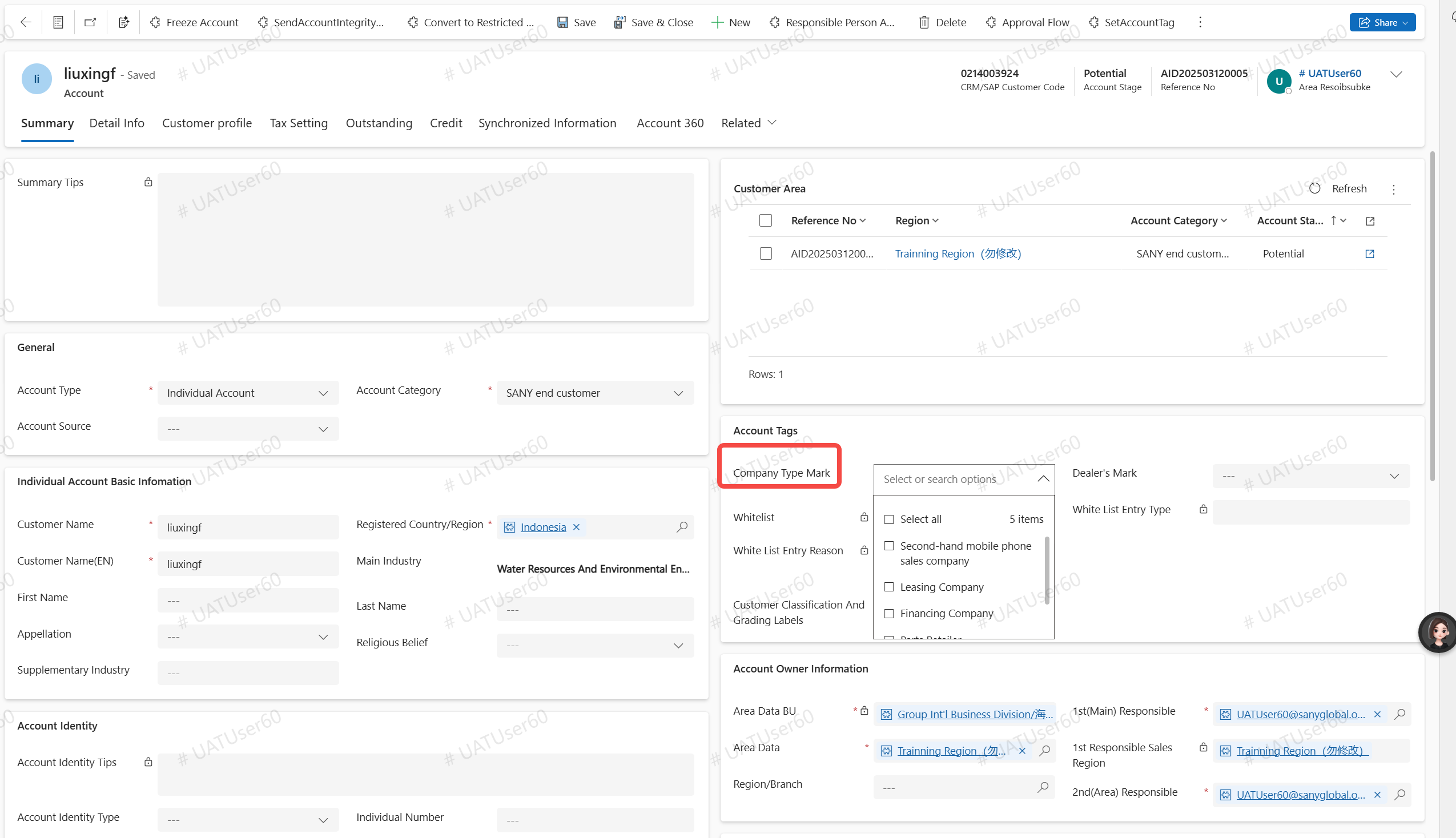
Note 2: When the Heavy Machinery Business Division creates a new financing company customer, the "Financing Company" option should be selected for the relevant field.
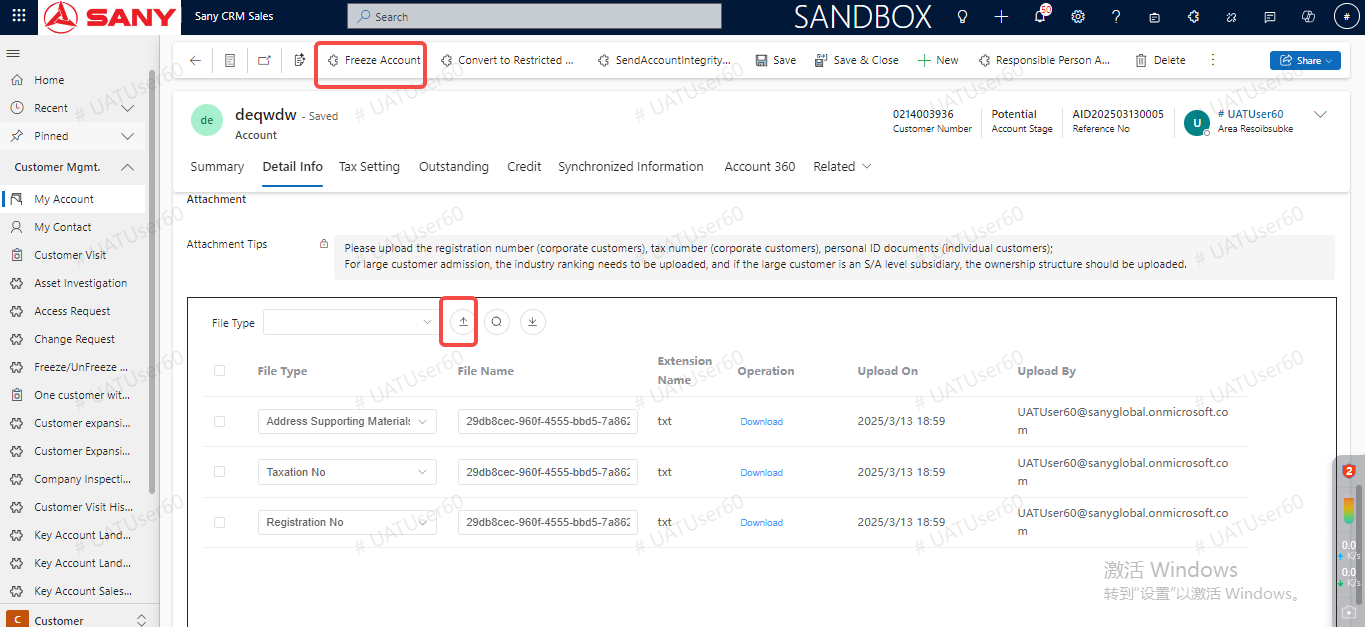
Attachment upload
Finally, in the attachment signed on the details page, upload "company tax number", "tax number certification materials", and "other types" without mandatory requirements (phone supporting materials, address supporting materials, email supporting materials), and then click "Transfer to official customers";
Submit for approval
After submission, you can check the approval information on the synchronization information page or click "View BPP Approval Flow" to view the approval information. After approval, the customer stage will be converted from lead to formal and automatically synchronized ERP.