Claim Retrospective
Claim Retrospective
Path: Claim -> Region Claims/Dealer Claims -> Claim Retrospective
Create
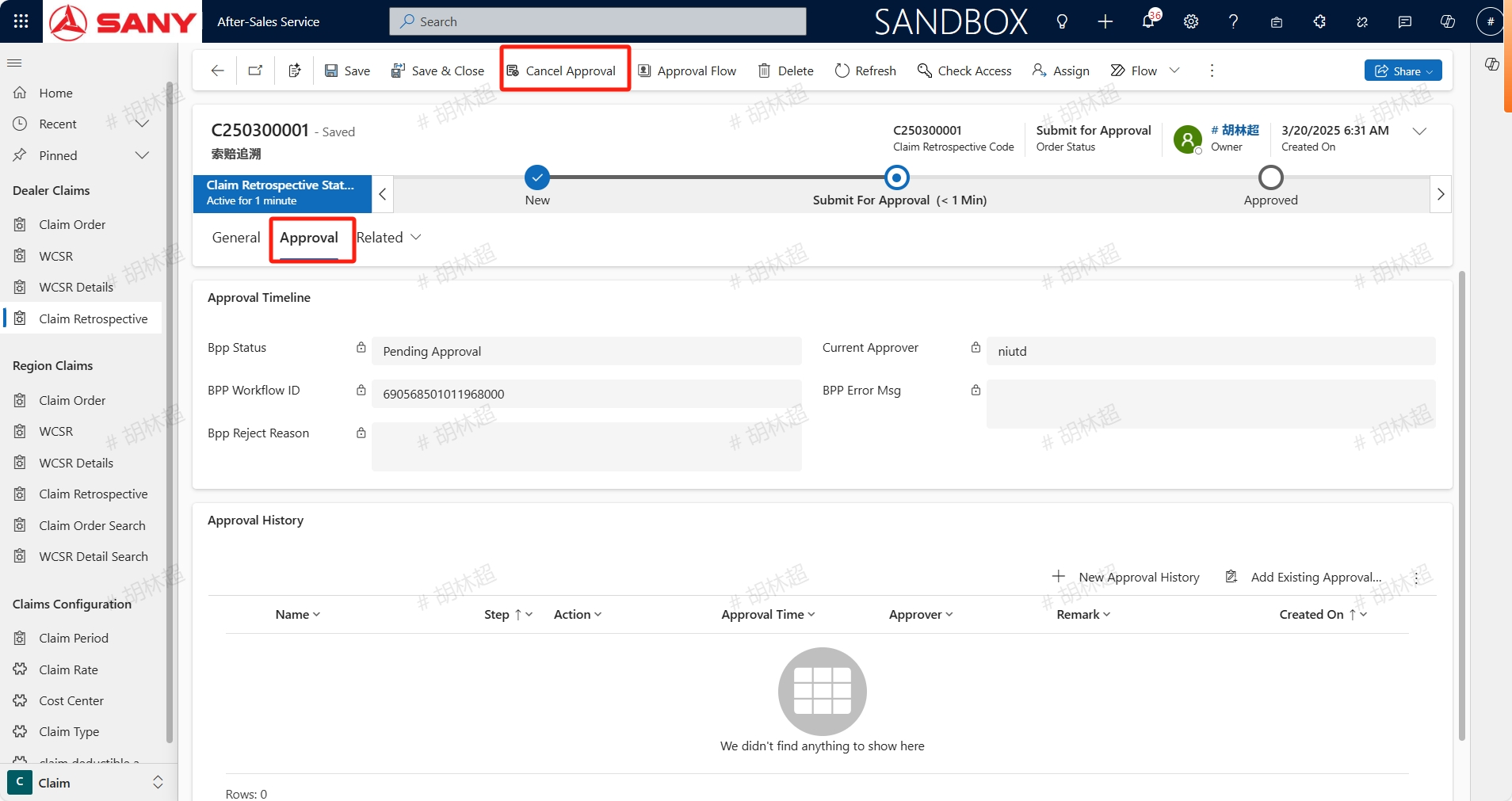
If the claim has been completed but found that some items needn't to require a claim, you can click Create Claim Retrospective button which based on a approved claim order to create a Claim Retrospective.
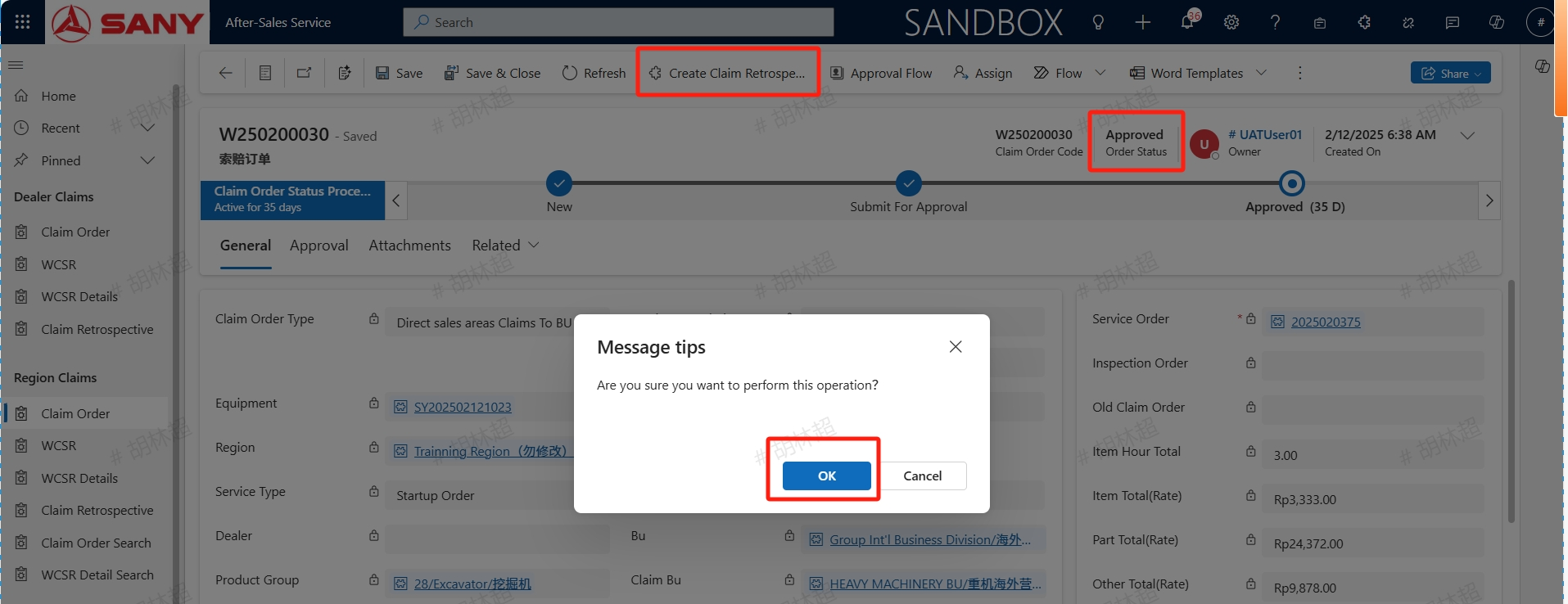
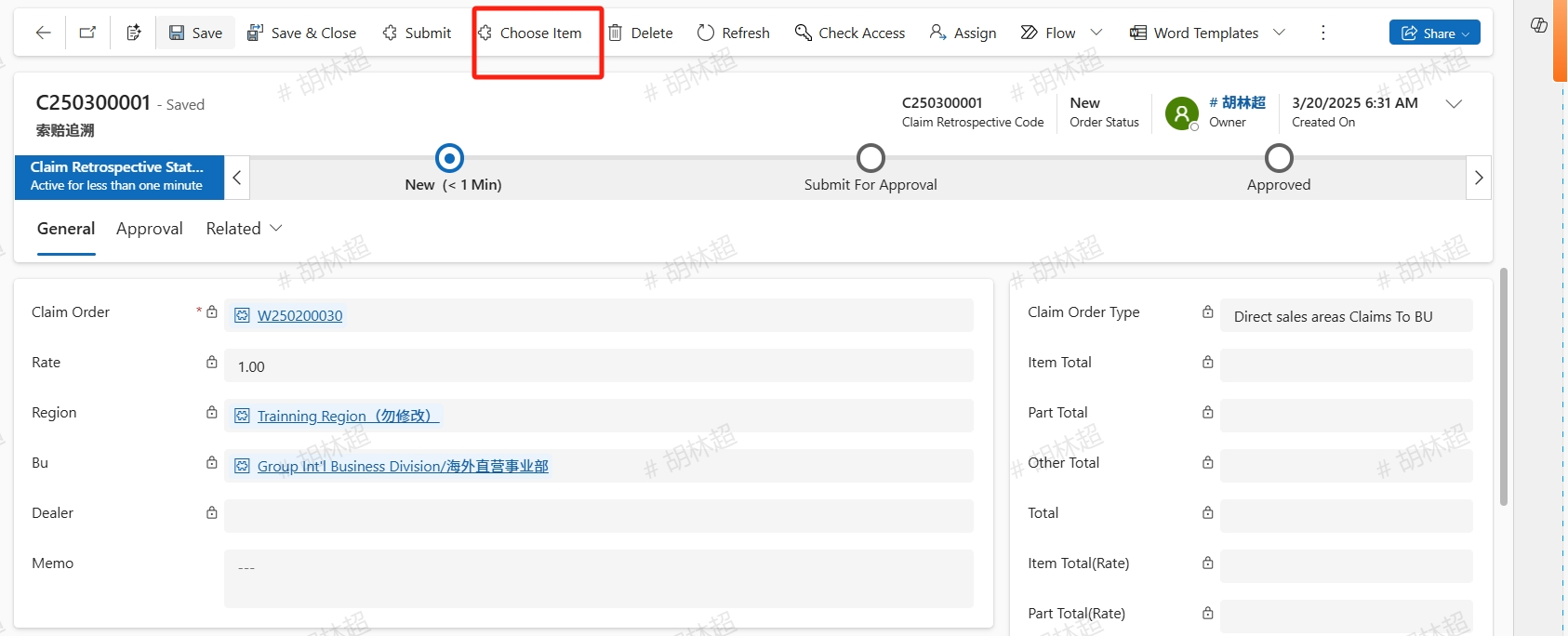
Click the "Choose ltem" button on the page, Choose Claim Retrospective Item,select item will be added to the corresponding line project. After all information input,click the submit button to submit the claim retrospective order.
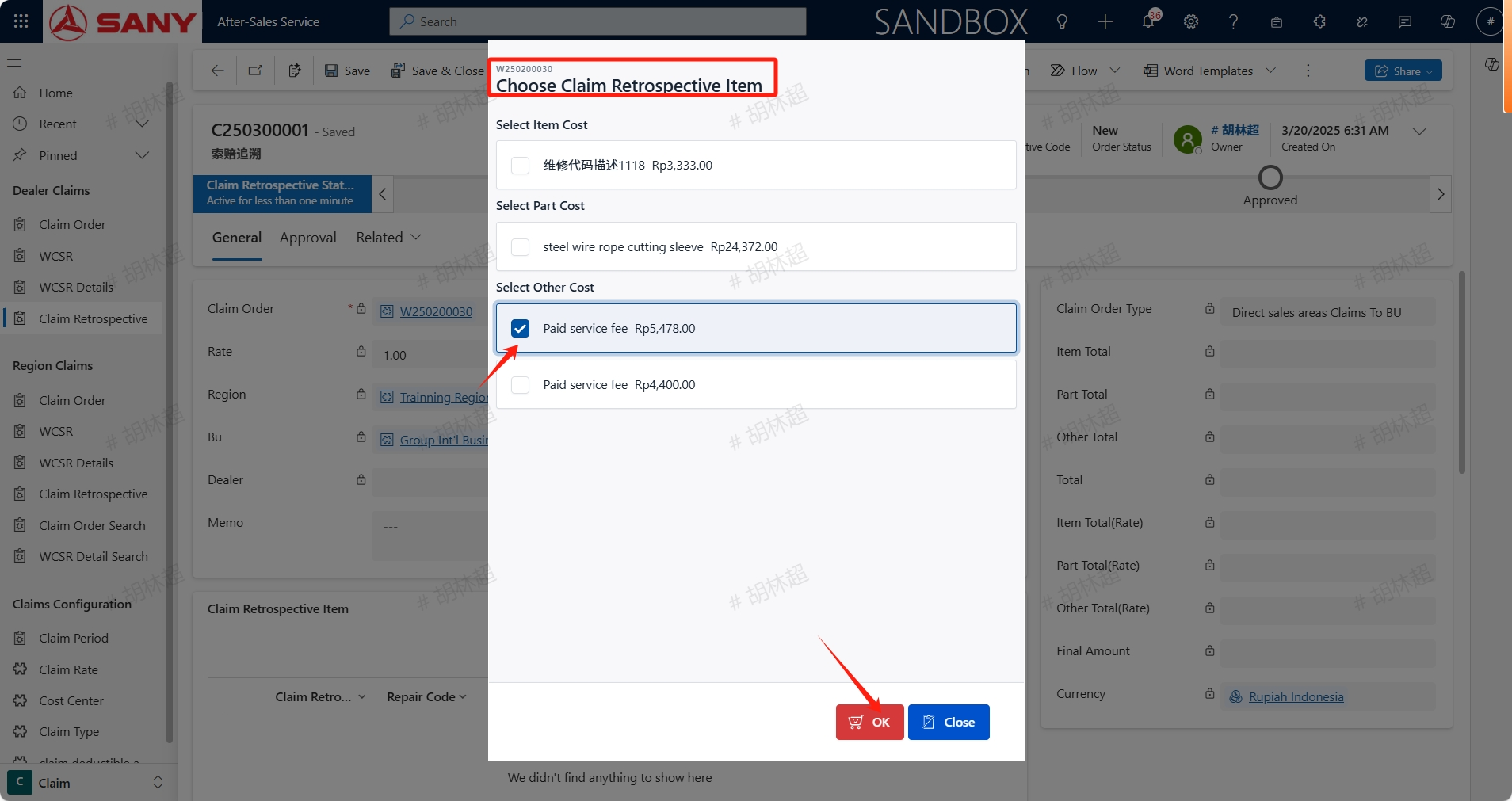
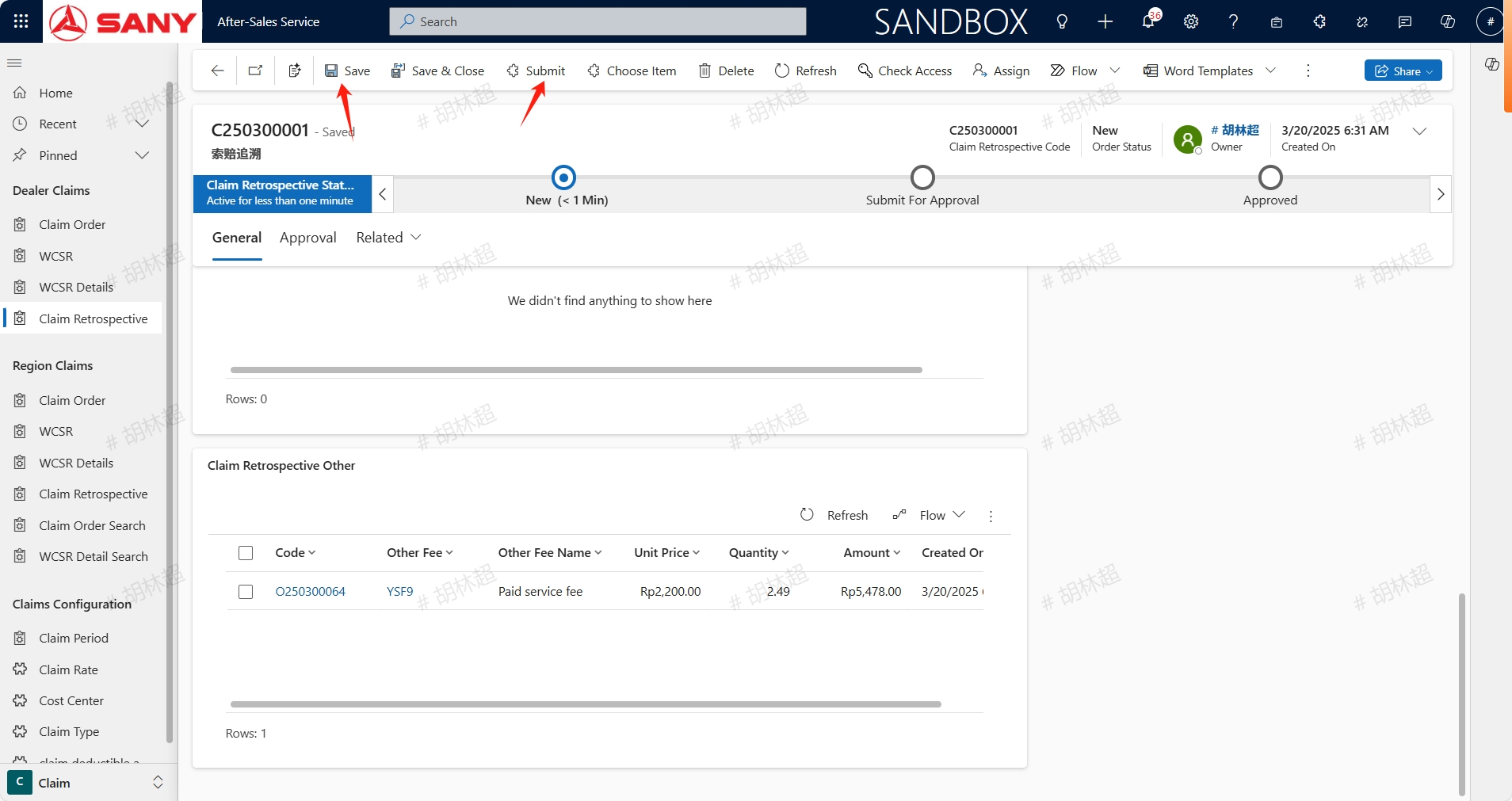
After submitting for approval, if you need to modify the information, you can click the Cancel Approval button to withdraw the approval. If there are no issues, you can wait for the approval to be completed. Specific approval information can be viewed on Approval tab.