Full Maintenance contract
Full Maintenance contract
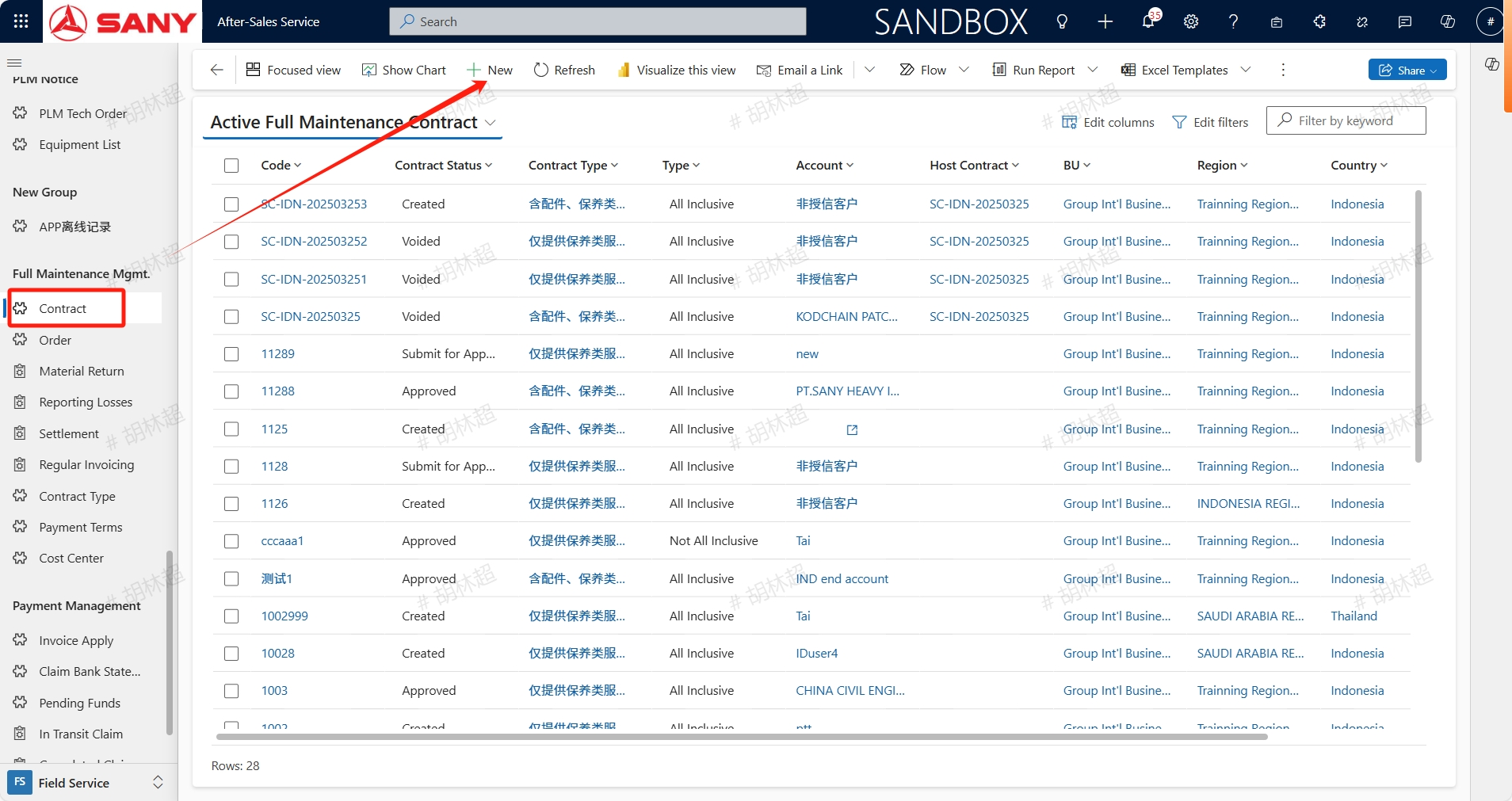
Path:Field Service -> Full Maintenance Mgmt. -> Full Maintenance Contract
Create
Open the Contract menu, click the +New button, open the New Full Maintenance Contract page, enter the necessary information such as Code, Contract Type, type, Account,Calculation method for full maintenance cycle, aProject Leader and other information needed or you want to add, then save.
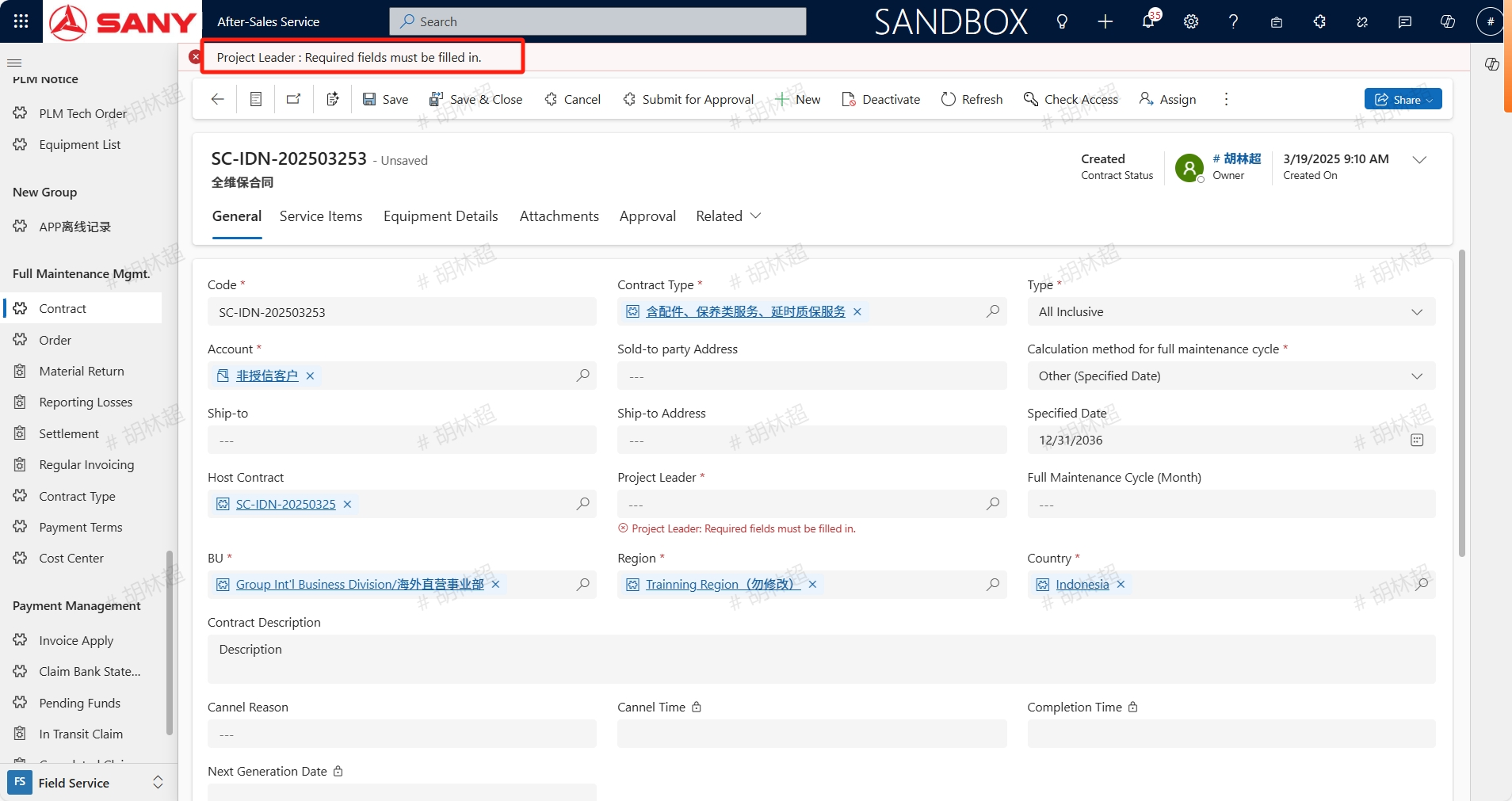
Calculation method for full maintenance cycle
If select Calculated from the Starting-up,the Full Maintenance Complete Date=Commissioning Date+Full Maintenance Cycle (Month) If select Calculated from the EQUlP.Handover,the Full Maintenance Complete Date=Handover Date+Full Maintenance Cycle (Month) If select Other (Specified Date),the Full Maintenance Complete Date=Specified Date
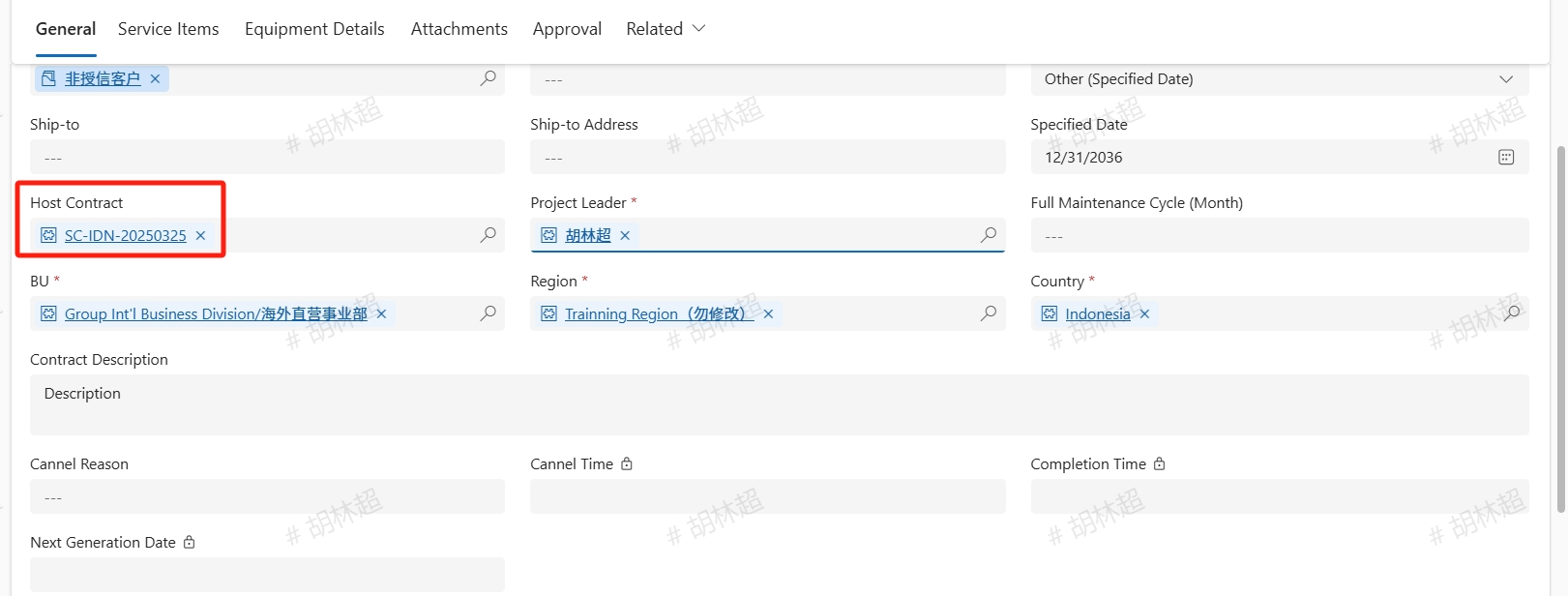
If the 'host contract' is entered, the equipment corresponding to the host contract will be automatically included in the equipment details of the full maintenance contract;
Add equipments
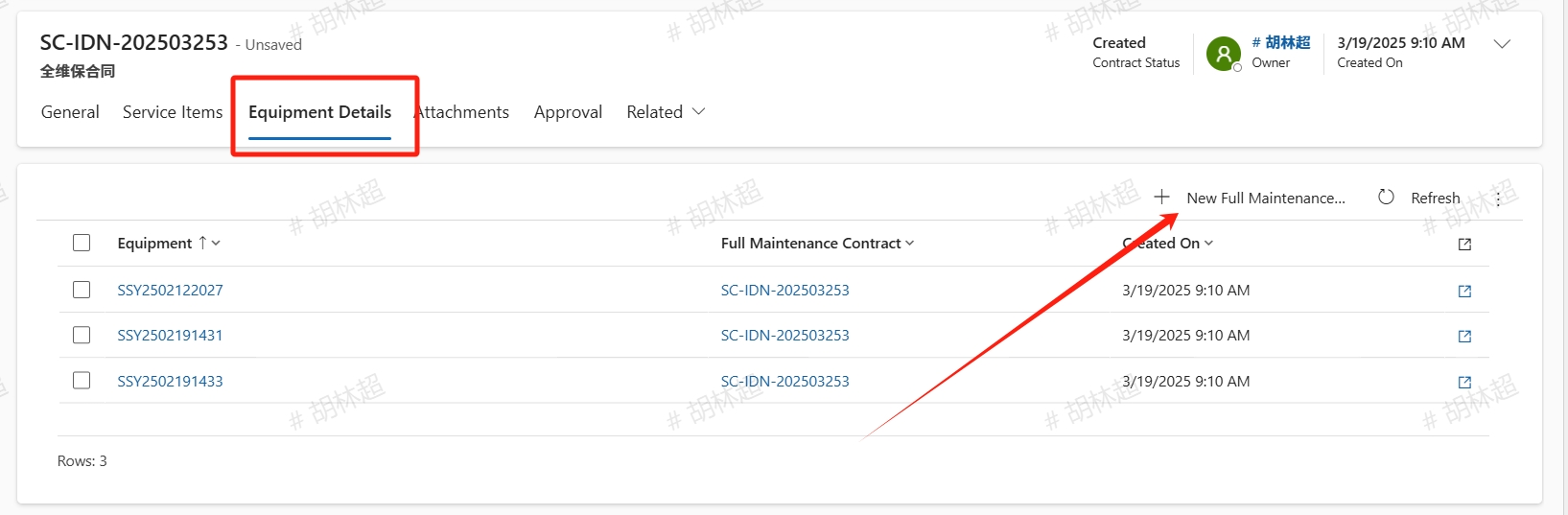
On the equipment details tab, click the +New Full Maintenance Equipment button to manually add equipment; If the host contract number is entered, the equipment corresponding to the host contract will be automatically included in the equipment details of the full maintenance contract;
Add Service ltems
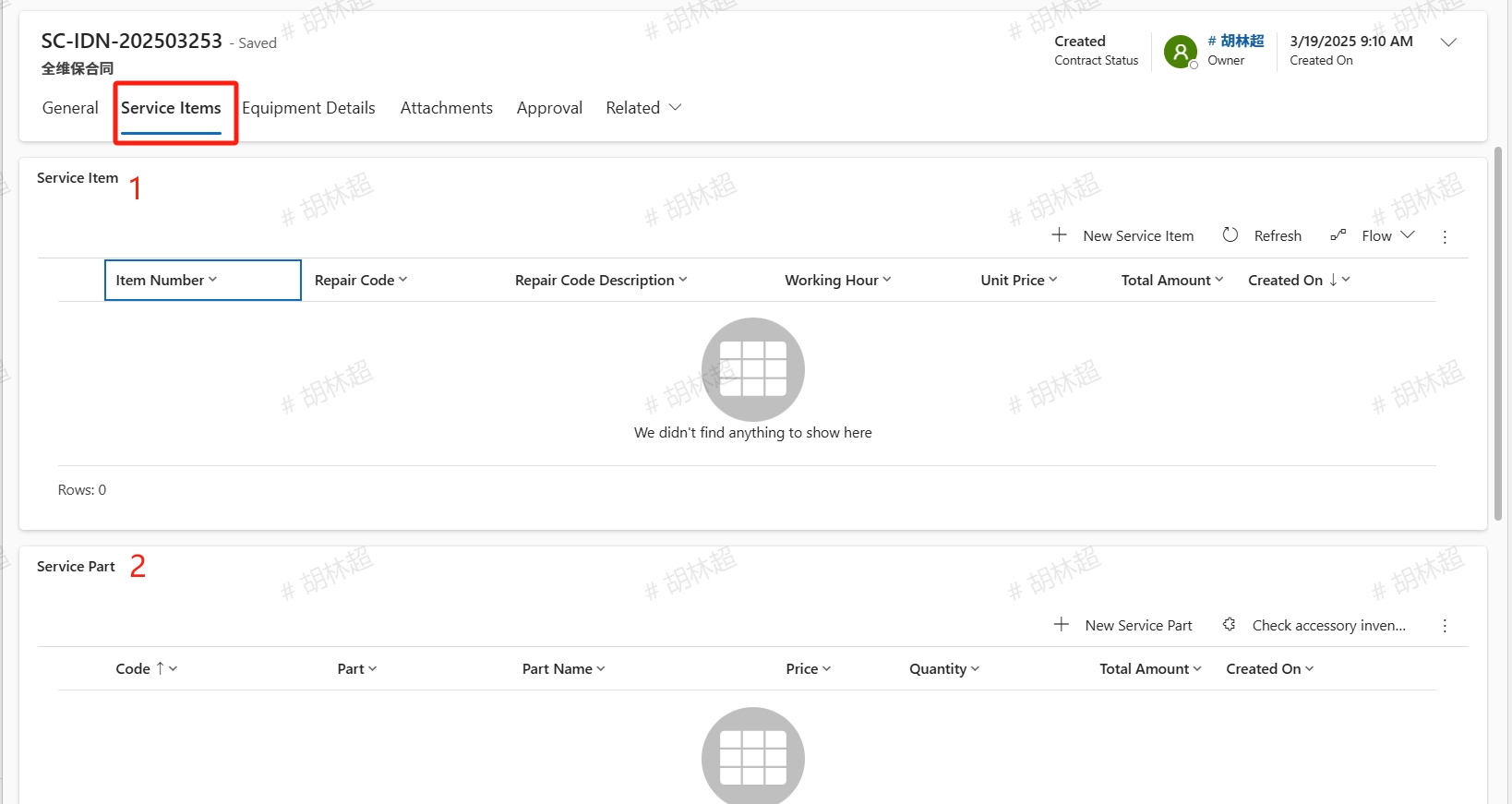
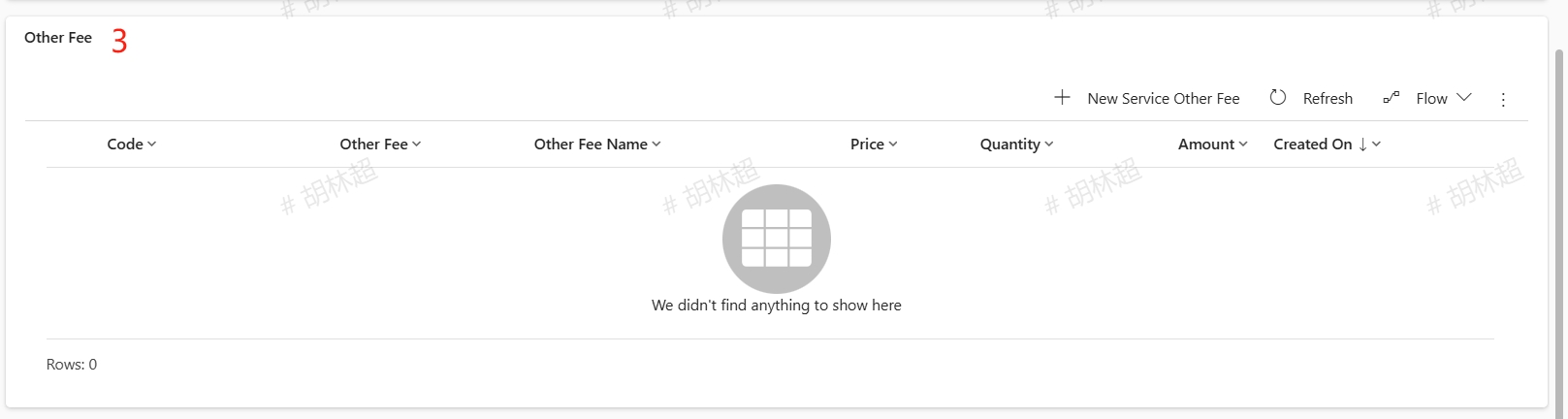
In the Service Items tab, you can add service items, service parts, and other fees in sequence;After adding here, when the full maintenance equipment under the contract initiates a call, it will be automatically brought to the service order;
Submit for Approval
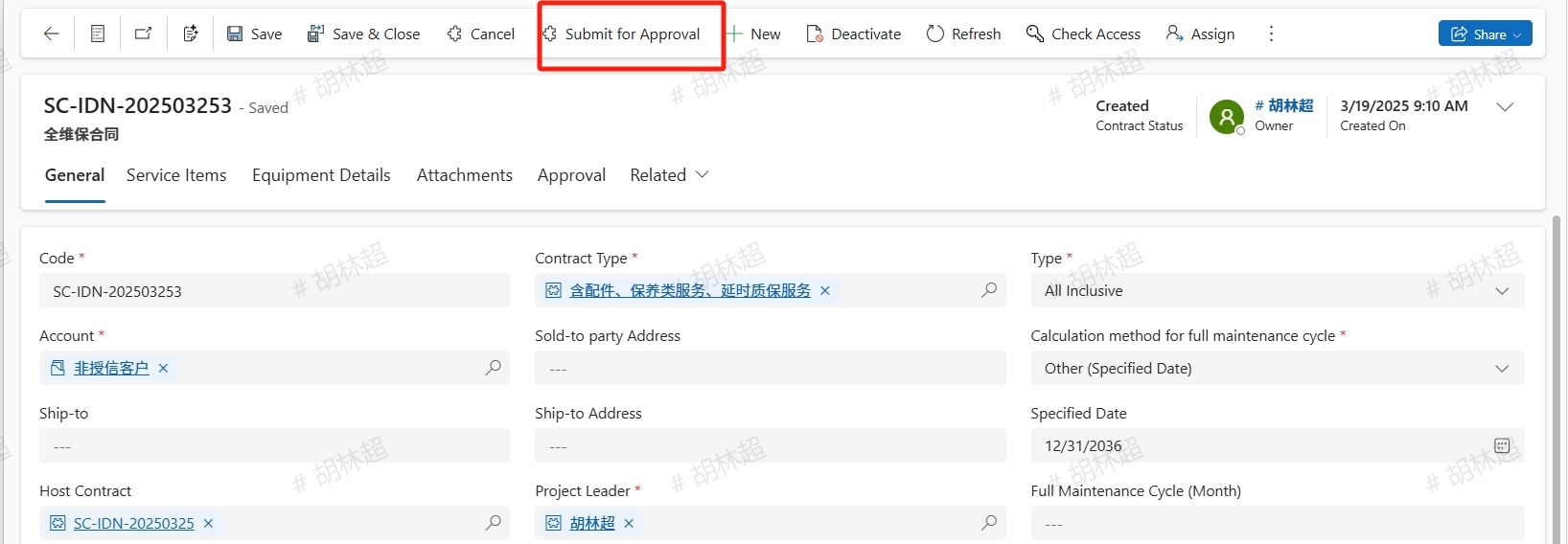
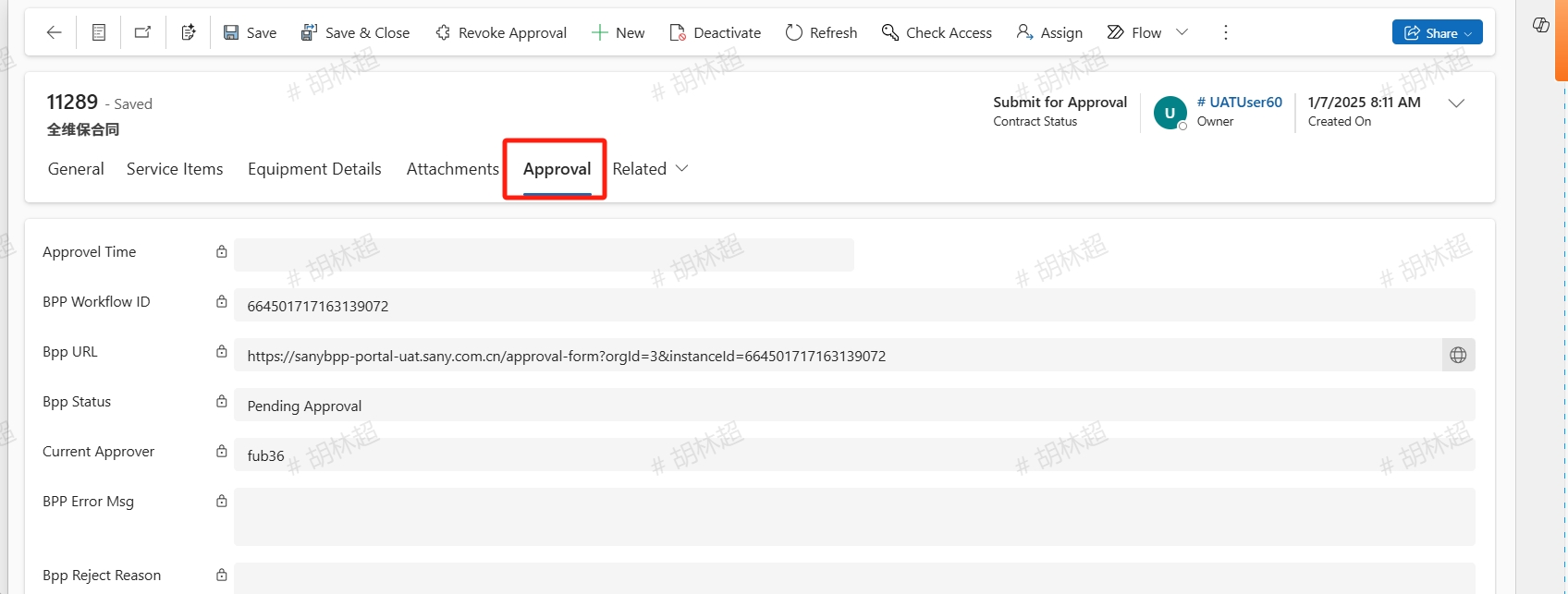
If there are necessary attachments, you upload in the Attachments tab. After all the details are completed, click the Submit for Approval button to submit. The approval details can be viewed in the Approval tab.
After approved,the full maintenance details of the equipment will be automatically updated. The full maintenance status of the equipment is in progress; After the expired, the full maintenance status of the equipment file will be marked as Ended;
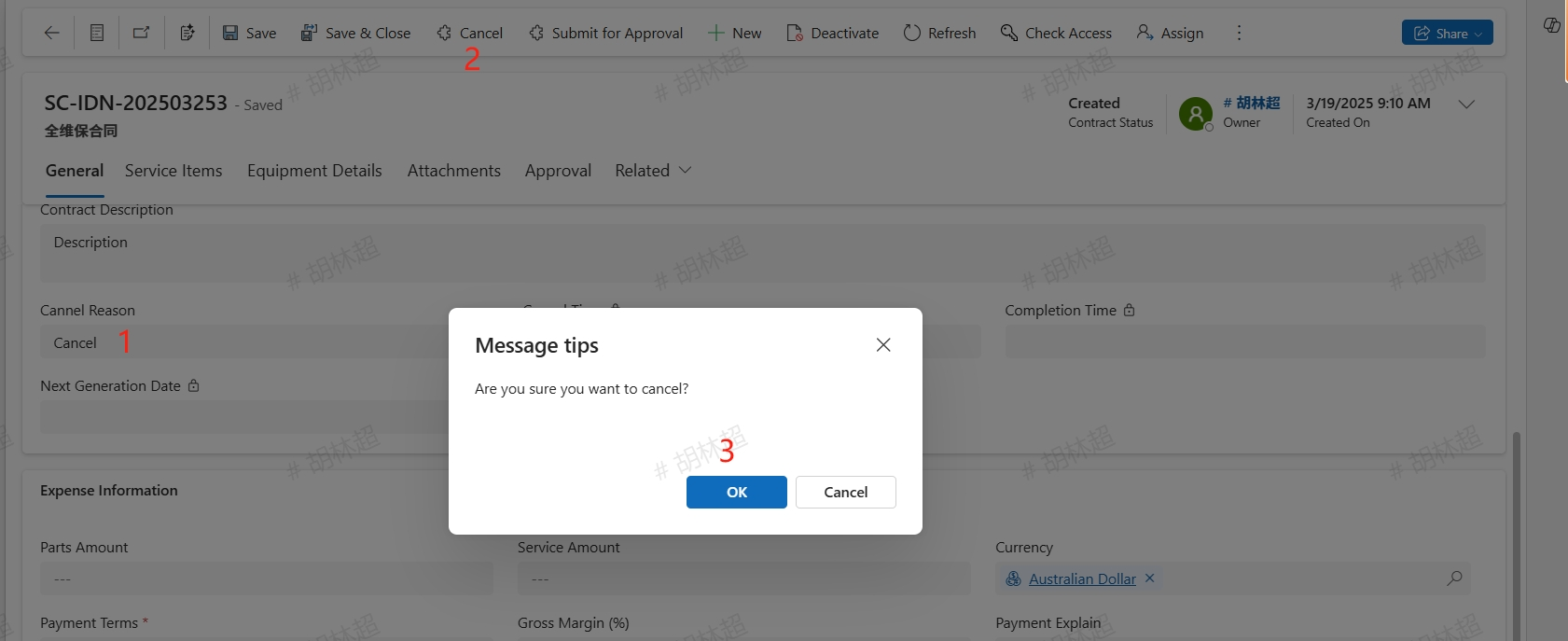
Cancel
Before approval, if there is no need to create, fill in Cannel Reason and click cancel button to cancel this contract.