Full Maintenance Order
Full Maintenance Order
Create by Manual
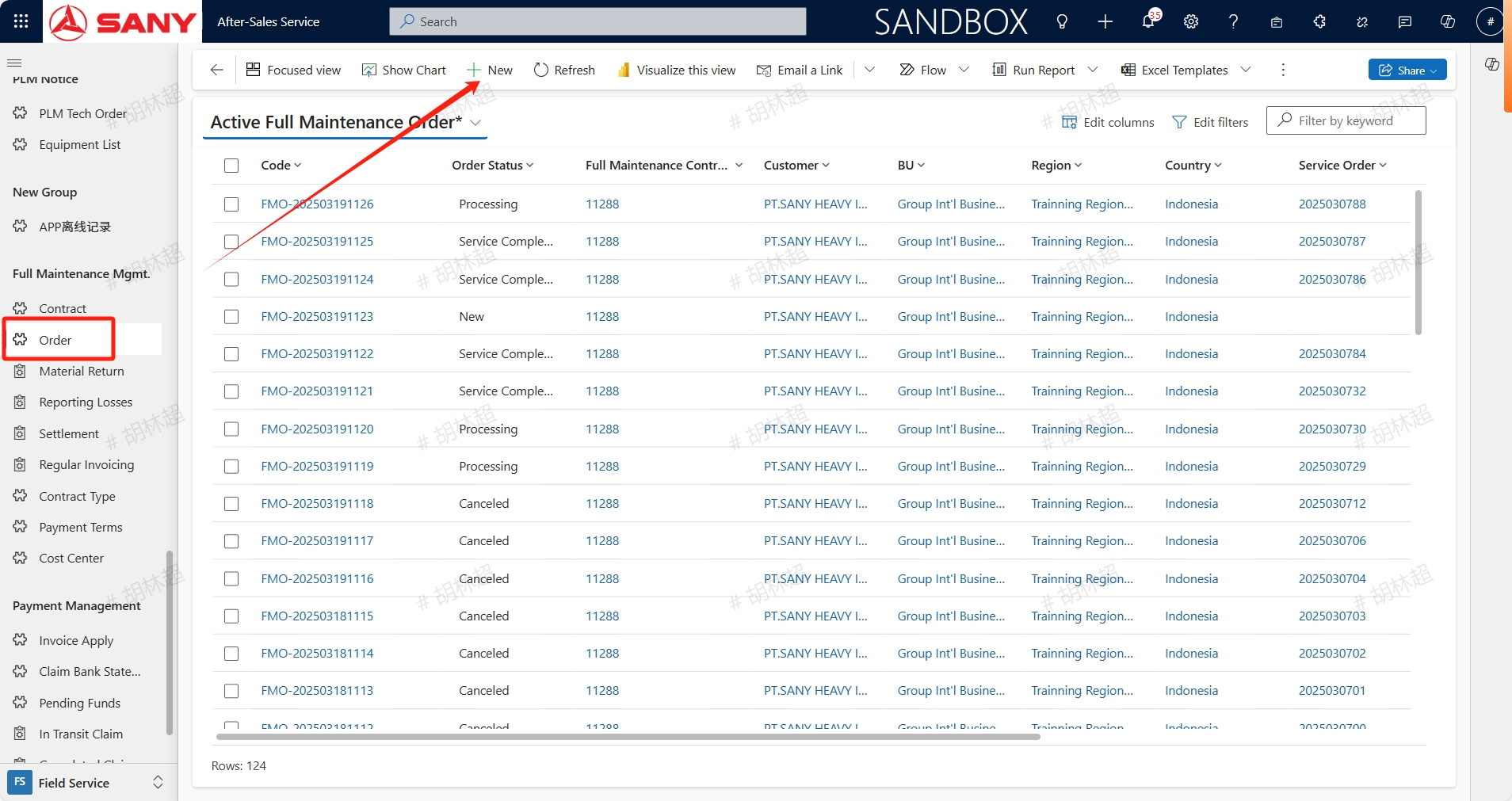
Path: Field Service -> Full Maintenance Mgmt. -> Order
Find the full maintenance order menu, click the +New button, enter existed Full Maintenance Contract, then save:
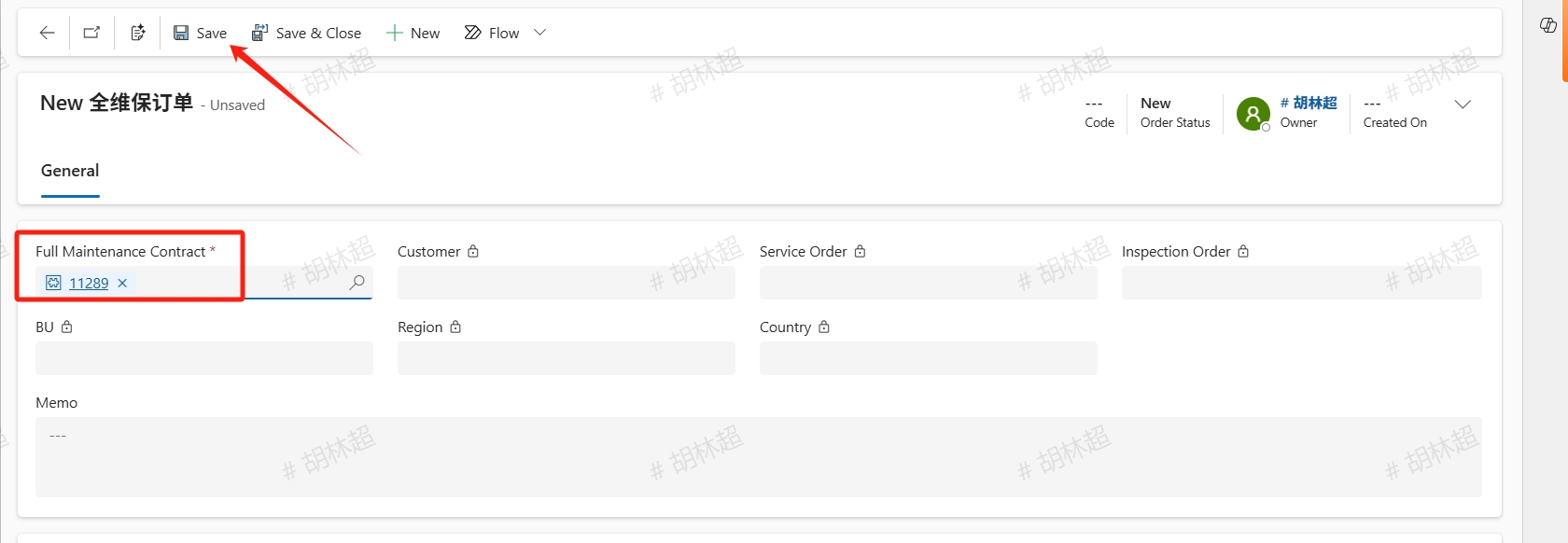
After saving, click the +New Full Maintenance Order Equipment button add an Equipment that belong to the full maintenance contract. Select the Equipment, Type (supports Repair, Maintenance, and Patrol Inspection), Is Main Equipment,then Save
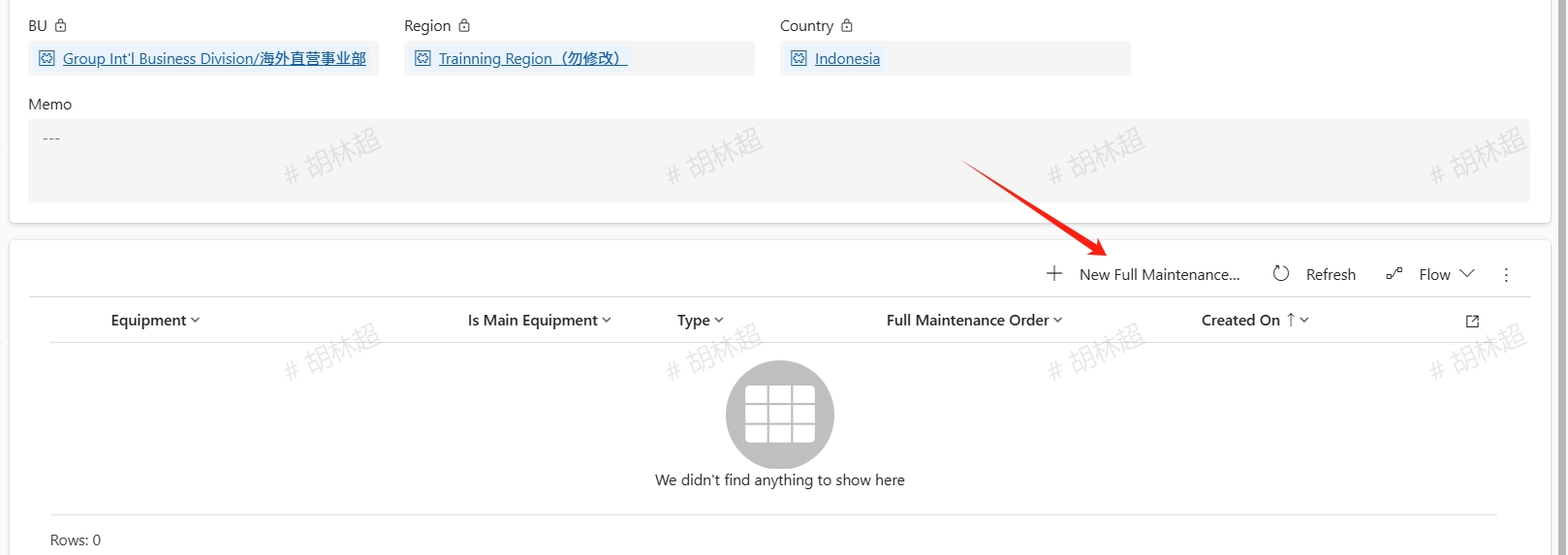
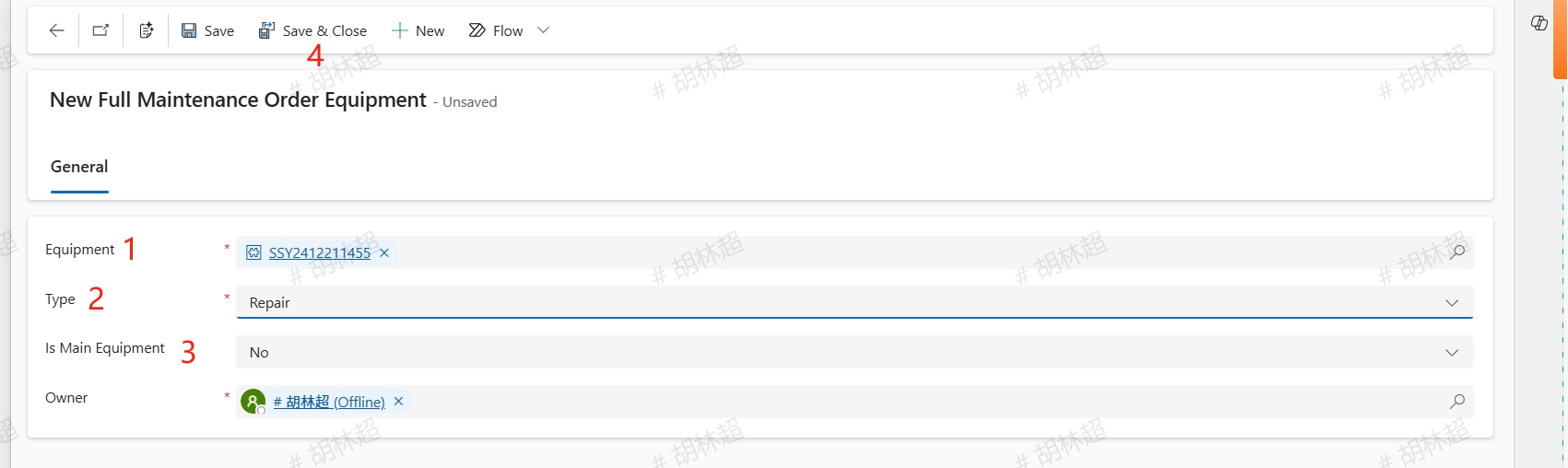
The main device in the equipment list can only be one After adding a main device, click the "Create Service Order" button, and the system will automatically create a corresponding type of service order and write it back to the full maintenance order. Click Service Order to process it. The full maintenance service order and corresponding Material/Borrow Order are all the same as repair order so will not be repeated here. The order status will be updated to processing. After the service completion the service order, the status of the full maintenance order will be updated to Service Completion.
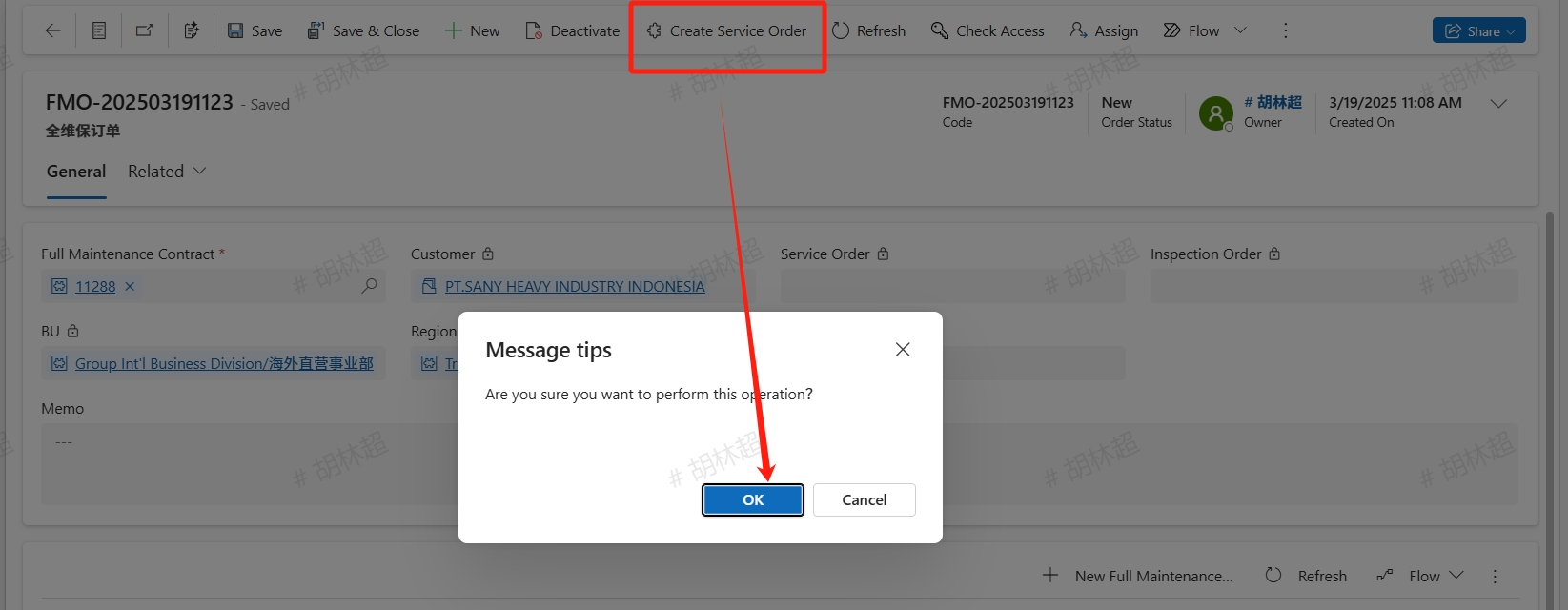
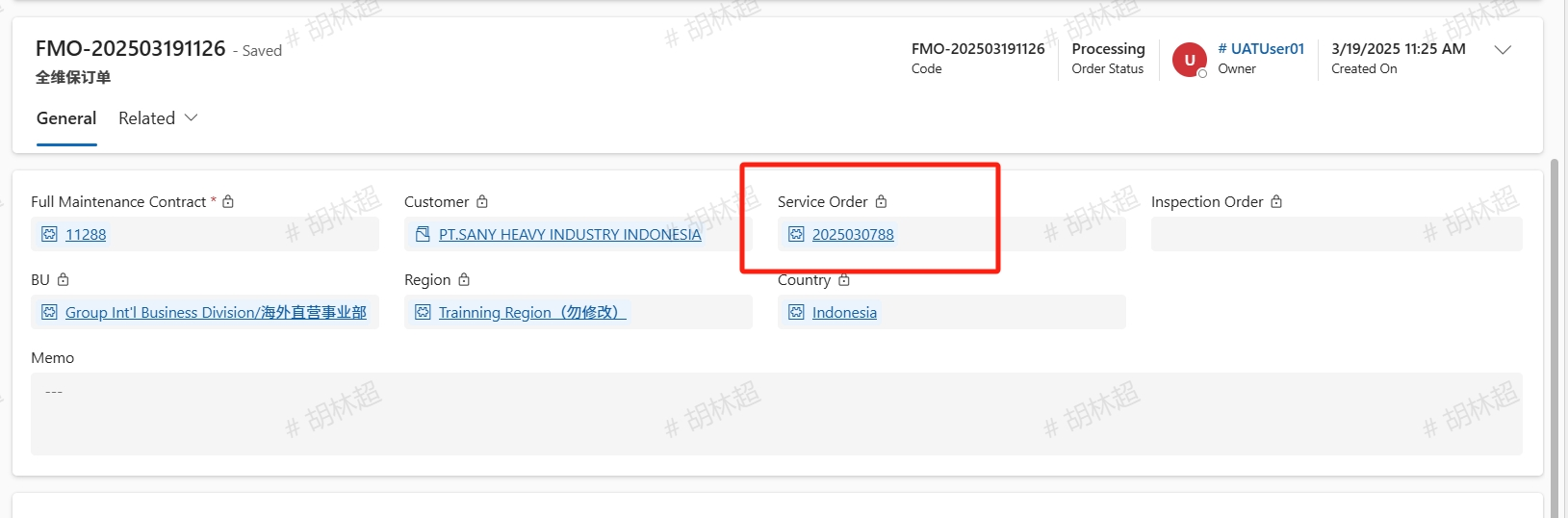
Create by Repair Order
open Repair Order menu,click +New button,input the Equipment that belong to Full Maintenance Contract and other required information.
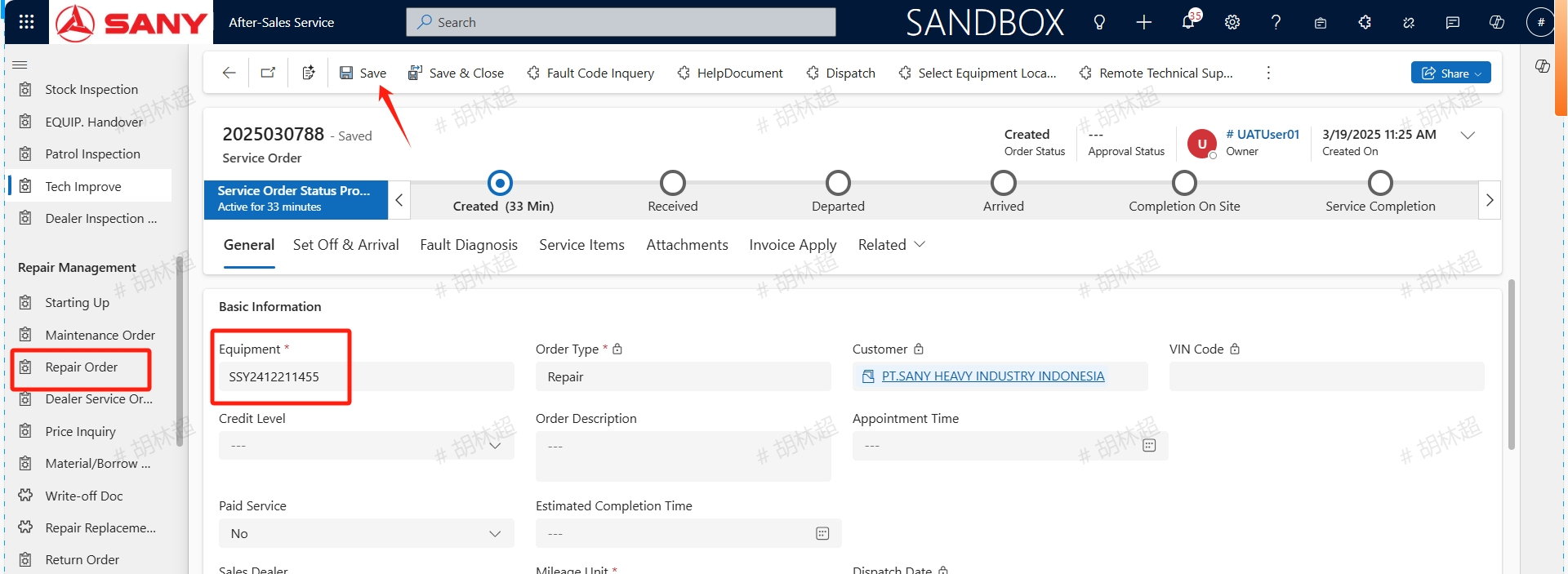
After saving, the system will automatically create a full maintenance order.

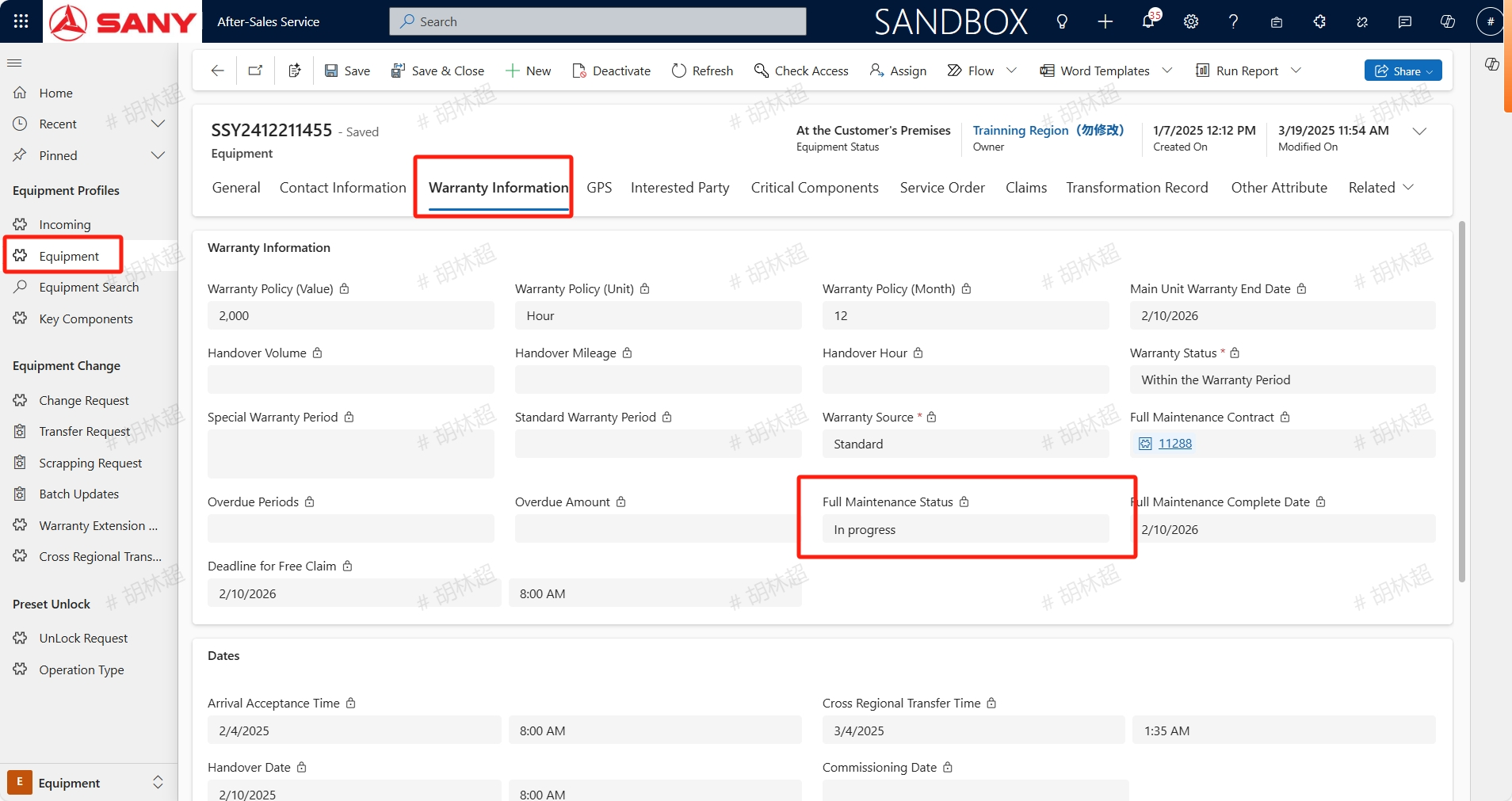
Check if the device is a fully maintained equipment
Open the Equipment menu, enter the device code, in the warranty information tab, the device which Full Maintenance Status is In Progress is a full maintenance device.