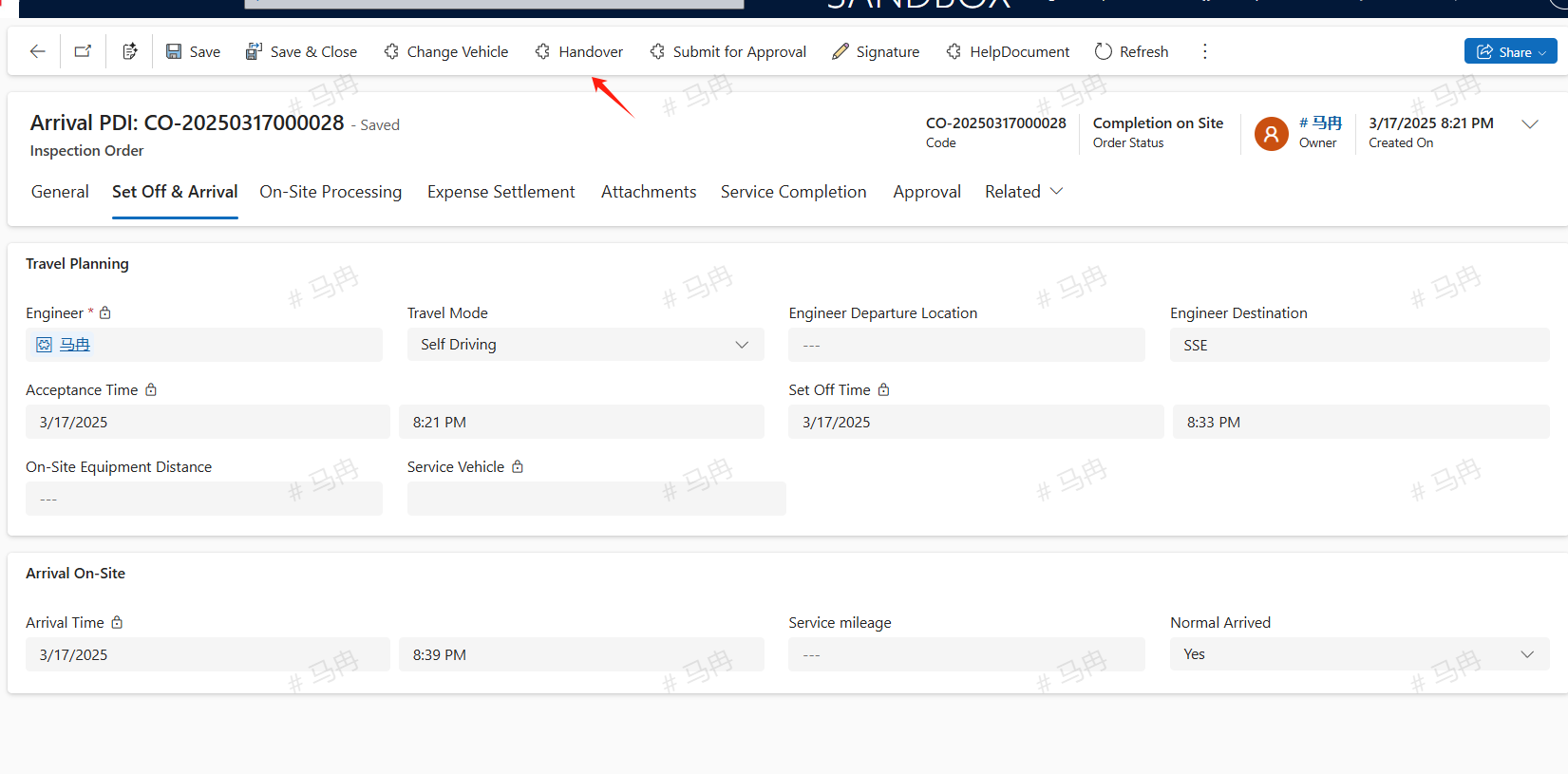
Arrival PDI
Arrival PDI
Create
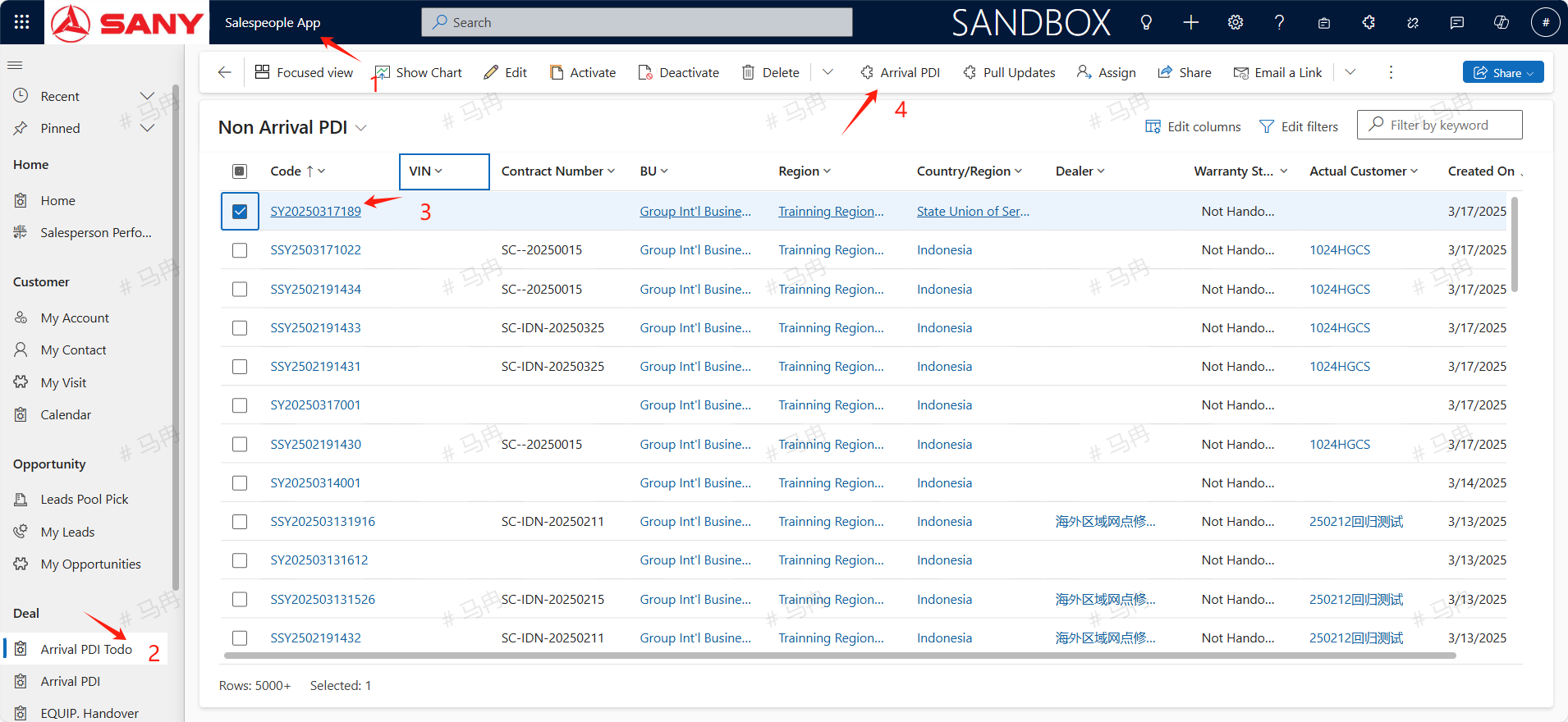
Region Operation Path: Salespeople App ->Deal -> Arrival PDl Todo
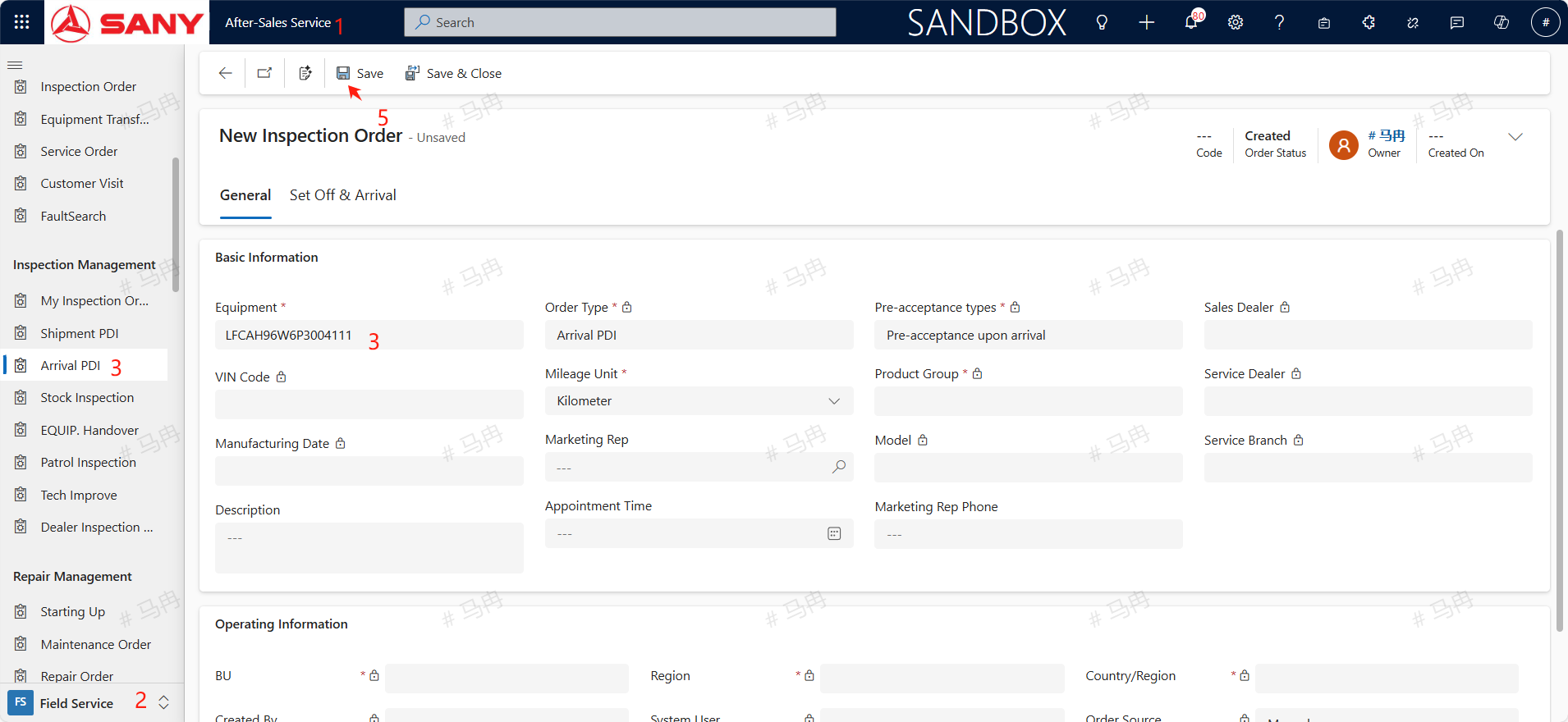
Service Engineer Path: Field Service -> Inspection Management-> Arrival PDI
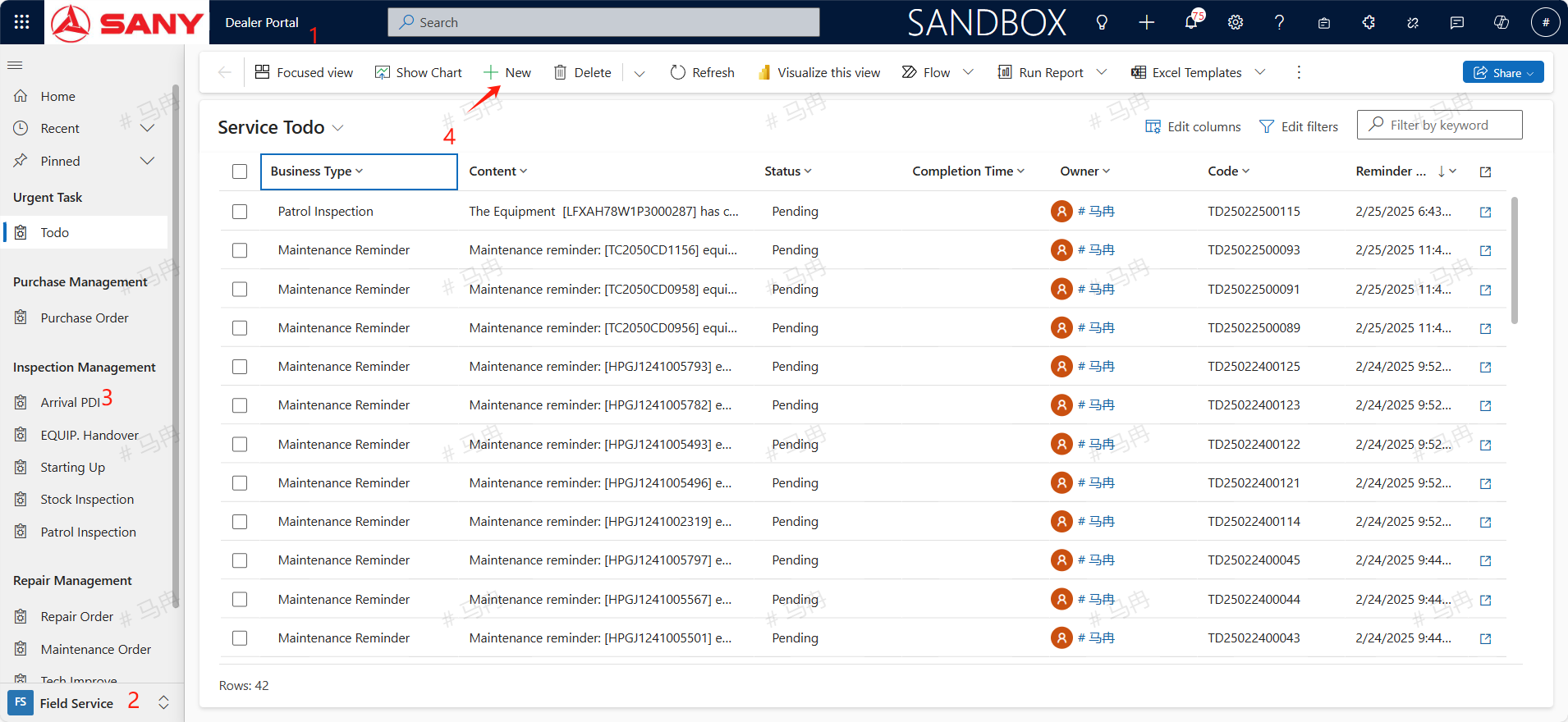
Dealer Path: Dealer Portal -> Field Service -> Inspection Management -> Arrival PDI
Regional Sales Operations Creation: Switch to Salespeople App Module: Under the DEAL section, locate the 'Arrival PDI To-do' menu. Select the arrival pre-acceptance that needs to be created and click on the 'Arrival Acceptance' button to initiate the creation,If there are multiple equipments that require pre-acceptance, they can be selected in batches and created.
Alternatively, within the 'Arrival PDI' menu, click '+' New Button, input the equipment code, select the pre-acceptance type, and after saving, assign it to an engineer in the regional office.
Dealer Path Creation: Service engineers for agents can directly create new pre-arrival acceptance orders in the Arrival Pre-Acceptance menu under the Inspection Management section of the Dealer Portal module.
Assistance in Dealer Path : For agent equipment or national equipment, assistance can be provided by creating a new order at the After-Sales Service point. Simply input the equipment code and save to proceed.
Pre-acceptance types
Pre-acceptance upon arrival is necessary. If the Arrival Acceptance Time is empty, when manually creating the arrival pre acceptance, the default pre acceptance type is Pre-acceptance upon arrival, which cannot be changed. It can only be created once;
If Pre-acceptance upon arrival has already been done, but for example, for cross warehouse transfers, it is necessary to check whether the equipment is normal before entering and leaving the warehouse, Arrival PDl or Shipment PDl can be created. There is no limit to the number of times these two types of pre acceptance can be done, and they are not mandatory.
Transfer
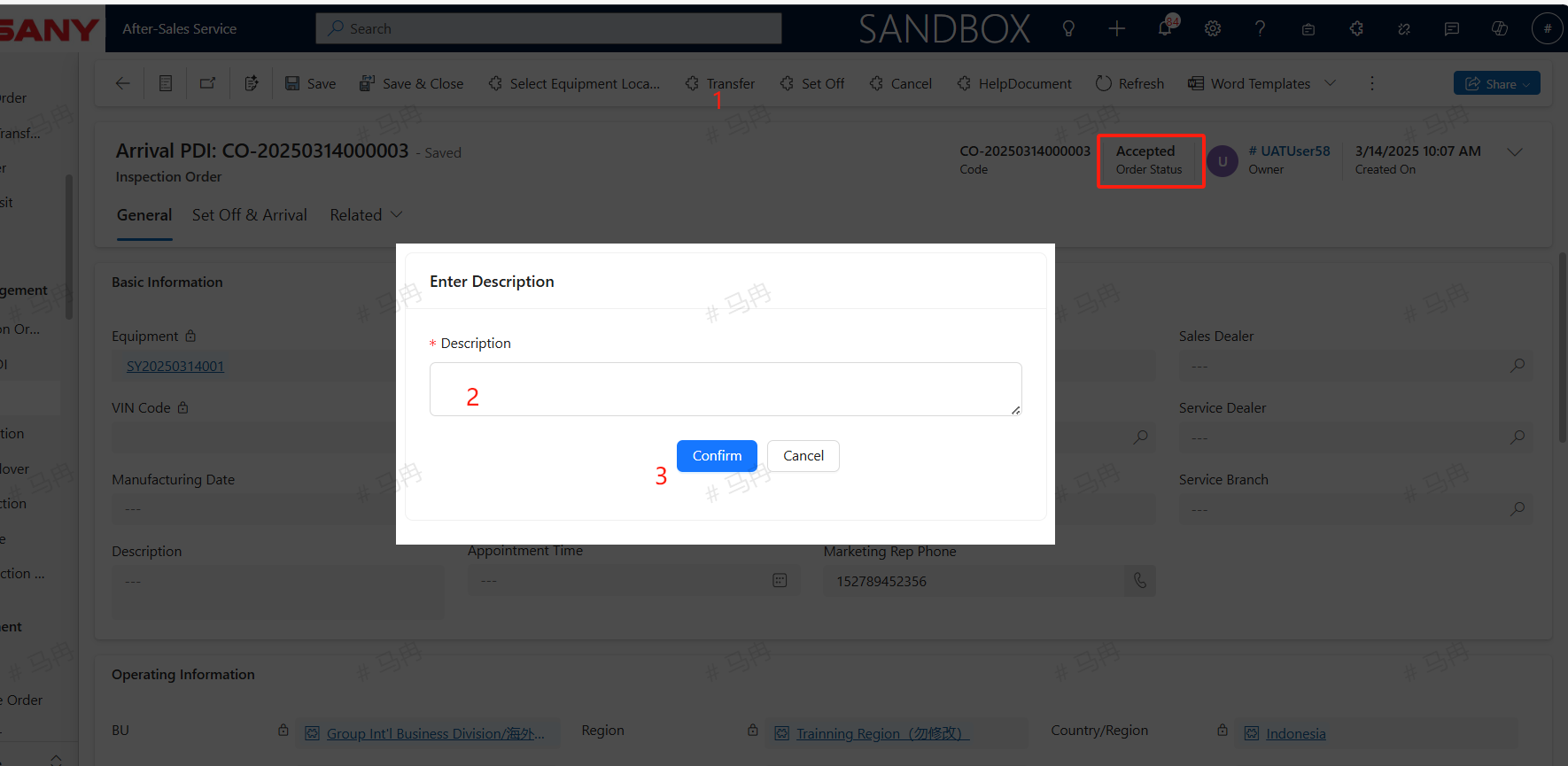
For the pre-acceptance of goods that have been dispatched, the service engineer has the option to 'Reject' the assignment, after which the service manager can 'Transfer' it to another party. Alternatively, if the service engineer has accepted the assignment but has not yet departed, they may click the 'Transfer' button themselves. Upon doing so, they should enter a 'Remark Description' and then click 'Confirm' to complete the transfer process.
Set off
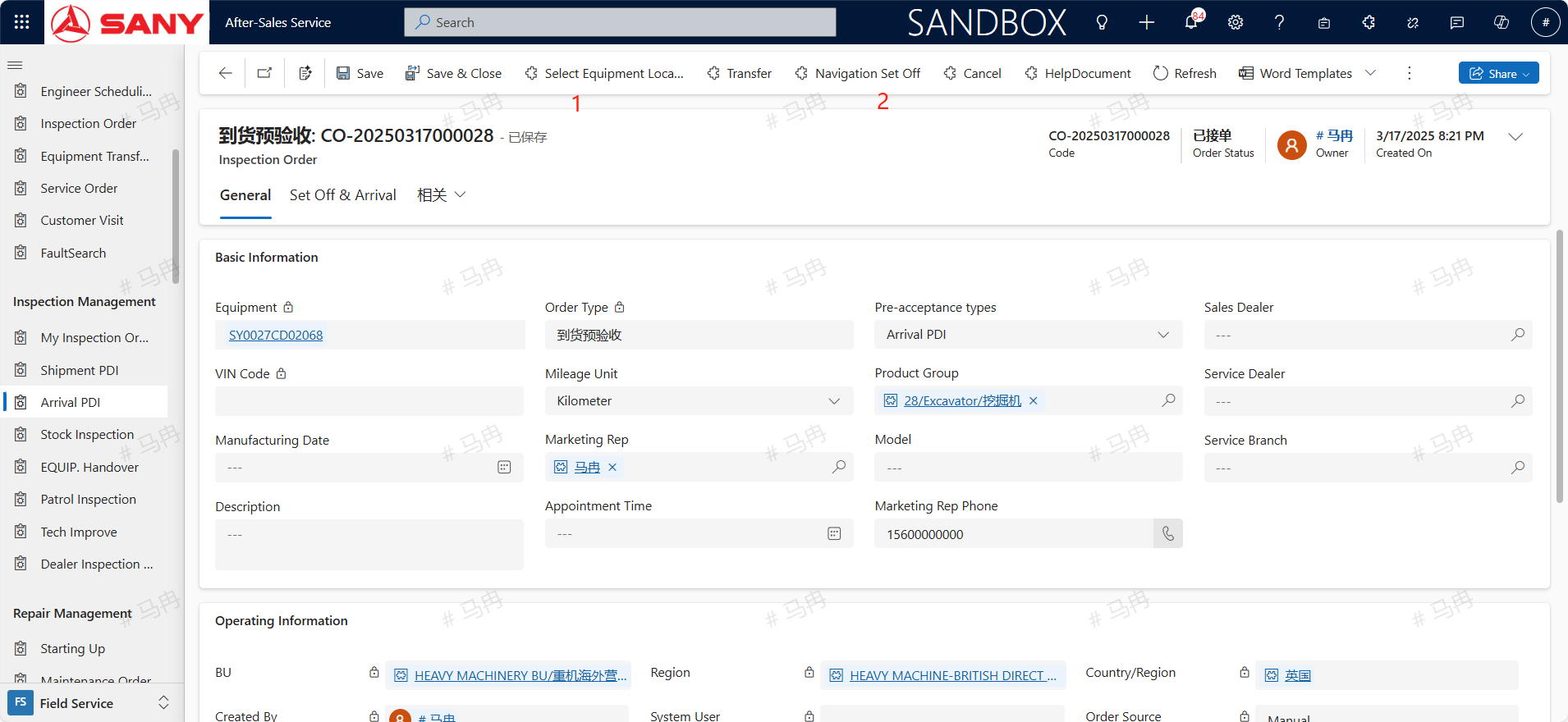
Select the location of the equipment , click the Navigation Set Off button and depart; Due to the fact that the location resolution on the computer is based on network IP, the obtained location may not be accurate. It is recommended to use the mobile navigation to trigger and arrive for departure and arrival. There are two software available on the mobile side:
power apps: Select Field Service App and allow Power Apps to obtain addresses and access photo albums in the phone settings.
SANY iCRM: Find the specific order in the service ticket on the homepage, and allow access to the address and photo album in the phone settings.
Dealer's equipment need not to departure and arrival
Cancel
If the customer has not arrived but has canceled the current service, the engineer may cancel the service by clicking the cancel button. Upon approval, the service order will be officially canceled.
Arrived
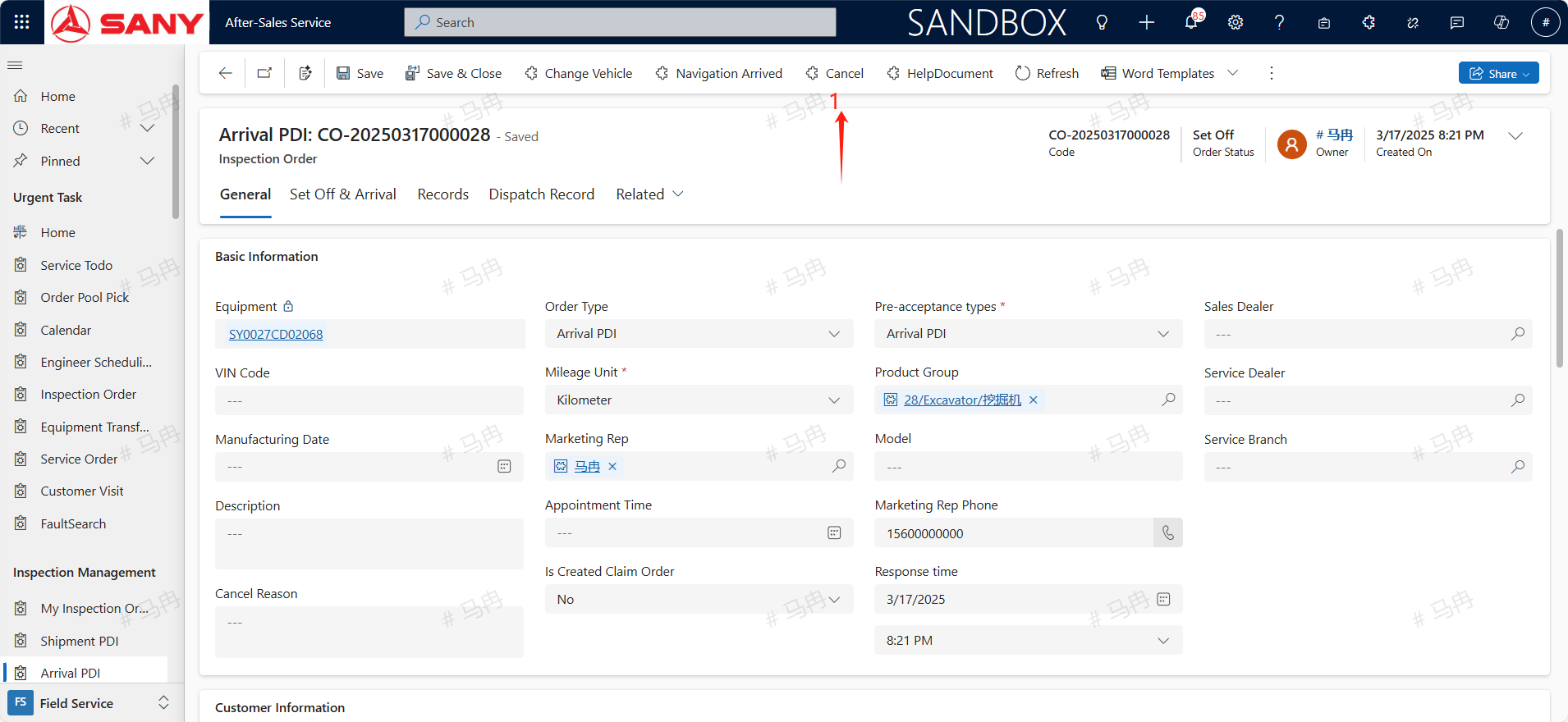
Upon arriving at the destination, the service engineer should click the 'Arrived' button to indicate that they have arrived on-site.
Completion On Site
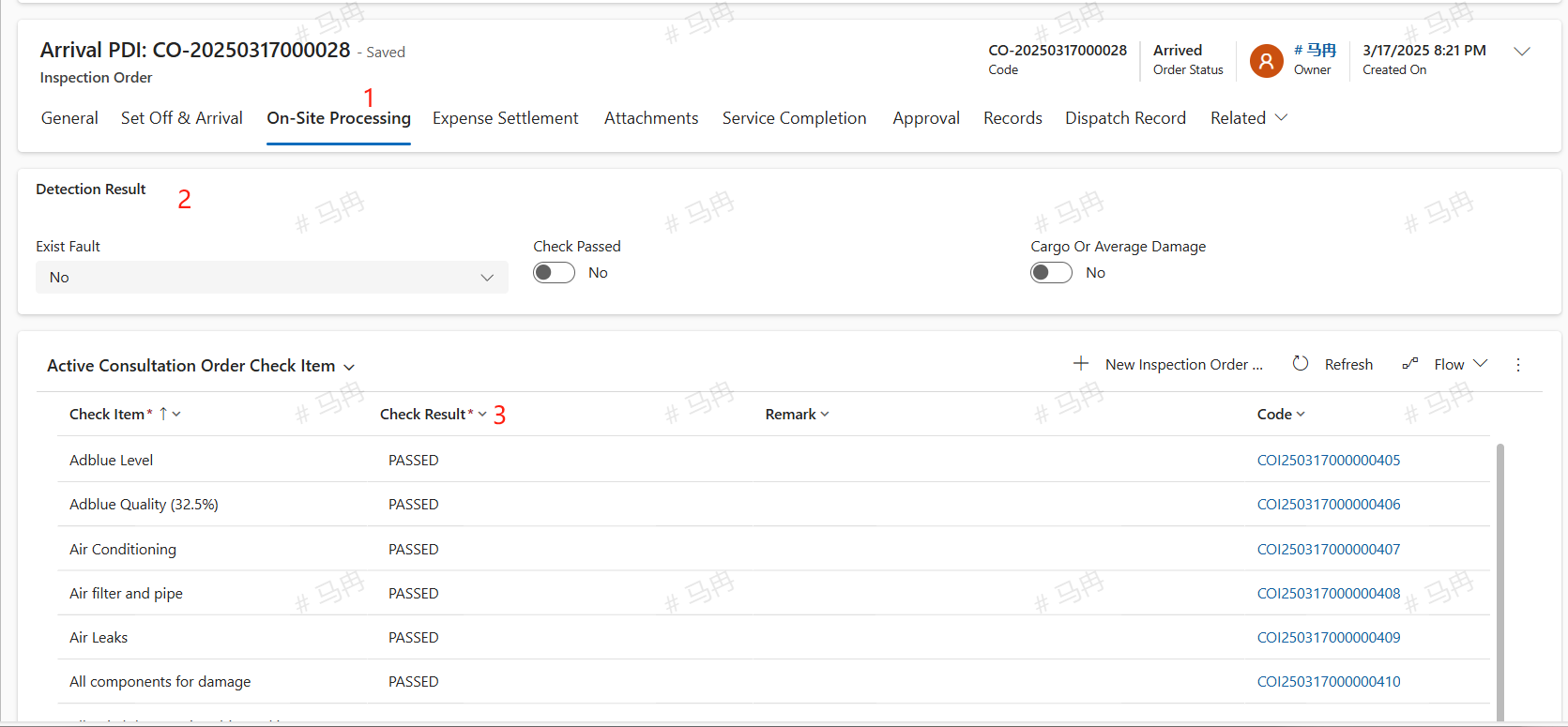
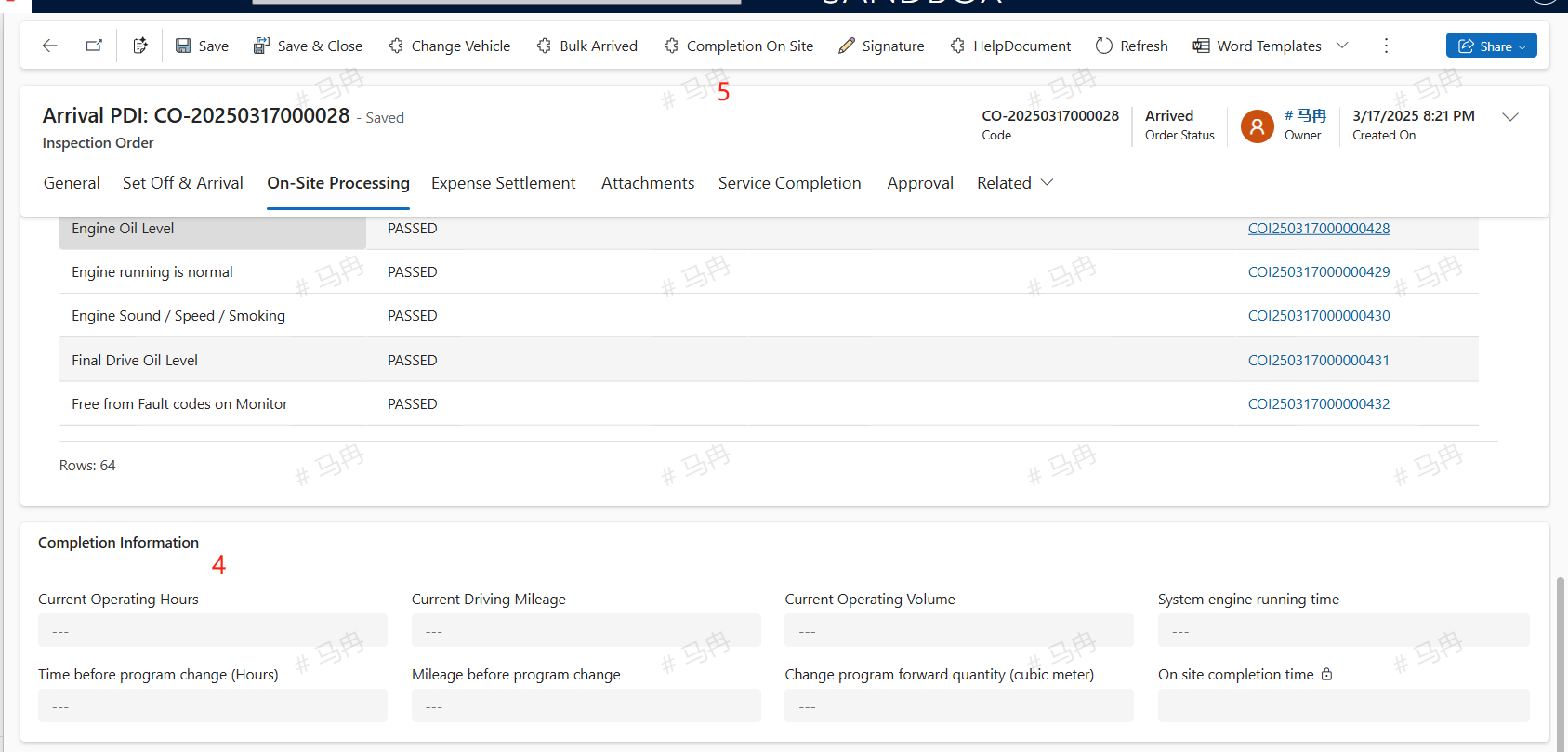
After arriving at the site, the service engineer should complete the Check Item list results, inspecting each item one by one. In the completion information, the fields for Current Operating Hours, Current Driving Mileage, and Current Operating Volume cannot all be left empty simultaneously. Click the 'Completion On Site' button to finalize the on-site completion. If any faults requiring repair are discovered during the on-site inspection, the next step to 'Create Repair Order' can be followed. Add the service charges in the cost settlement tab. Once all on-site work is completed, click the 'Completion On Site' button to confirm the on-site completion.
Create Repair Order
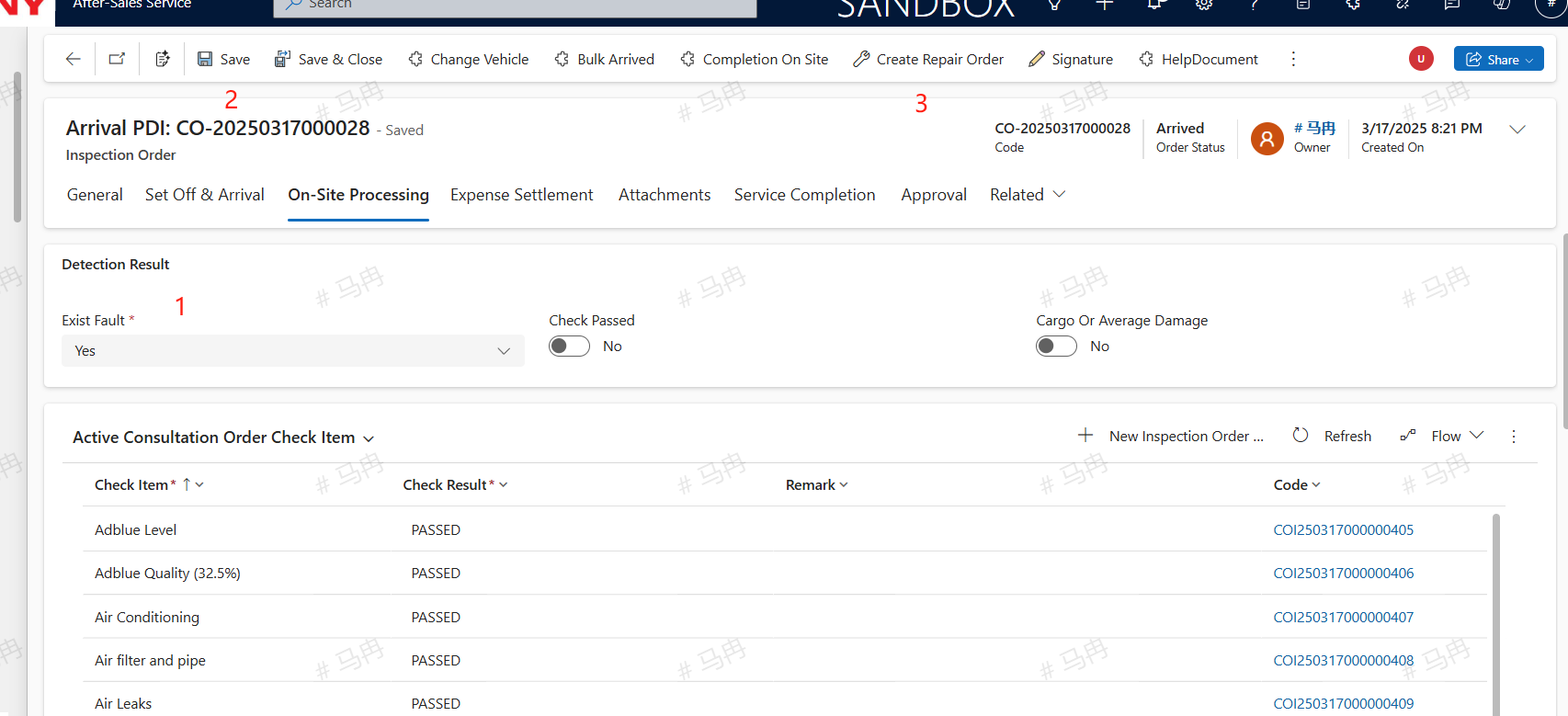
If a fault is discovered during the Completion On Site process, select 'Yes' to indicate the presence of a fault. After saving, a 'Create Repair Order' button will appear. Click this button to proceed with creating a repair order.
Completion of service
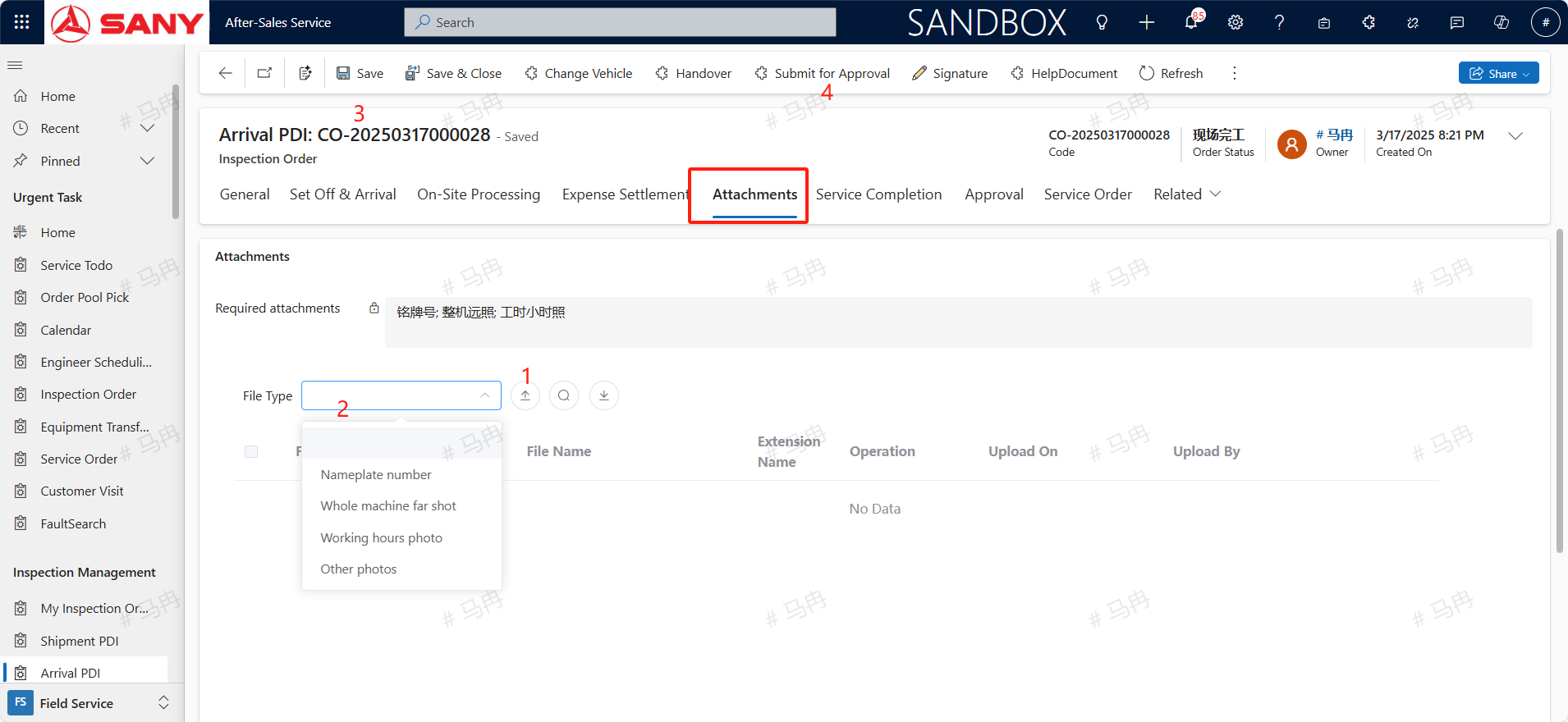
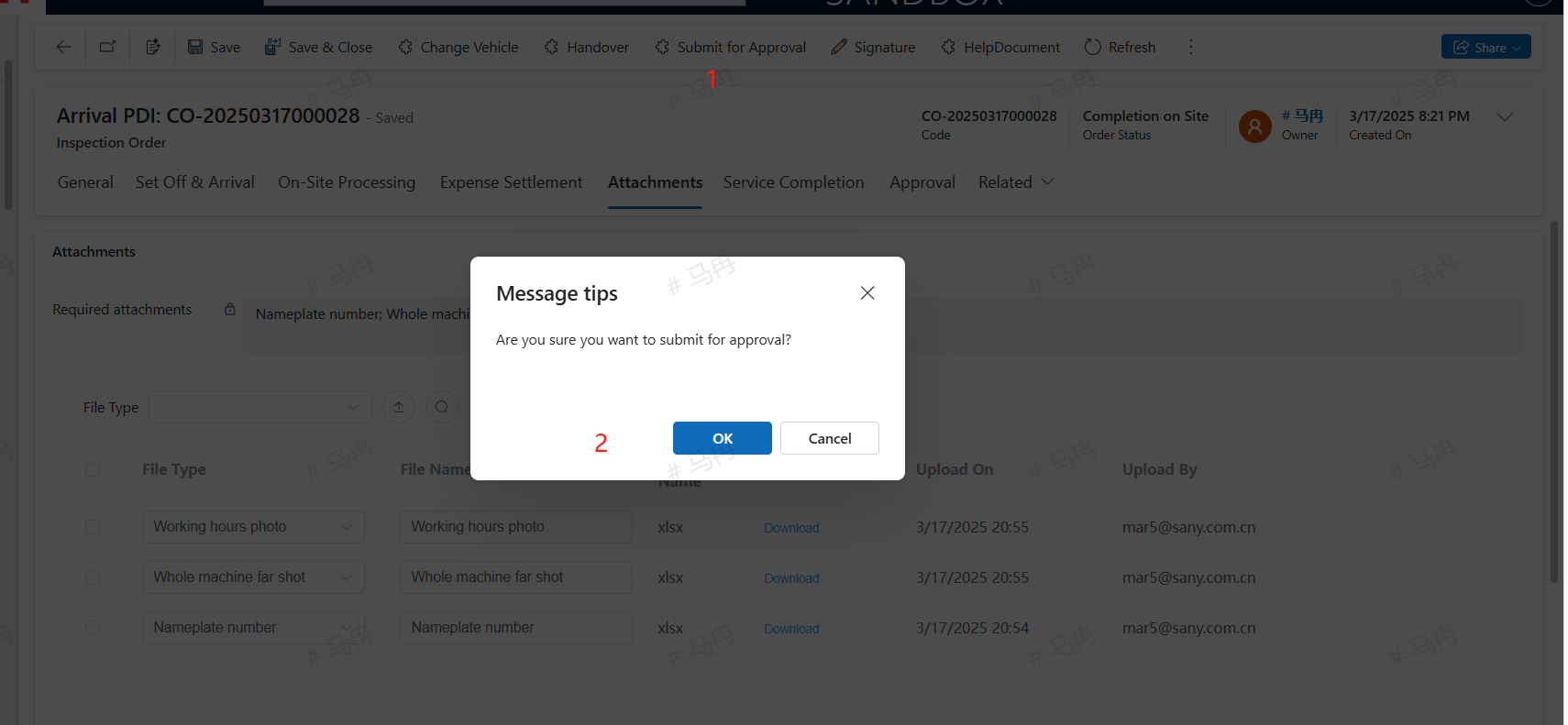
The fields for Current Operating Hours, Current Driving Mileage, and Operating Volume cannot all be left empty simultaneously. If there are any associated costs, they can be added in the cost settlement section. After uploading the necessary attachment photos in the Attachments section and saving the information, click the 'Submit for Approval' button. Once the approval is granted, the service will be marked as 'Completion of service'. If a fault is selected and a 'Create Repair Order' is initiated, it is necessary to wait for the service order to reach 'Completion of service' before the Handover order can be 'Submit for Approval' to finalize the completion.
Handover
Click the handover button to create a handover order based on the pre-arrival acceptance.