RepairGifts
RepairGifts
Path:Field Service -> Repair Management -> Repair Gifts
Create Repair Gifts
From Service Order
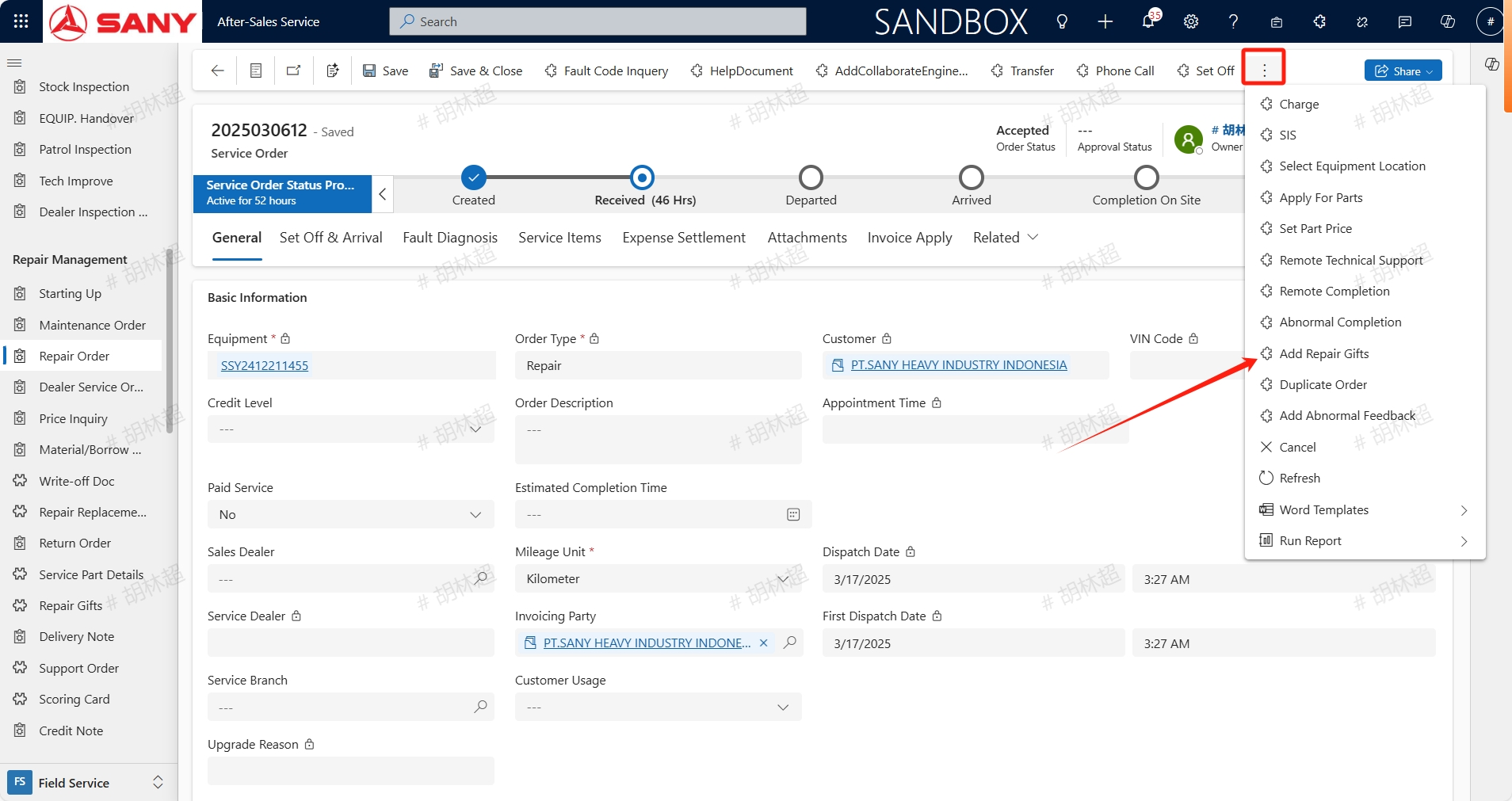
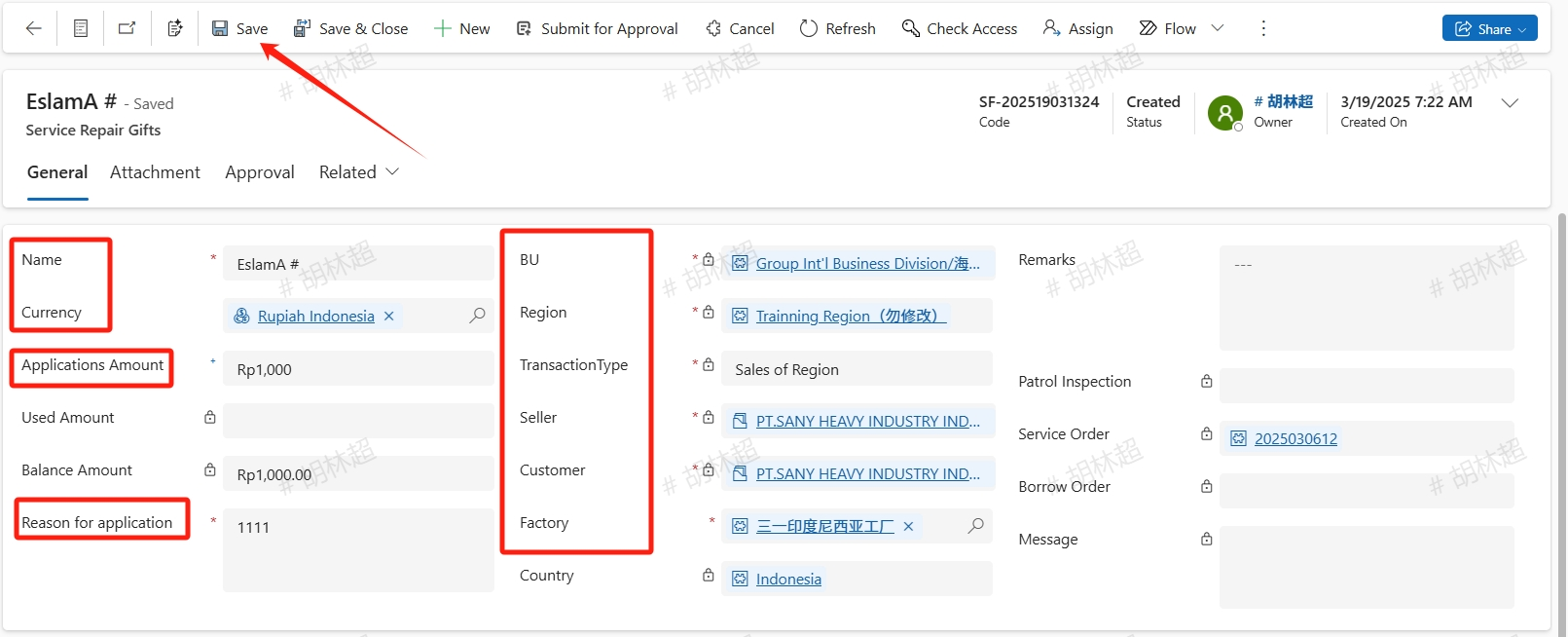
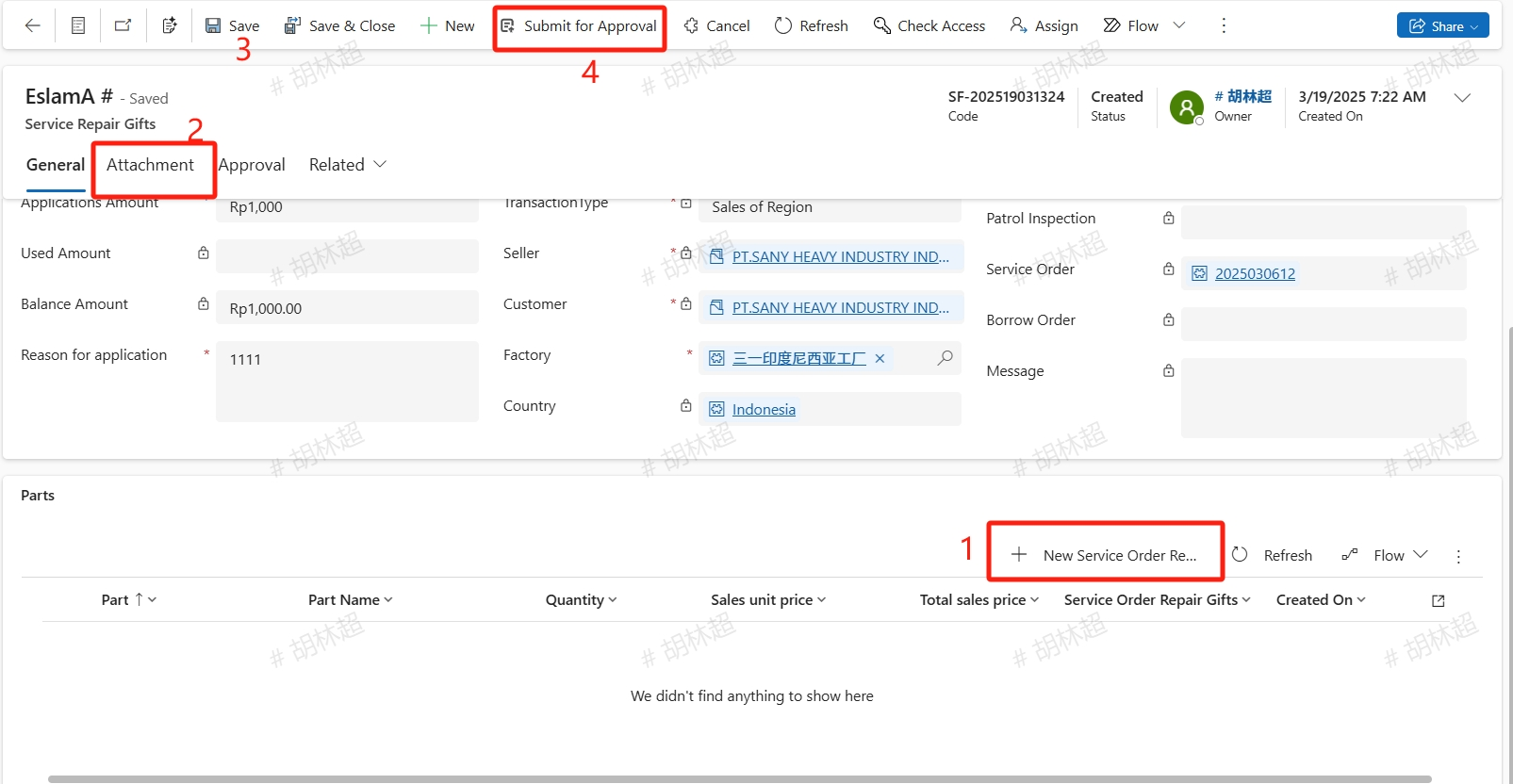
The Repair gift application can be initiated based on the unfinished service order. Click the "Add Repair Gifts" button, and on the pop-up gift application page, fill in the necessary information such as Name,Applications Amount,Reason for application, BU, Region,TransactionType,Seller,Customer,Factory, etc., and then click the "Save" button to save. When filling in the name, please be careful not to have extra spaces or special characters.
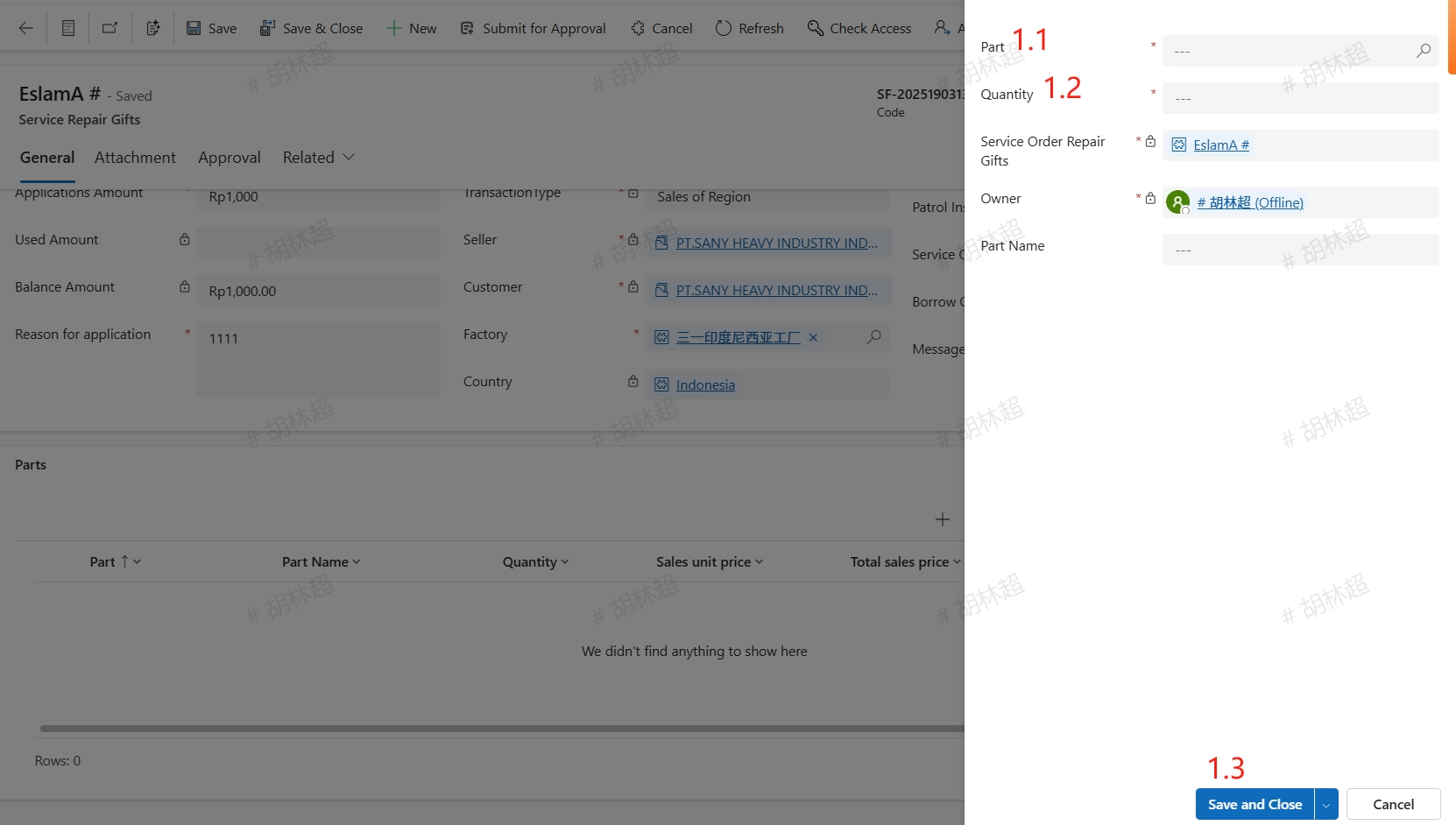
After saved, refresh the page to find the parts section, click the +New Service Order Repair Gift Details button, enter the required Part and Quantity, save and close. Click the +New Service Order Repair Gift Details button to continue adding. After adding all the spare parts, save them and upload the attachments in the attachment tab for approval. Please note that the total price of the added spare parts cannot exceed the Applications Amount.
**Create by manual **
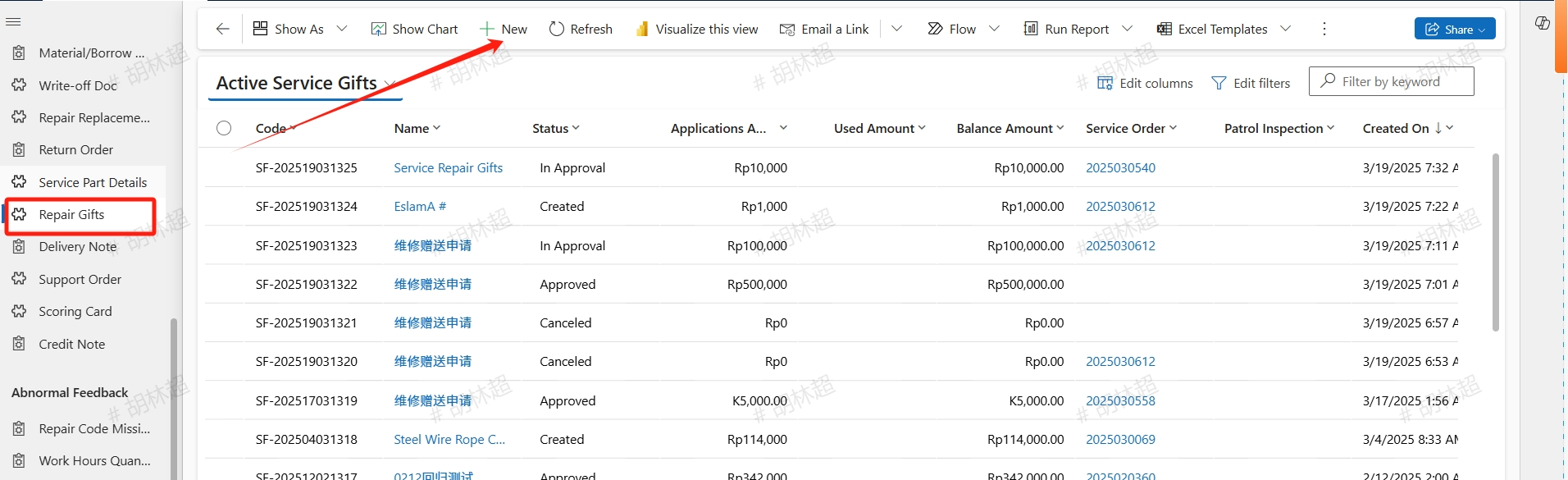
Find the Repair Gifts menu, click the +New button, open the New Service Repair Gifts page, follow the same steps as above.
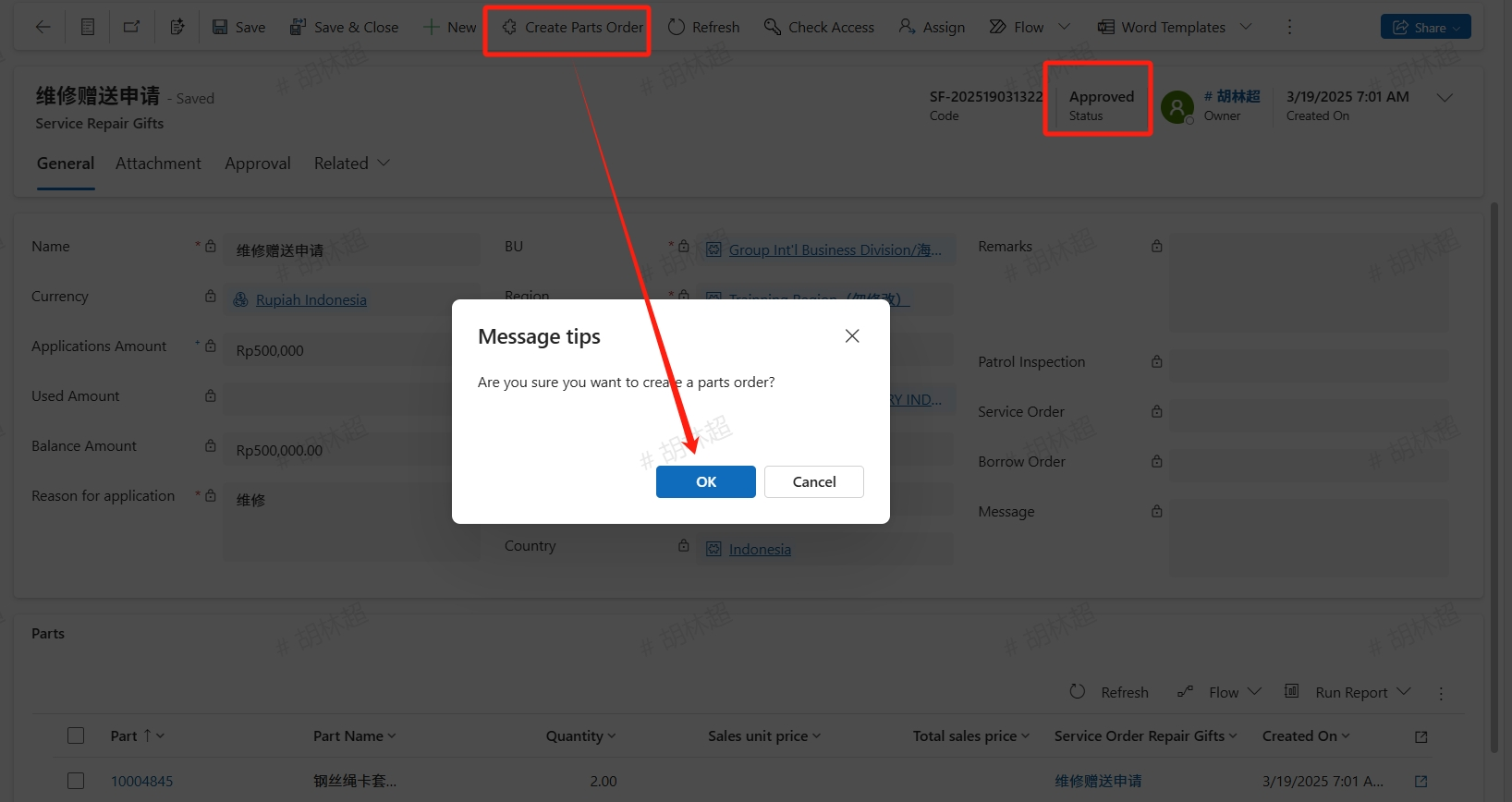
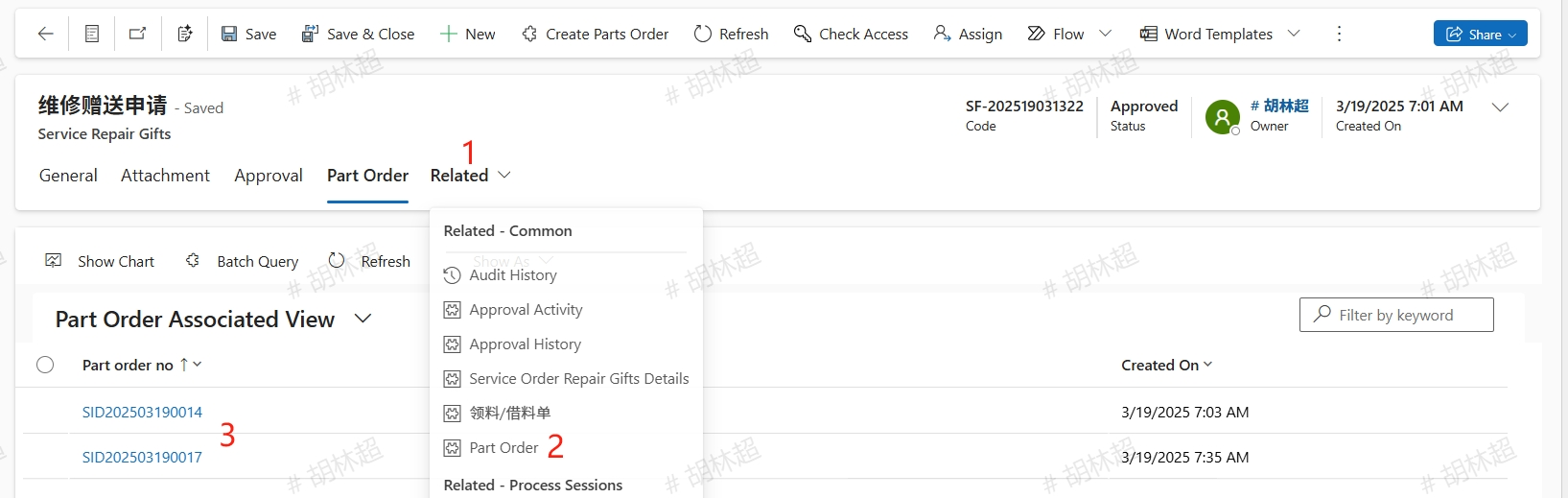
Create Spare Parts Order Find the approved Repair Gifts order, click the Create Parts Order button to generate spare parts order. After a moment, find the generated order in the Related--Part Order section, click to open it to view the order details, maintain the necessary order information, and submit the spare parts order.