Repair Order
Repair Order
Input path:field Service->Inspection Management-> Repair Management
Create
Repair order often created by customer via MySany or service staff via U-DESK.
Dispatch Rules
The service ministers of each country have the authority to configure the dispatching rules;
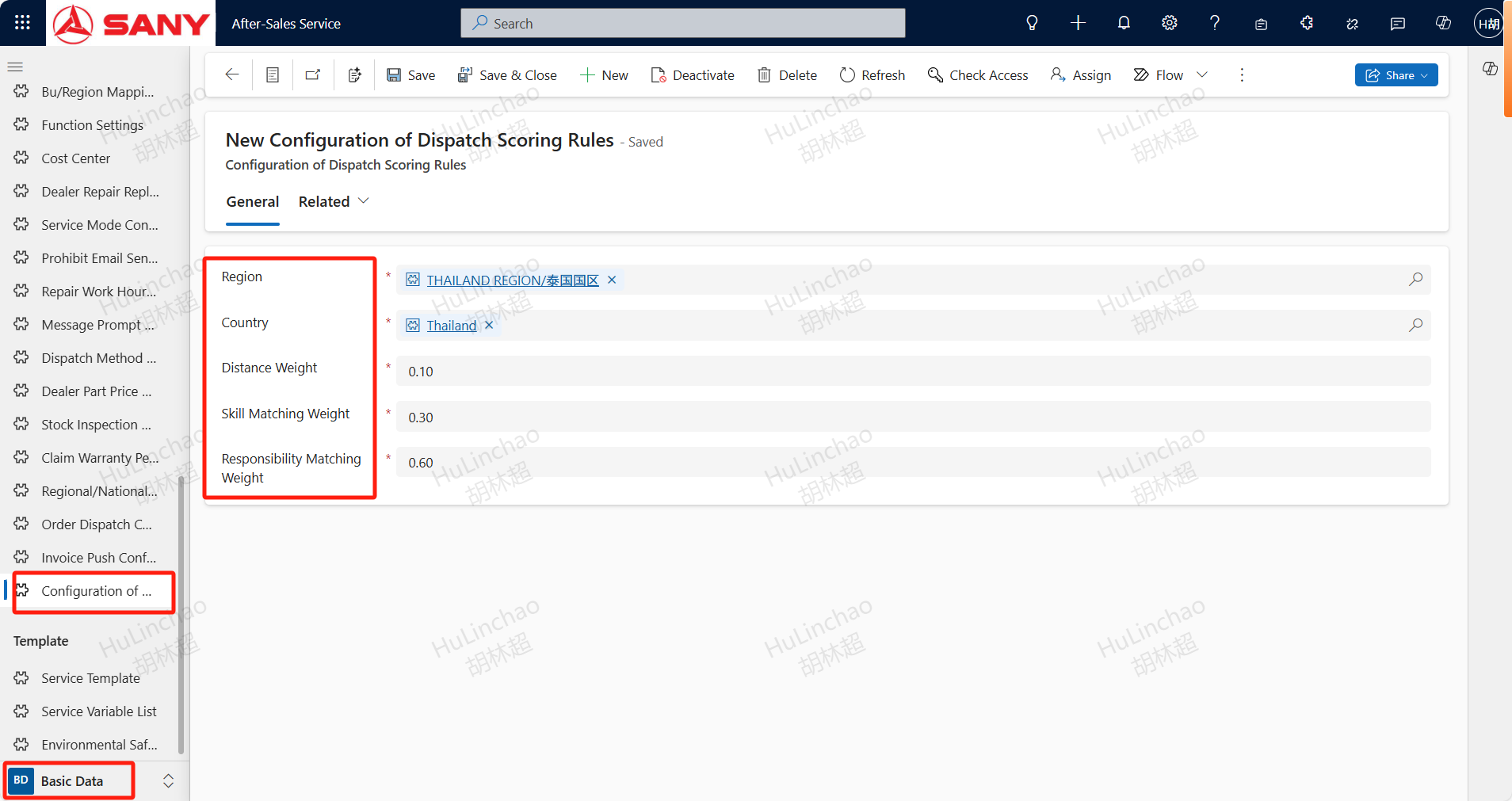
Intelligent dispatch: The default dispatching method of the system, with default weights of Distance Weight(0.1), Skill Matching Weight (0.6), and Responsibility Matching Weight (0.3); If configured, dispatch orders based on actual weights; If all engineers are offline or busy, they will be assigned to the service ministers;
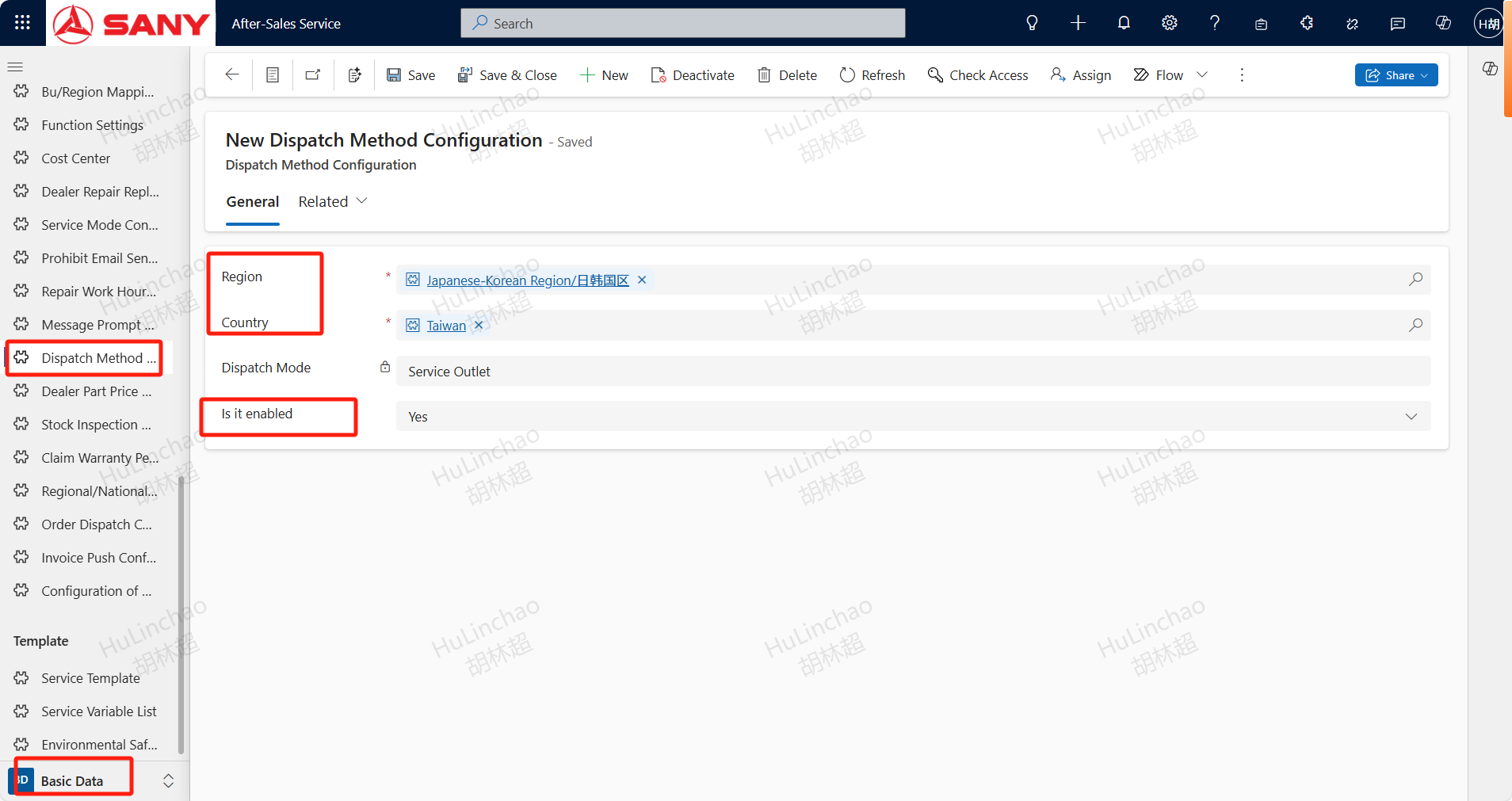
Targeted Dispatch: After enabled, the responsible person assigned to the Service Branch of the equipment based on the region and country of the call form will be transferred ,the responsible person will transfer to service engineer
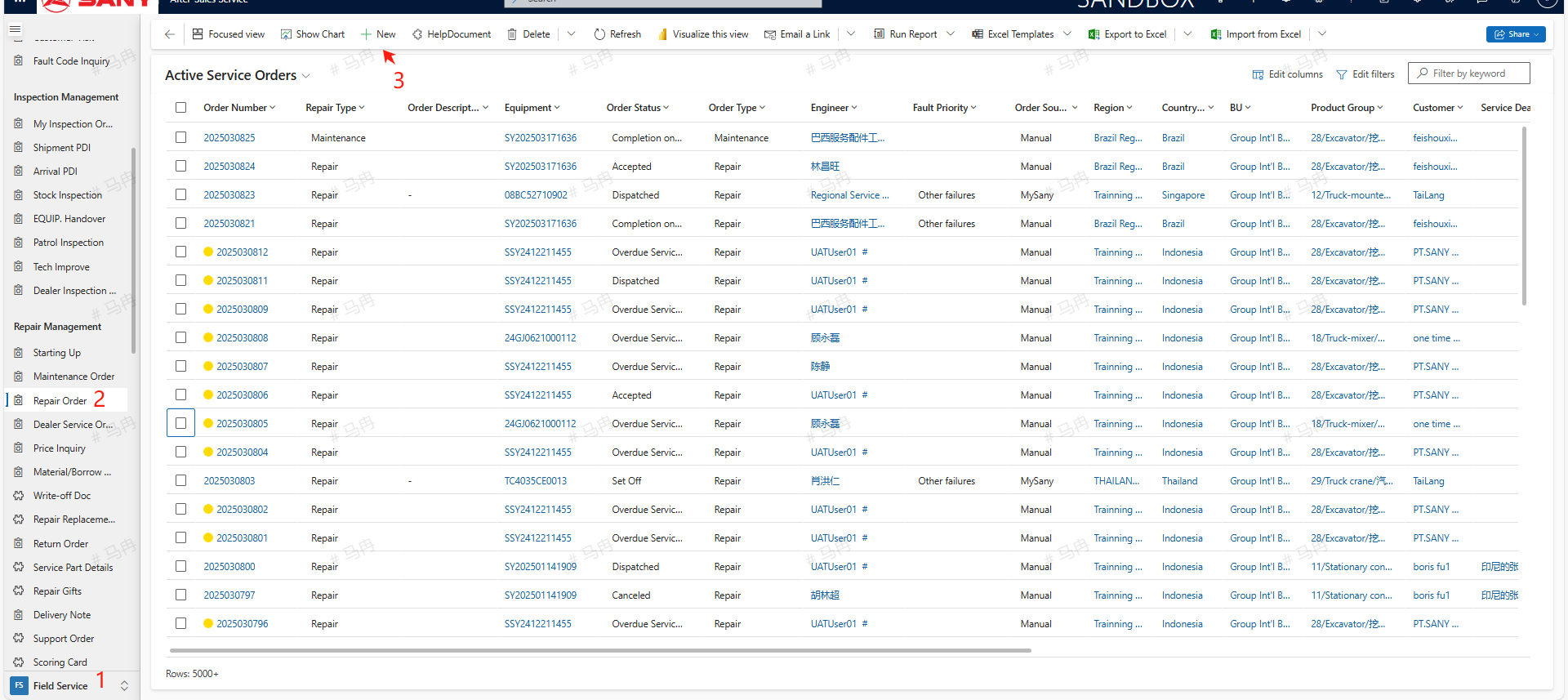
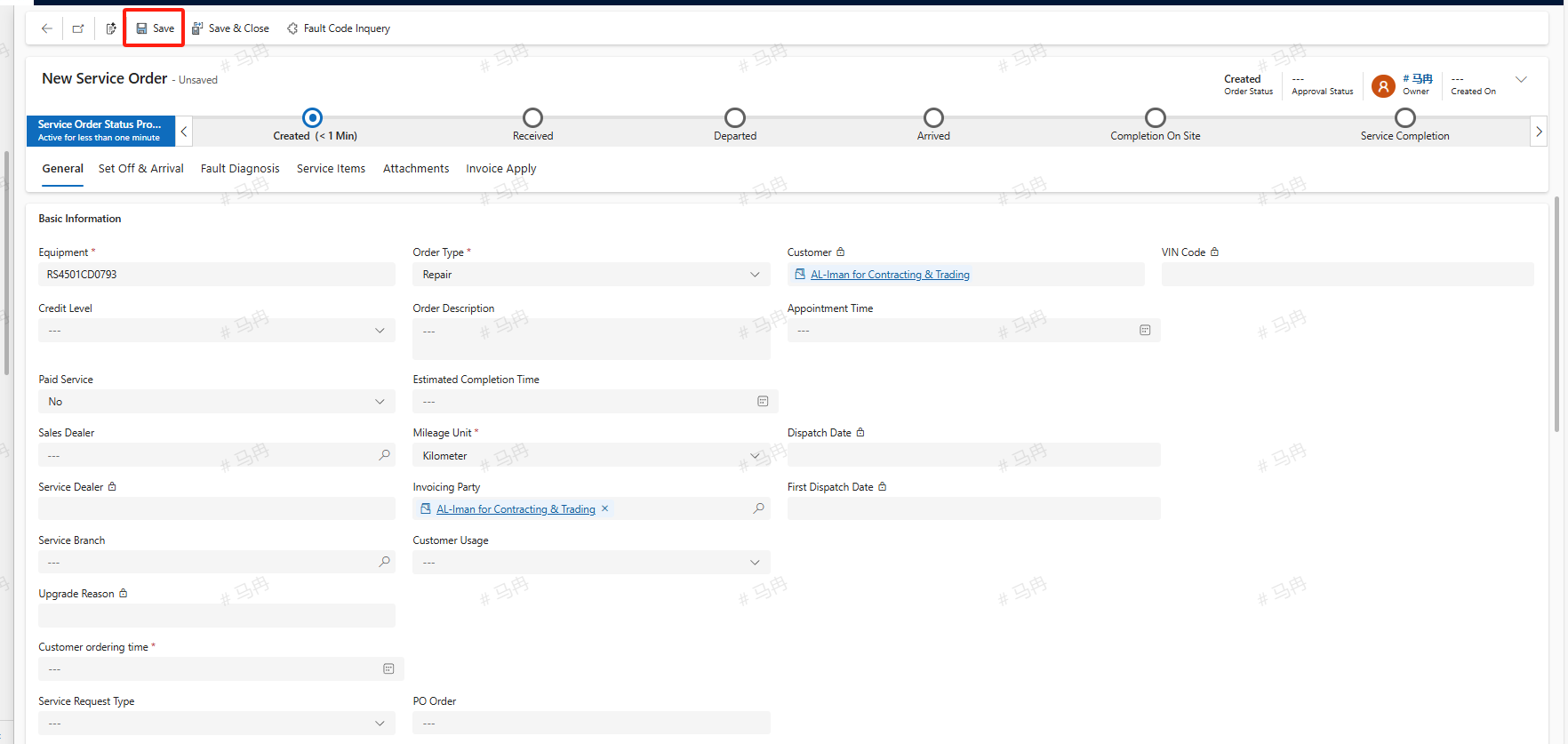
Service engineers can also manually create these orders within the system by opening the Repair/Maintenance order menu, clicking on +New, and entering essential information such as the equipment code requiring repair, Customer ordering time, Applicant, and Applicant Phone, then saving the entry.
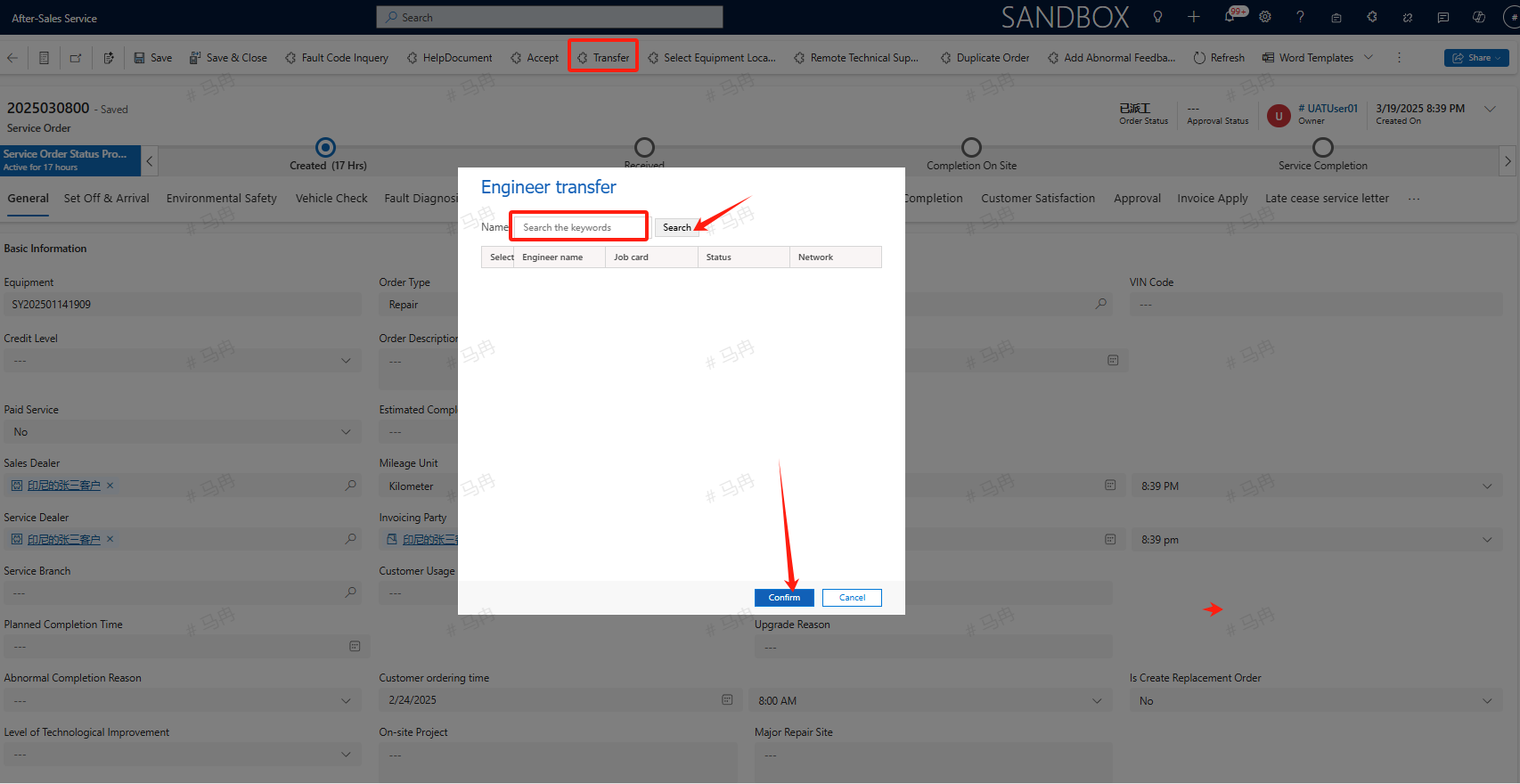
Transfer
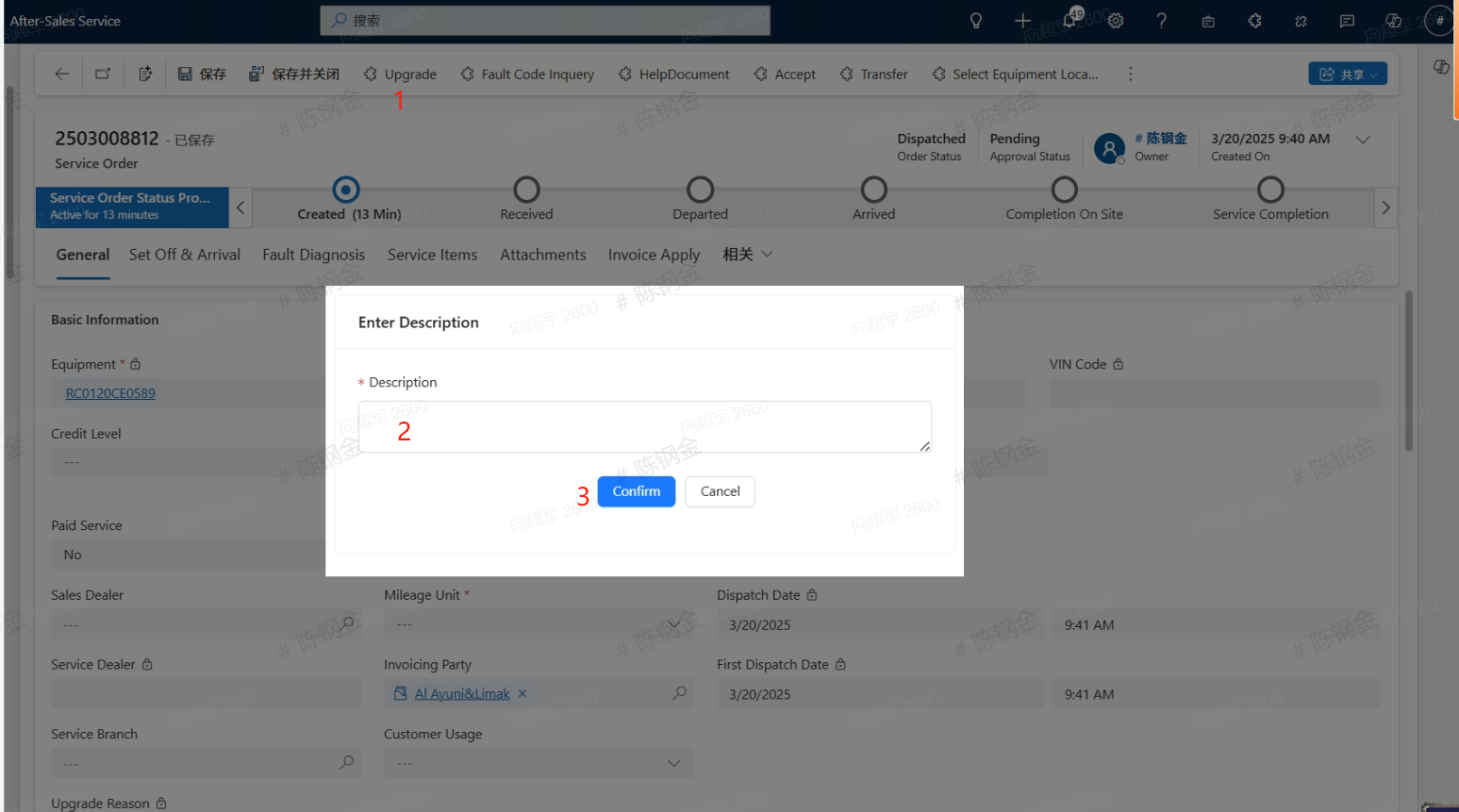
Engineers with Transfer permissions can directly transfer orders without accepting them first, while those without Transfer permissions must click the upgrade button, enter a remark or explanation, and upon confirmation, the service manager will transfer the order.
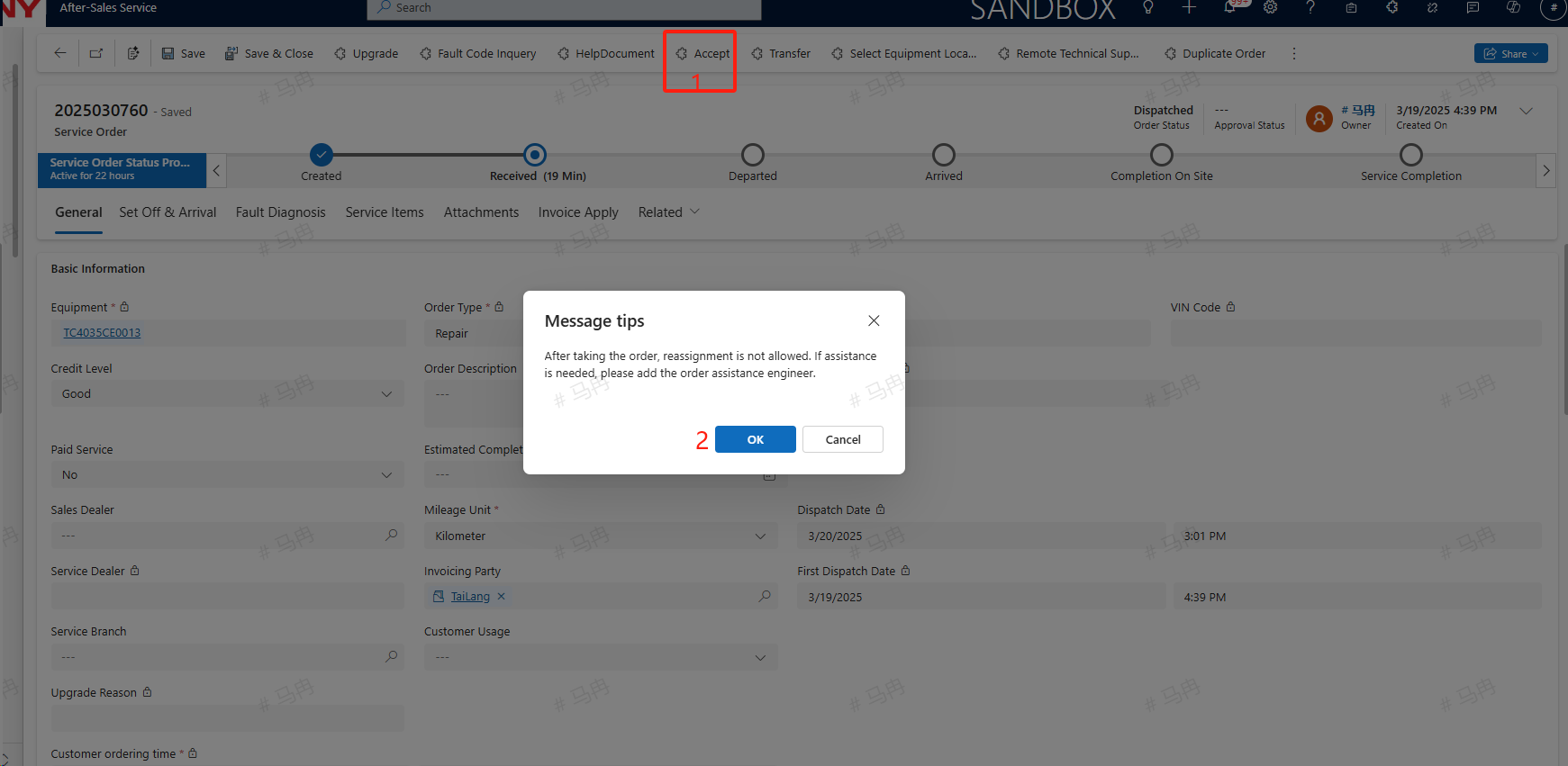
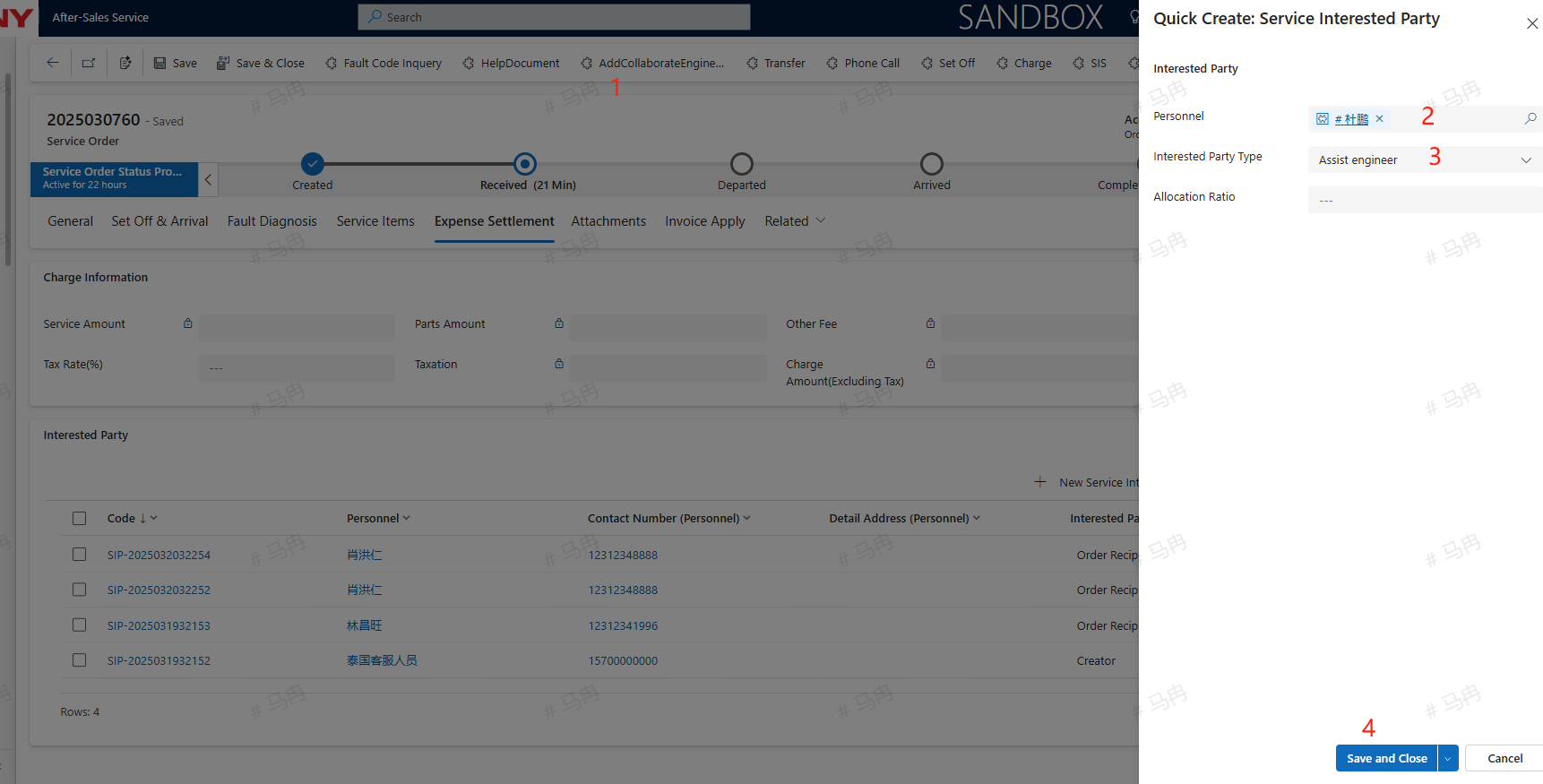
Accept/AddCollaborateEngineer
Accepted service call orders are not permitted to be transferred. If assistance is required, you may ADD Collaborating Engineers to work on the order.
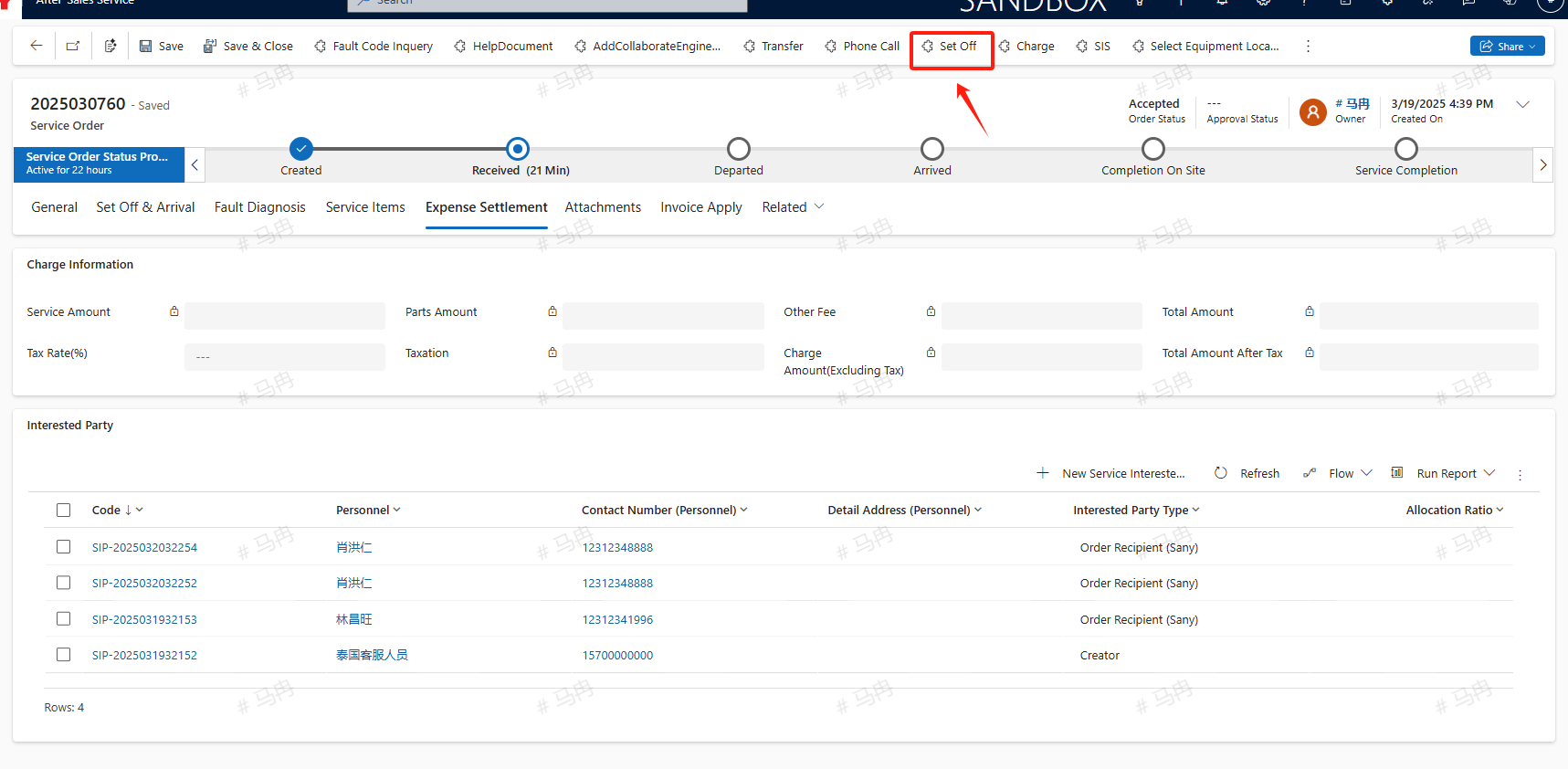
Set off
Select the location of the equipment , click the Set Off button and depart; Due to the fact that the location resolution on the computer is based on network IP, the obtained location may not be accurate. It is recommended to use the mobile navigation to trigger and arrive for departure and arrival. There are two software available on the mobile side: Power Apps: Select Field Service App and allow Power Apps to obtain addresses and access photo albums in the phone settings. SANY iCRM: Find the specific order in the service ticket on the homepage, and allow access to the address and photo album in the phone settings. Dealer's equipment need not to departure and arrival
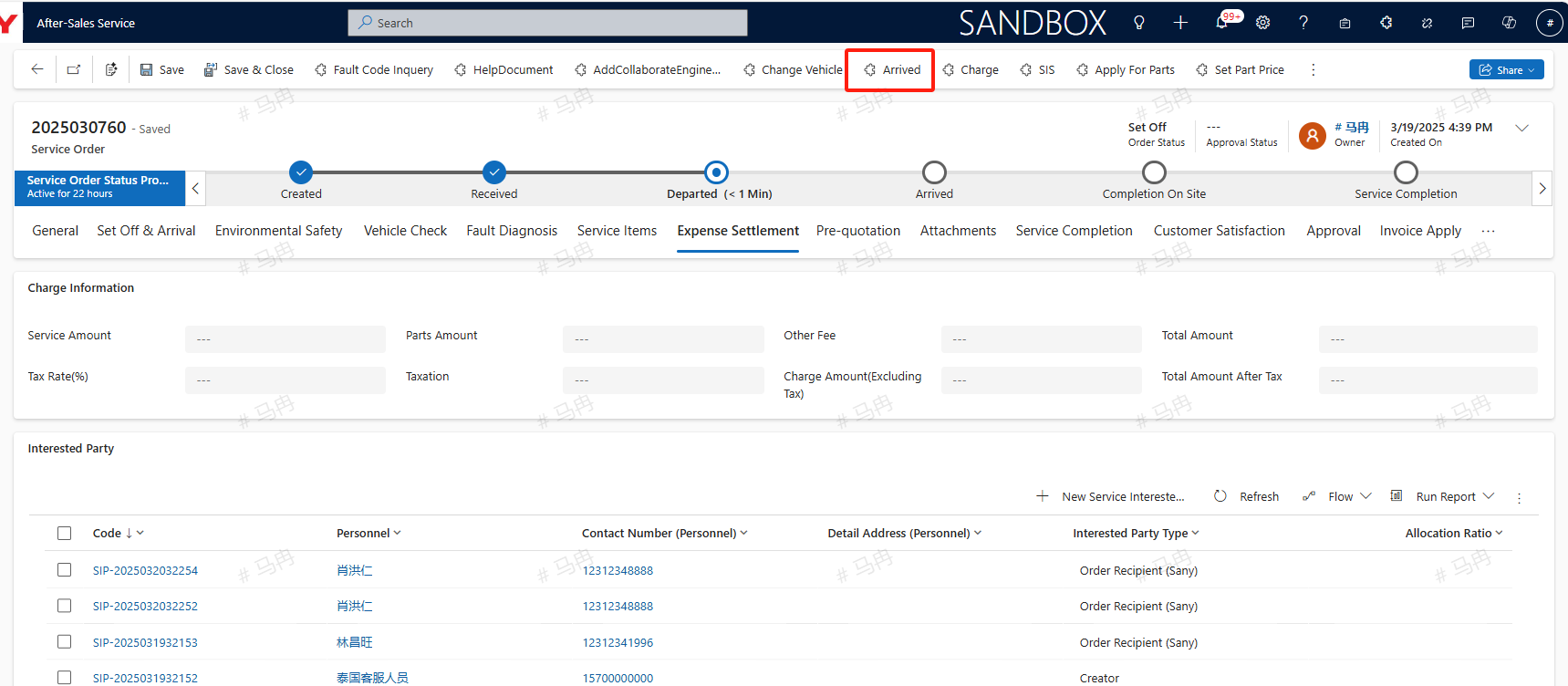
Arrived
Upon arriving at the destination, the engineer clicks the arrived button to confirm arrival. After confirming arrival, a machine-human group photo will be automatically triggered, which should be taken and then uploaded.
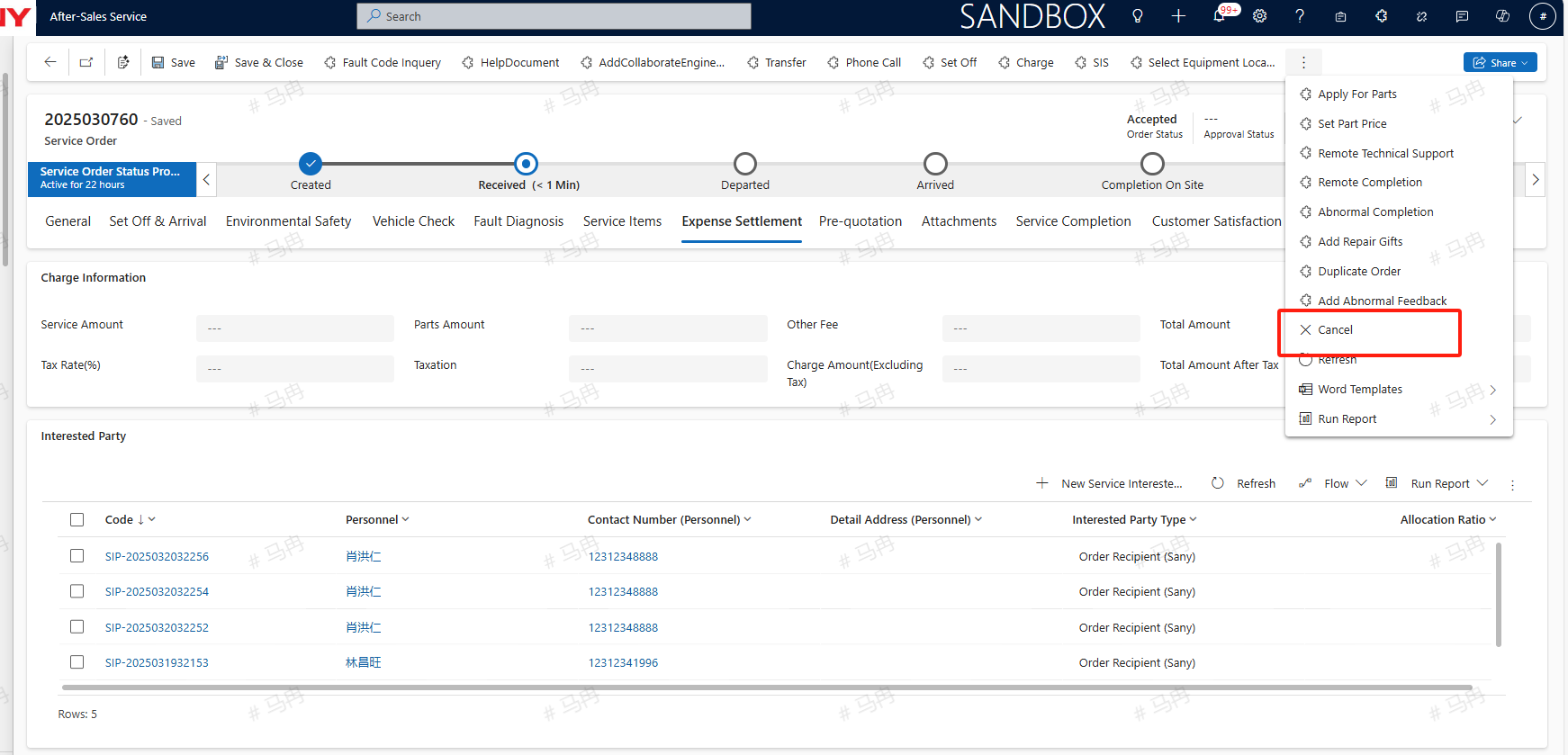
Cancel/Abnormal Completion
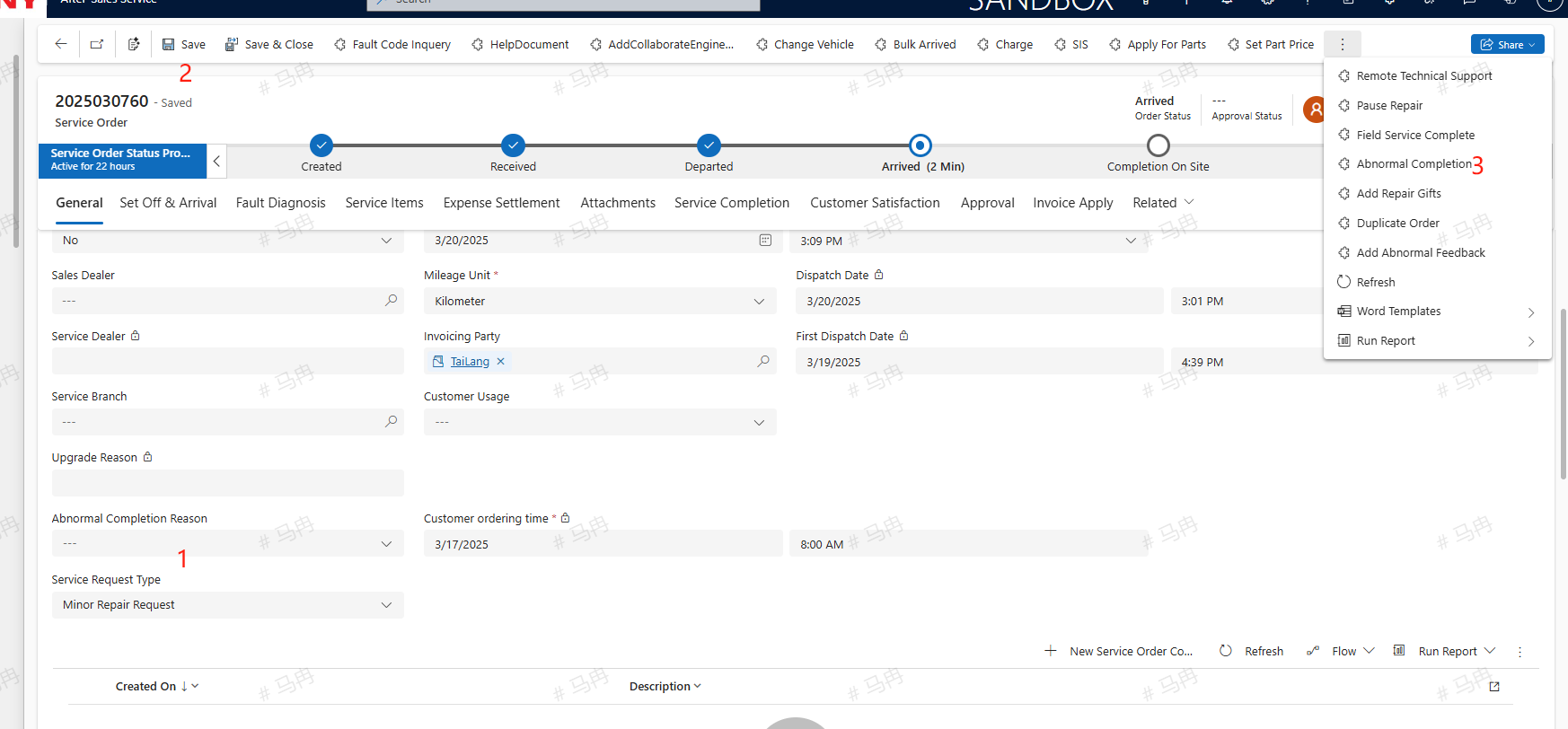
If the customer needs to cancel the current service call, the engineer can click the cancel button to cancel the service order after accepting it but before setting off. If the engineer has already set off but has not completed the on-site service, they should input the reason for Abnormal Completion and click the Abnormal Completion button to conclude the service.
On-Site Processing
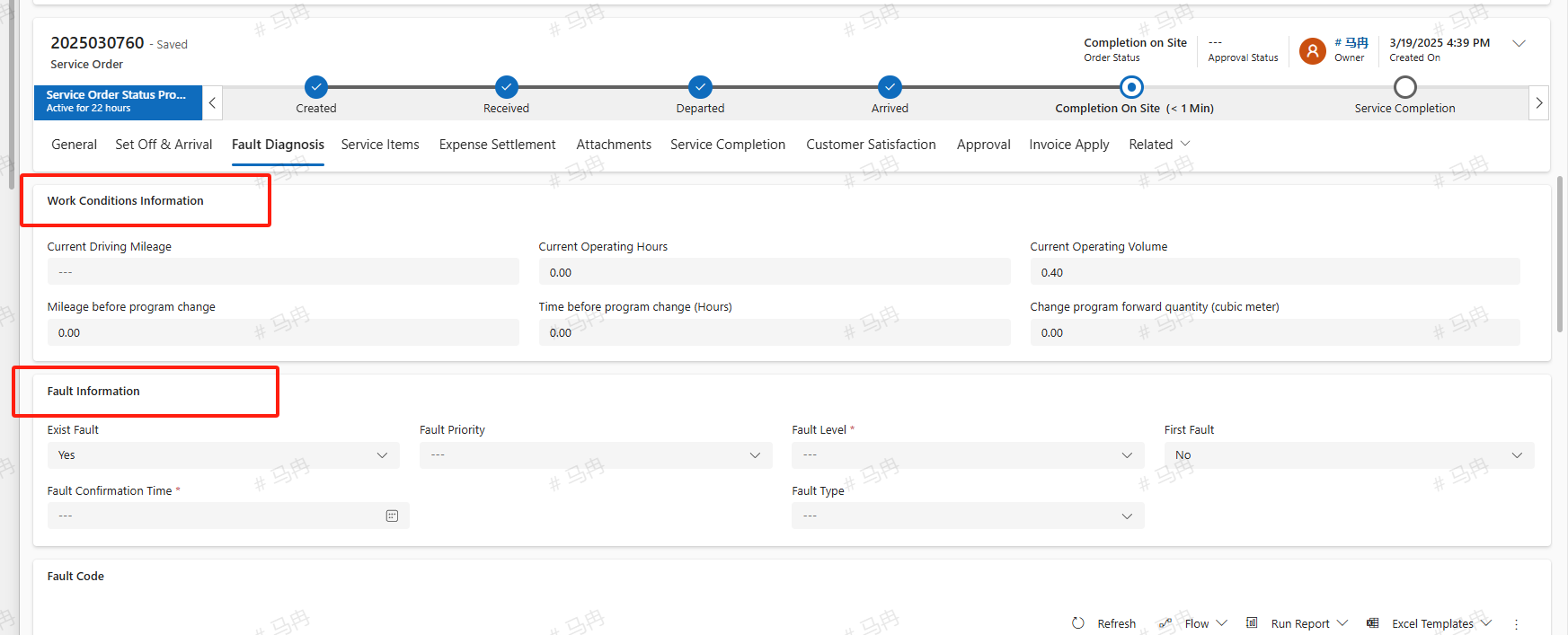
Fault Diagnosis The service engineer arrives on-site to carry out repair work. Under the Fault Diagnosis tab, within the work environment information, update details such as the current Current Driving Mileage, Current Operating Hours, Current Operating Volume, etc.; maintain detailed fault information within the fault information section.
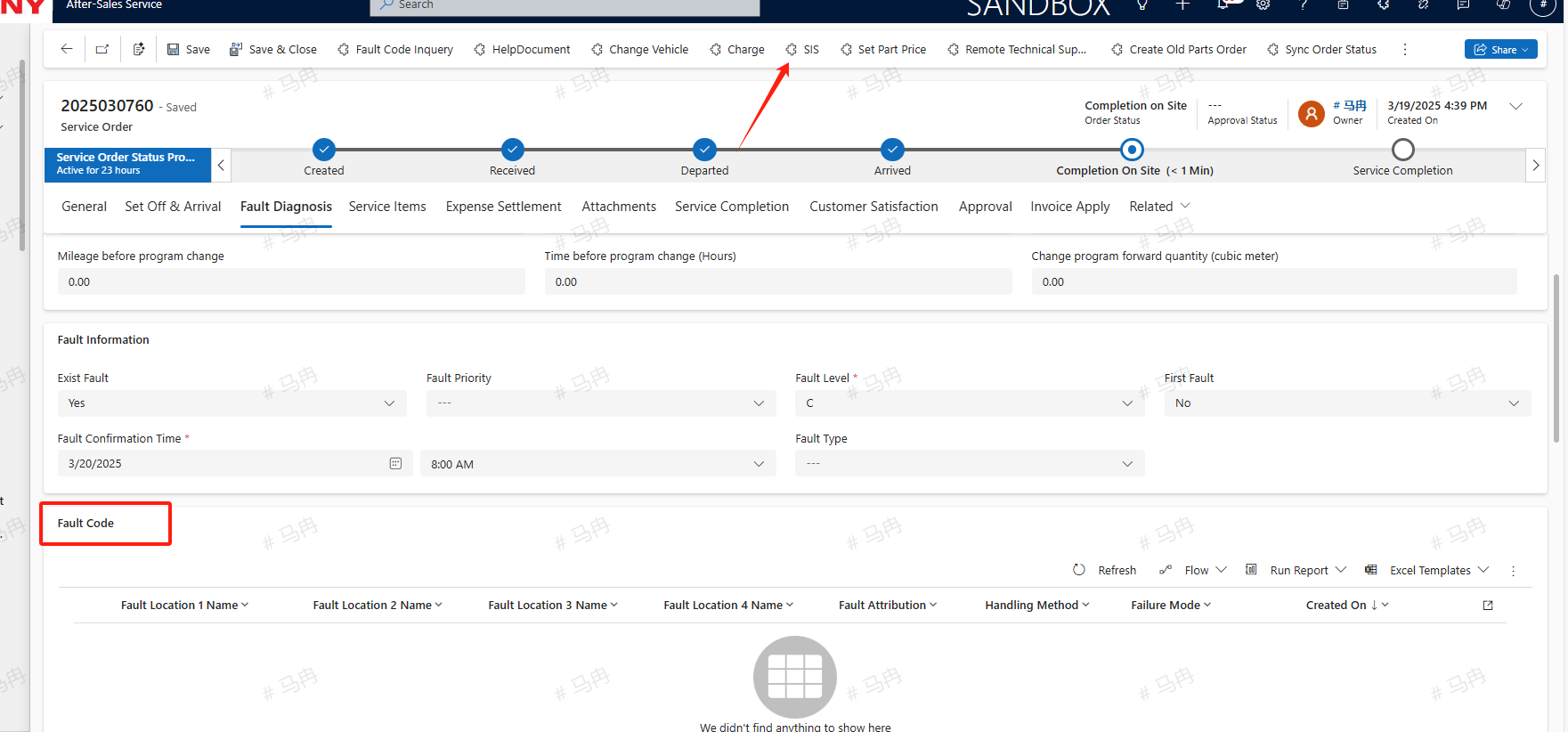
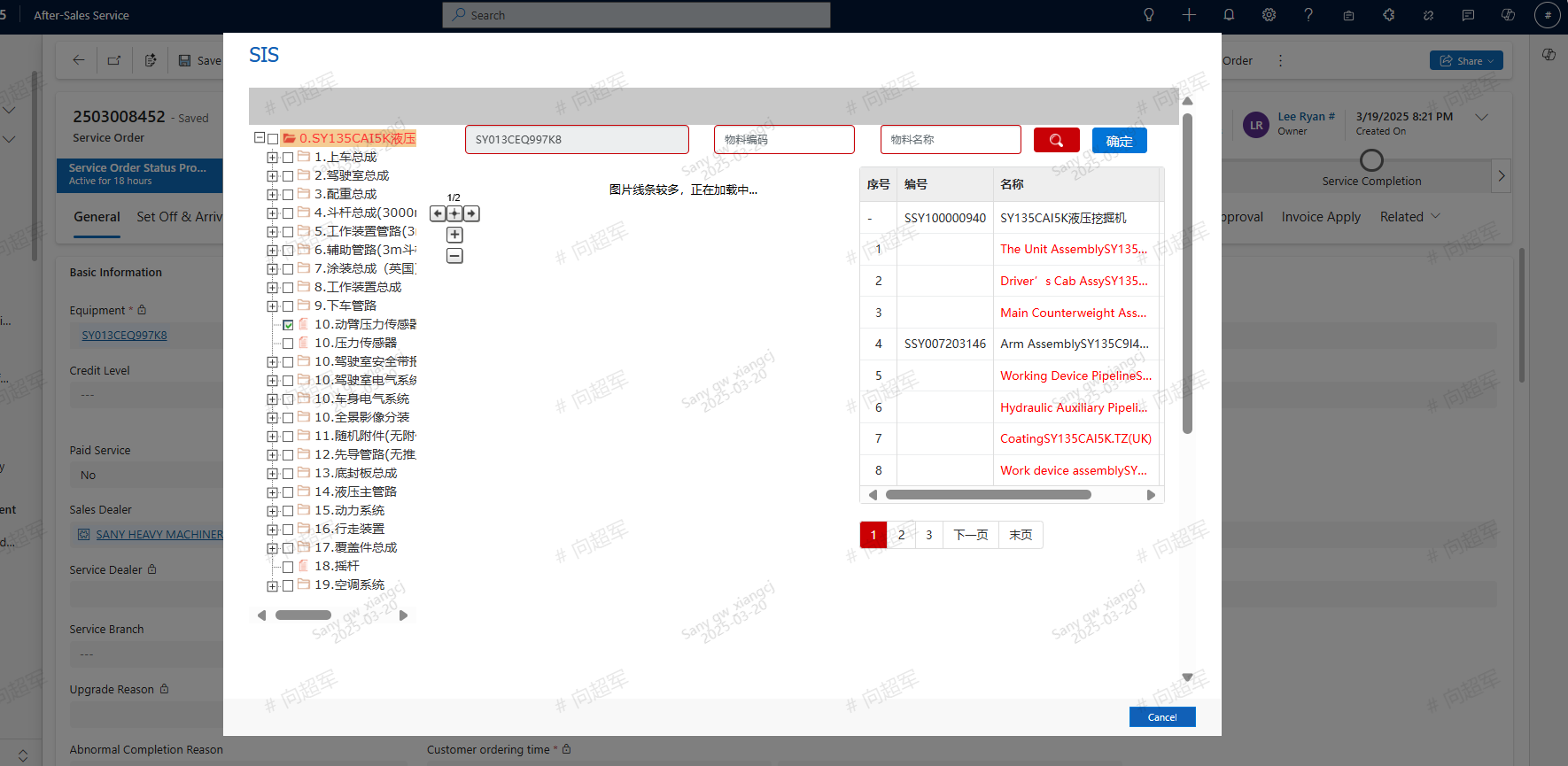
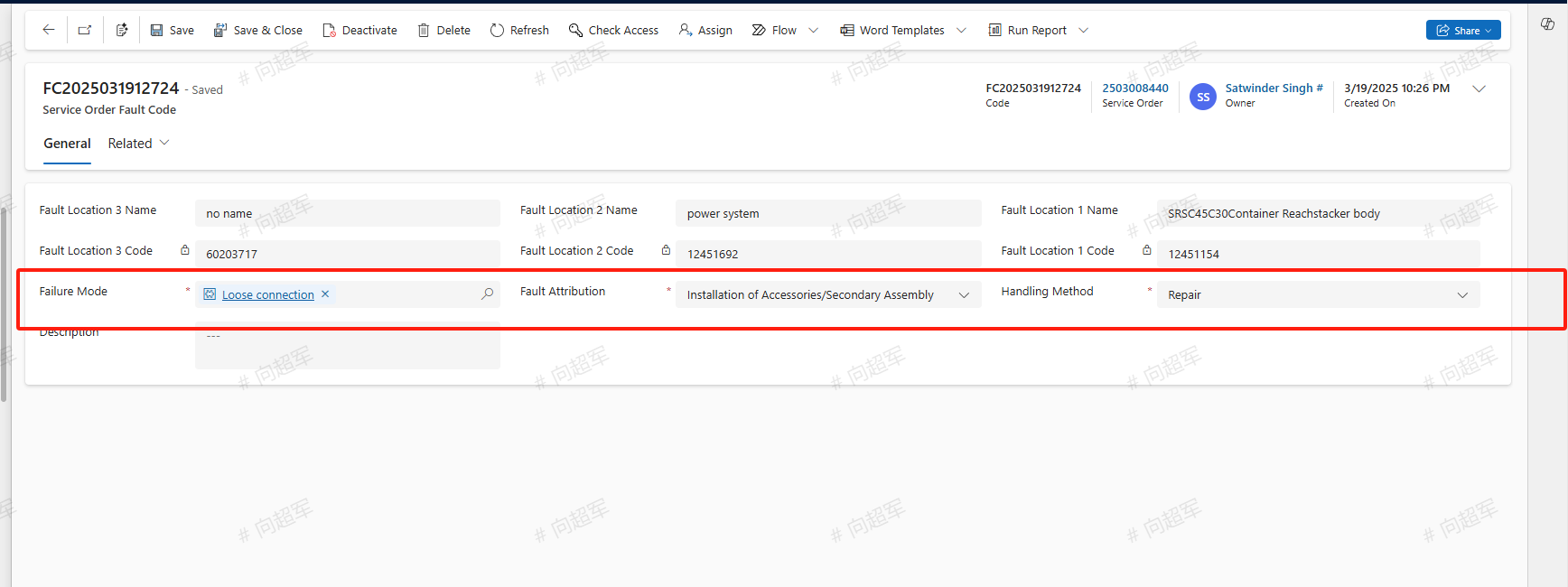
In the Fault Code section, click the SIS button to select the fault location from the SIS system. After adding the Fault Code, double-click on it to complete the fault information such as Failure Mode, Fault Attribution, Handling Method, and then save the details.
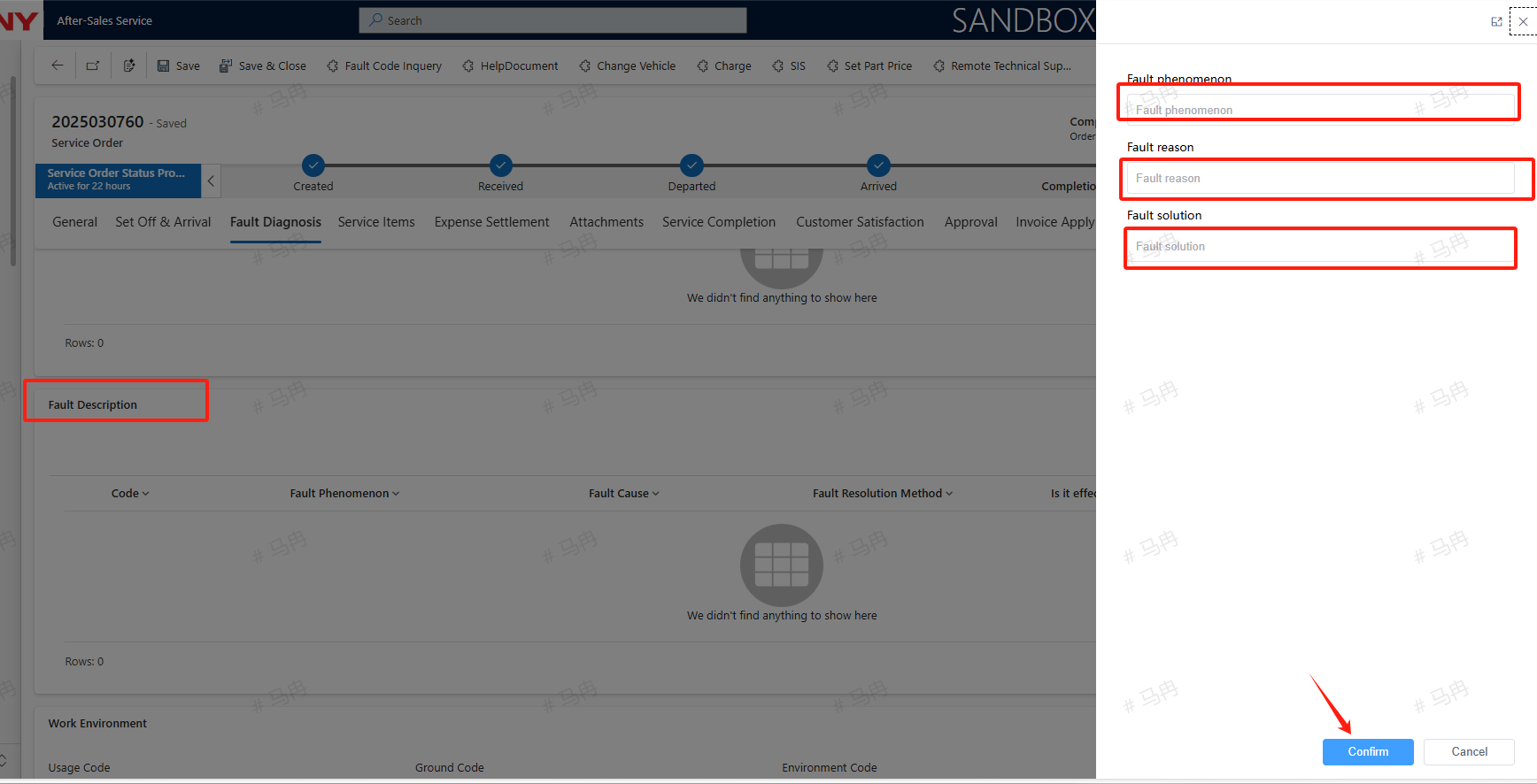
In the Fault Description section, click the add button to include a Fault Description.
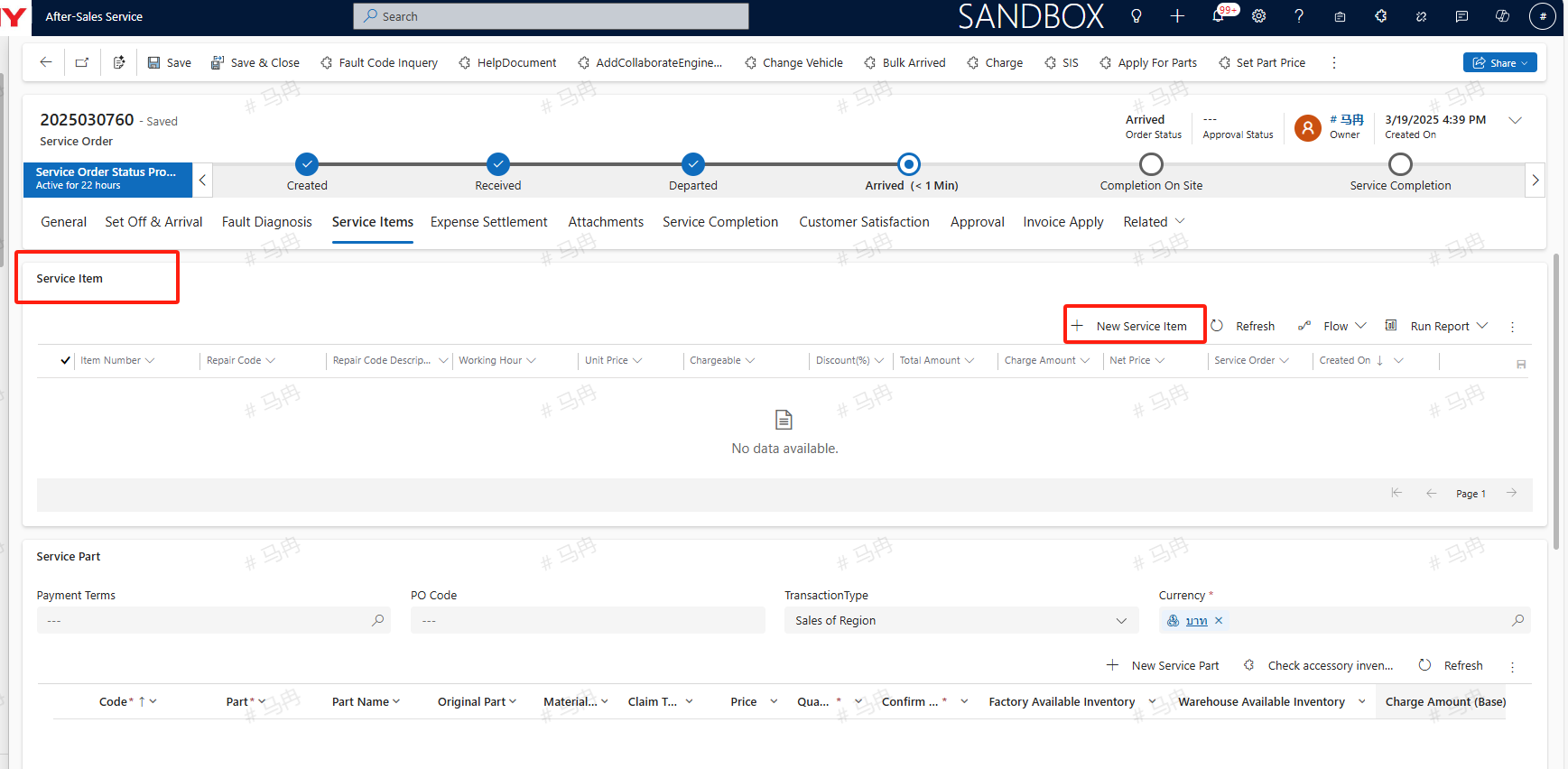
Under the Service Items tab, add as per actual circumstances the New Service Item costs, required parts for the service order, Other Fees, etc.; After adding the fees, please verify if charging is necessary, and if so, select 'Yes' in the chargeable field, and note that the unit price and quantity of all fees can be modified.
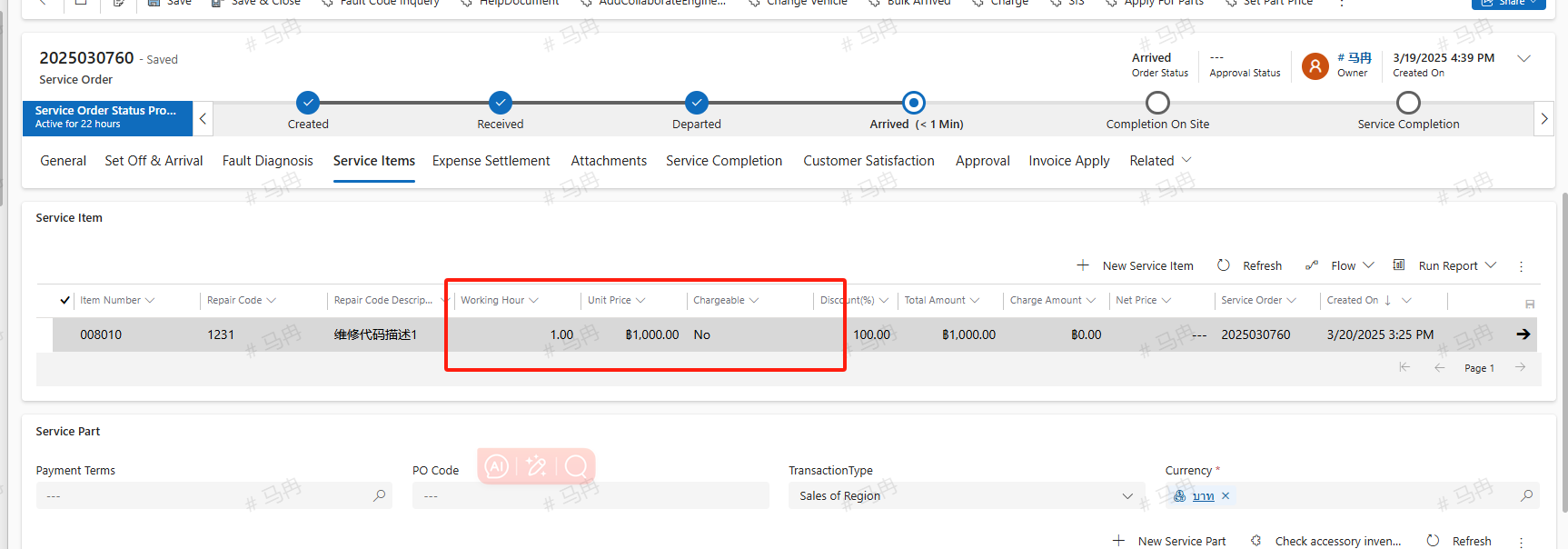
Maintenance Item Click on +New Service Item to add a service project, include the Maintenance Item, enter the number of man-hours, then save and close. The Maintenance Item is synchronized from the domestic system based on the equipment's product group. If there is no corresponding Maintenance Item available at the moment, you may temporarily use Other Fee as a substitute.
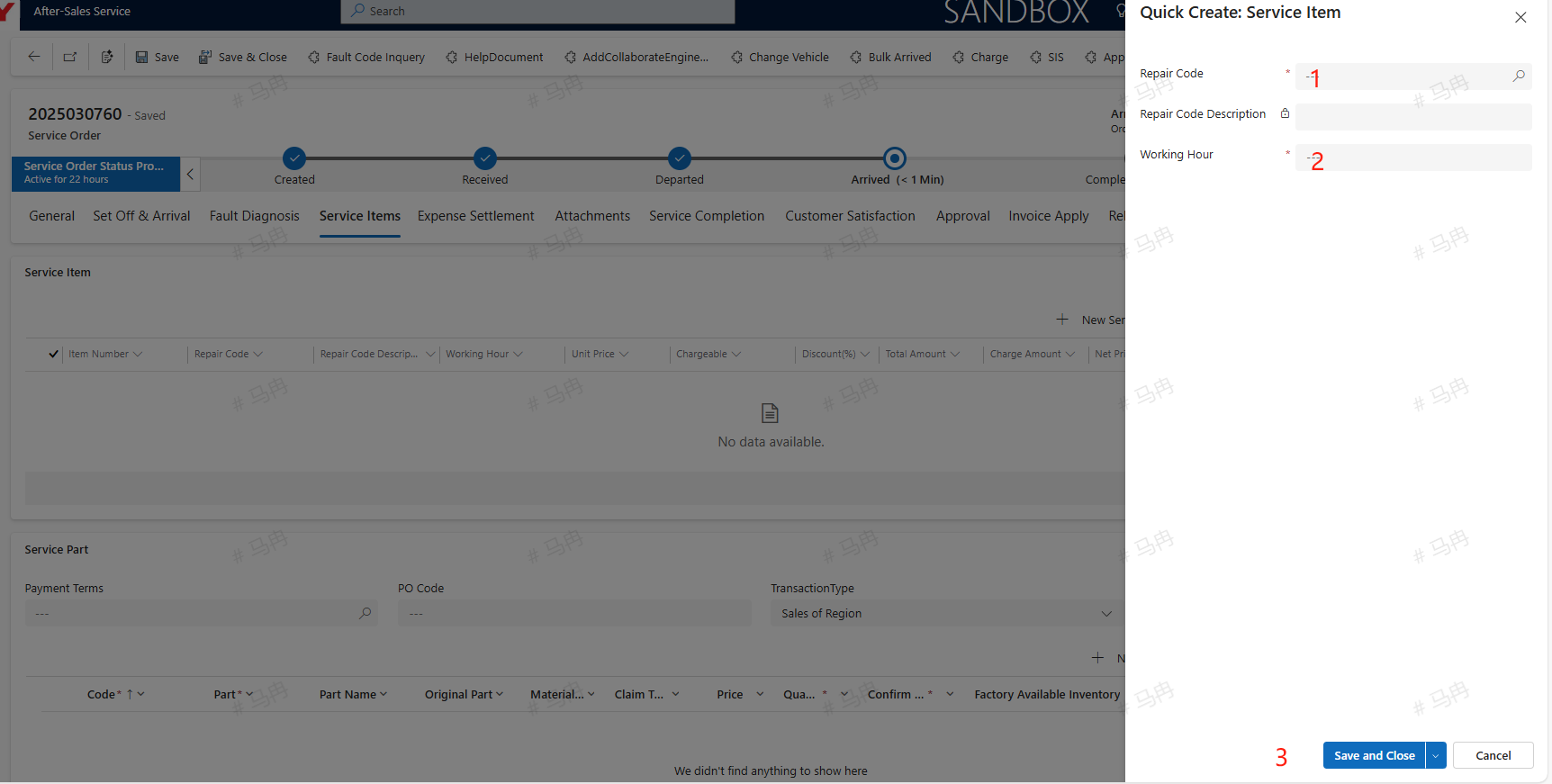
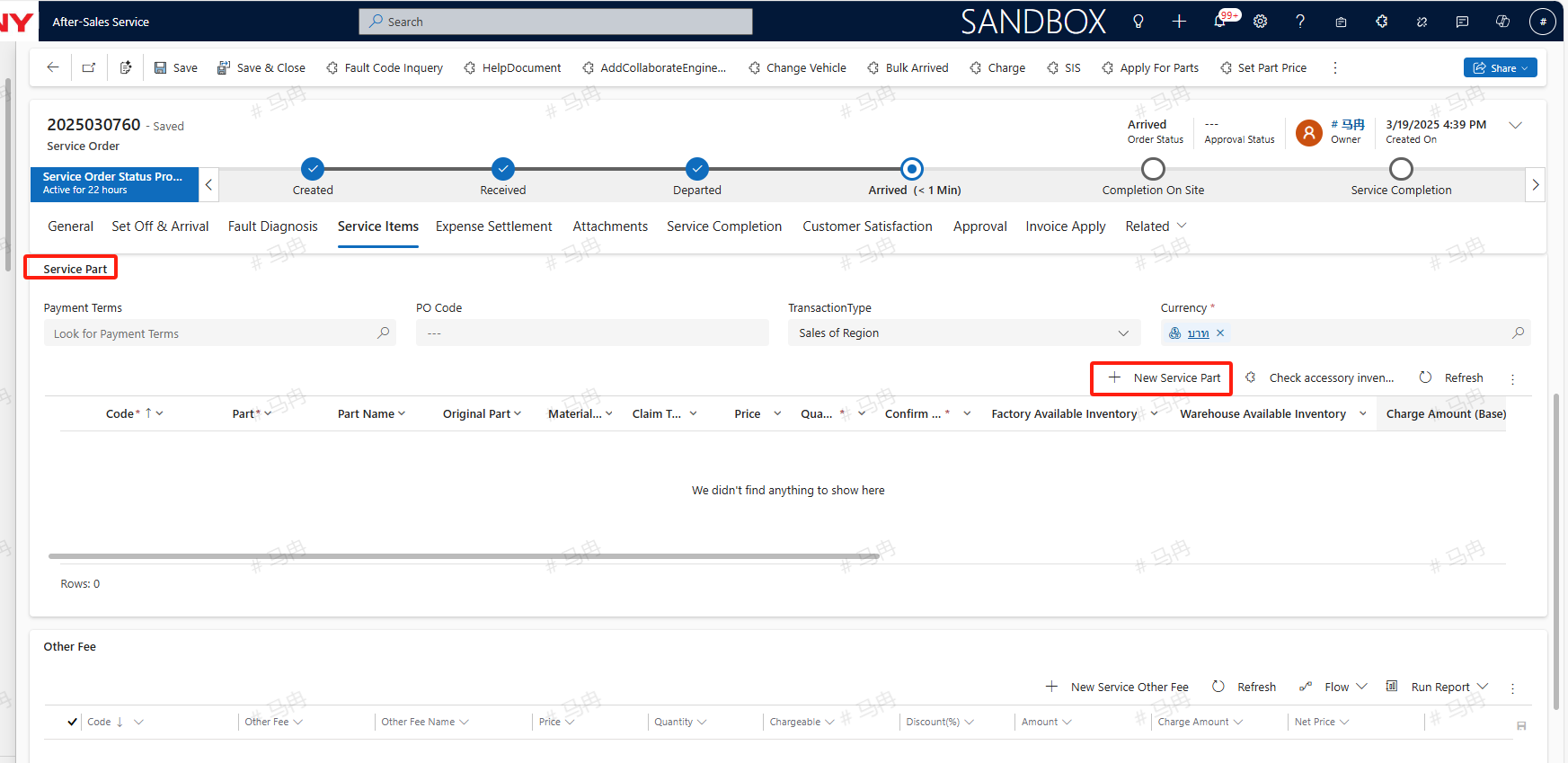
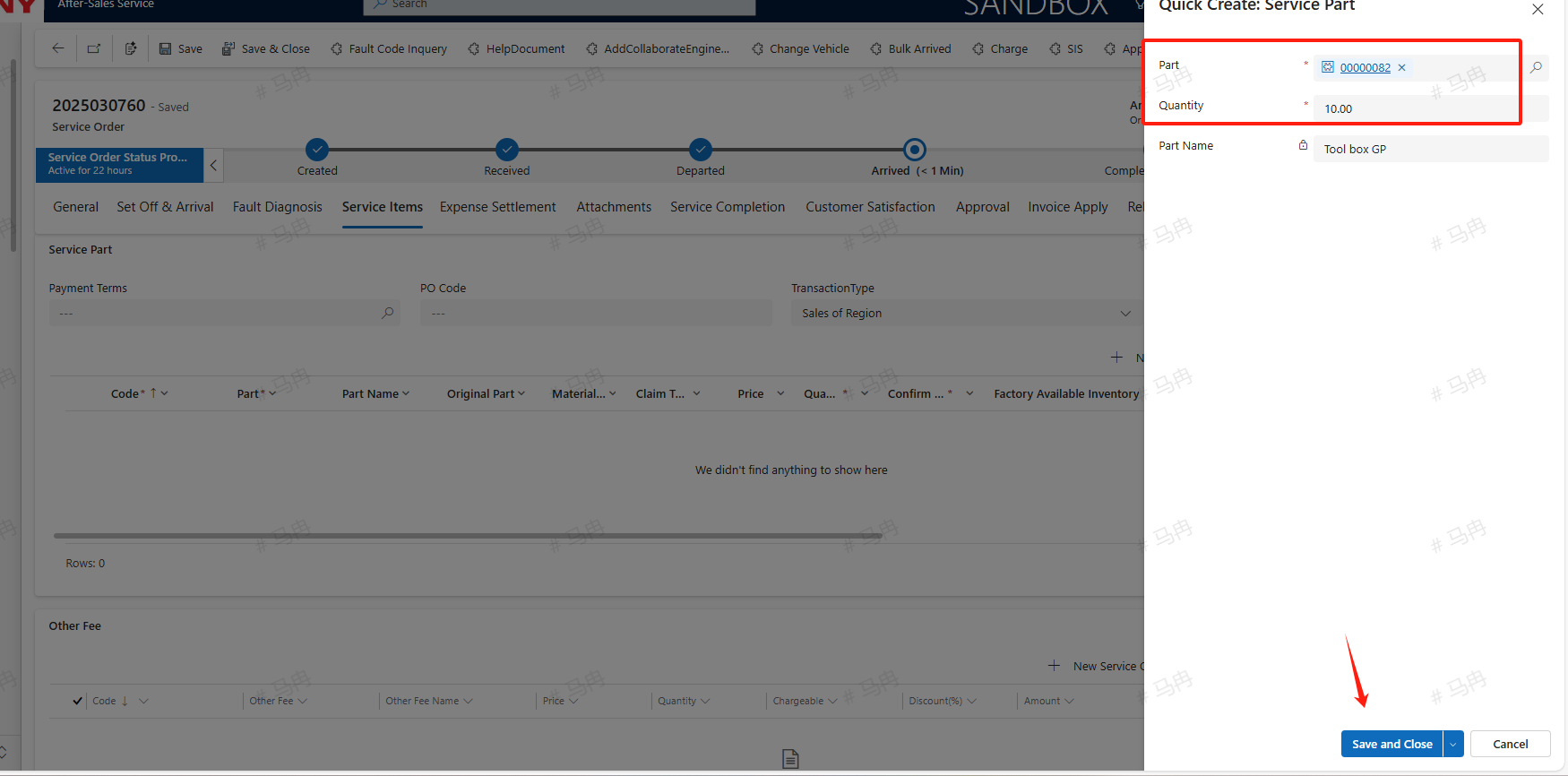
Service Part In the Currency unit section, click on +new Service part, input the part number and quantity, then save and close to add the part.
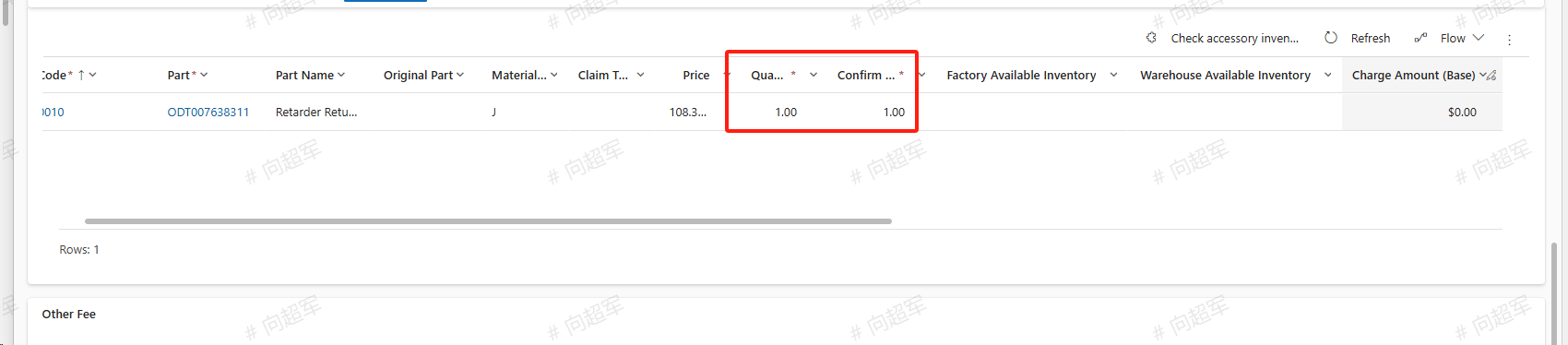
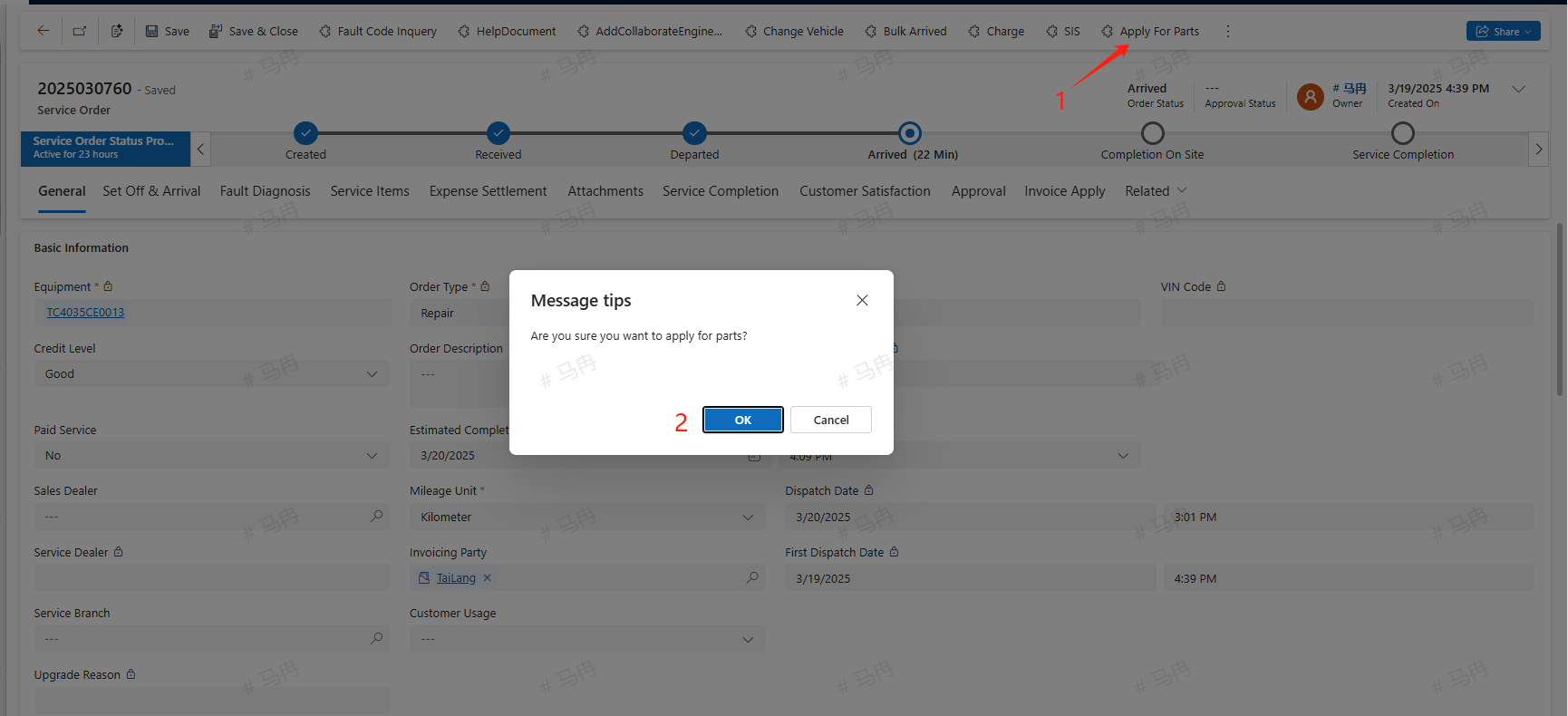
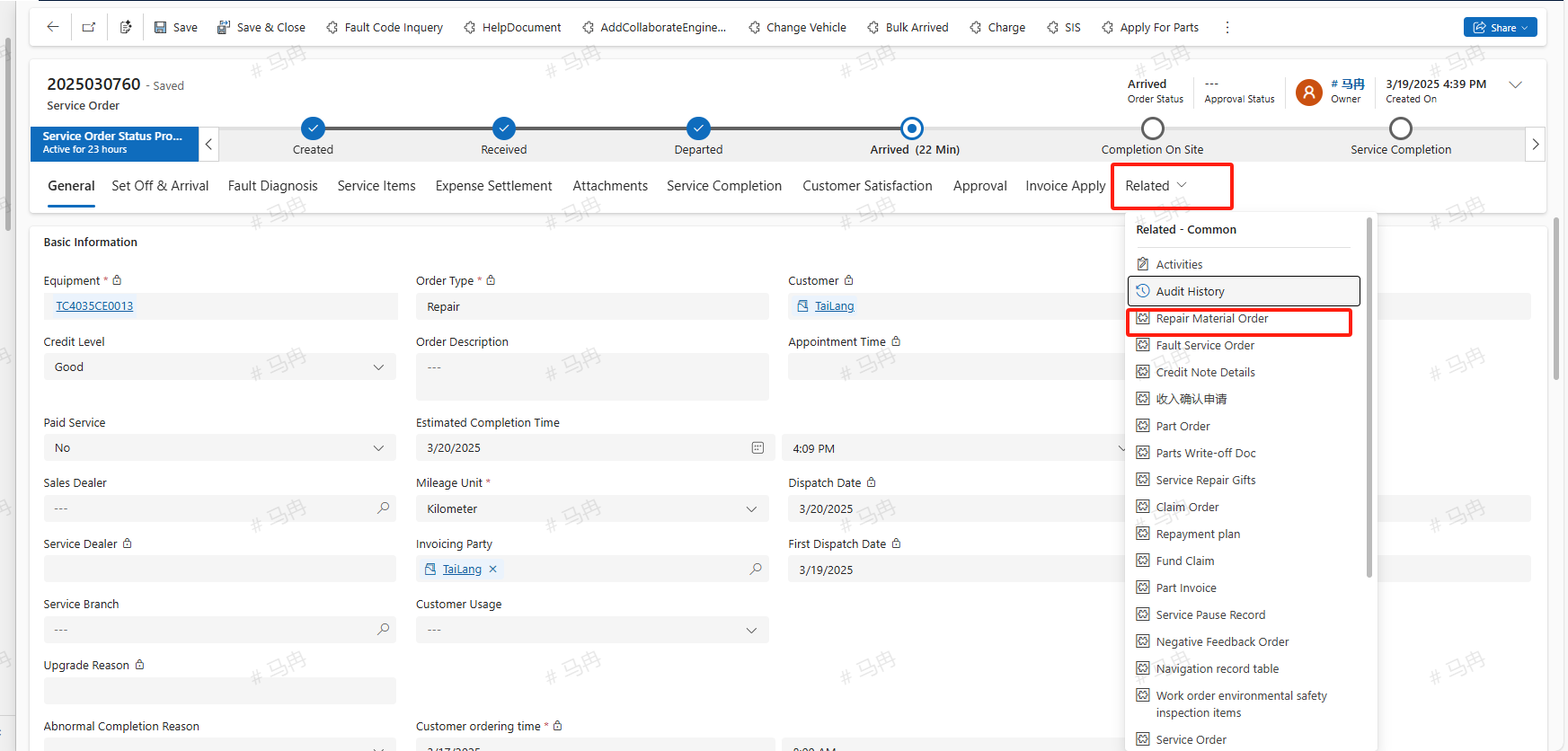
Apply For Parts After adding all the necessary parts for this service and completing the information such as part prices and quantities, click the Apply For Parts button to proceed with the ORepair Material Order operation. Once submitted, you can find the ORepair Material Order application in the related section. For details on the ORepair Material Order application, please refer to the ORepair Material Order manual.
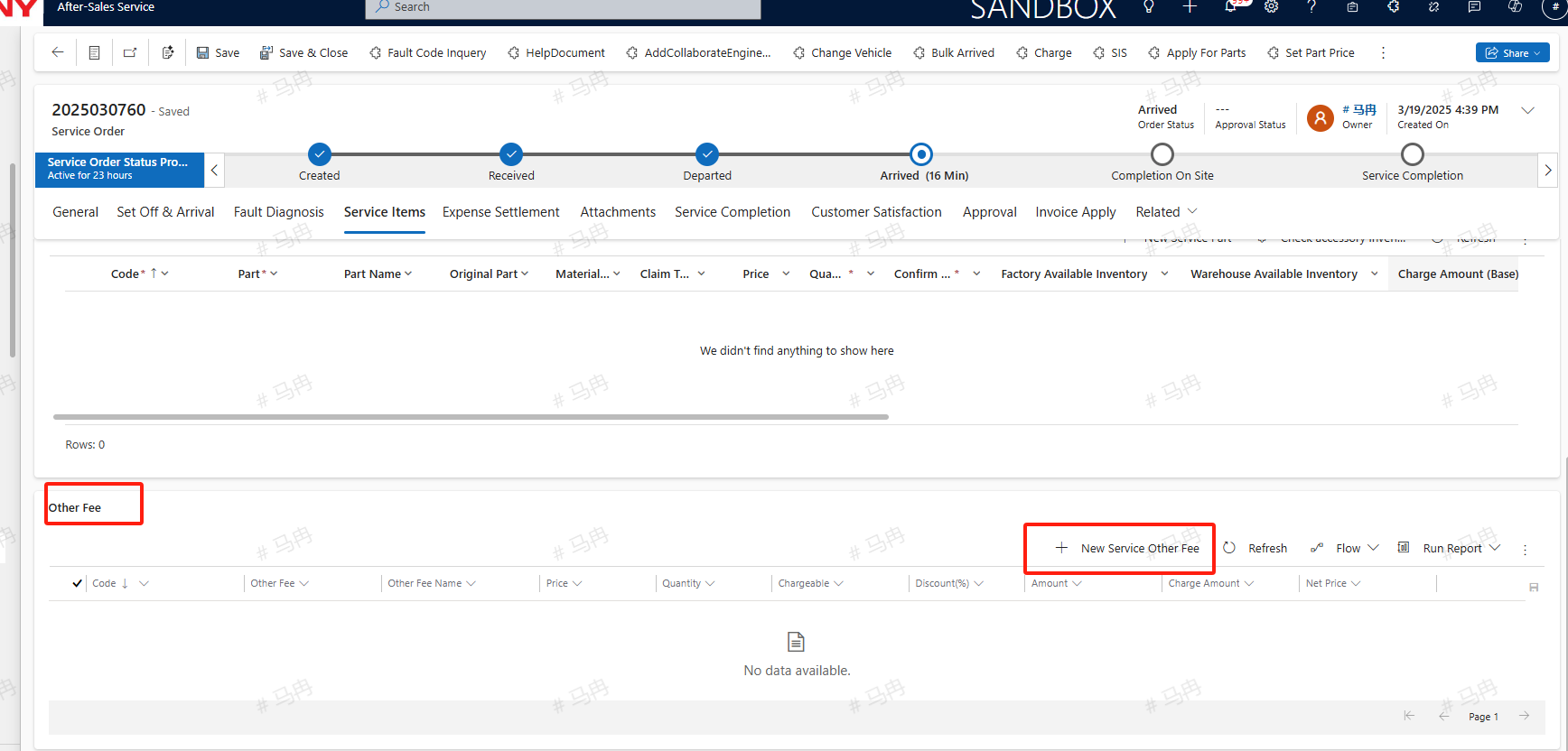
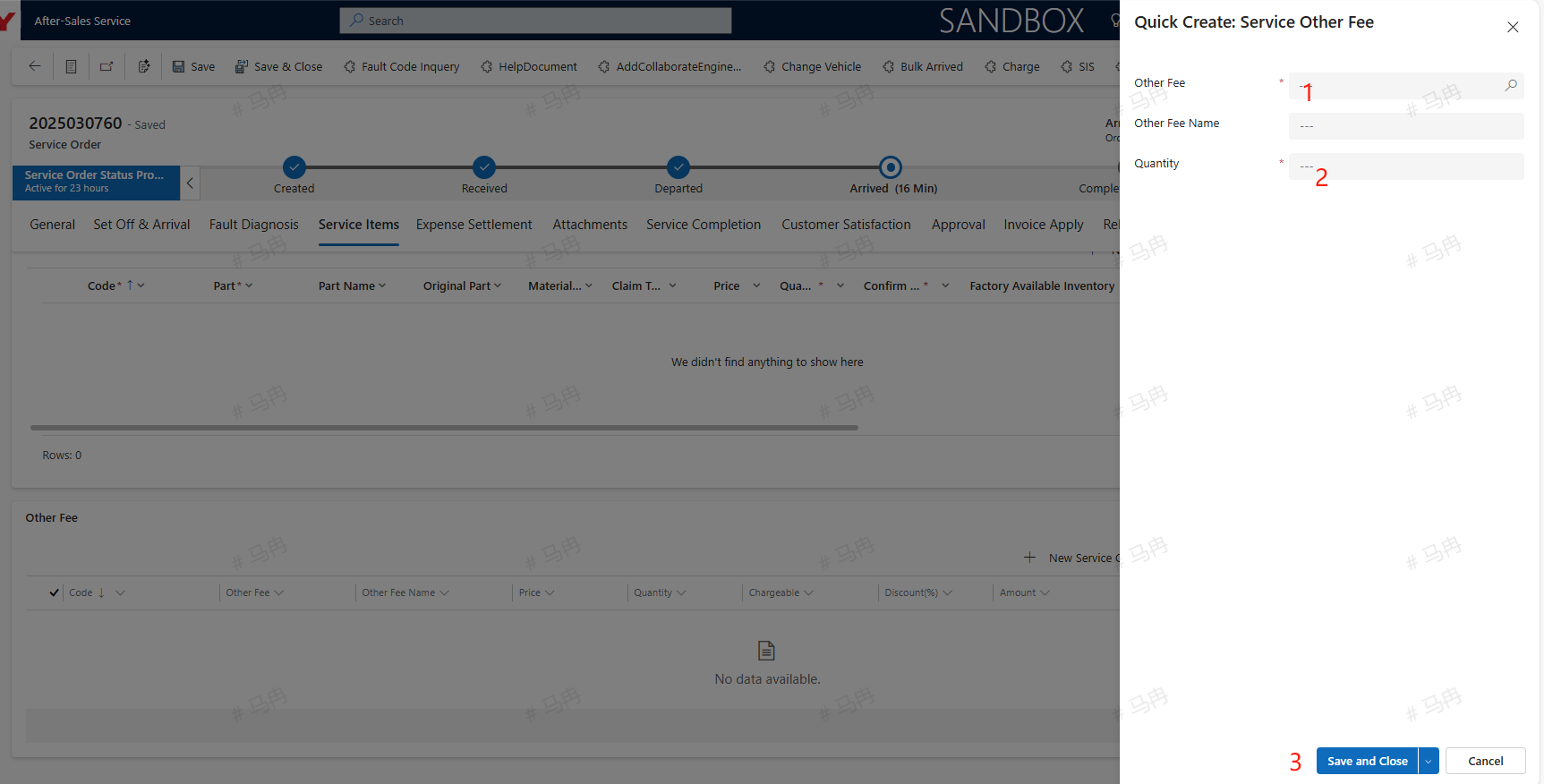
Other Fee Click on +new Service Other Fee, input the Other Fee and quantity, then save and close to add the Other Fee.
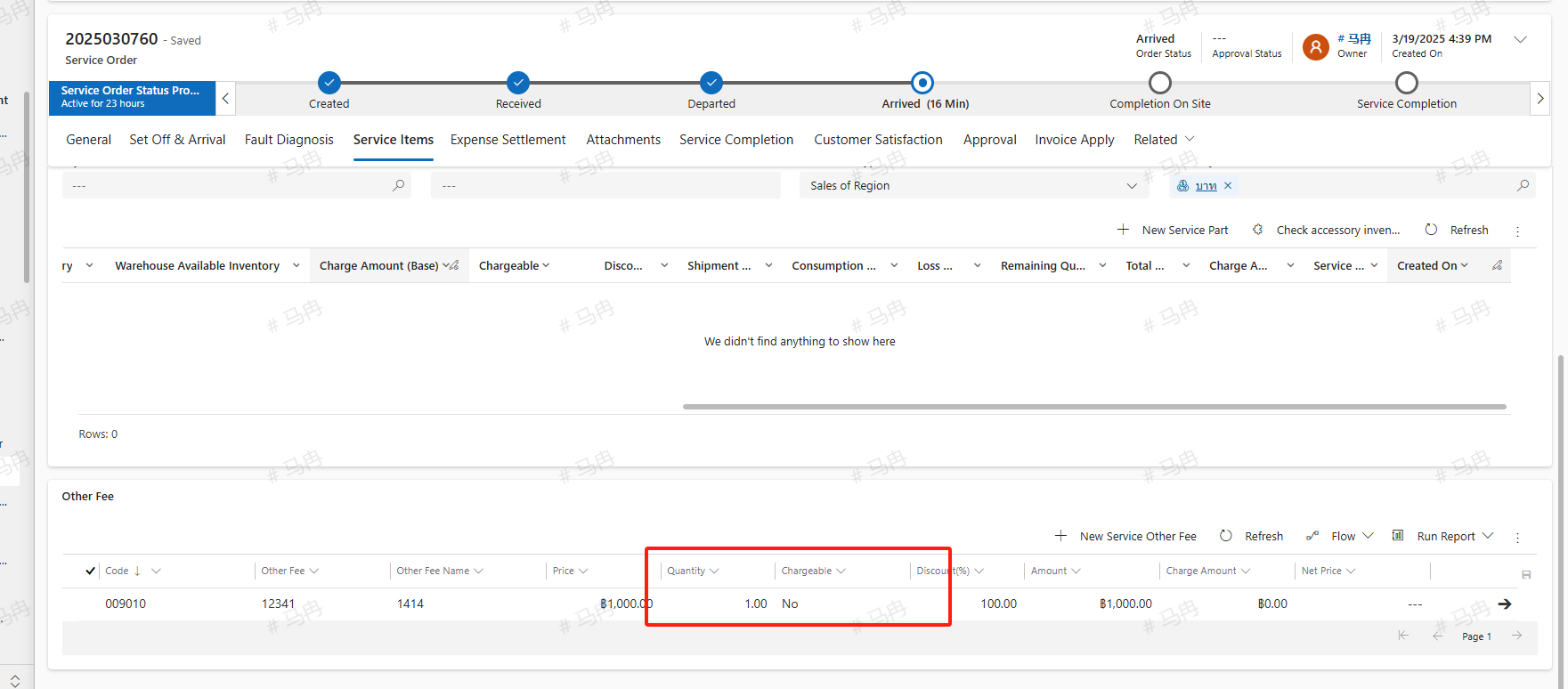
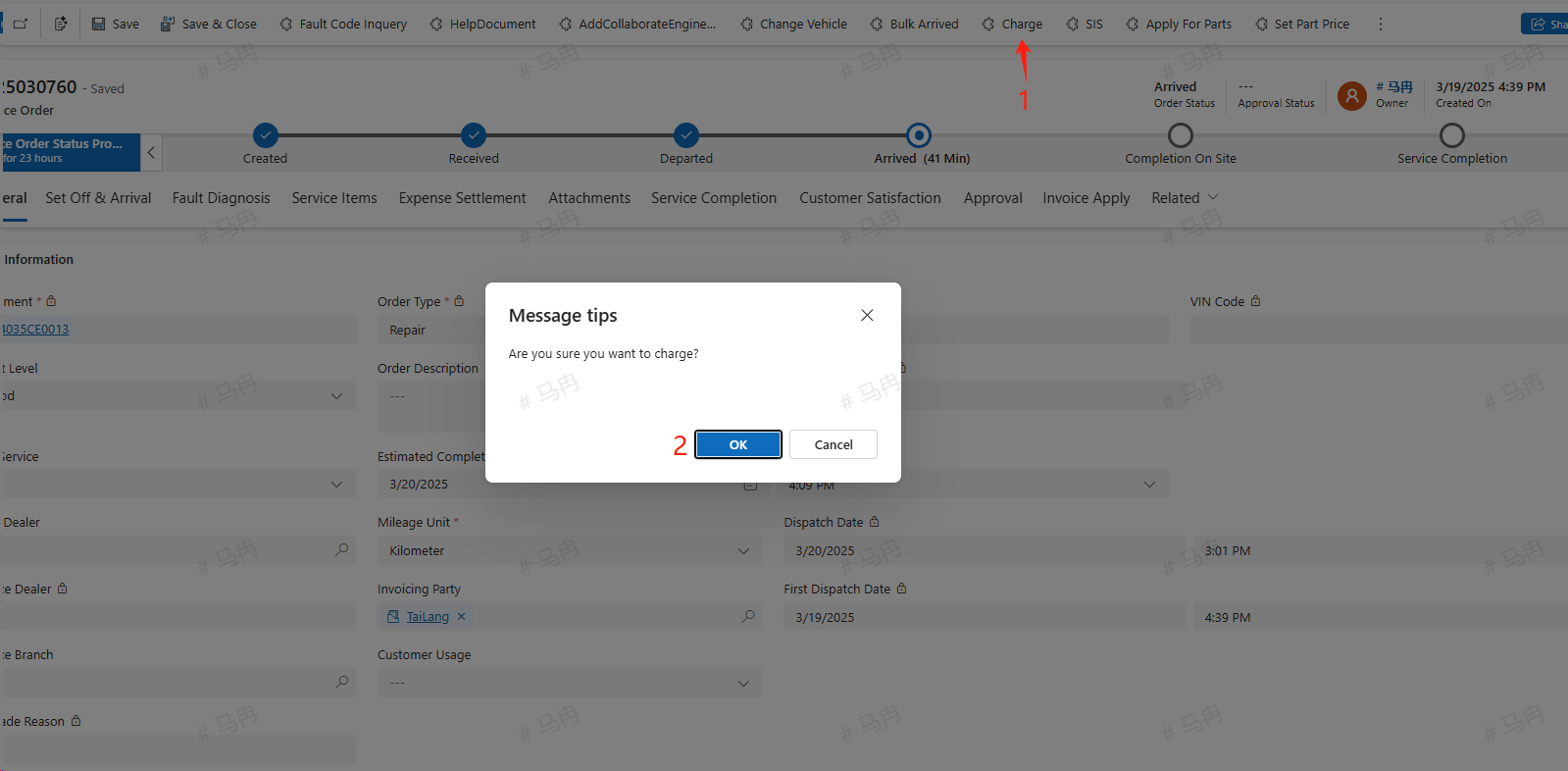
Charge After completing the Maintenance Item, parts, and Other Fees, click the Charge button, and the system will calculate the total amount for this service order. For chargeable orders, based on the entered Tax Rate (%), it will compute the tax, Charge Amount (Excluding Tax), and Total Amount After Tax. However, this is for display purposes only; the actual tax is calculated by the ERP system, and the CRM will only synchronize the total net amount to the ERP.
Add Abnormal Feedback
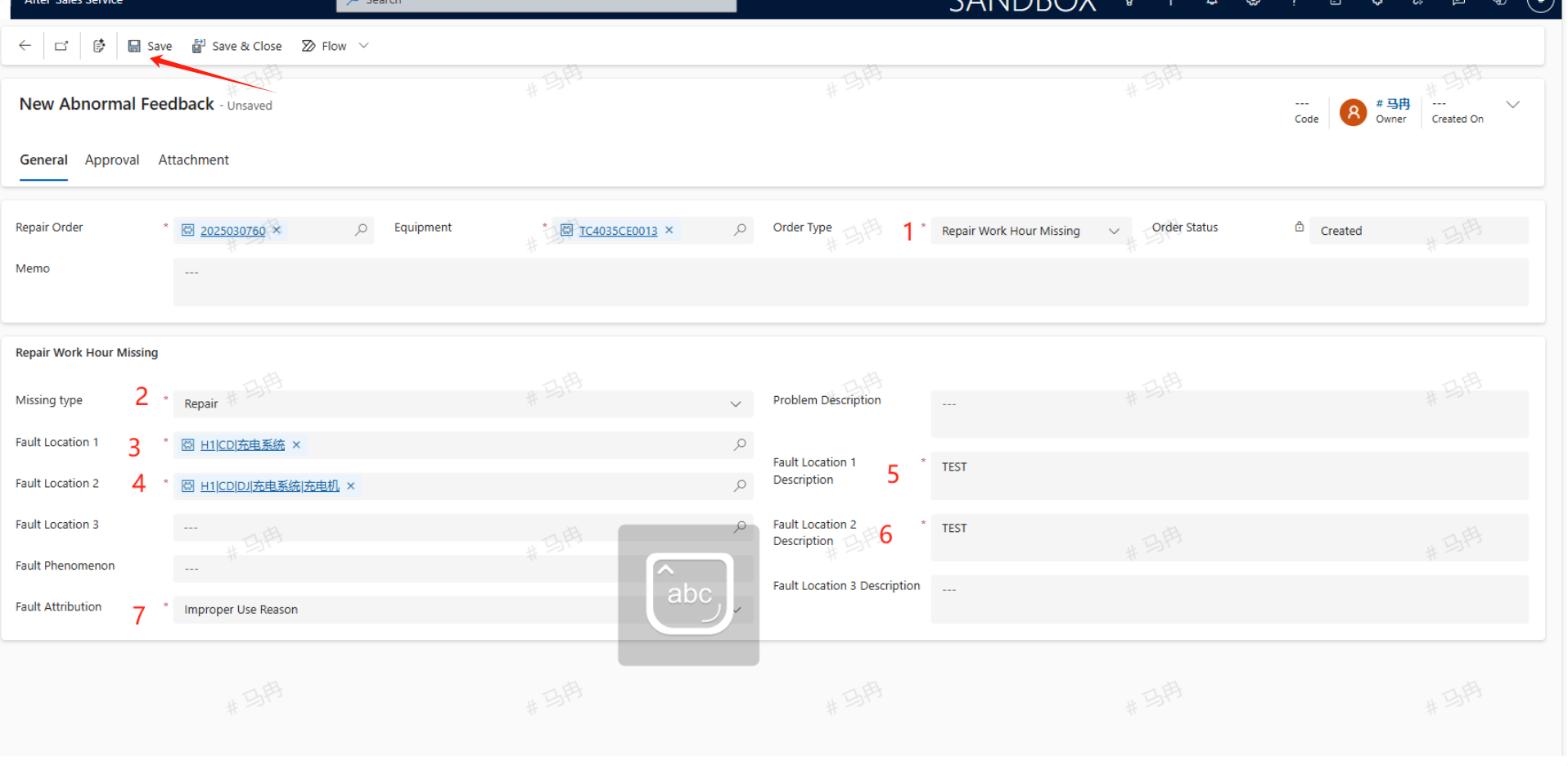
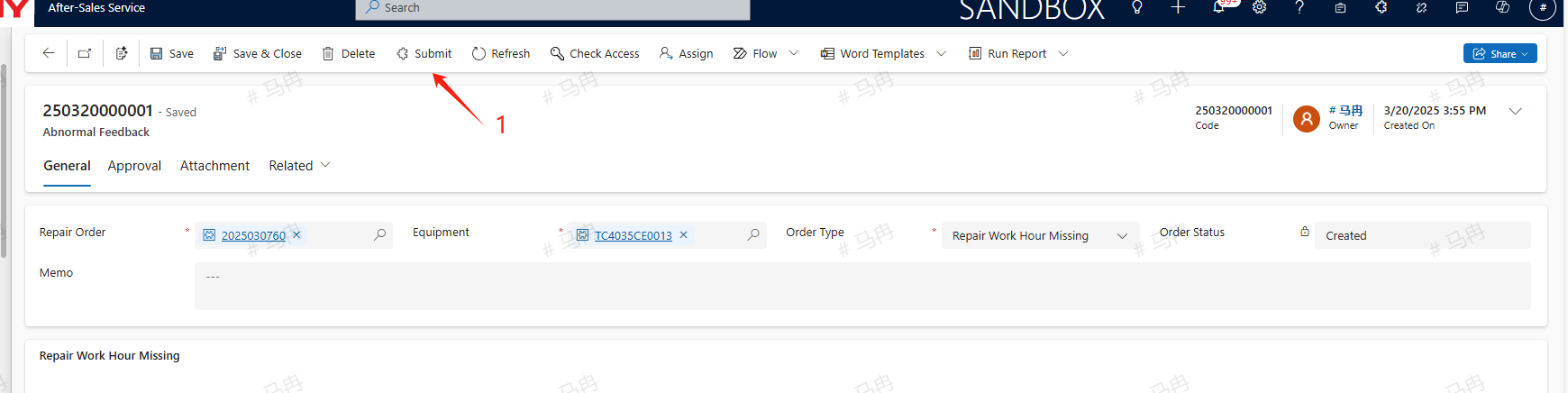
If during the repair process you discover anomalies in the system-configured repair hours, quantities, or SIS diagrams, you can address these by creating an anomaly feedback. Once created, the repair order and equipment are automatically imported from the service order. Select the type of document that needs maintenance: Repair Work Hour Missing, Work Hours Quantity change, or SIS Abnormality. Different types require different information to be maintained. For example, in the case of missing repair hours, you need to select the type of omission, Fault Location 1, Fault Location 2, descriptions for both fault locations, fault attribution, and other relevant information. After completing all the necessary information, save and then submit the feedback.

Completion On Site
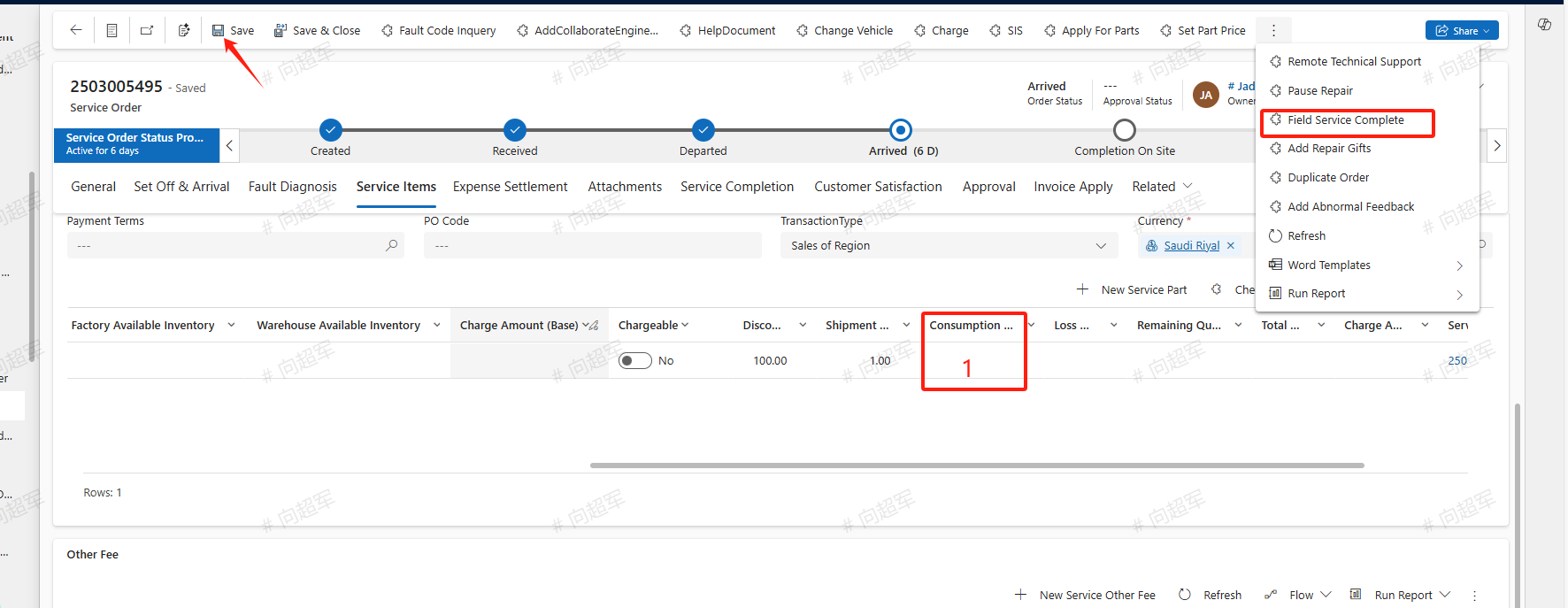
After the on-site service work is completed, fill in the actual quantity of parts consumed, and click the Completion On Site button to finalize the Completion On Site process.
Service Completion
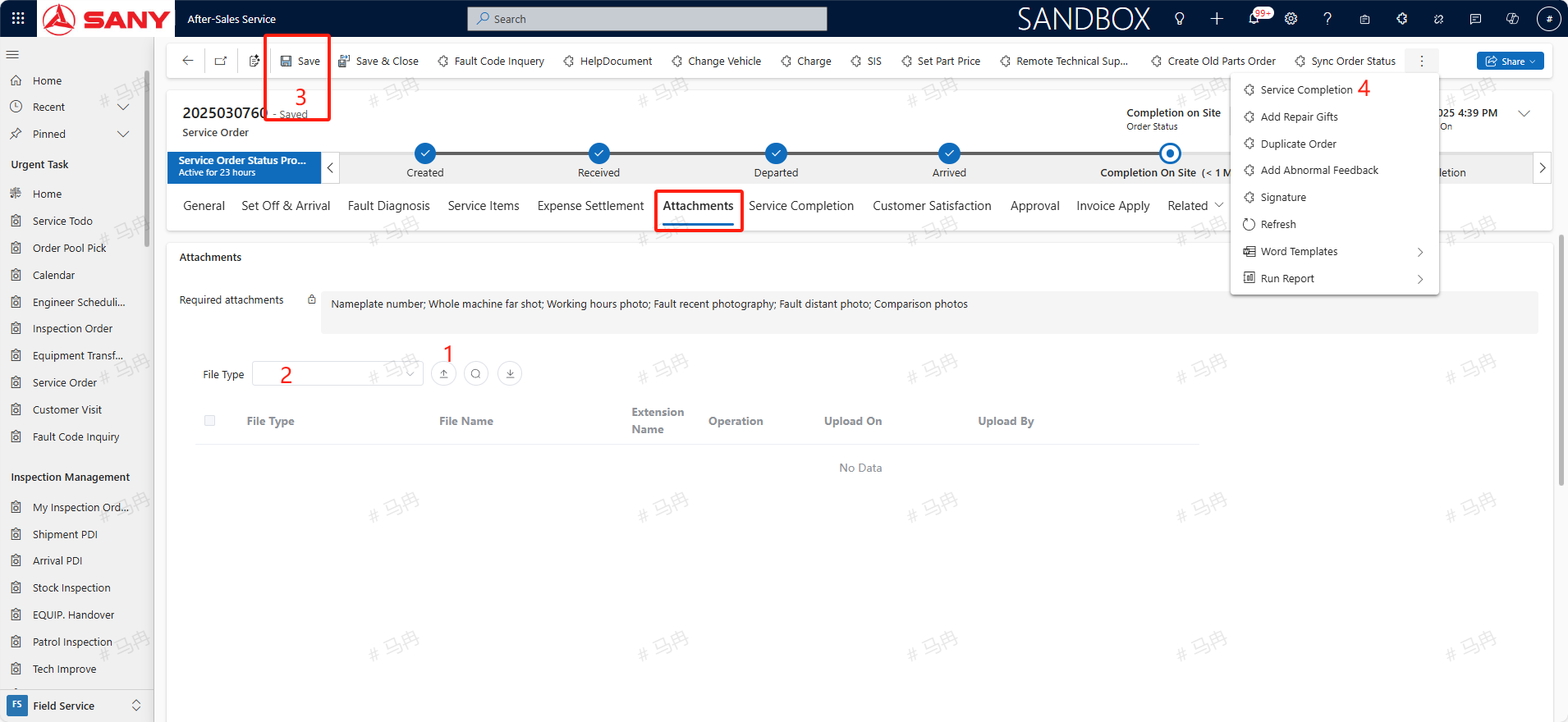
Under the Attachments tab, upload the necessary photos before completion, select the correct File Type, save, and then click the Service Completion button to submit the Service Completion for approval.