Handover
Handover
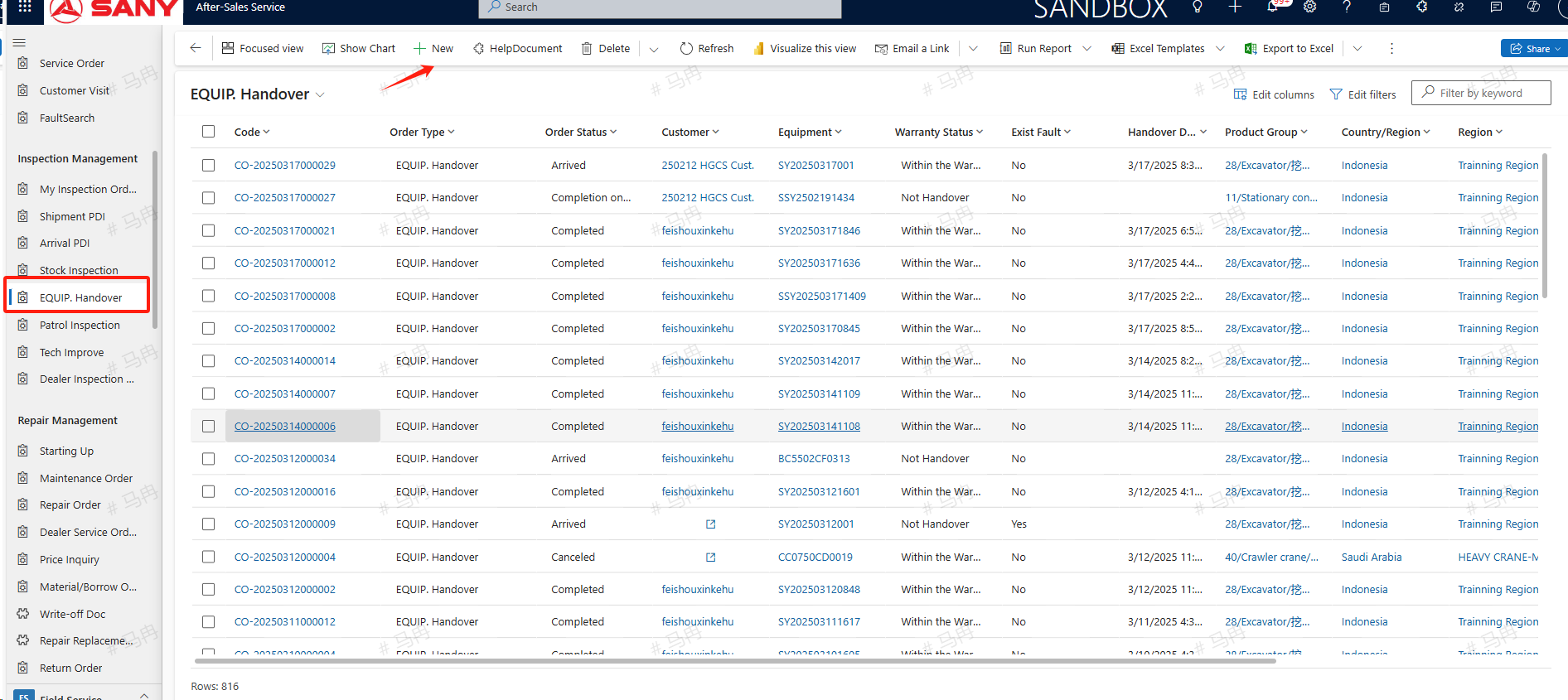
Path: Field Service -> Inspection Management -> EQUIP. Handover
Create
Open the Handover Orders menu, click on +New, enter the necessary information such as the equipment code, and save to create a handover order.
Transfer
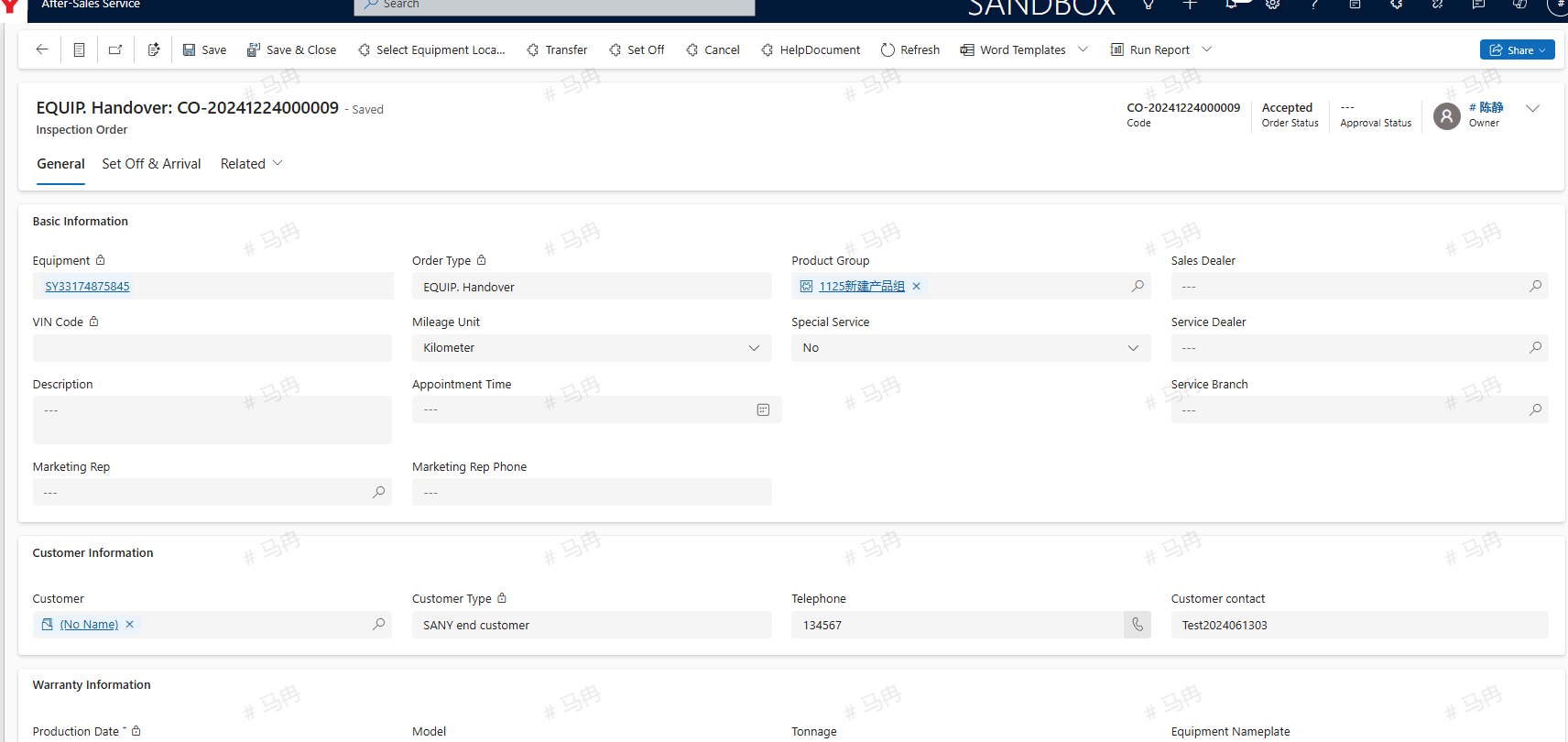
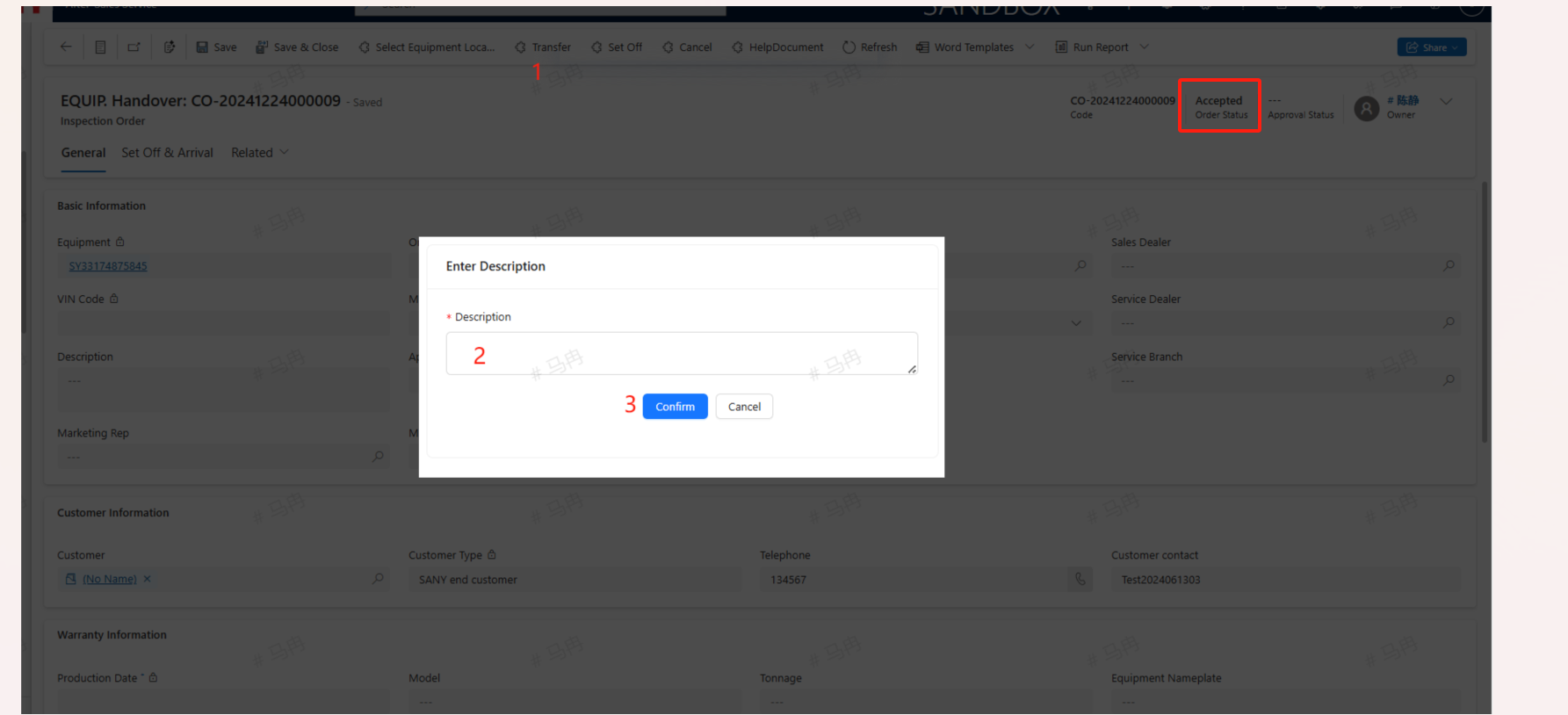
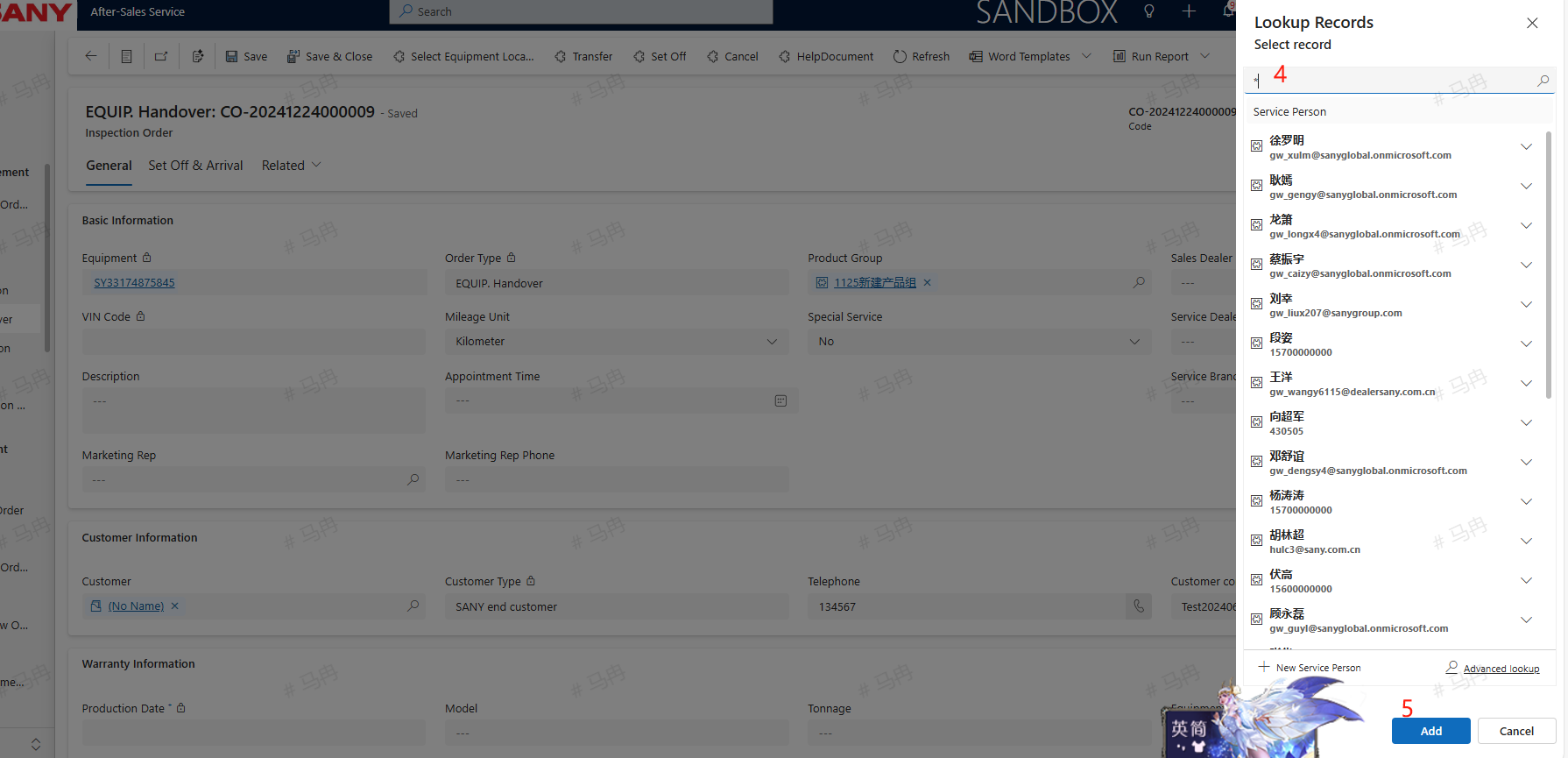
For a Handover order that has already been accepted, the service engineer can click the 'Transfer' button, enter a remark explanation, search for the service engineer to whom the transfer is intended, and upon confirmation, transfer the work order to another service engineer.
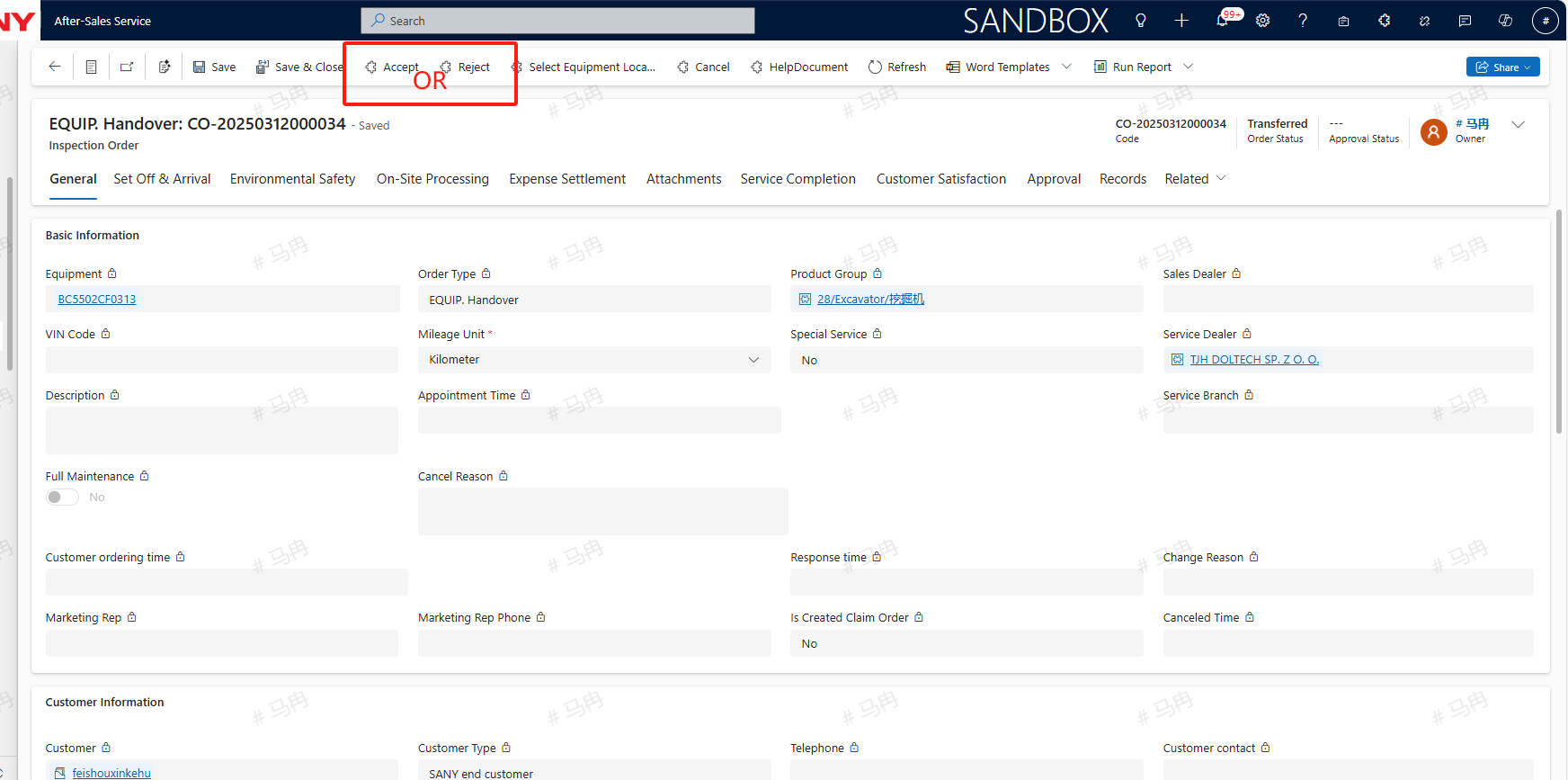
For service engineers who have been assigned a work order or have had one transferred to them, they have the option to click the 'Accept' button to take on the task or 'Reject' it, after which the service manager will reassign the order accordingly.
Cancel
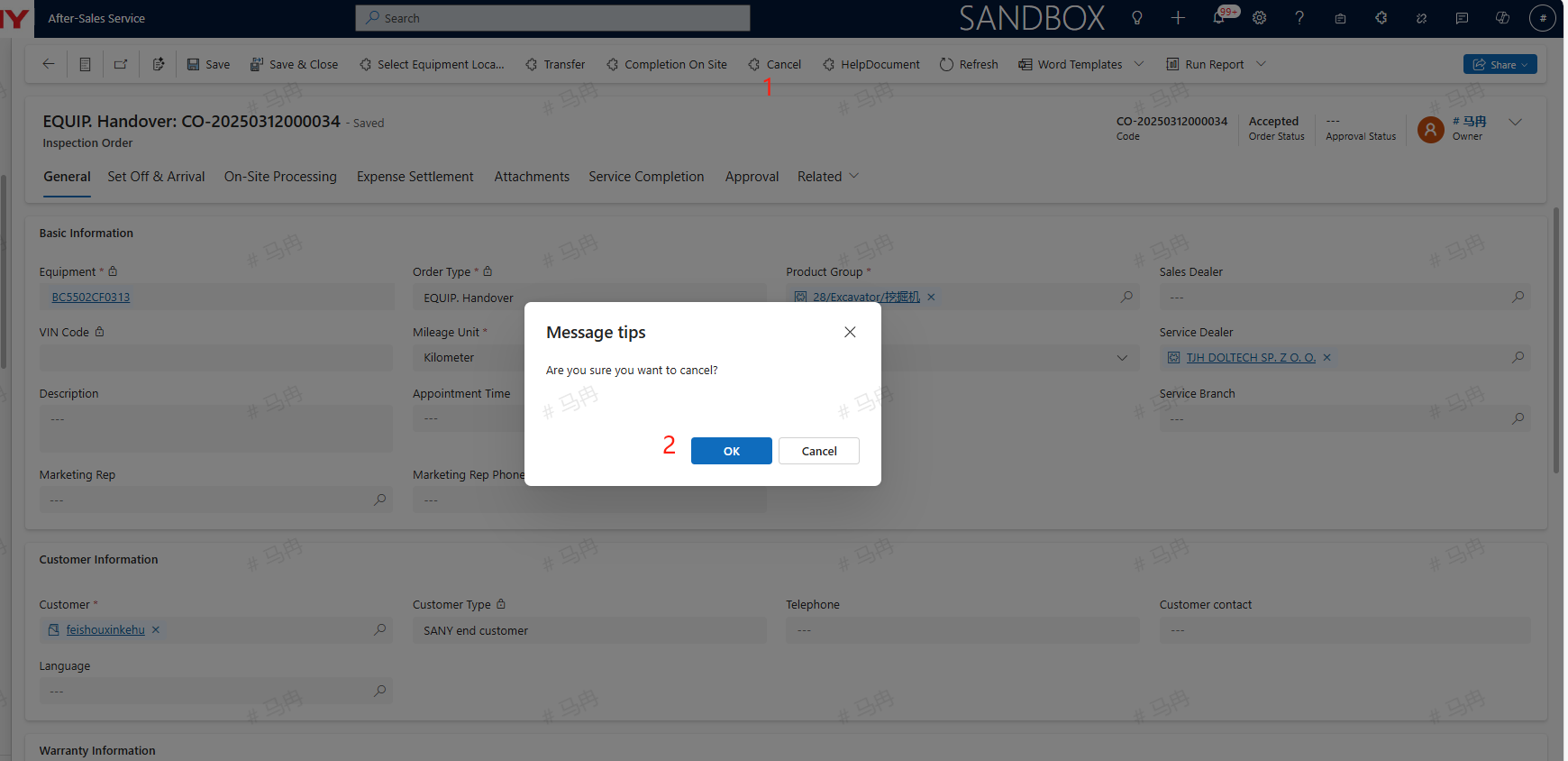
Before setting off, if there is a Handover order that no longer requires service, the engineer can click the 'Cancel' button to terminate the service for this particular order.
Set off
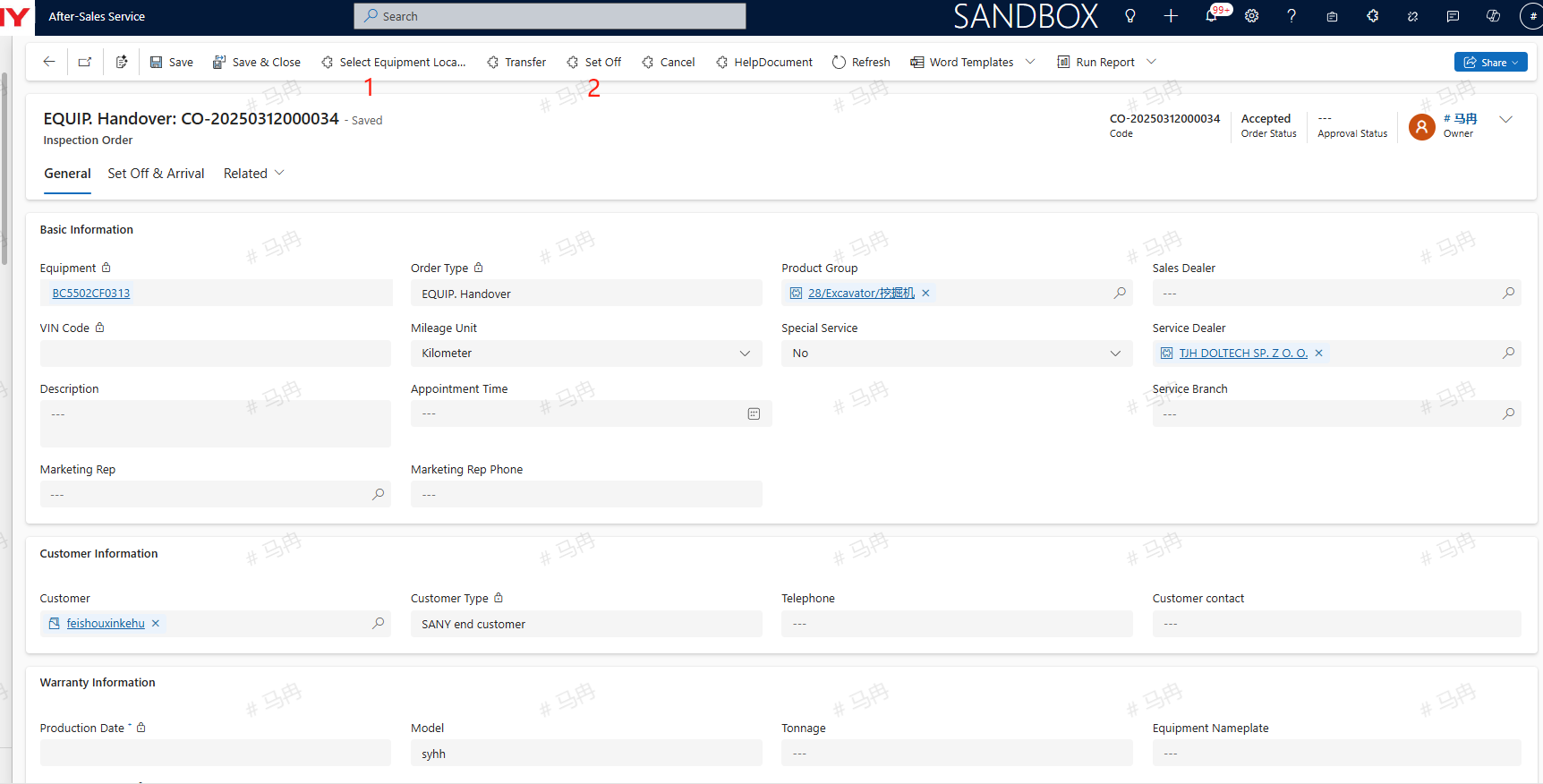
Select the location of the equipment , click the Set Off button and depart; Due to the fact that the location resolution on the computer is based on network IP, the obtained location may not be accurate. It is recommended to use the mobile navigation to trigger and arrive for departure and arrival. There are two software available on the mobile side: power apps: Select Field Service App and allow Power Apps to obtain addresses and access photo albums in the phone settings. SANY iCRM: Find the specific order in the service ticket on the homepage, and allow access to the address and photo album in the phone settings. Dealer's equipment need not to departure and arrival
Arrived
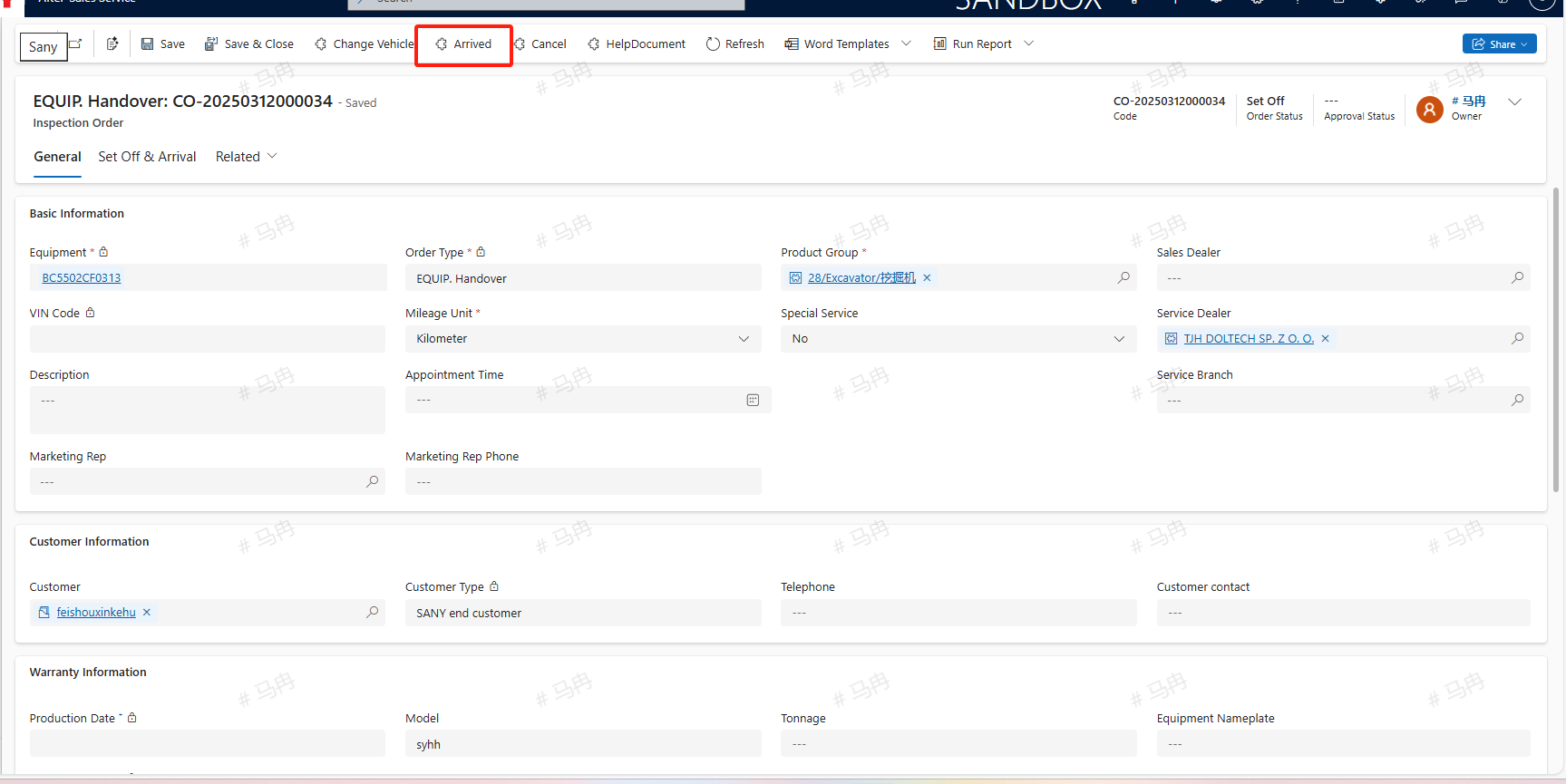
Upon arriving at the destination, the service engineer should click the 'Arrived' button to indicate that they have arrived on-site.
Completion On Site
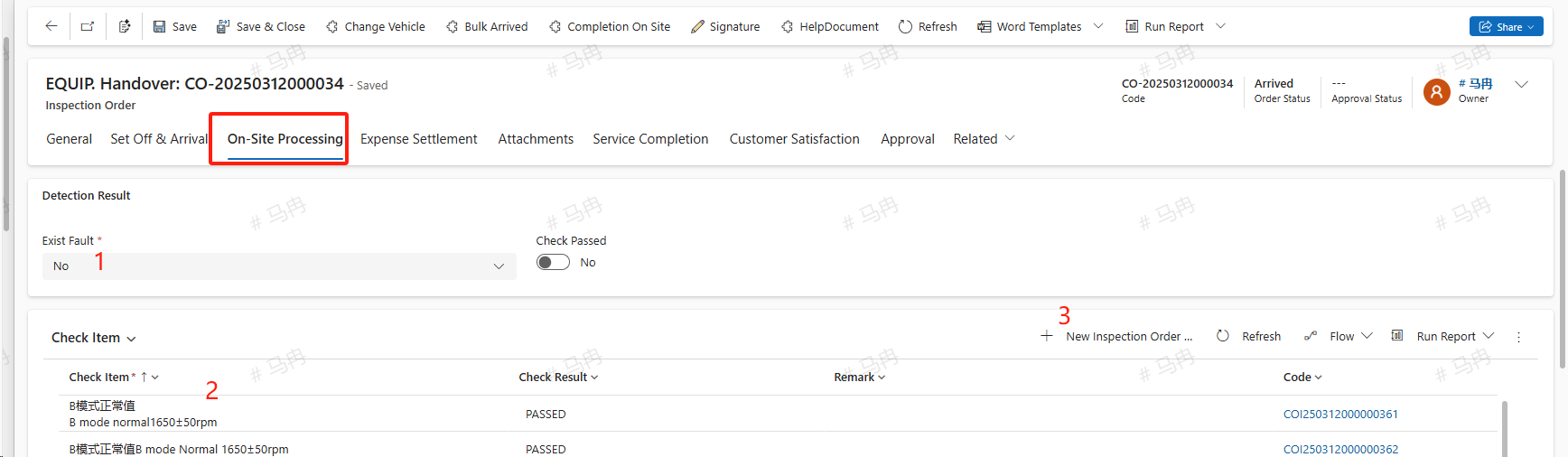
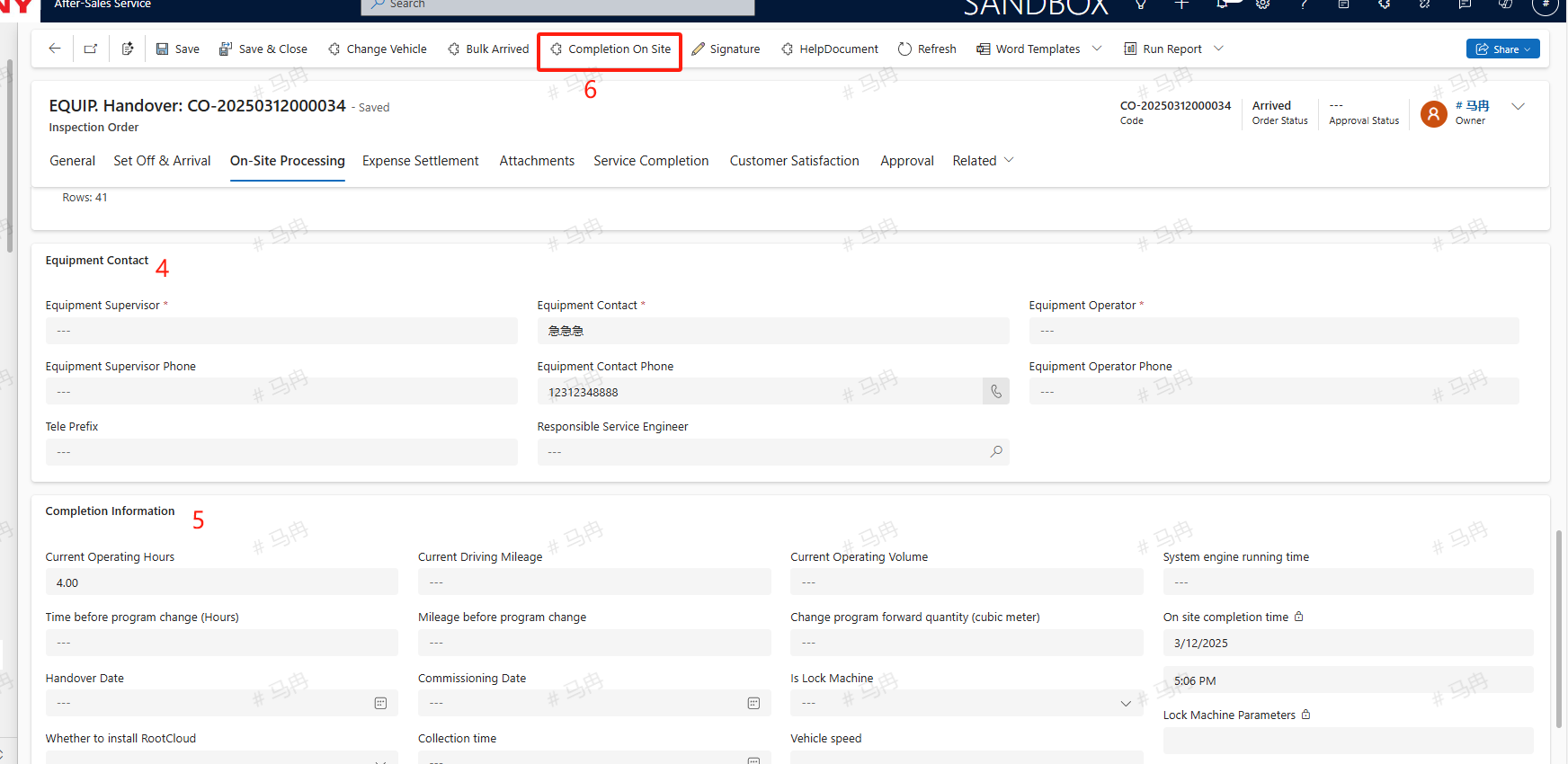
Upon arrived at the site, the service engineer will go through each inspection item one by one and record the results; for any inspection items that do not exist, the engineer can also click the "+ New inspection order" button to create a new inspection item. They will also update the relevant information in the equipment contact details; complete the current operating hours, current mileage, and current operating volume (cubic meters per tank trip) in the Completion On Site information. If there are any faults, refer to the next step to create a repair order. Add service charges under the cost settlement tab. After completing the on-site work, click the on-site Completion On Site button to finish the on-site service.
Create Repair Order
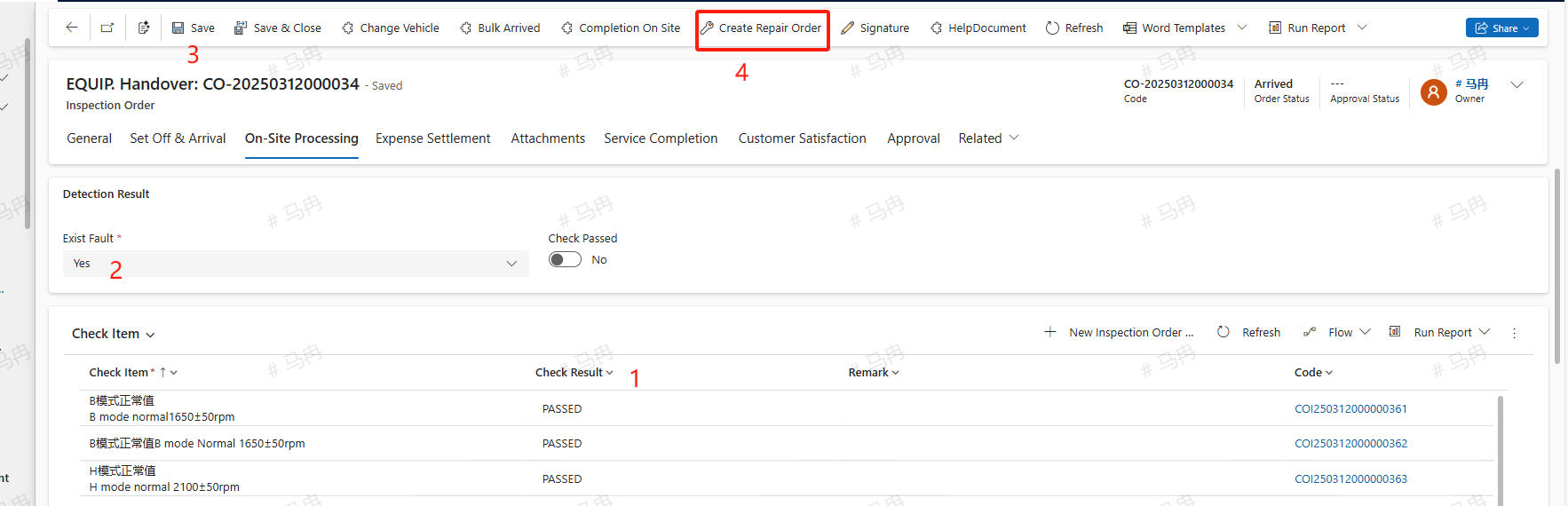
If an issue is detected with the equipment and a fault is present, select 'Yes' for the fault option and choose 'Fail' for the corresponding inspection item's result, then click the save button. At this point, a 'Create Repair Order' button will appear; clicking this button will allow you to create a maintenance work order.
Service Completion
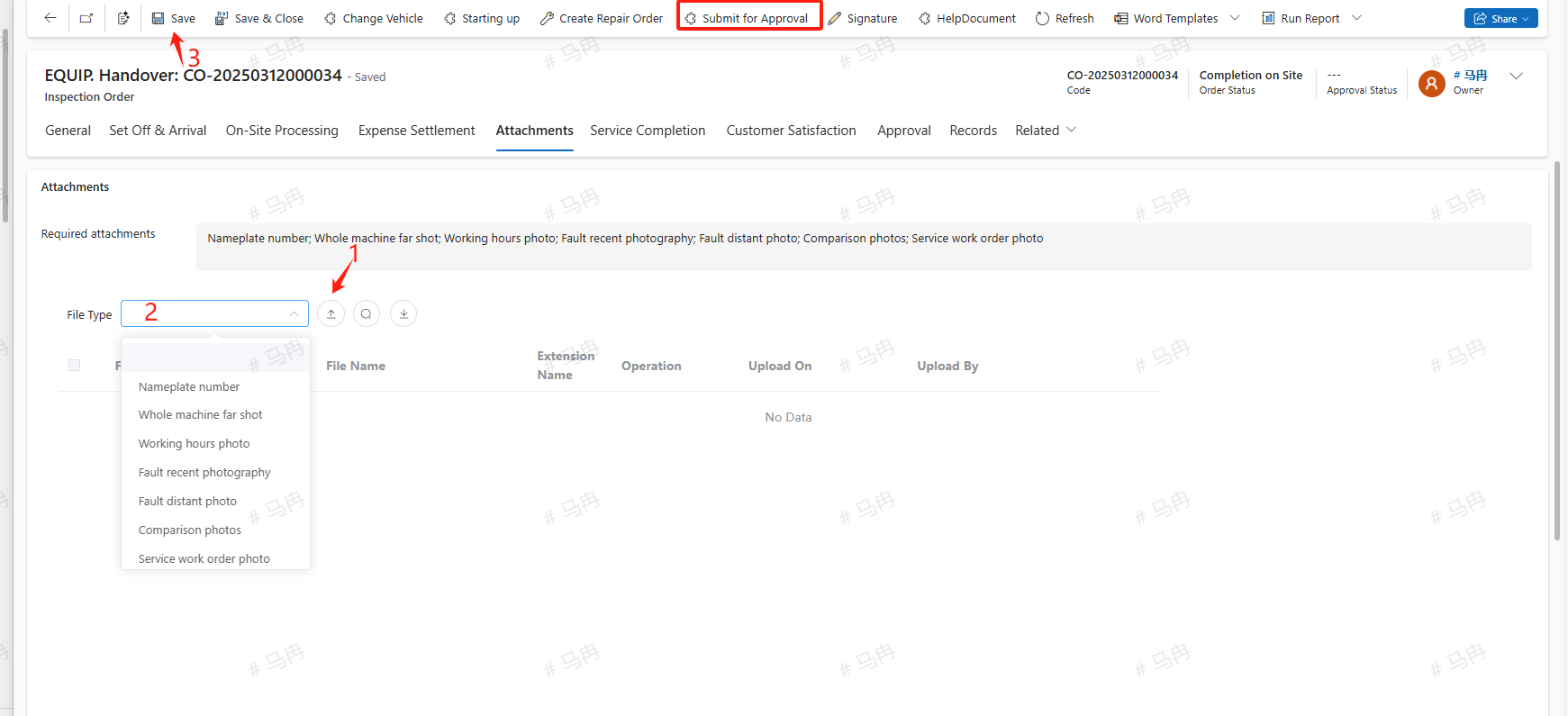
Upload the necessary Attachments under the Attachments tab, save, and click the submit for approval button to send it for review. Once the approval process is completed, the work order status will be updated to service completion. If a repair order has been created due to equipment fault, the service for the repair order must be completed first before this order can be marked as service completed.
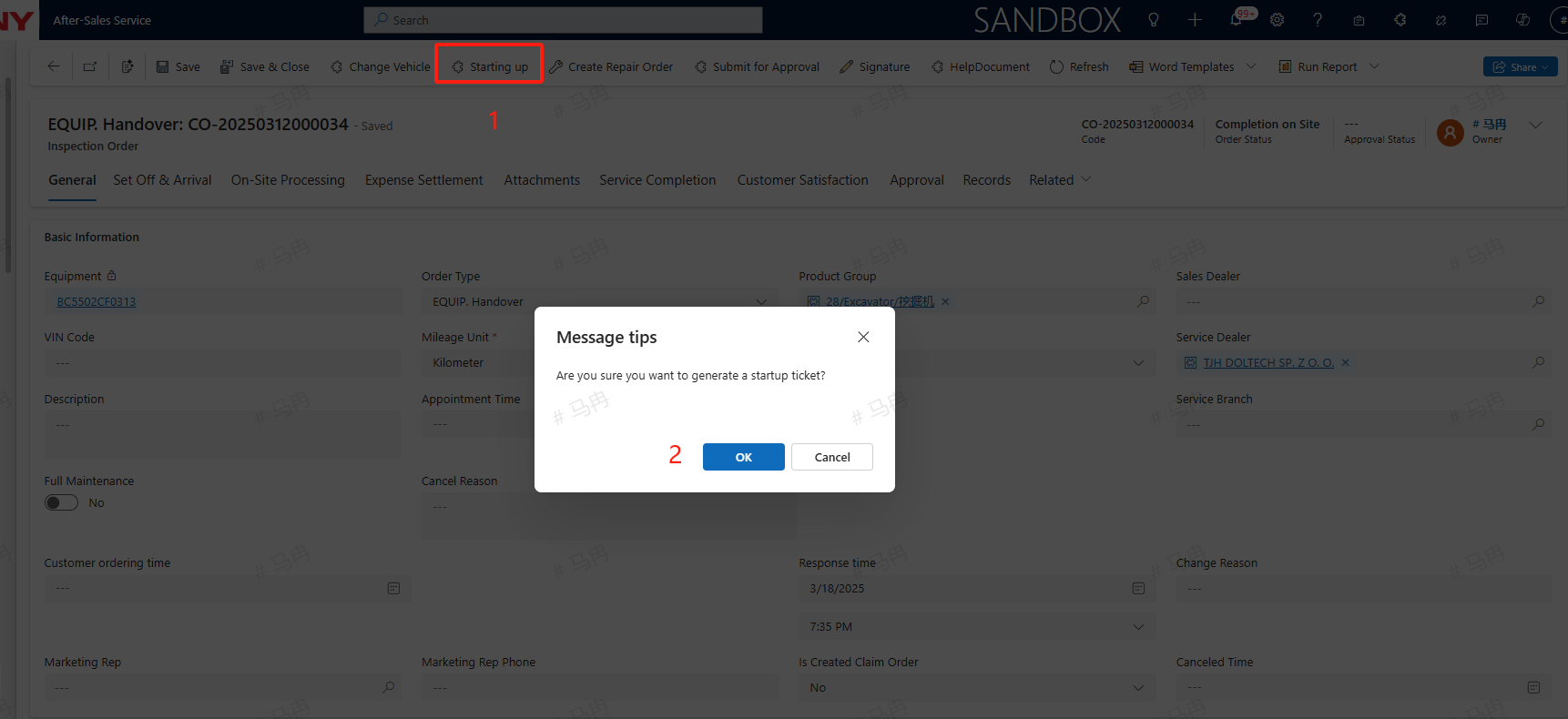
Starting up
If the customer for the handover also has a start-up request, a start-up order can be created based on the completed handover order.