PLM Tech Order
PLM Tech Order
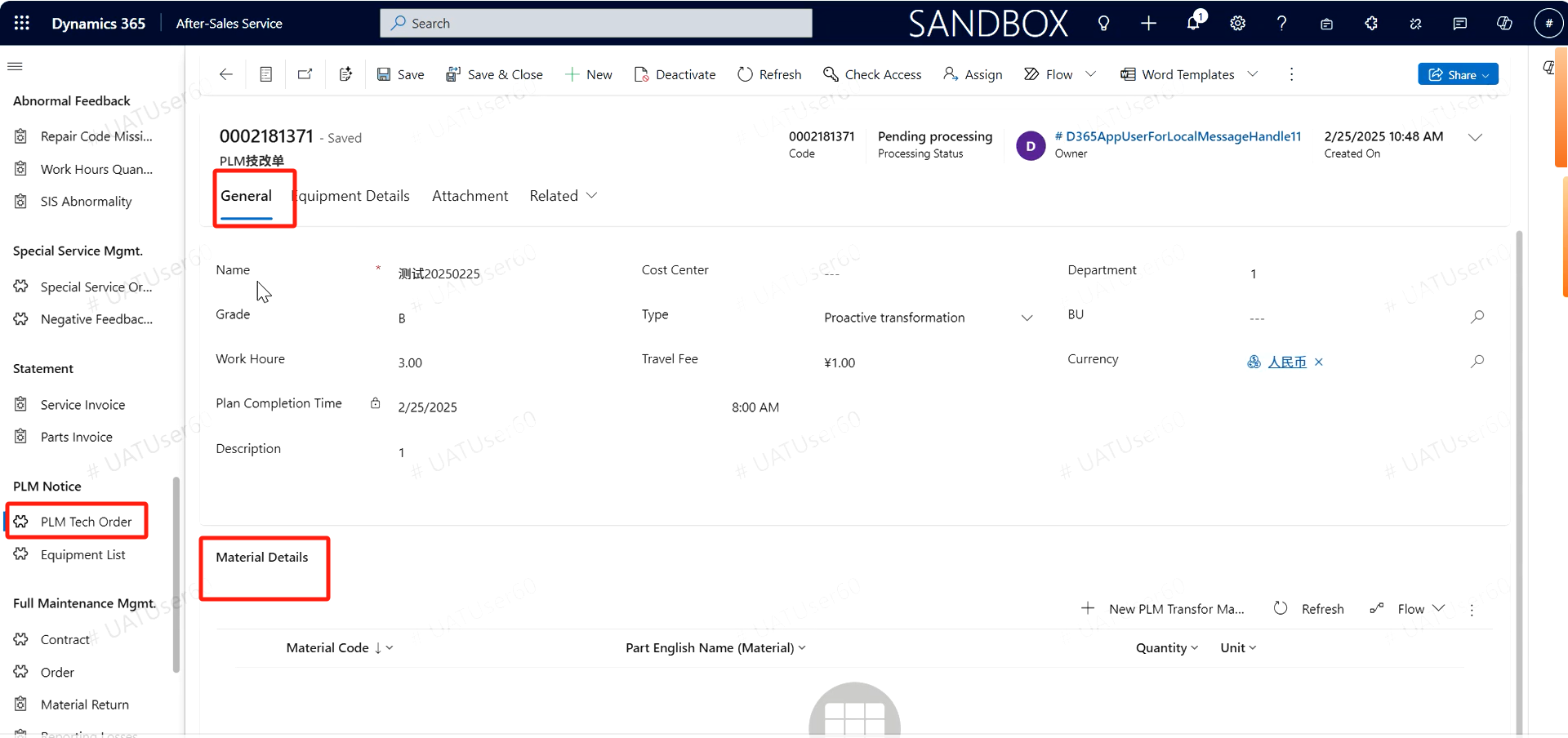
Path: Field Service -> PLM Notice -> PLM Tech Order
Technical change order issued
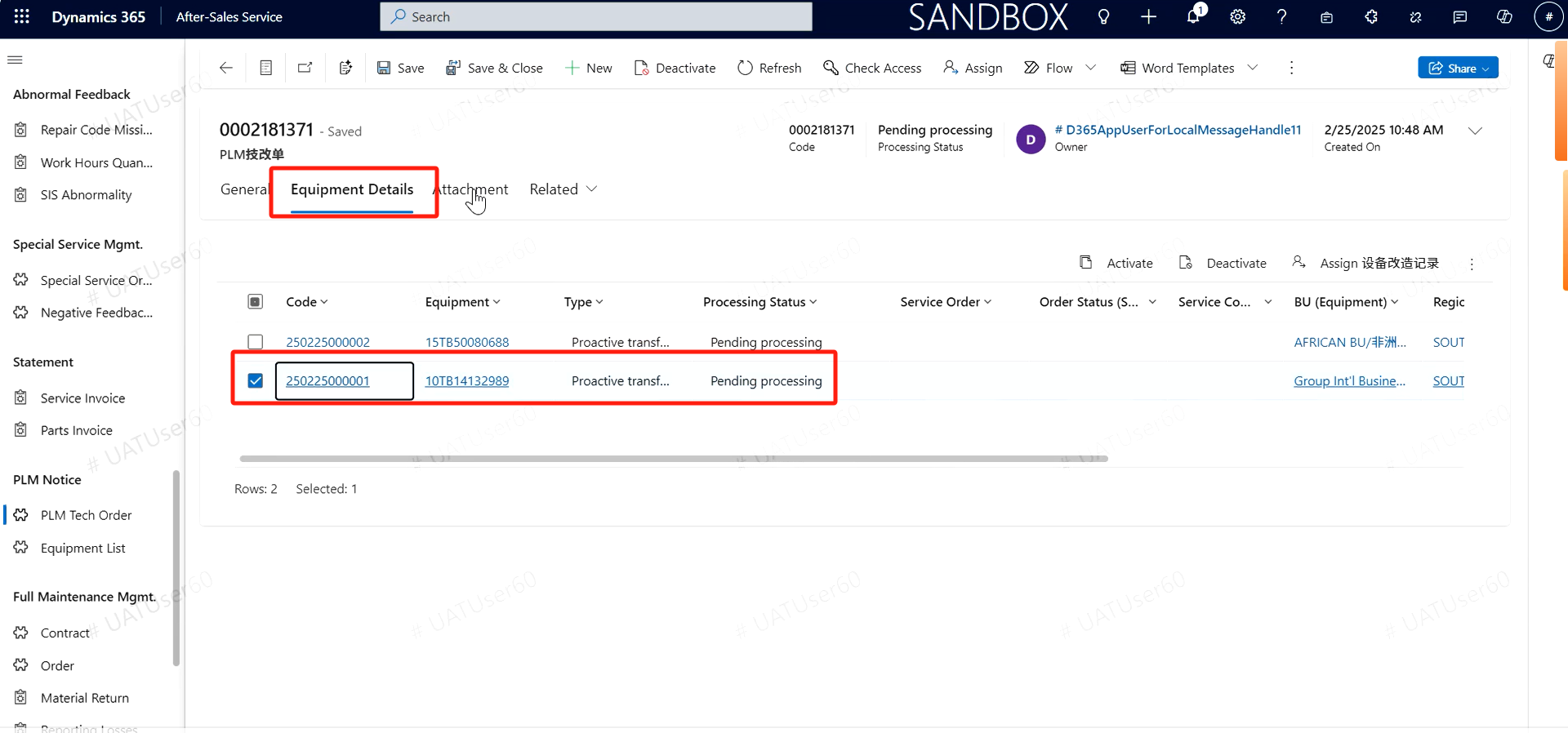
The technical transformation specialist of the business unit will proactively issue the proactive technical transformation order issued by PLM to the subsidiary, and the technical transformation order will be synchronized from the old CRM to the new system. The technical renovation engineer opens the PLM Tech Order menu, finds the corresponding technical order, and can generally see the basic information and required materials and accessories for this technical renovation; Display the equipment that needs to be upgraded in this technical renovation in the equipment details. Find the record to be processed, double-click to enter, and click the dispatch button to complete the dispatch of the technical renovation service order. The attachment is the attachment for this technical renovation.
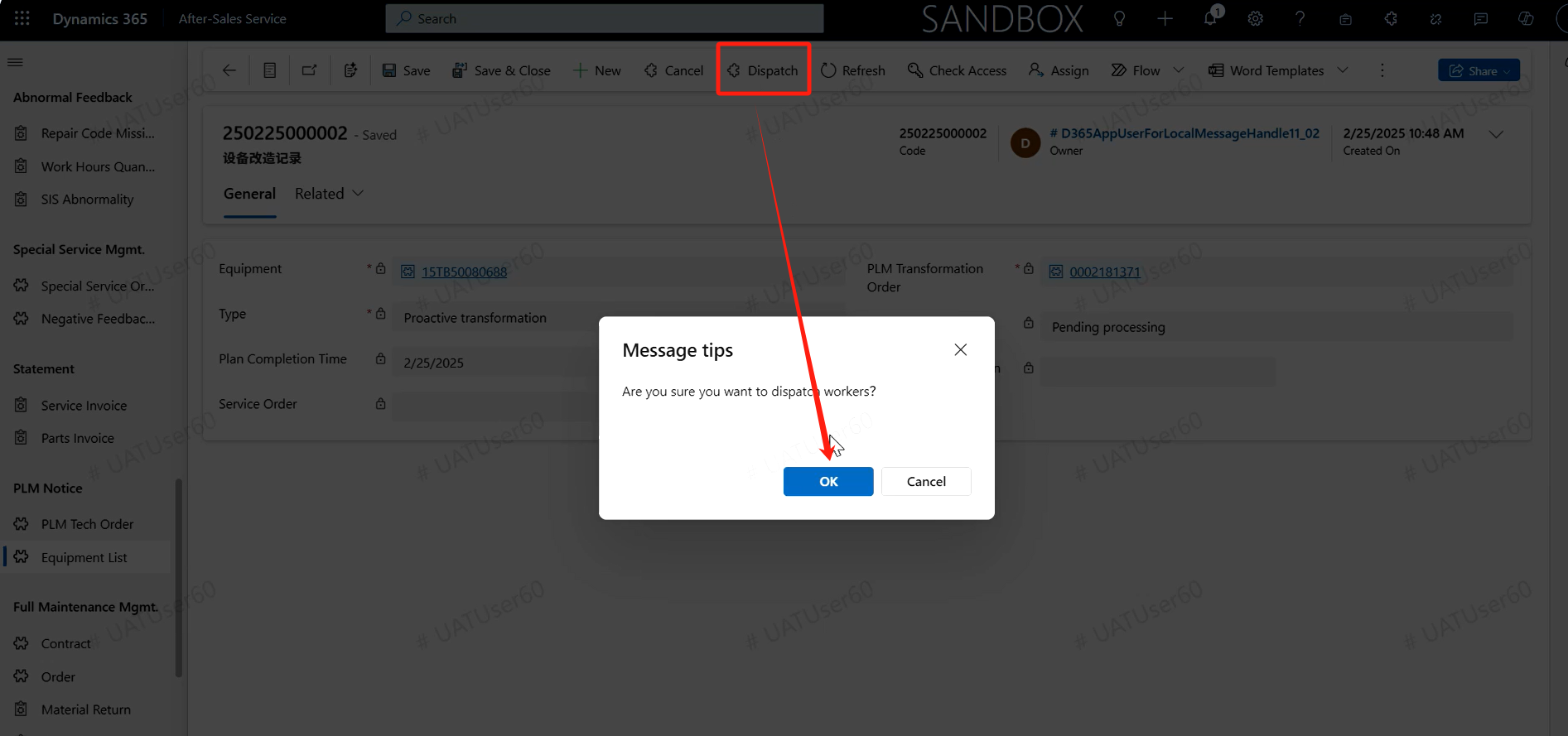
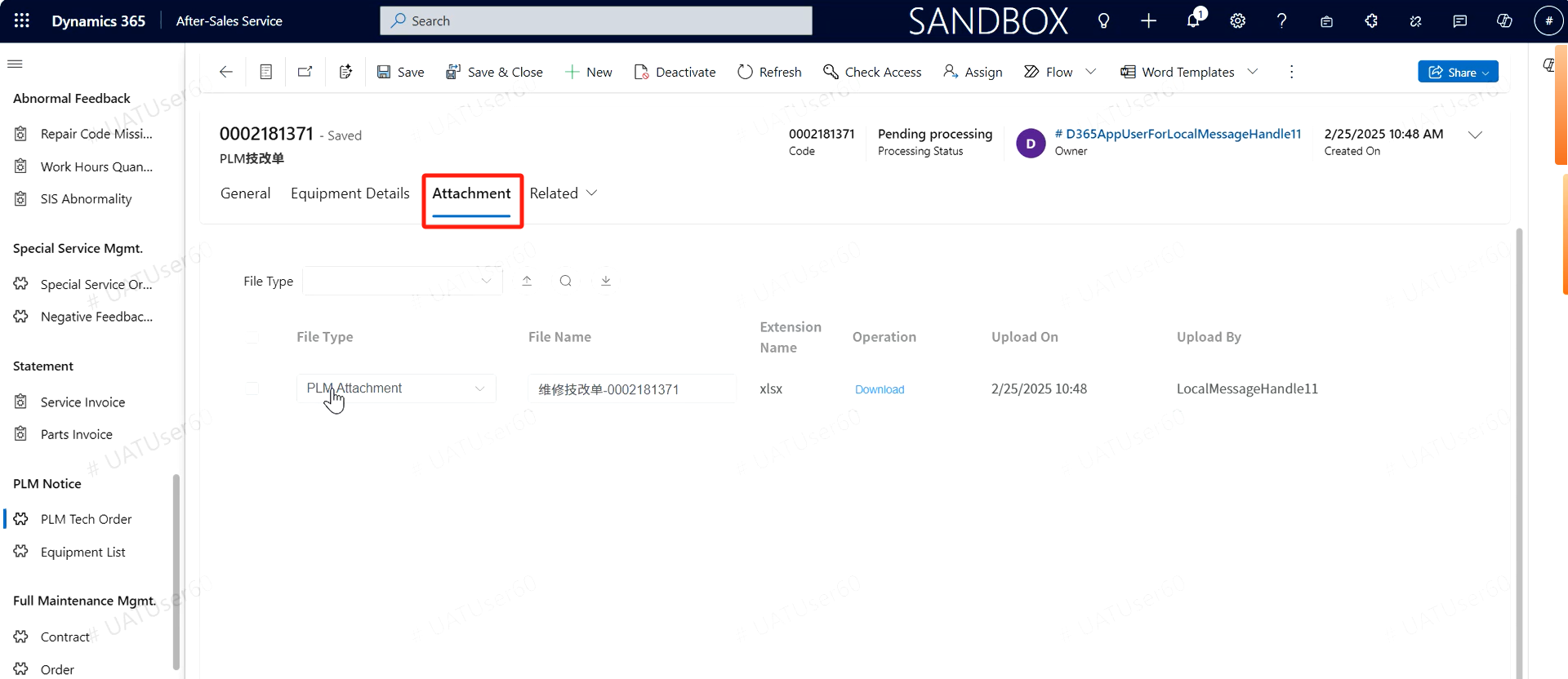
After dispatching, the service order number will be returned to the technical renovation details
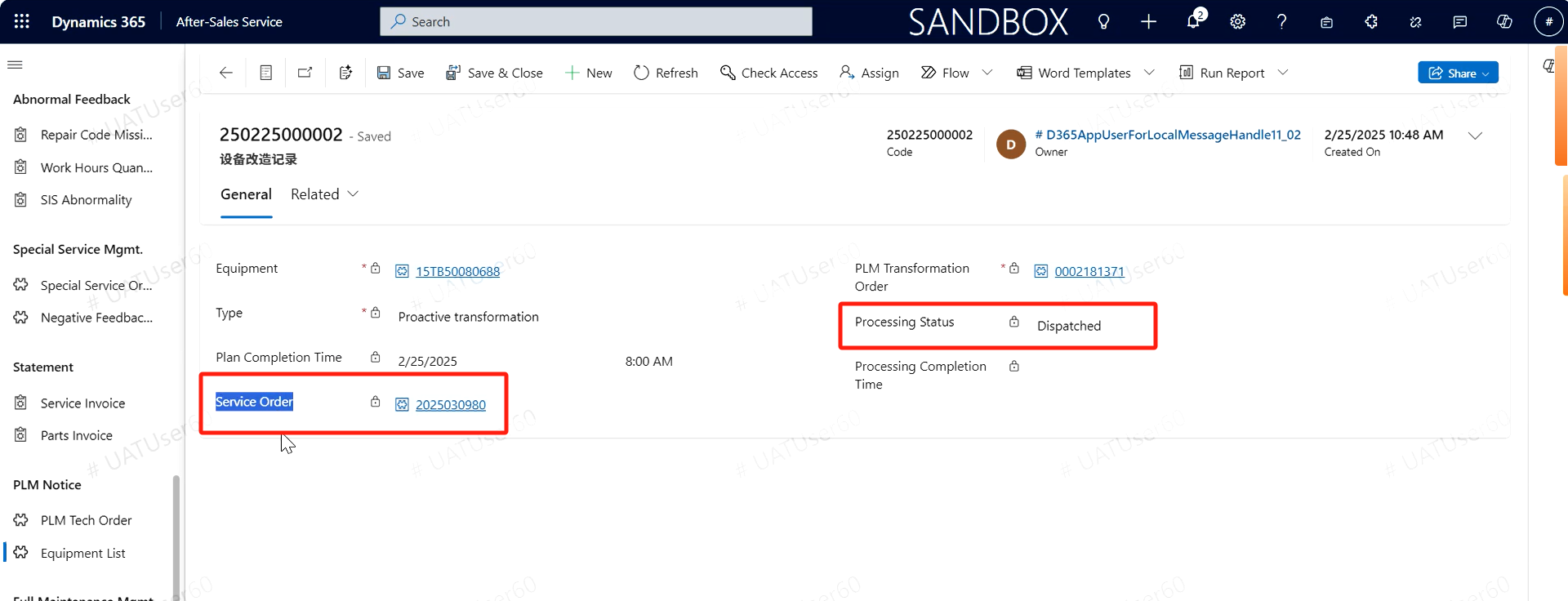
Transfer
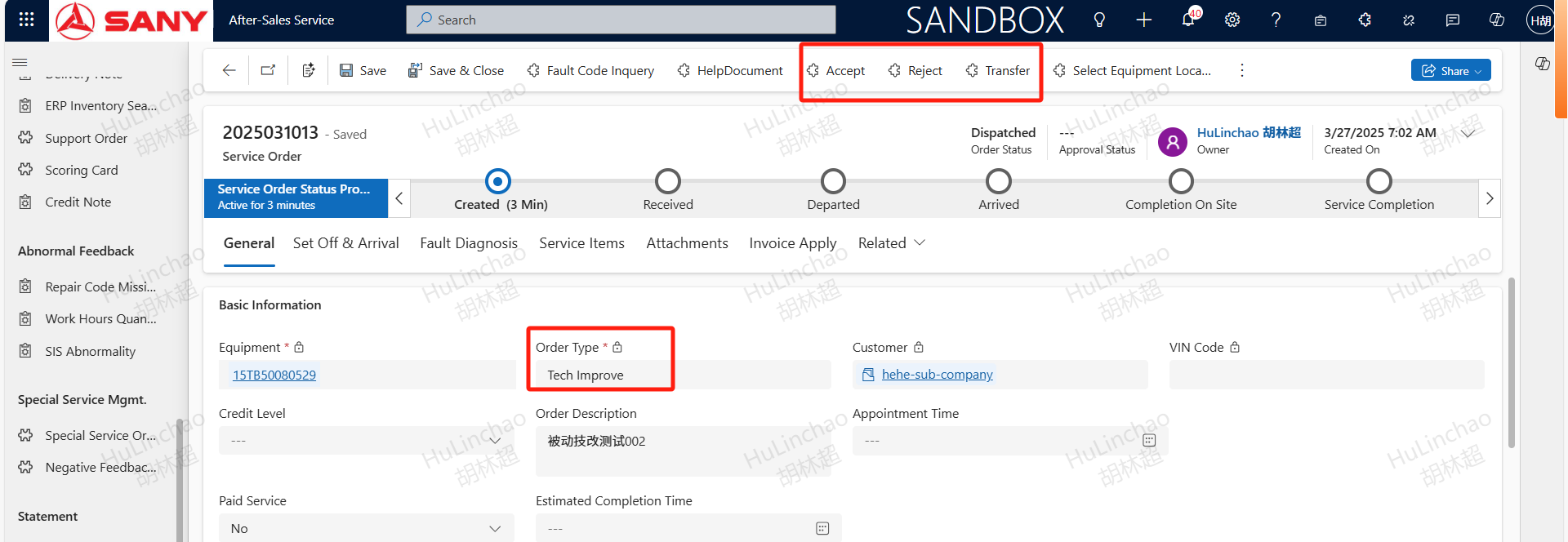
For the technical renovation engineer after dispatching, the engineer can click the Accept button to receive the technical renovation order. You can also Reject and the service department head transfer, or click the 'Transfer' button before departure after receiving the order, enter the 'note explanation', and click 'confirm' to complete the transfer.
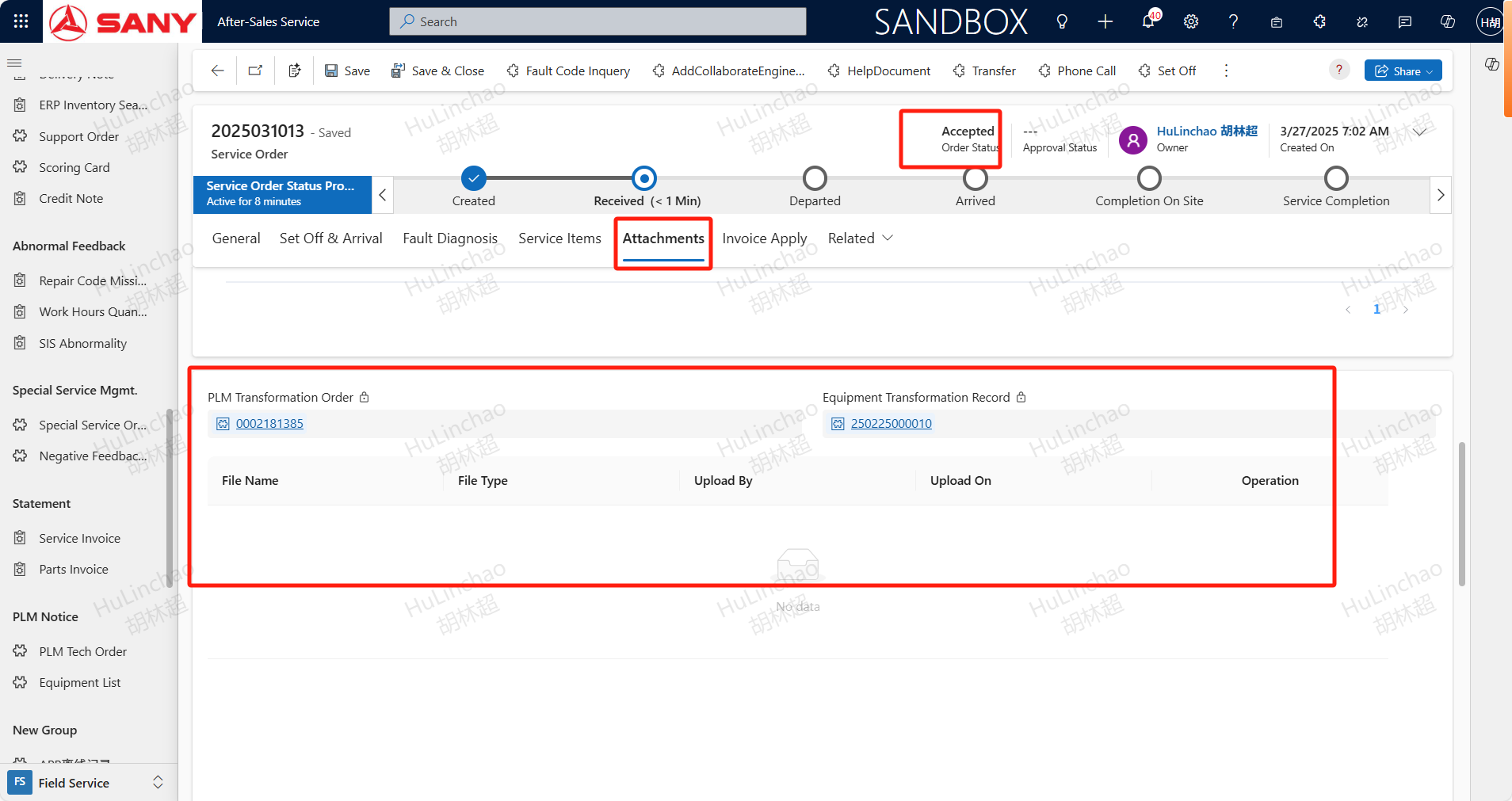
View technical renovation documents
After receiving the order, the engineer can find the relevant technical renovation documents for this renovation by pulling down in the Attachments tab
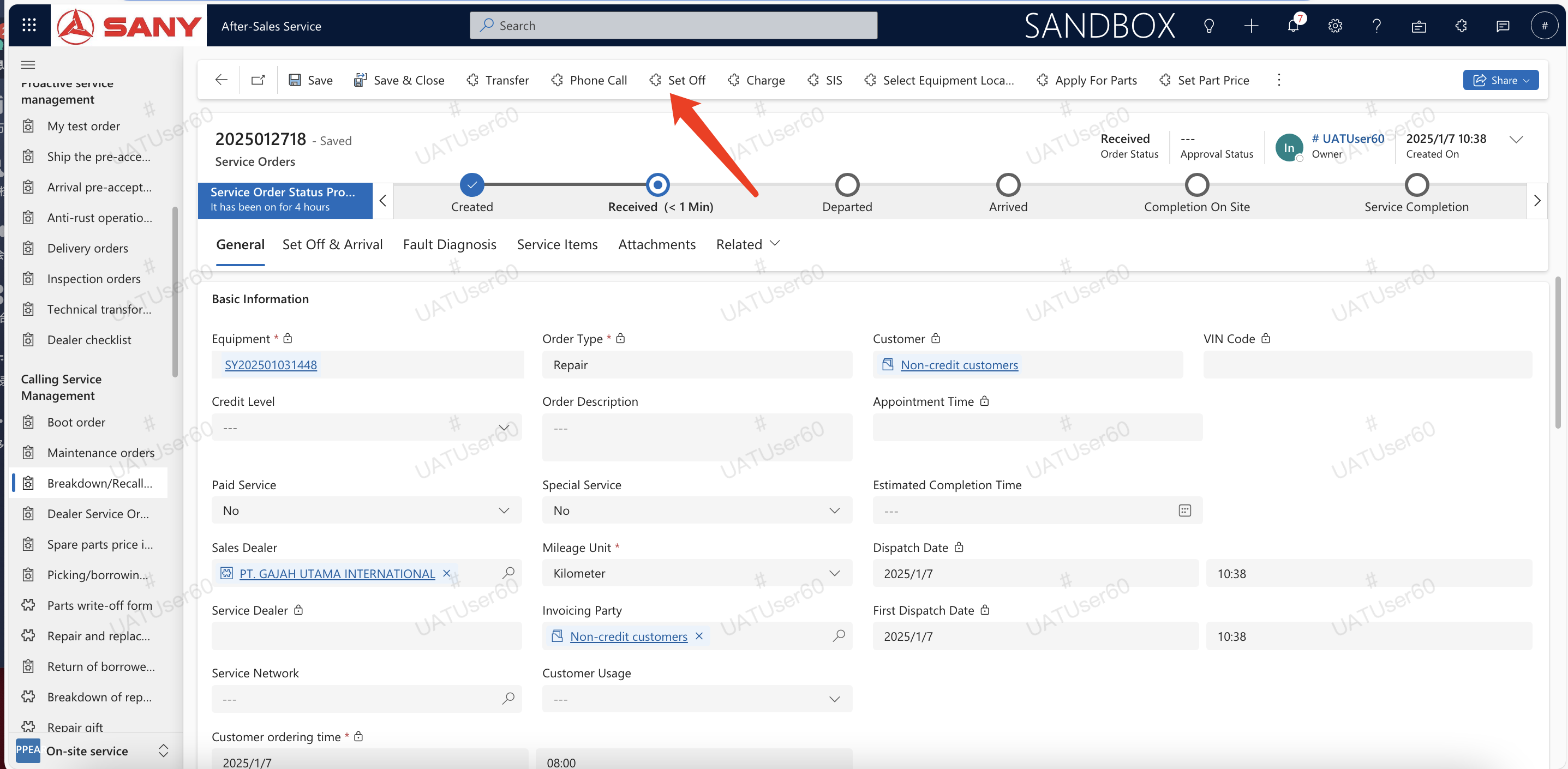
Set off
Select the location of the equipment , click the Set Off button and depart; Due to the fact that the location resolution on the computer is based on network IP, the obtained location may not be accurate. It is recommended to use the mobile navigation to trigger and arrive for departure and arrival. There are two software available on the mobile side: Power Apps: Select Field Service App and allow Power Apps to obtain addresses and access photo albums in the phone settings. SANY iCRM: Find the specific order in the service ticket on the homepage, and allow access to the address and photo album in the phone settings. Dealer's equipment need not to departure and arrival
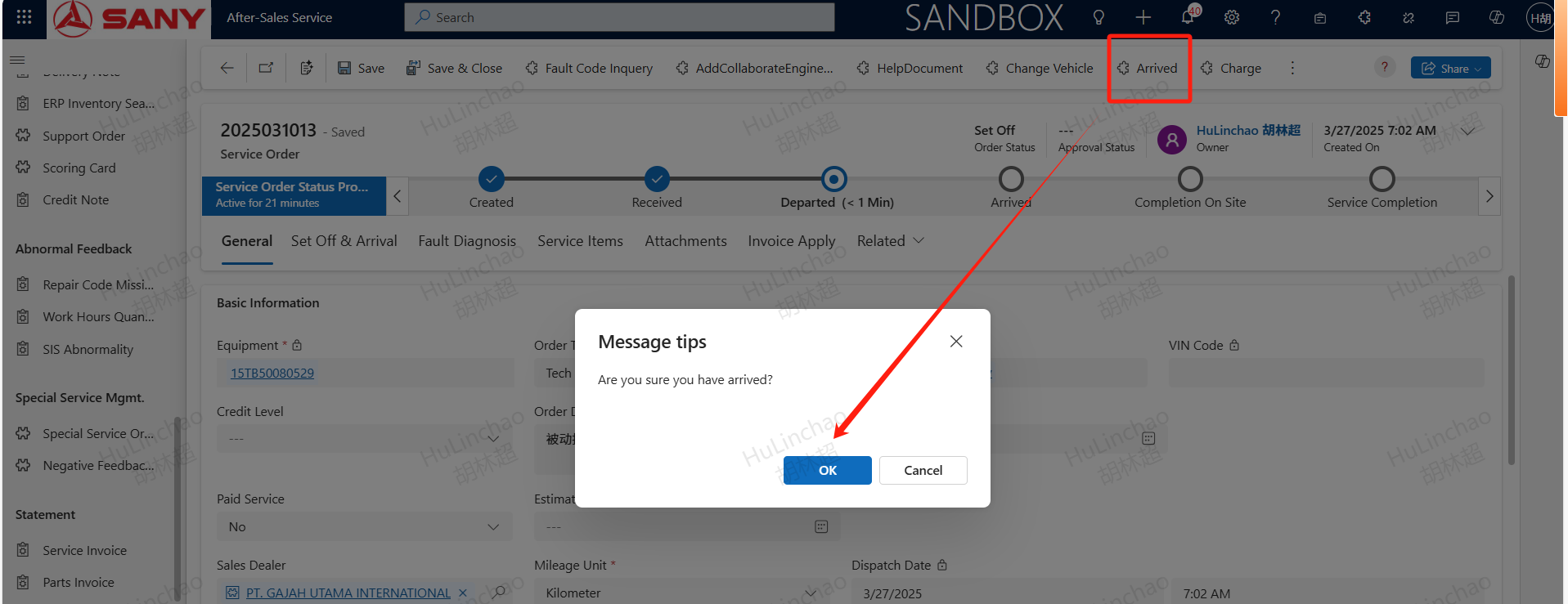
Arrival
Specific operation: After the service engineer arrives at the destination, click the navigation arrival button to arrive at the scene.
On-site process
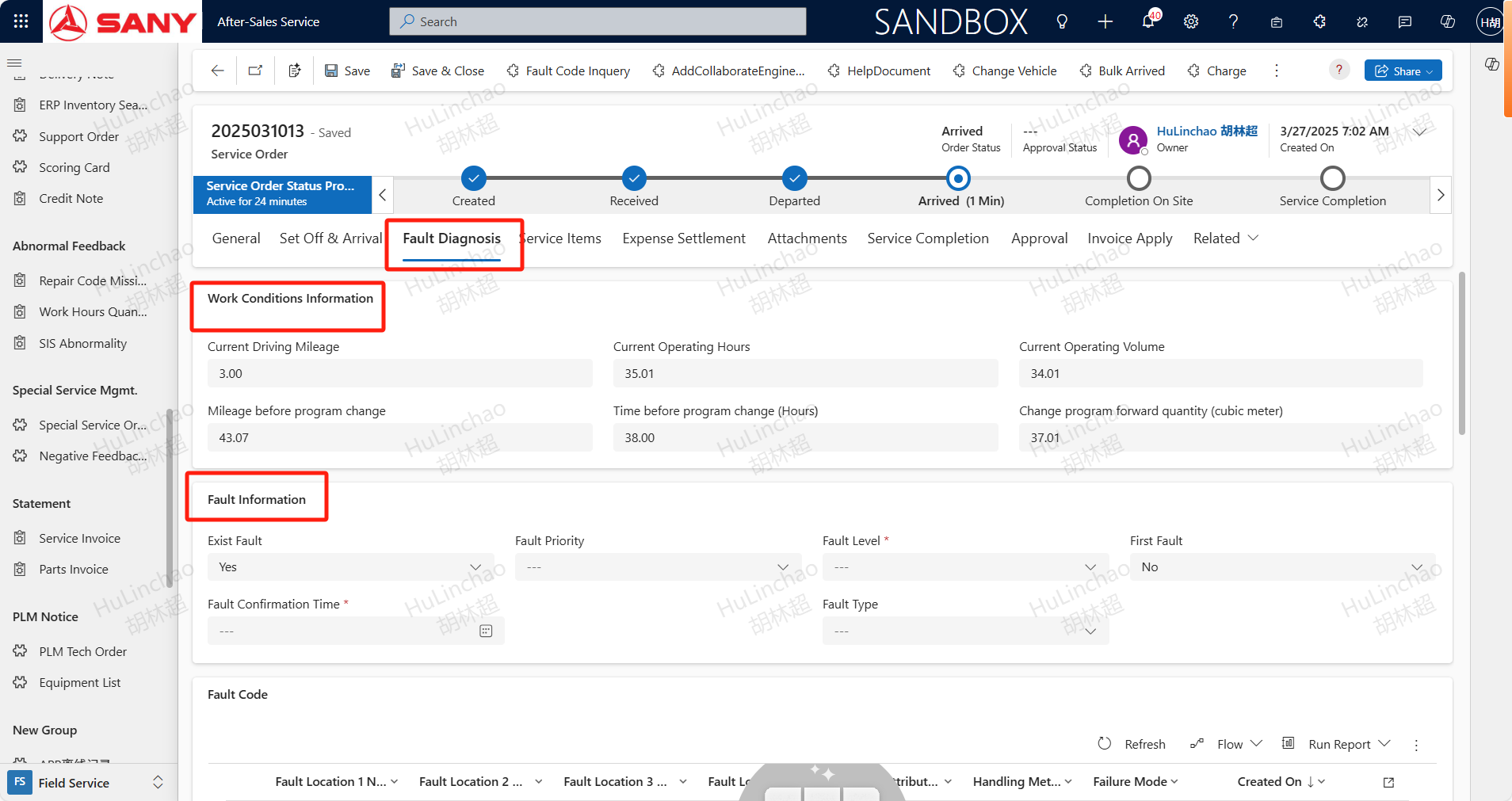
Fault Diagnosis
After arriving,According to the actual technical renovation situation, in the fault diagnosis tab and Work Conditions Information, improve the current driving mileage, current operating hours, current operating volume (cubic meters/tank times) and other information; Maintain detailed fault information in the Fault Information;
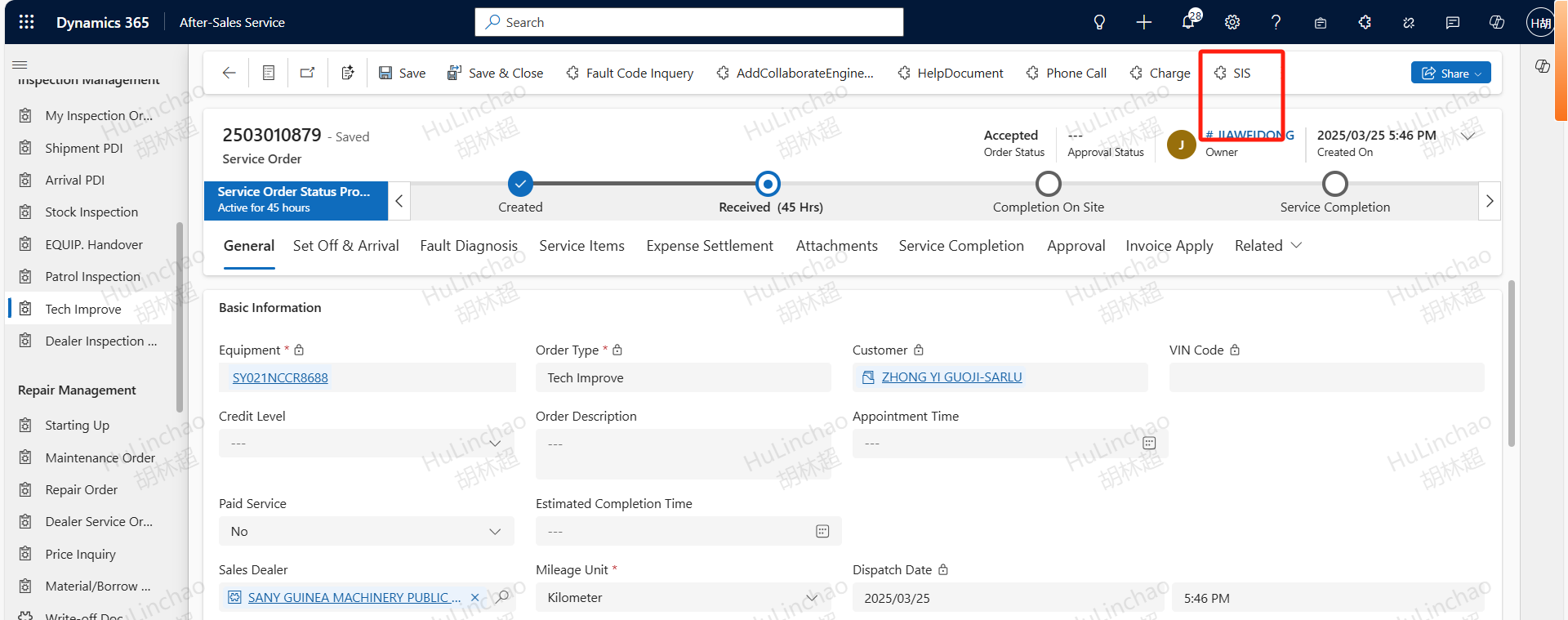
The fault code section requires clicking the SIS button, selecting the fault location from the SIS system, adding the fault code, double clicking the fault code, and completing the fault information such as fault mode, fault attribution, and handling method before saving;
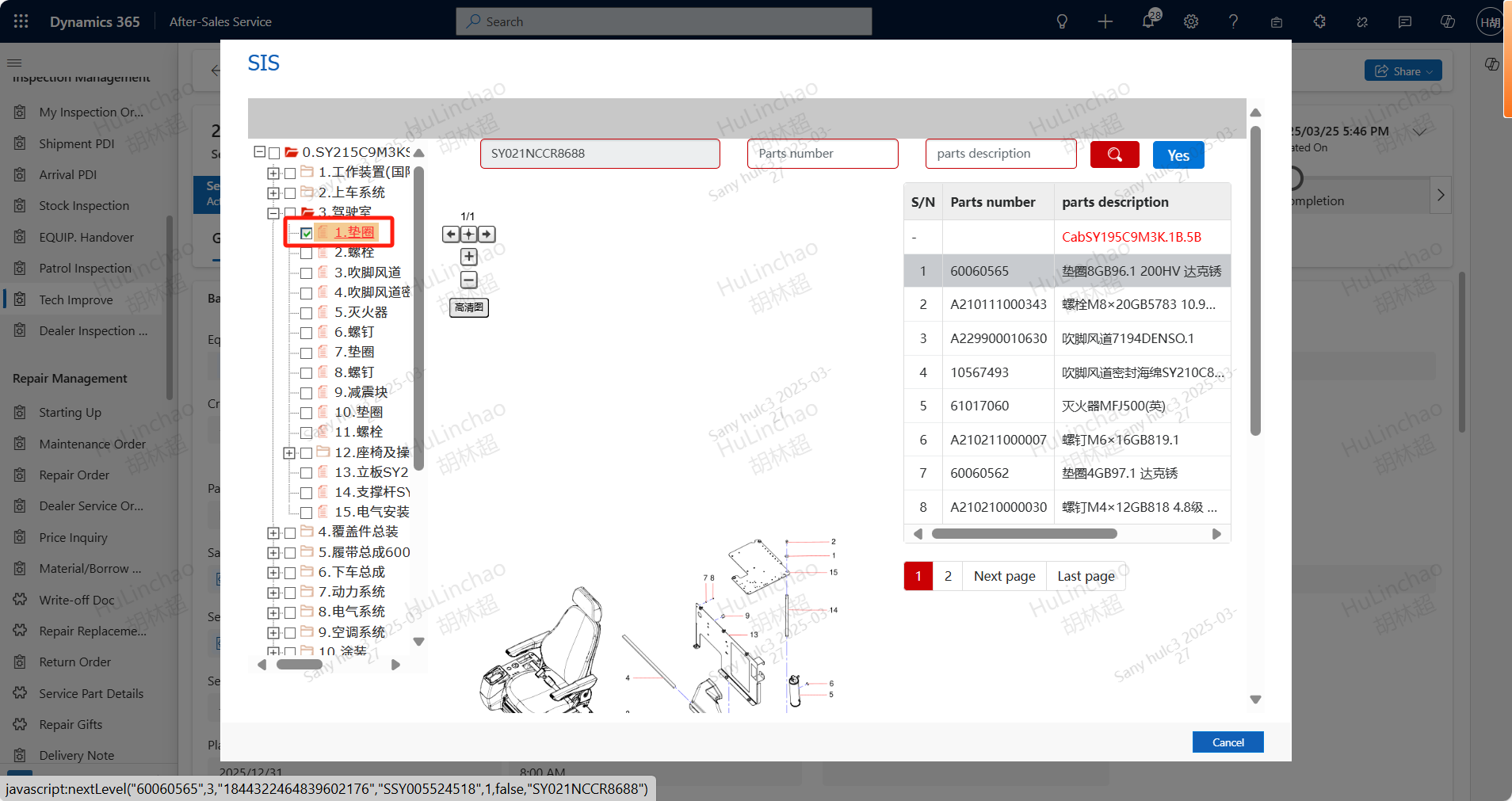
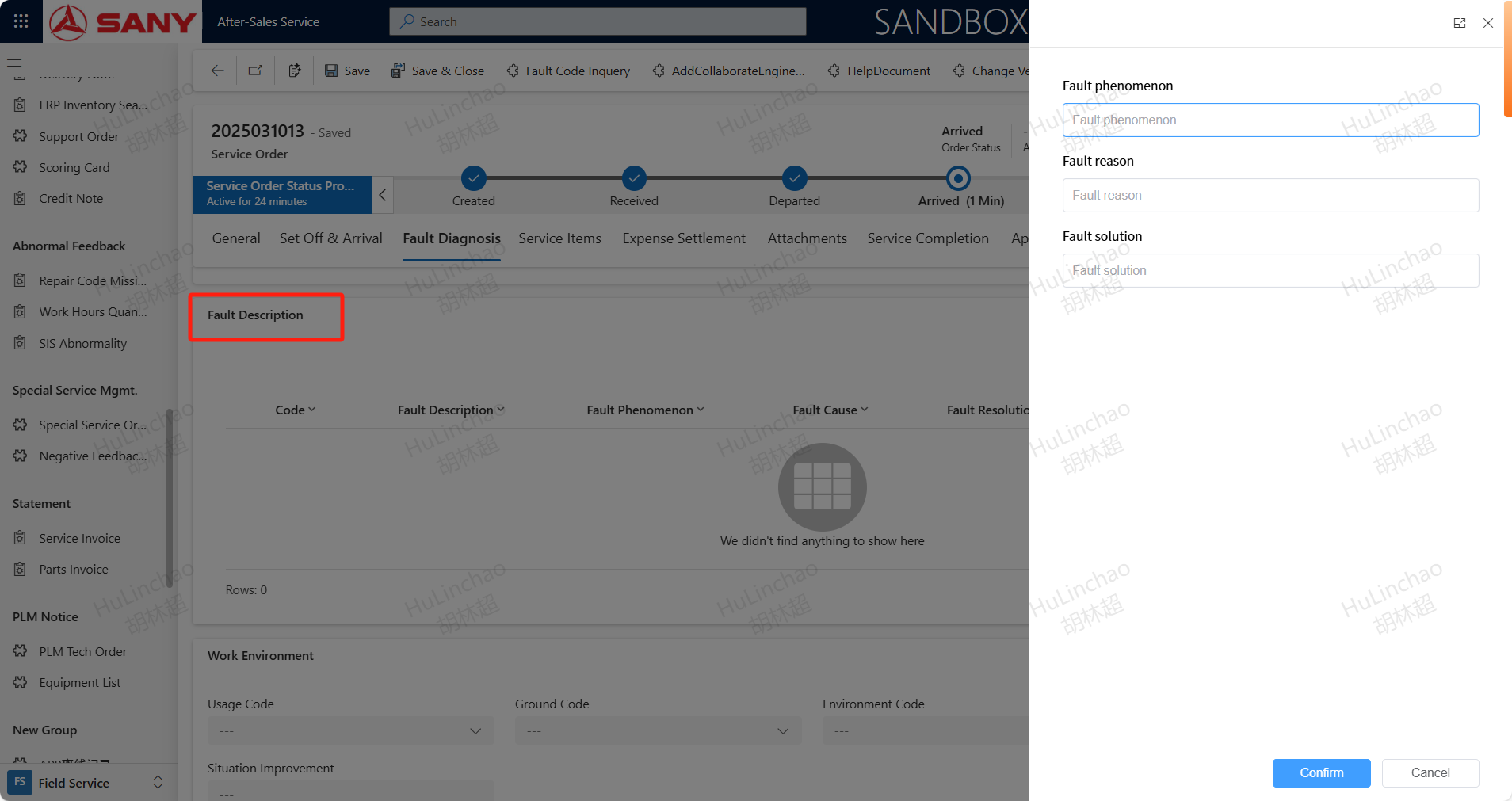
Add Fault phenomenon,Fault reason,Fault solution at Fault phenomenon section
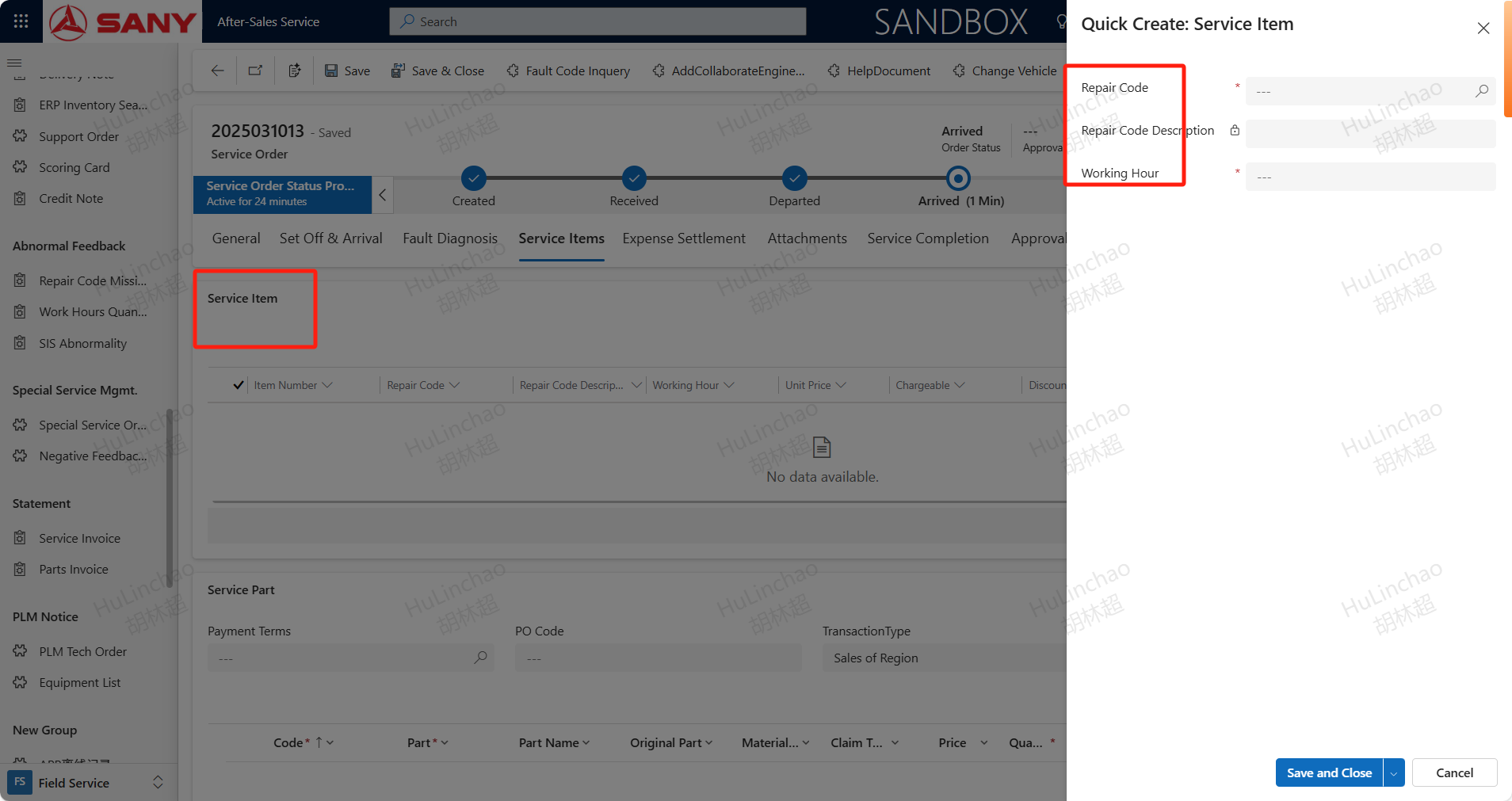
In the Service ltems tab, add maintenance code fees, other expenses, etc. based on the actual situation After adding the fee, please verify if it needs to be charged. If it needs to be charged, please select 'yes' in the' charged 'field, and the unit price and quantity of all fees can be modified
Service Item
click +new Service Item,input Repair Code,Working Hour.Repair Code is synchronized from domestically based on the product group of the equipment.If there is currently no corresponding repair code, other expenses can be temporarily used as a substitute;
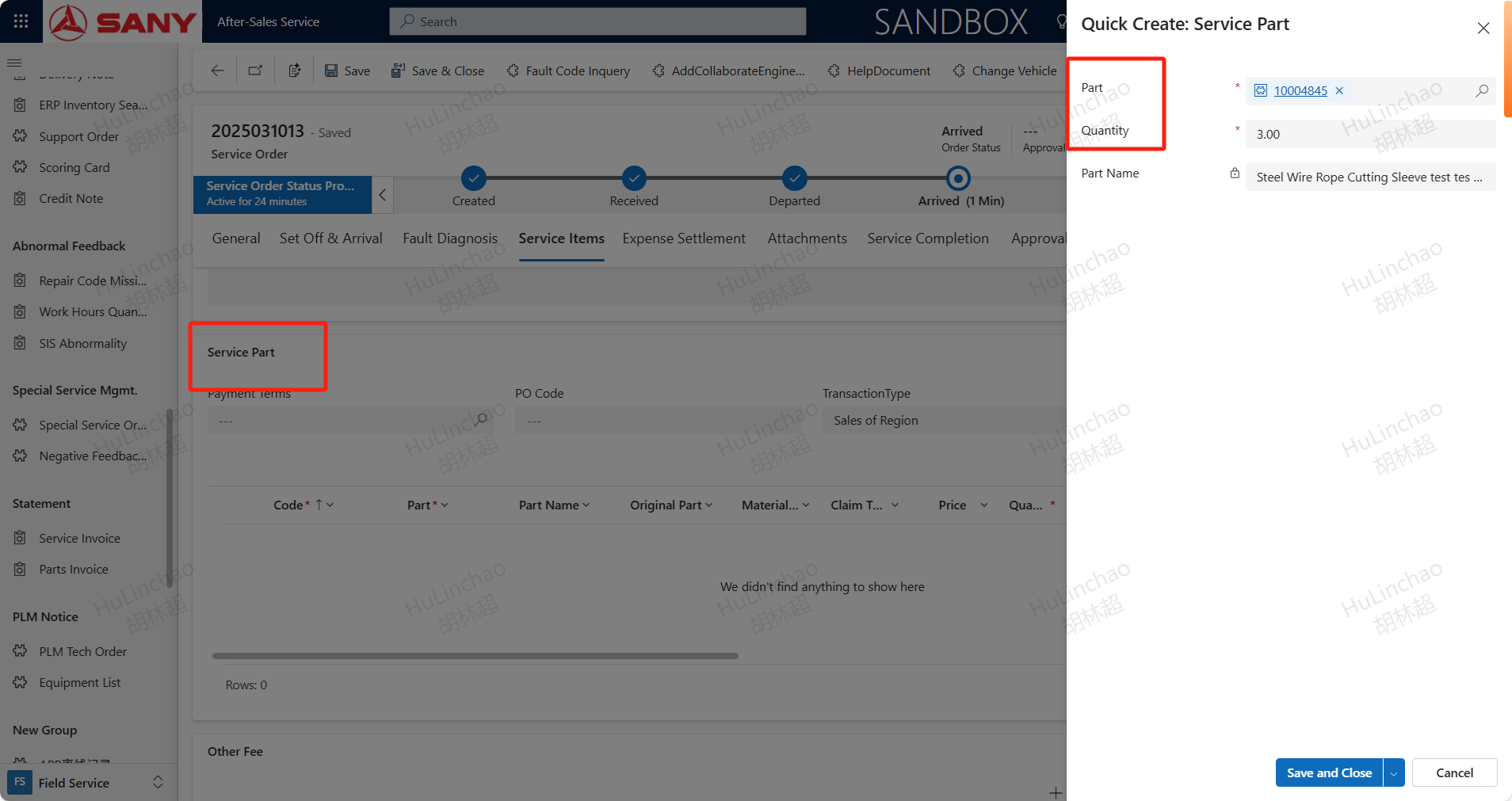
Service Part
Select correct TransactionType and Currency,the Service Part will be synced from plm tech order,you can also click +New Service Part to add more spare parts if you need.
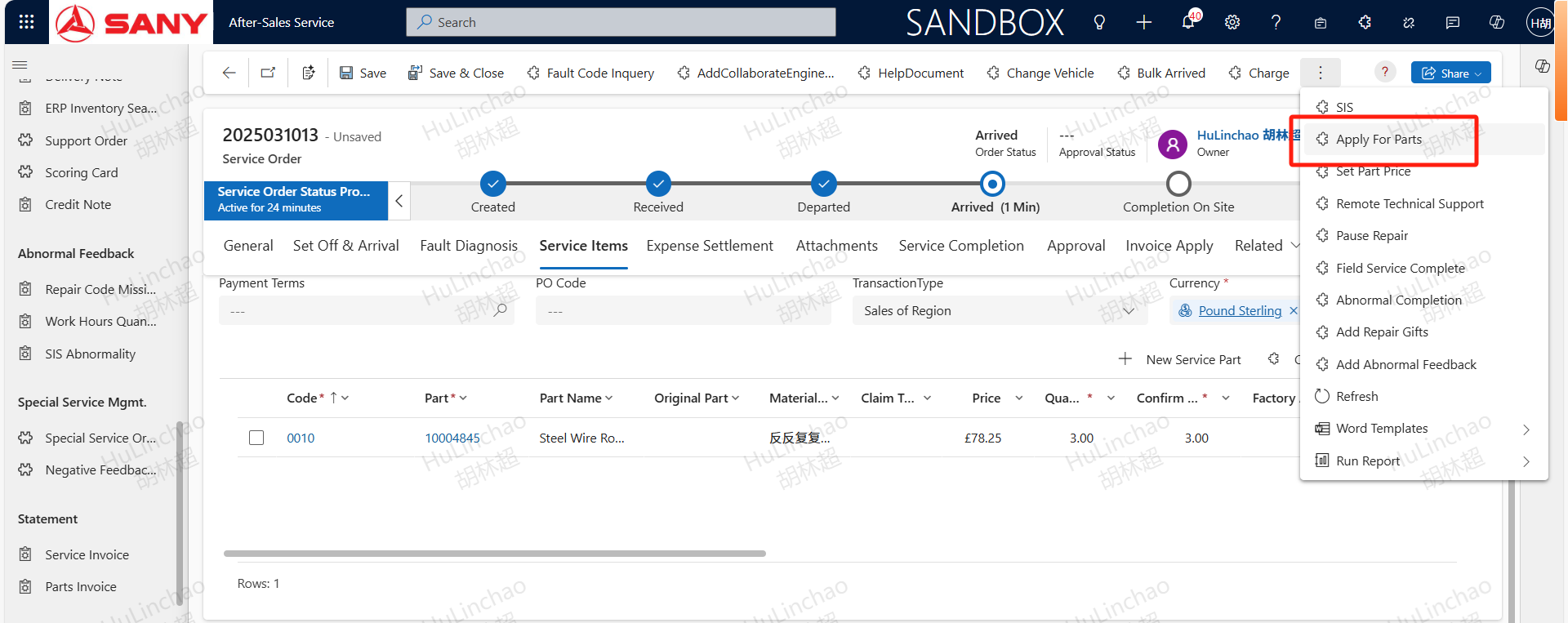
Apply For Parts
After adding the necessary accessories for this technical renovation and completing the information such as accessory prices and quantities, click the "Apply For Parts" button to proceed with the material requisition and borrowing process. After submission, the material requisition and borrowing application can be found in the relevant section. The application for material requisition and borrowing can be found in the material requisition and borrowing manual.
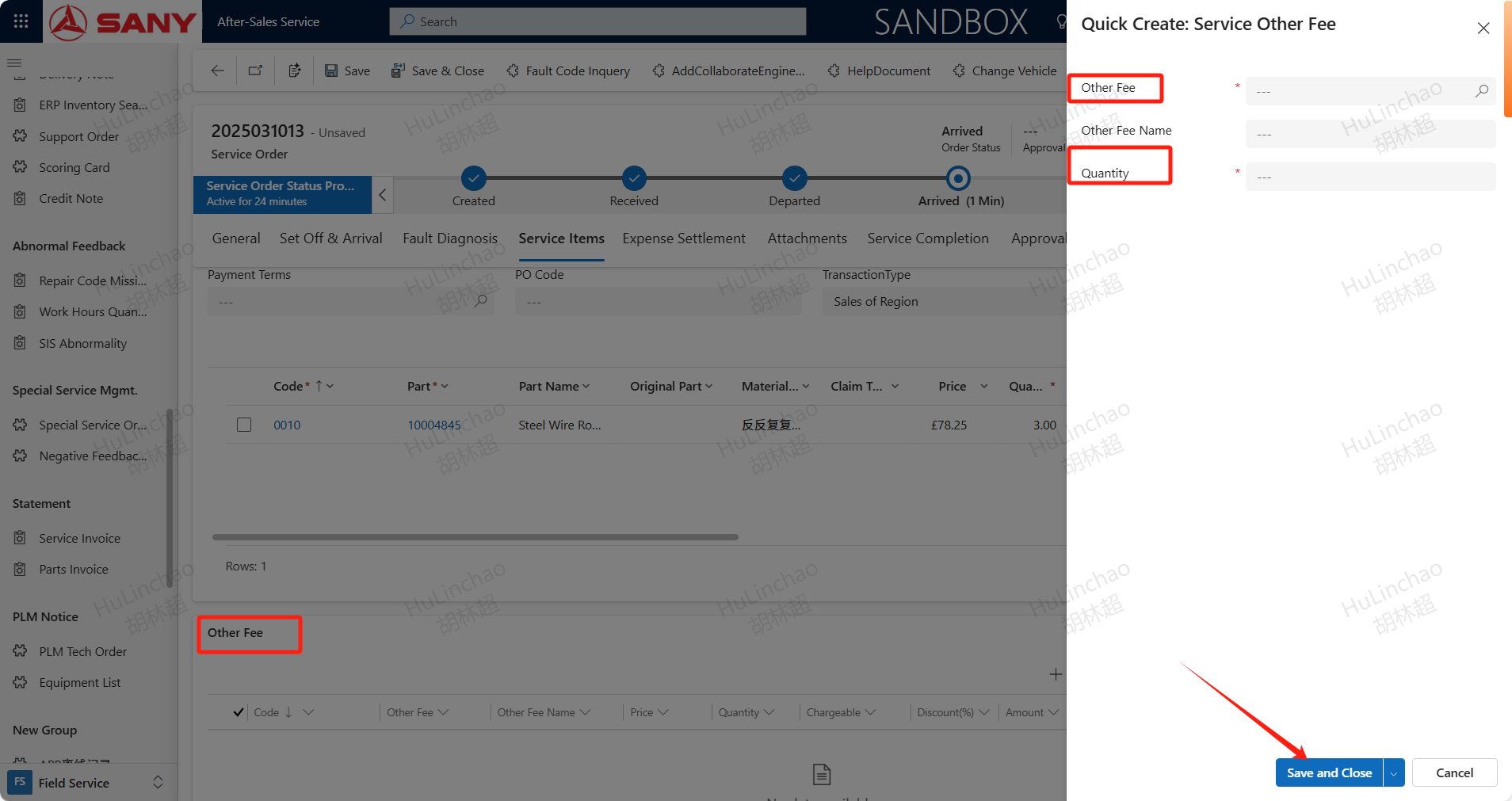
Other Fee
Click +New Service Other Fee+,input Other Fee and Quantity,Save and Close
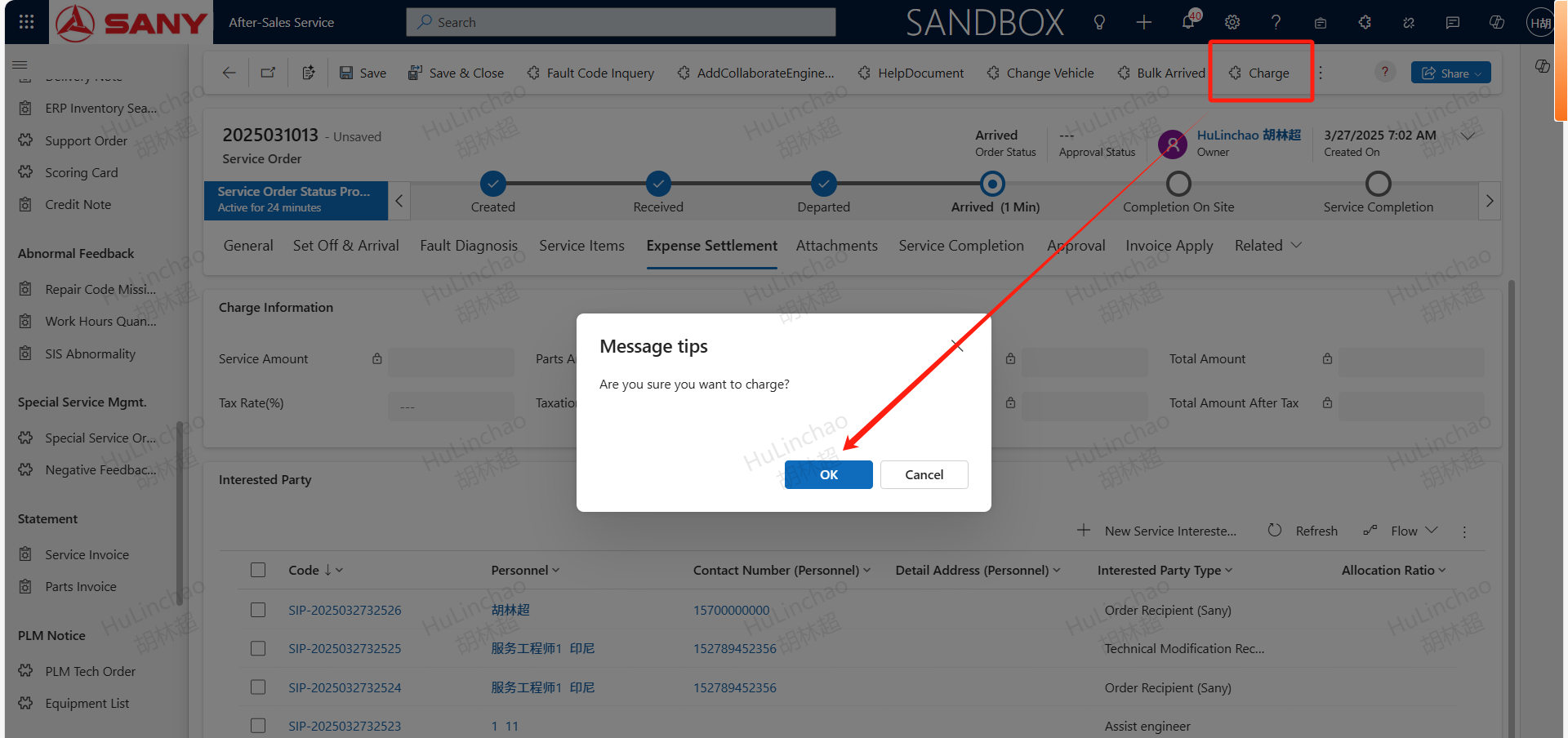
Charge
After Service Item,Service Part,Other Fee adding,click Charge button to calculate the fee.For charged orders, taxes, accounts receivable (excluding tax), and total after tax amount will be calculated based on the entered tax rate (%). However, as shown here, the actual taxes will be calculated by the ERP system, and CRM will only synchronize the total net amount to the ERP.
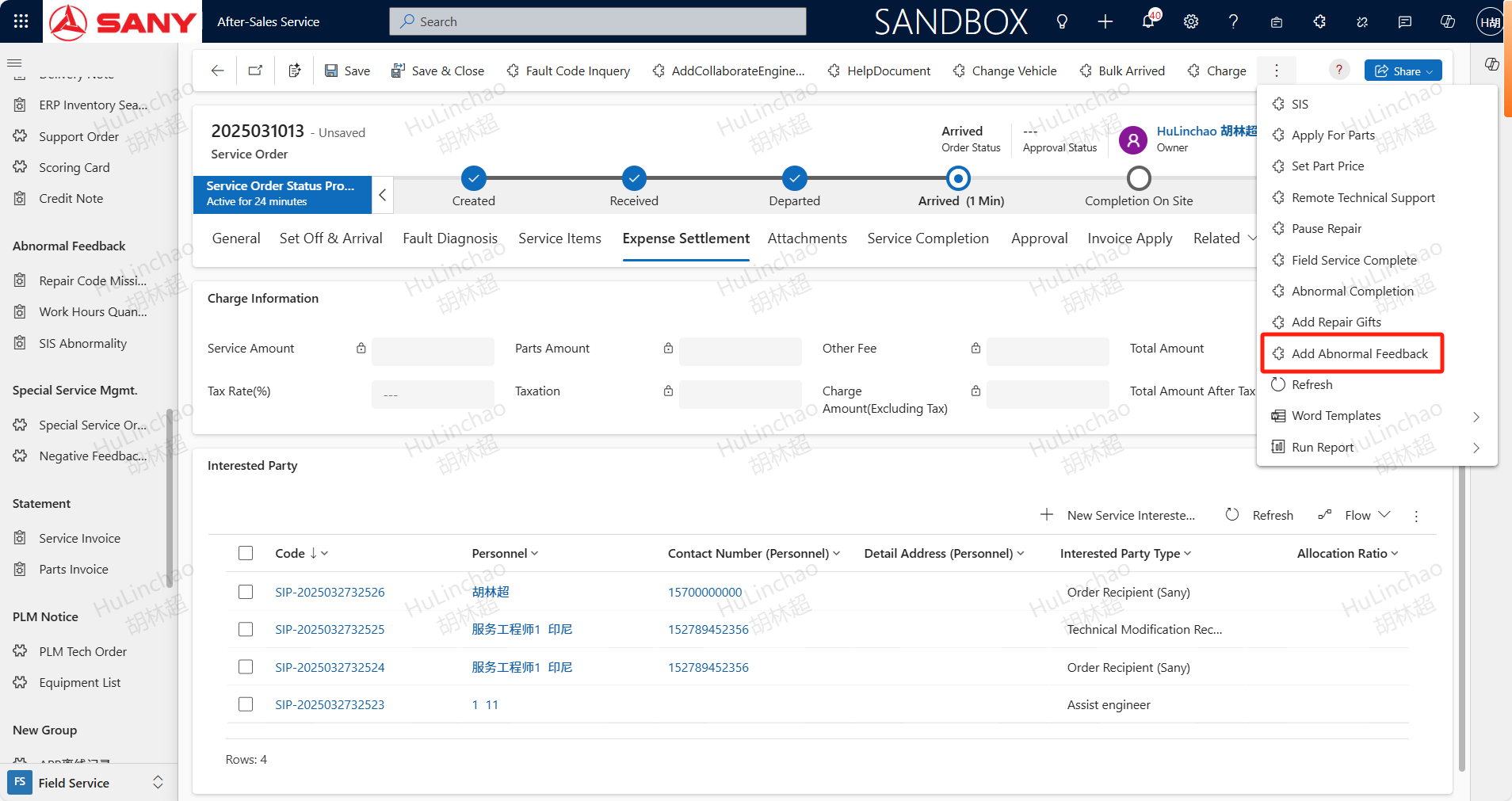
Add Abnormal Feedback
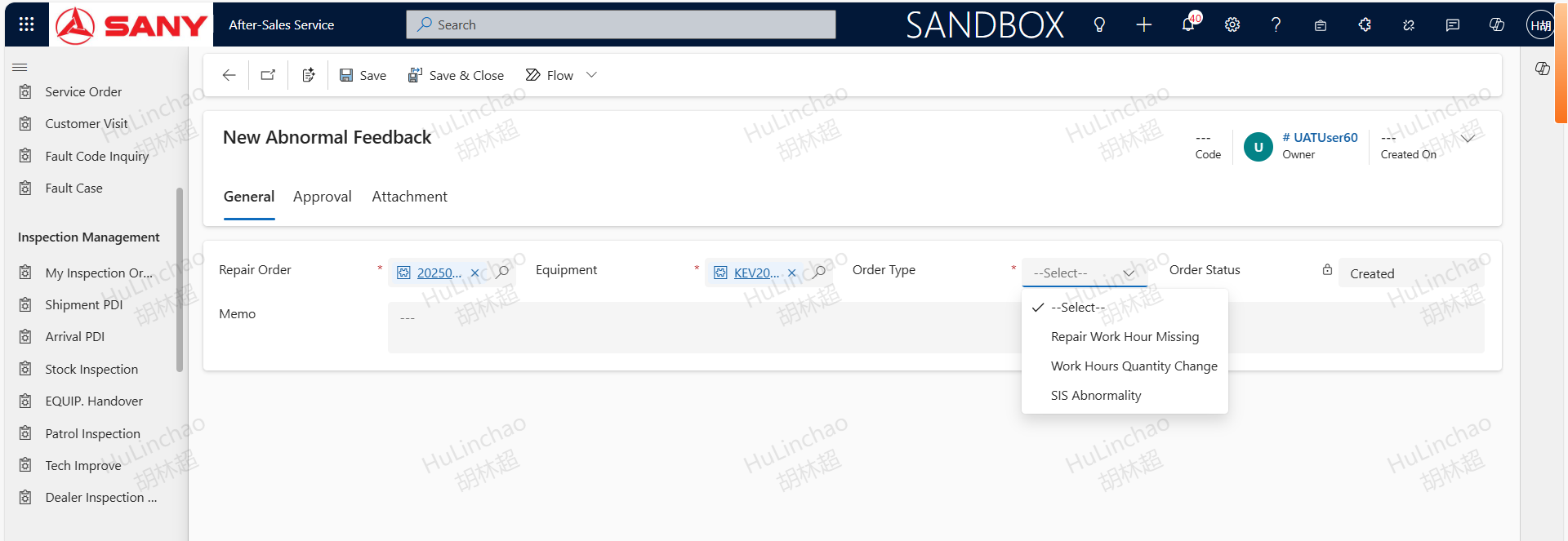
If abnormalities are found in the system configuration maintenance hours, quantity, and SIS catalog during the technical renovation process, they can be maintained by creating abnormal feedback. After creation, repair orders and equipment will be automatically imported from the service order. Select the type of document that needs to be maintained: missing repair hours, adjustment of work hours quantity, or SIS catalog exception. Different types require different information to be maintained.
Field Service Complete
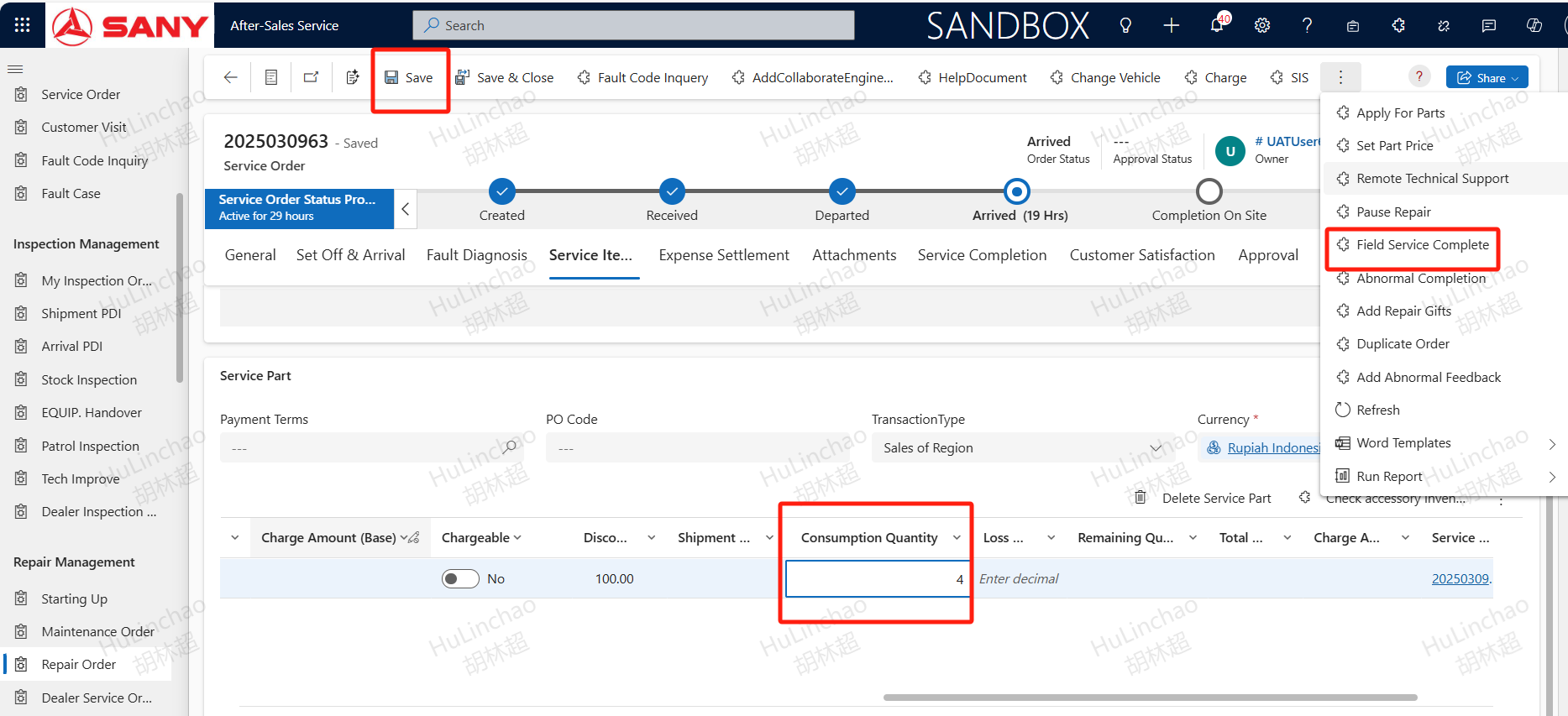
After completing the on-site service work, fill in the actual quantity of accessories consumed, click Field Service Complete button, and proceed with on-site completion
Service Completion
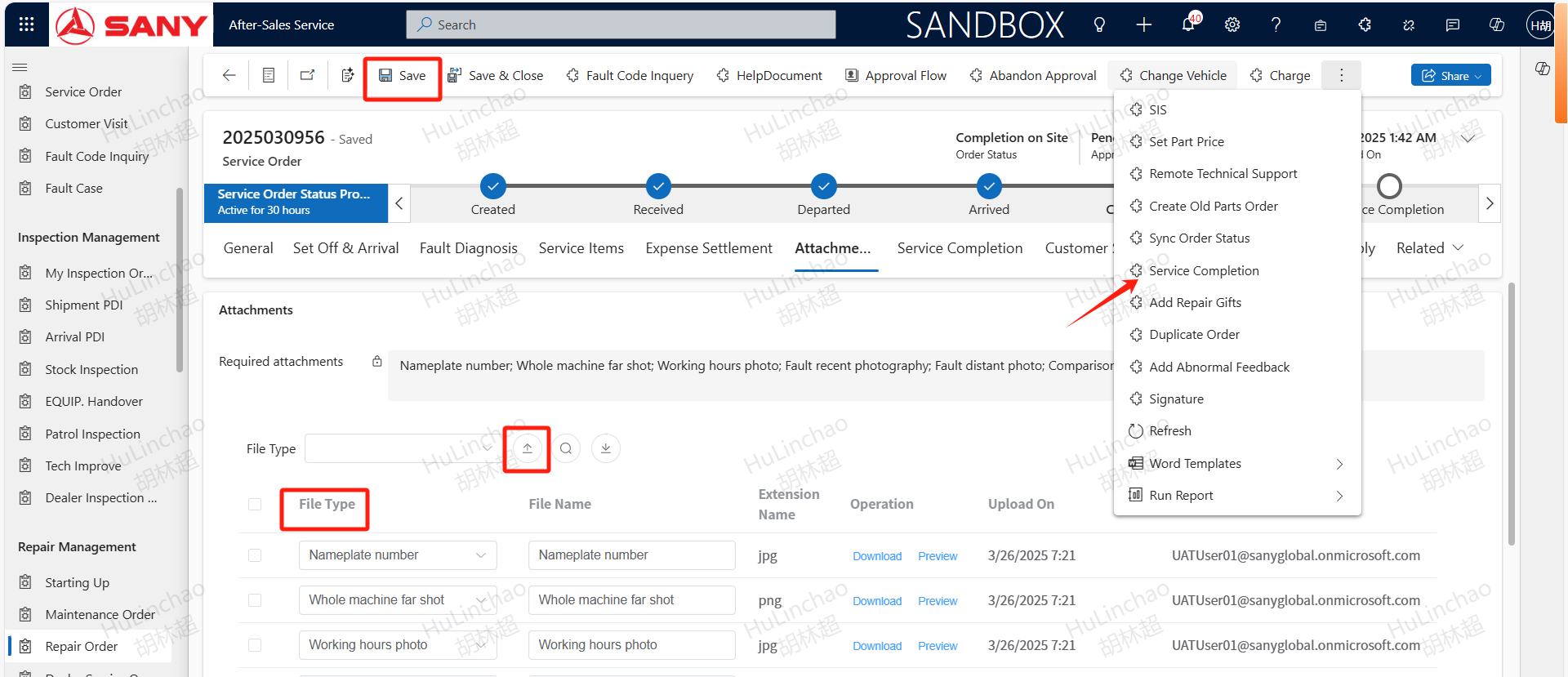
In the attachment tab, upload the required photos before completion, select the correct file type, save and click the service completion button to submit for service completion approval.